Set up the Apstra Virtual Assistant
The Apstra Virtual Assistant leverages the AI Assistant within your Apstra instance. The Apstra Virtual Assistant helps you learn more about the status of your network as well as understand and analyze any current anomalies that might be occurring in your network. You can bring your own Large Language Model (LLM) and integrate it with an Apstra instance. You can then access the Apstra VIrtual Assistant within the Juniper Apstra Data Center Director UI.
This feature has been classified as a Juniper Apstra Technology Preview feature. These features are "as is" and voluntary use. Juniper Support will attempt to resolve any issues that customers experience when using these features and create bug reports on behalf of support cases. However, Juniper may not provide comprehensive support services to Tech Preview features.
For additional information, refer to the Juniper Apstra Technology Previews page or contact Juniper Support.
The following sections are included in this topic:
Access the Apstra Virtual Assistant
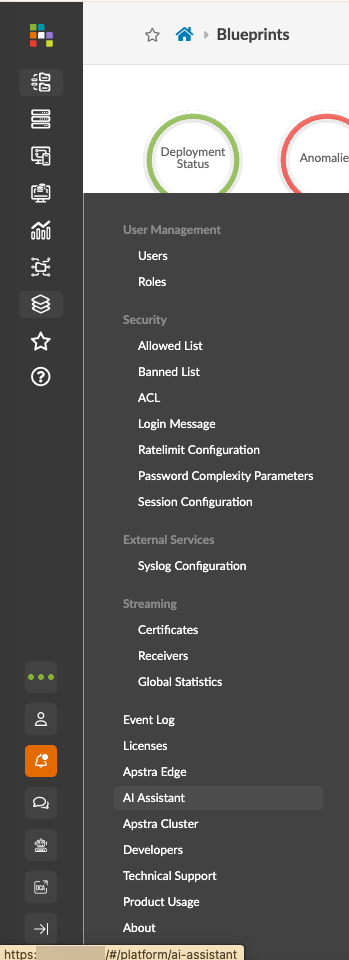
There are two ways you can access the Apstra Virtual Assistant.
You can navigate from the Platform icon and then click AI Assistant.
Or you can click the AI Assistant icon to access the AI Assistant.
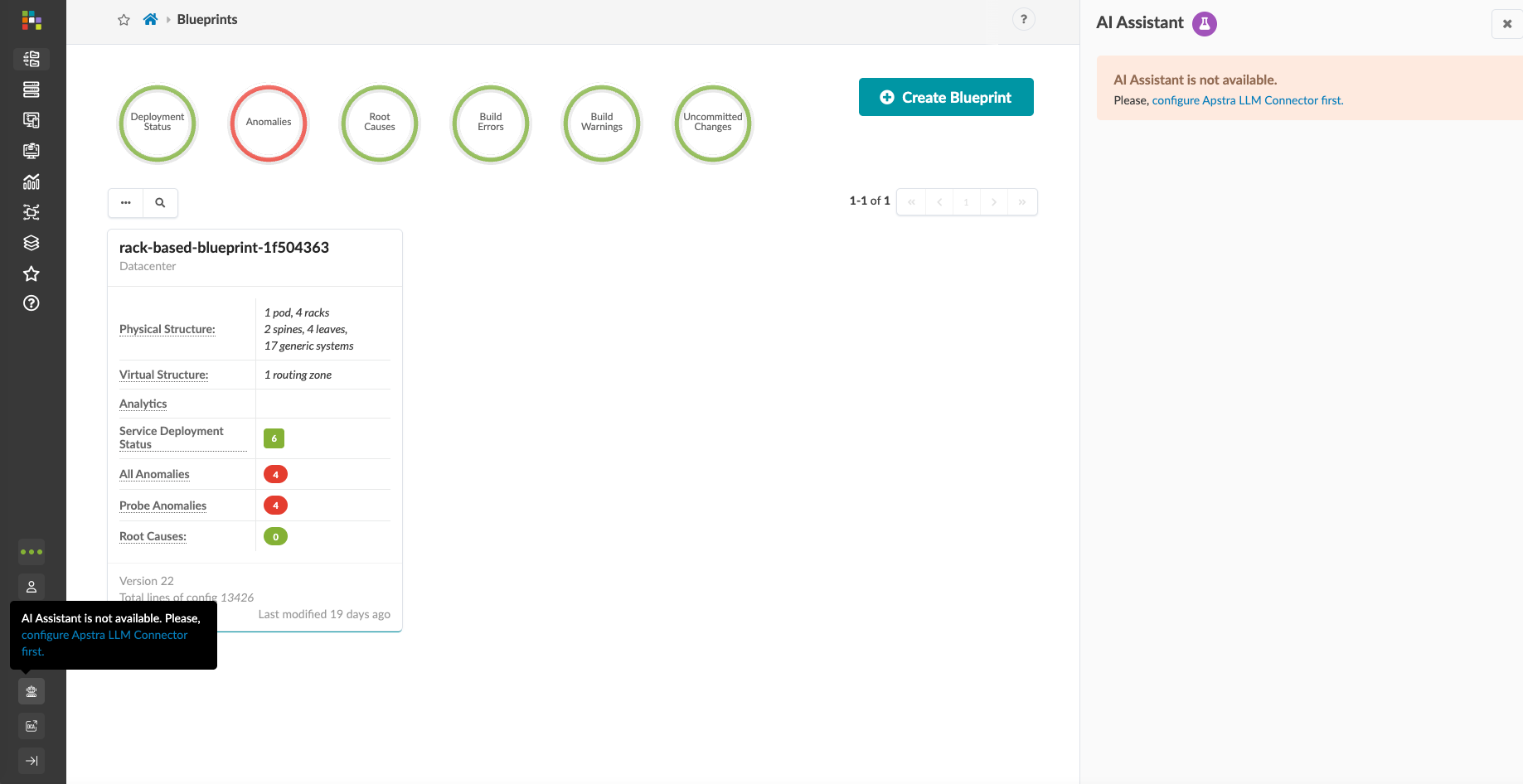
Configure theApstra LLM Connector.
.Before you can access the AI Assistant, you need to configure the first.
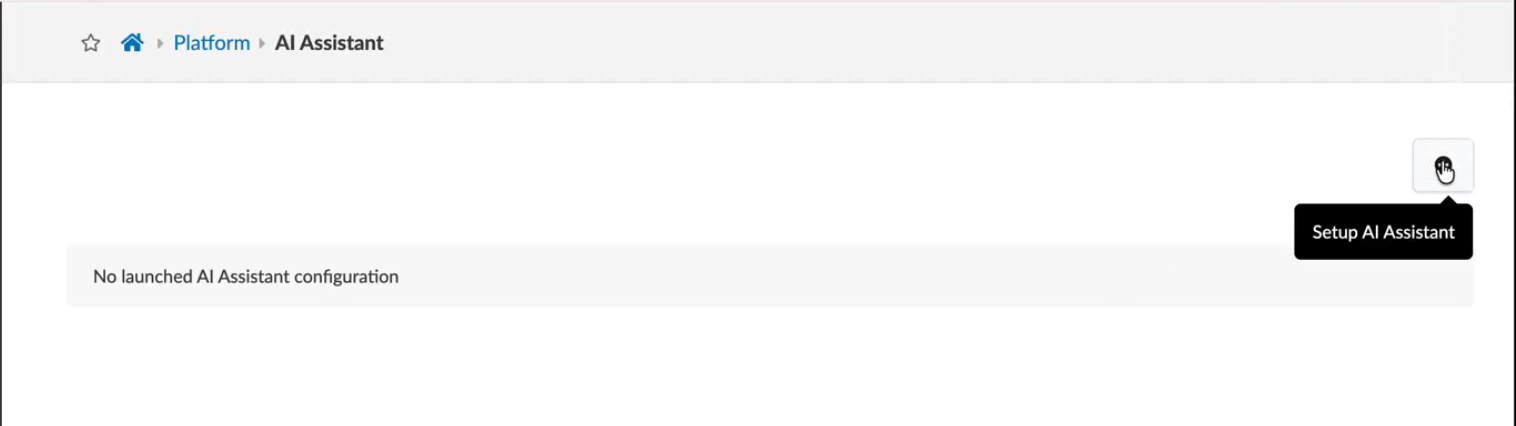
You can click Configure Apstra LLM Connector first below the AI Assistant icon or on the upper right-hand corner under AI AssistantClick the + icon to set up the AI Assistant.
- Choose the LLM
- Configure Azure Parameters
- Configure AWS Parameters
- Configure Ollama Parameters
- Check Container Status
- Licensing
- Use the Apstra Virtual Assistant
Choose the LLM
Select which LLM you're going to use. You can select either Azure, AWS, or Ollama from the Choose LLM drop-down window.
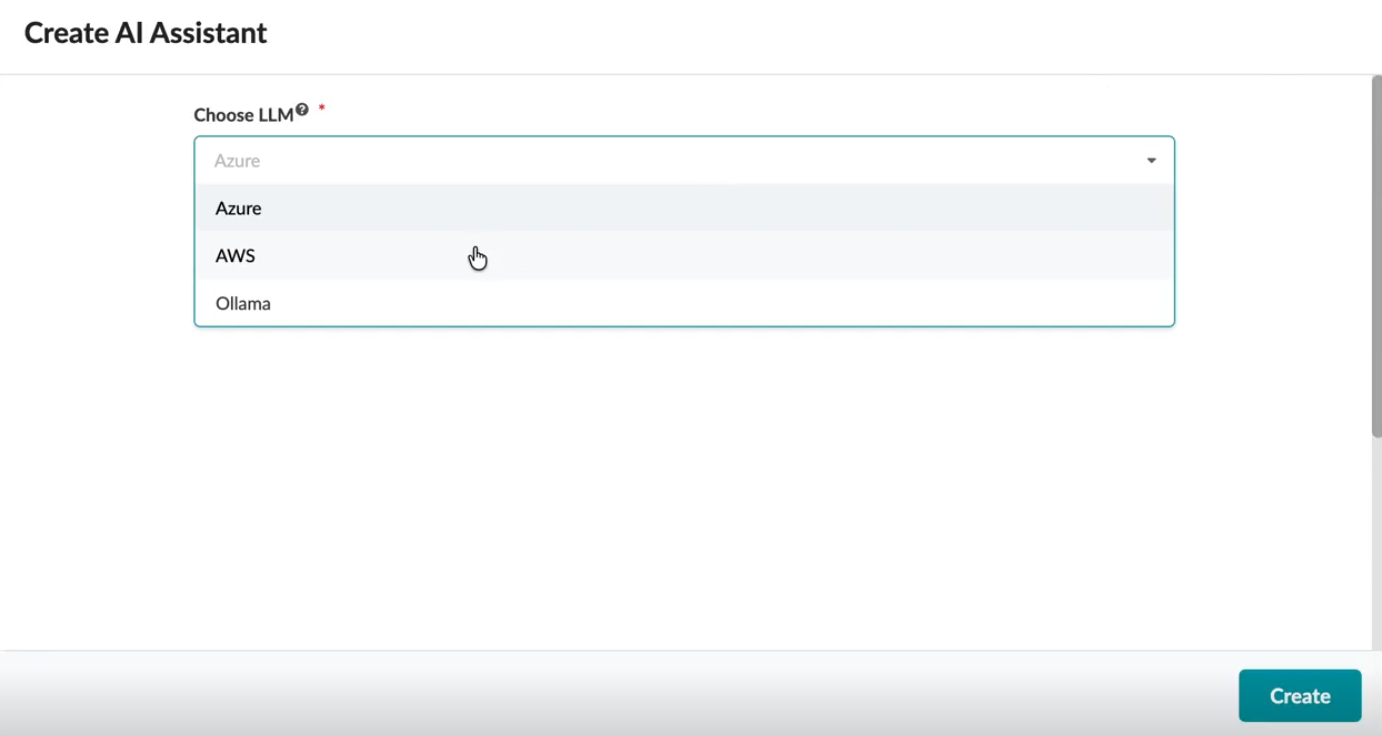
Configure Azure Parameters
-
Provide values for the following LLM parameters and then click Create.
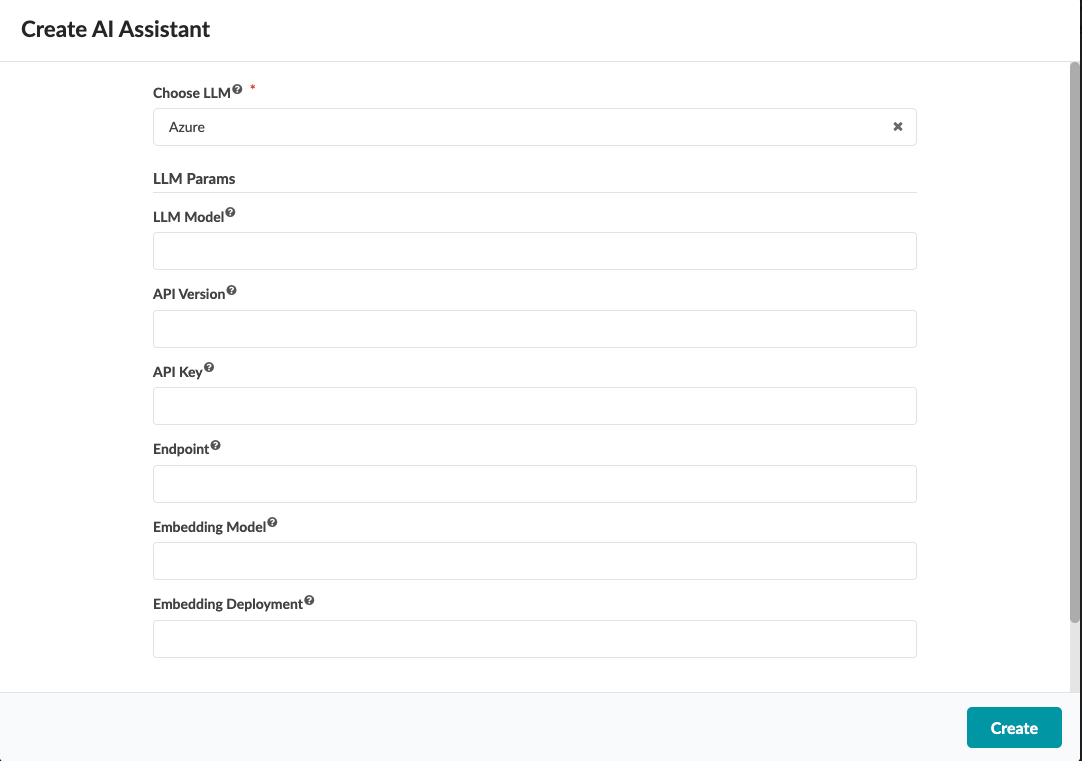
Here are the definitions for the parameters:
-
LLM Model
Type of LLM model you're using.
-
API Version
Include the version of the API you're using as part of your LLM model.
-
API Key
Secret identifier you use to authenticate and authorize a user or a program that interacts with the API.
-
Endpoint
Specific URL where an API receives, requests, and sends responses.
-
Embedding Model
Type of machine learning model used to map data, like text, audio, and images into a common vector space.
-
Embedding Deployment
Machine learning models that generate embeddings. Embeddings can be numerical representations of data that capture semantic meaning.
-
Click Create.
Here are the parameters you configured.
If you want to edit these parameters, click the pencil icon:
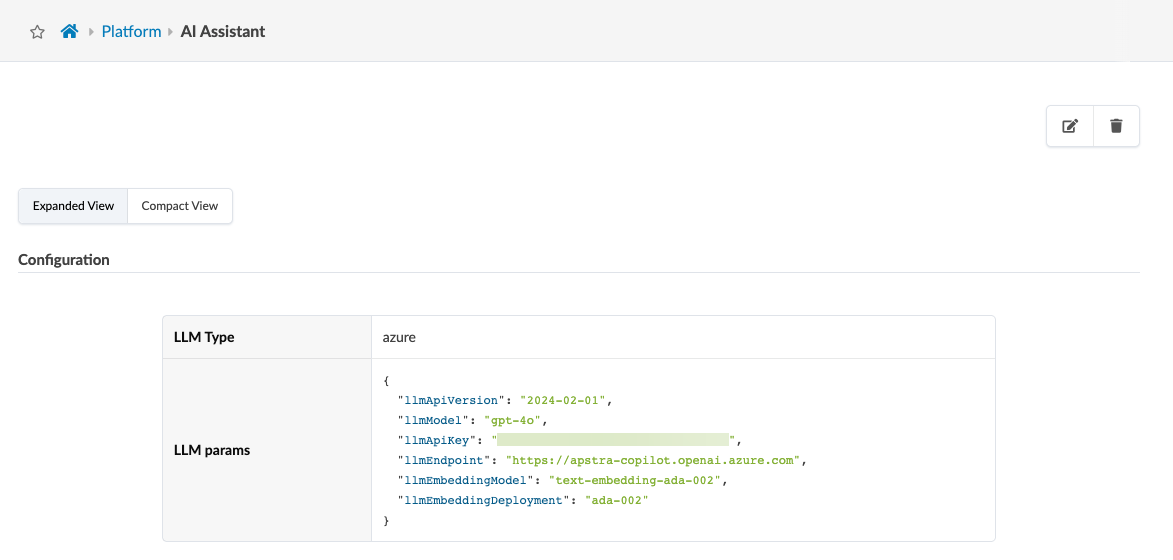
After you click the pencil icon, you will see this screen:
If you want to delete the configuration, click the trash can icon.
After you click the trash can icon, you will see this screen:
-
Configure AWS Parameters
For AWS, provide values for the following LLM parameters.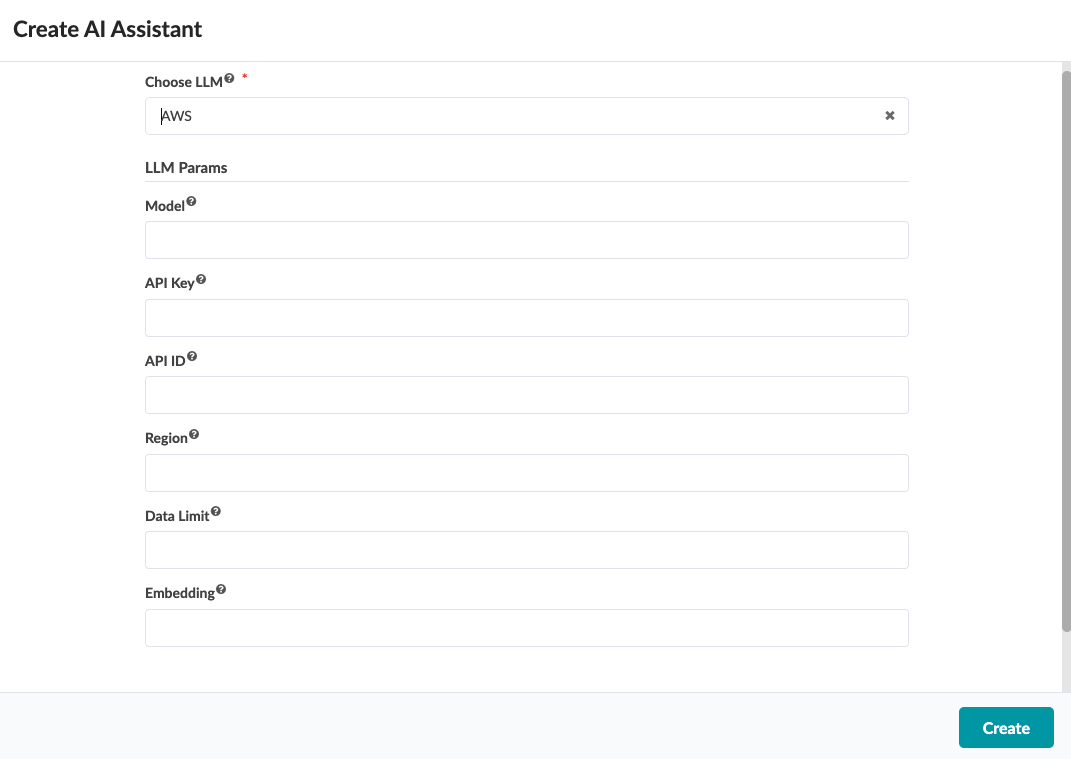
Here are the definitions for the parameters:
-
Model
Type of LLM model you're using.
-
API Key
Version of the API you're using as part of your LLM model.
-
API ID
Secret identifier you use to authenticate and authorize a user or a program that interacts with the API.
-
Region
List of available AWS Regions and their opt-in status.
-
Data Limit
Type of machine learning model used to map data, like text, audio, and images into a common vector space.
-
Embedding
Deploys machine learning models that generate embeddings. Embeddings can be numerical representations of data that capture semantic meaning.
Click Create.
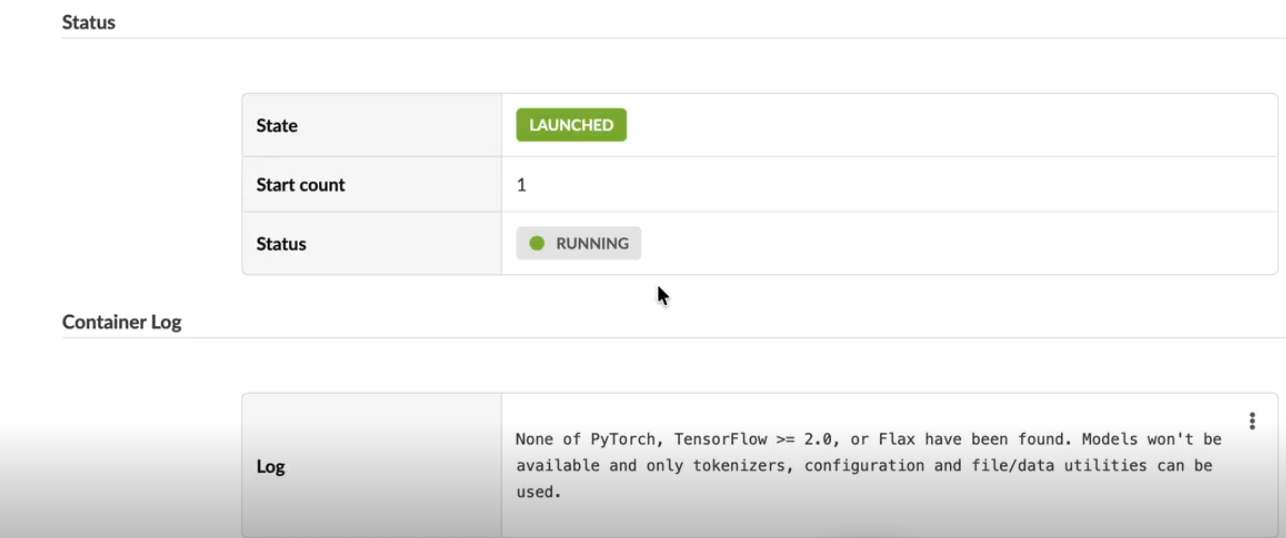
The AI Assistant is launched. You can use the information in the log file to troubleshoot any issues you might experience while interacting with the AI Assistant.
Configure Ollama Parameters
For Ollama, provide values for the following LLM parameters.
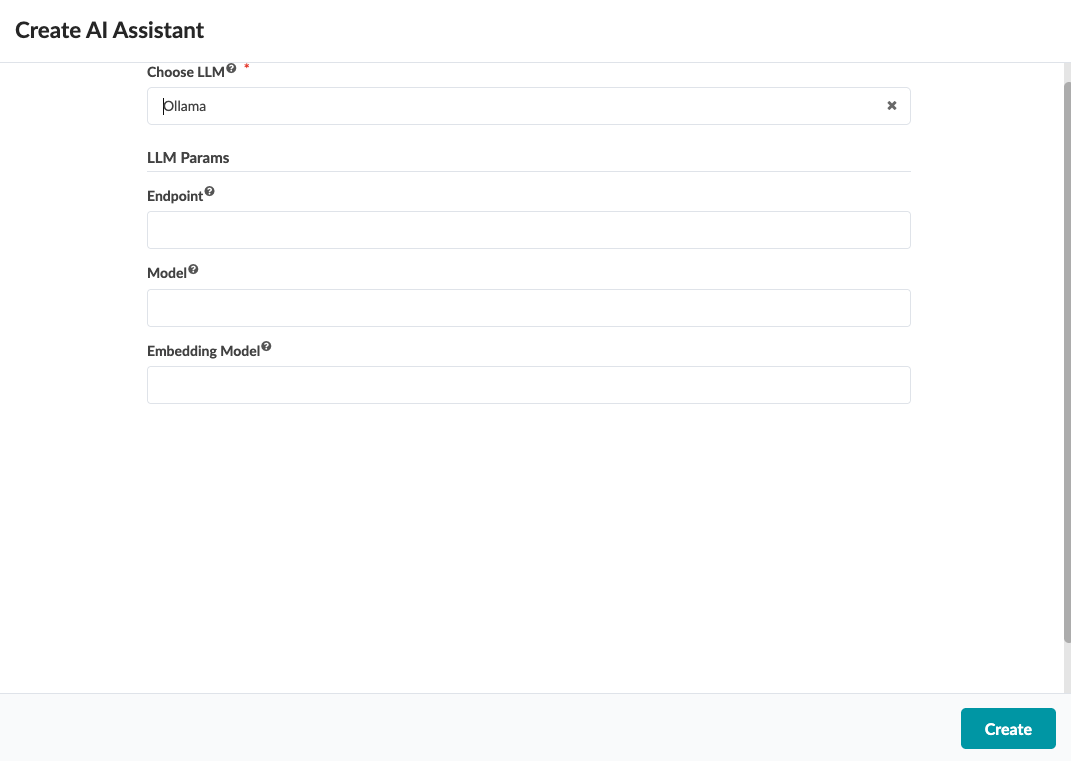
Here are the definitions for the parameters:
-
Endpoint
Specific URL where an API receives, requests, and sends responses.
-
Model
Type of LLM model you're using.
-
Embedding Model
Machine learning model that generate embeddings. Embeddings can be numerical representations of data that capture semantic meaning.
Click Create.
Check Container Status
The Configuration row is populated with the parameter values, and the Status row provides the status of the container.
The LLM Type is Azure, and the Azure parameters are populated in the LLM params table.
If you haven't configured the LLM parameters, the chat window provides a link to redirect you to the Platform | AI Assistant screen.
Here are the definitions for the parameters:
-
The Status section shows that the State of the Apstra Virtual Assistant is queued.
The State indicates if the container is still coming up (queued), or if it is fully up and running (Launched).
-
The Start count is 1.
Start count indicates how many attempts it took to start the container.
-
The Status is running. Status indicates if the container is running or not.
Licensing
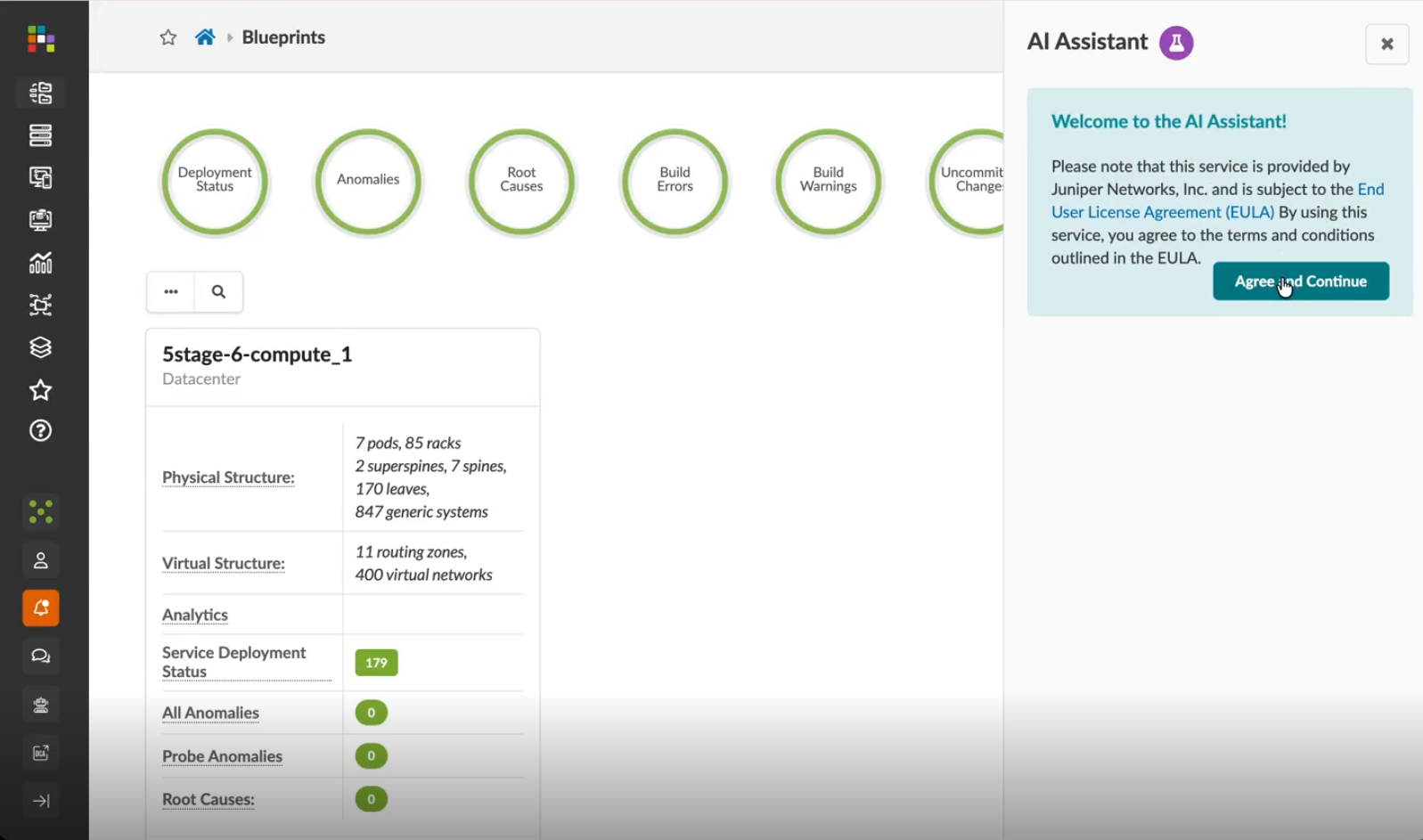
The Welcome to the Assistant! dialog box provides licensing information. Click Agree and Continue.
Use the Apstra Virtual Assistant
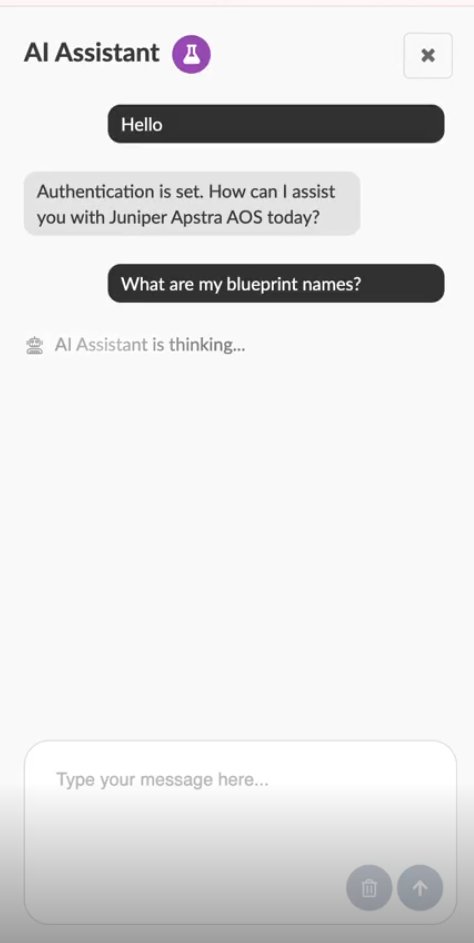
On the right-hand corner of the screen, you can enter any questions you have.
If you want to delete what you've written, click the small trash
icon. If you want to submit what you've written, click the up arrow.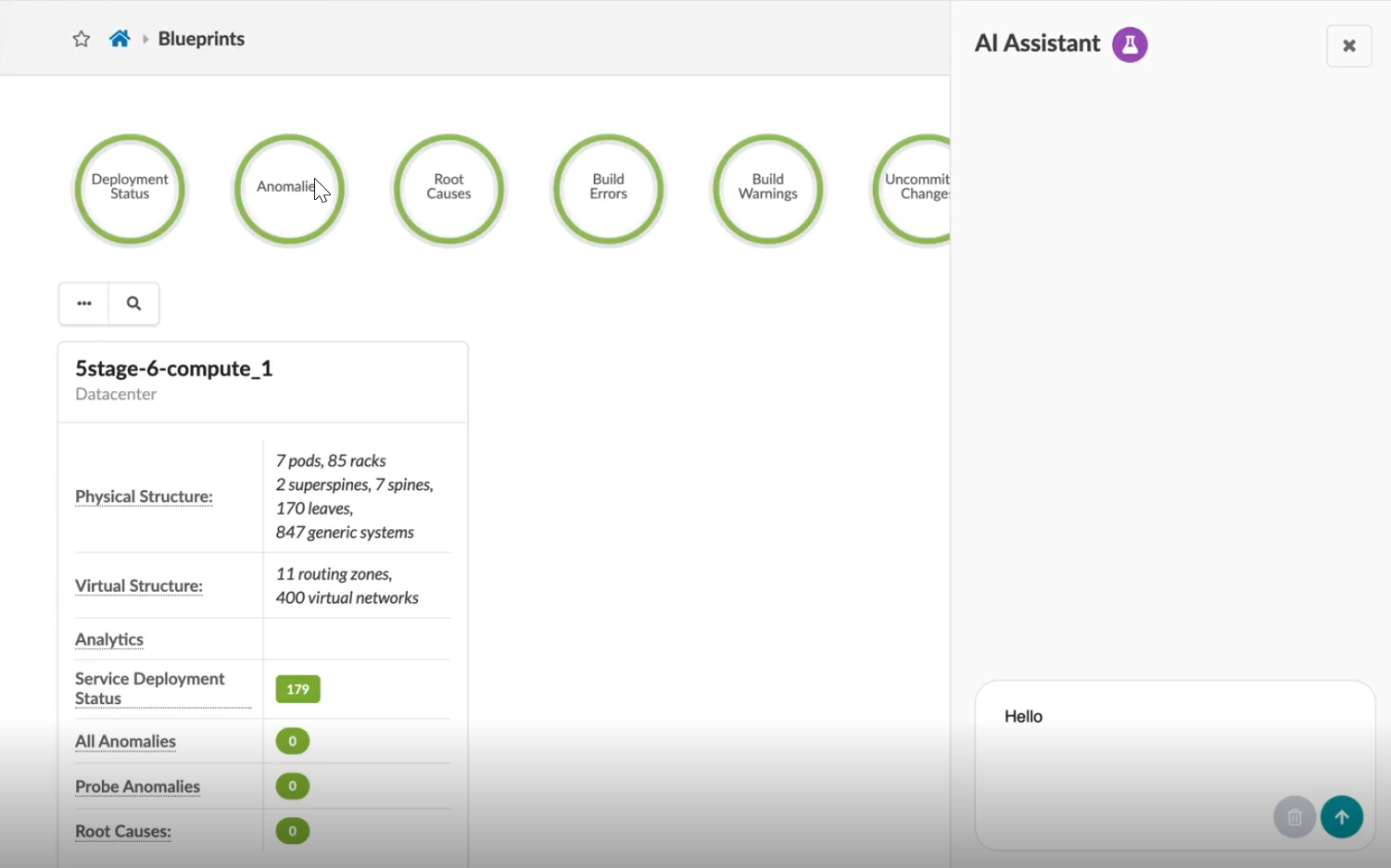
This screen shows that authentication has been set.
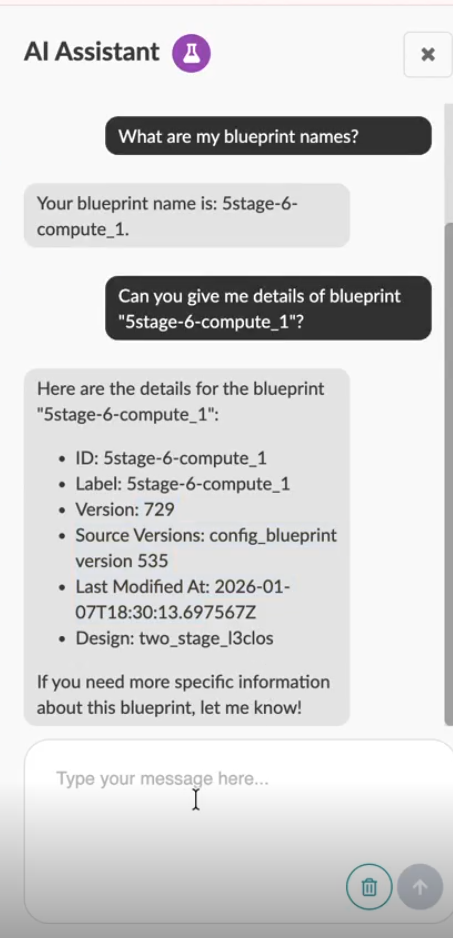
Now you can ask the AI Assistant questions. I've asked two questions: