Create Offbox Agent
Before installing offbox agents, make sure to do the following:
-
Confirm that the server VMs have enough space for an additional offbox agent. If not, add a VM. For more information, see Apstra Cluster Nodes.
-
Add login credentials for the devices.
-
Configure management IP connectivity between devices and the Apstra server.
Starting in Apstra 6.1, you can enable IPv6-based management for your devices. For more information, see Enabling IPv6-Based Management of the Apstra Cluster and Devices.
You must do this before installing agents so it’s out-of-band (OOB). Configuring management connectivity in-band (through the fabric) is not supported and could cause connectivity issues when changes are made to the blueprint.
-
Upload required packages.
-
If you're using Juniper offbox agents, increase the application memory usage.
-
Configure the minimum configuration on your devices as shown below, as
applicable:
Juniper Junos Offbox Agent Minimum Configuration
system { login { user aosadmin { uid 2000; class super-user; authentication { encrypted-password "xxxxx"; } } } services { ssh; netconf { ssh; } } management-instance; } interfaces { em0 { unit 0 { family inet { address <address>/<cidr>; } } } } routing-instances { mgmt_junos { routing-options { static { route 0.0.0.0/0 next-hop <management-default-gateway>; } } } }- Juniper Junos OS Evolved Offbox Agent Minimum Configuration
- Cisco NX-OS Offbox Agent Minimum Configuration
- Arista EOS Offbox Agent Minimum Configuration
Juniper Junos OS Evolved Offbox Agent Minimum Configuration
system { login { user aosadmin { uid 2000; class super-user; authentication { encrypted-password "xxxxx"; } } } services { ssh; netconf { ssh; } } management-instance; } interfaces { em0 { unit 0 { family inet { address <address>/<cidr>; } } } } routing-instances { mgmt_junos { routing-options { static { route 0.0.0.0/0 next-hop <management-default-gateway>; } } } }The minimum release version for Junos OS Evolved switches on onbox agents is 22.4R3.
Cisco NX-OS Offbox Agent Minimum Configuration
! feature nxapi feature bash-shell feature scp-server feature evmed copp profile strict nxapi http port 80 ! username admin password <admin-password> role network-admin ! vrf context management ip route 0.0.0.0/0 <management-default-gateway> ! nxapi http port 80 ! interface mgmt0 ip address <address>/<cidr> !
Arista EOS Offbox Agent Minimum Configuration
! service routing protocols model multi-agent ! aaa authorization exec default local ! username admin privilege 15 role network-admin secret <admin-password> ! vrf definition management rd 100:100 ! interface Management1 vrf forwarding management ip address <address>/<cidr> ! ip route vrf management 0.0.0.0/0 <management-default-gateway> ! management api http-commands protocol http no shutdown ! vrf management no shutdown ! -
Some configuration could raise validation errors. Make sure the following
configuration is not on the devices (and any other configuration that
would raise validation errors):
- VLANs other than VLAN 1
- VRFs other than "management"
- Interface IP addresses other than "management"
- Loopback interfaces
- VLAN interfaces
- VXLAN interfaces
- AS-Path access-lists
- IP prefix-lists
- Route maps or policies
- BGP configuration
-
From the left navigation menu, navigate to Devices > Managed
Devices and click Create Offbox
Agent(s).

The Create Offbox System Agent(s) dialog opens.
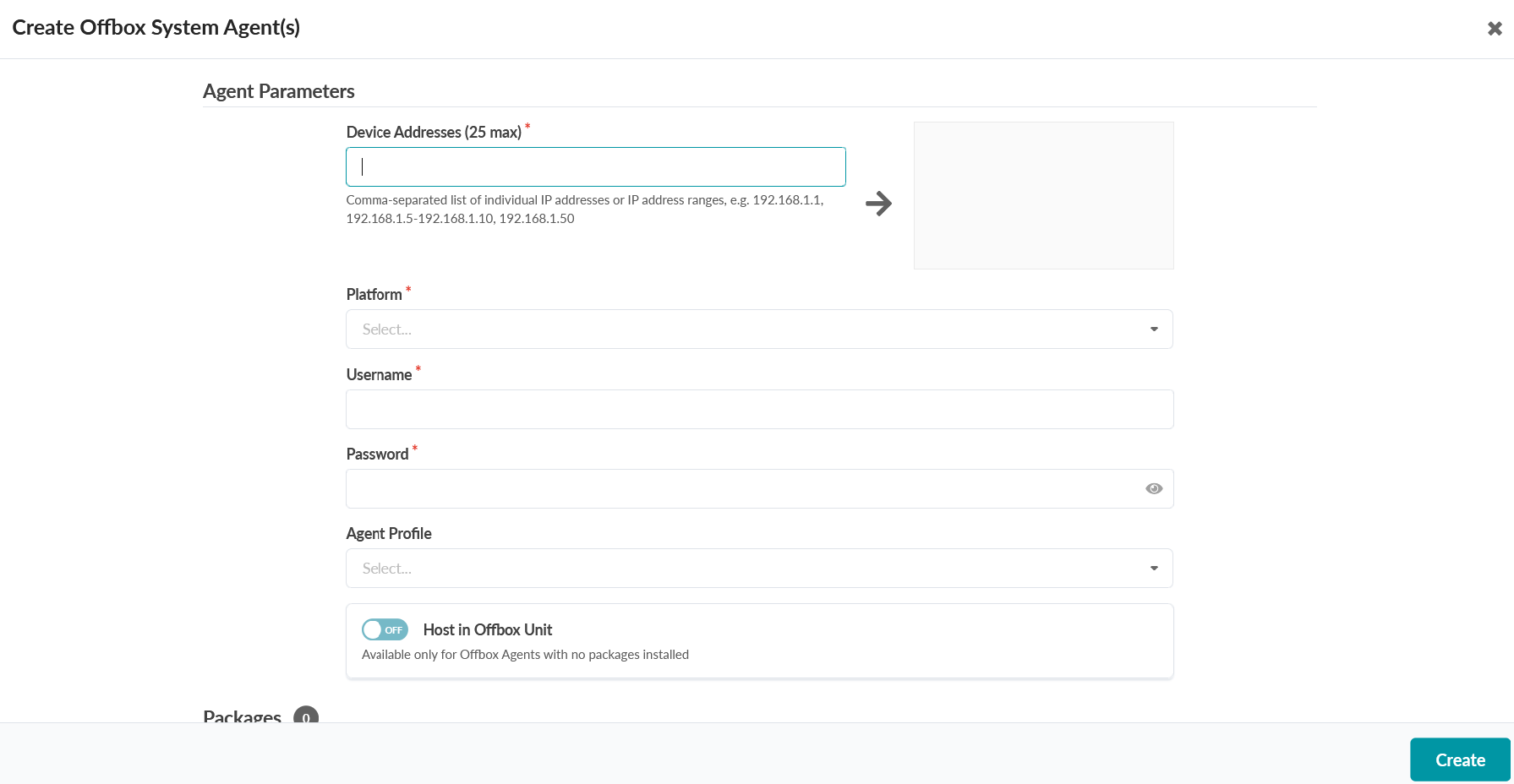
- Enter up to 25 device IP addresses in the Device Addresses field.
- Select the relevant platform from the Platform drop-down list (EOS, Junos, NX-OS.) (Offbox agents are not supported on SONiC).
- If you're not using an agent profile with credentials, enter username and password.
- If you are using agent profiles (that you previously defined), select the agent profile from the Agent Profile drop-down list, so you don't have to manually enter credentials and packages.
-
If you want the offbox agent to manage multiple devices from a single
container, toggle on Host in Offbox Unit. You would
typically toggle on Host in Offbox Unit to optimize
resource usage and scaling in your environment.
You can, by default, manage up to 16 devices from a single container working as an offbox agent when Host in Offbox Unit is on. If you need to change this default number of devices, you should change the value before toggling Host in Offbox Unit to on. We strongly discourage changing the number of managed devices after a host in offbox unit is enabled.
Host in Offbox Unit is only available for offbox agents with no installed packages.
A single container manages each offbox agent when Host in Offbox Unit is off. Host in Offbox Unit is off by default.
You should know the following details around memory impact if you are enabling offbox unit containers:
-
In most scenarios, you can toggle on hosts in offbox units without having to configure any additional memory parameters. The actual memory impact varies by environment.
-
You should be aware of the offbox agent capacity score when enabling containers hosting offbox units. The capacity score is a measure of memory used by a scheduler to distribute containers among cluster nodes. The default capacity cost score for an offbox unit container is 20.
For additional information on capacity scoring, see Apstra Cluster Nodes.
-
If you want to tune your memory to host offbox unit containers, see Change Cluster Application Memory Usage (API).
The Host in Offbox Unit option is currently in Tech Preview and might not work as expected.
-
-
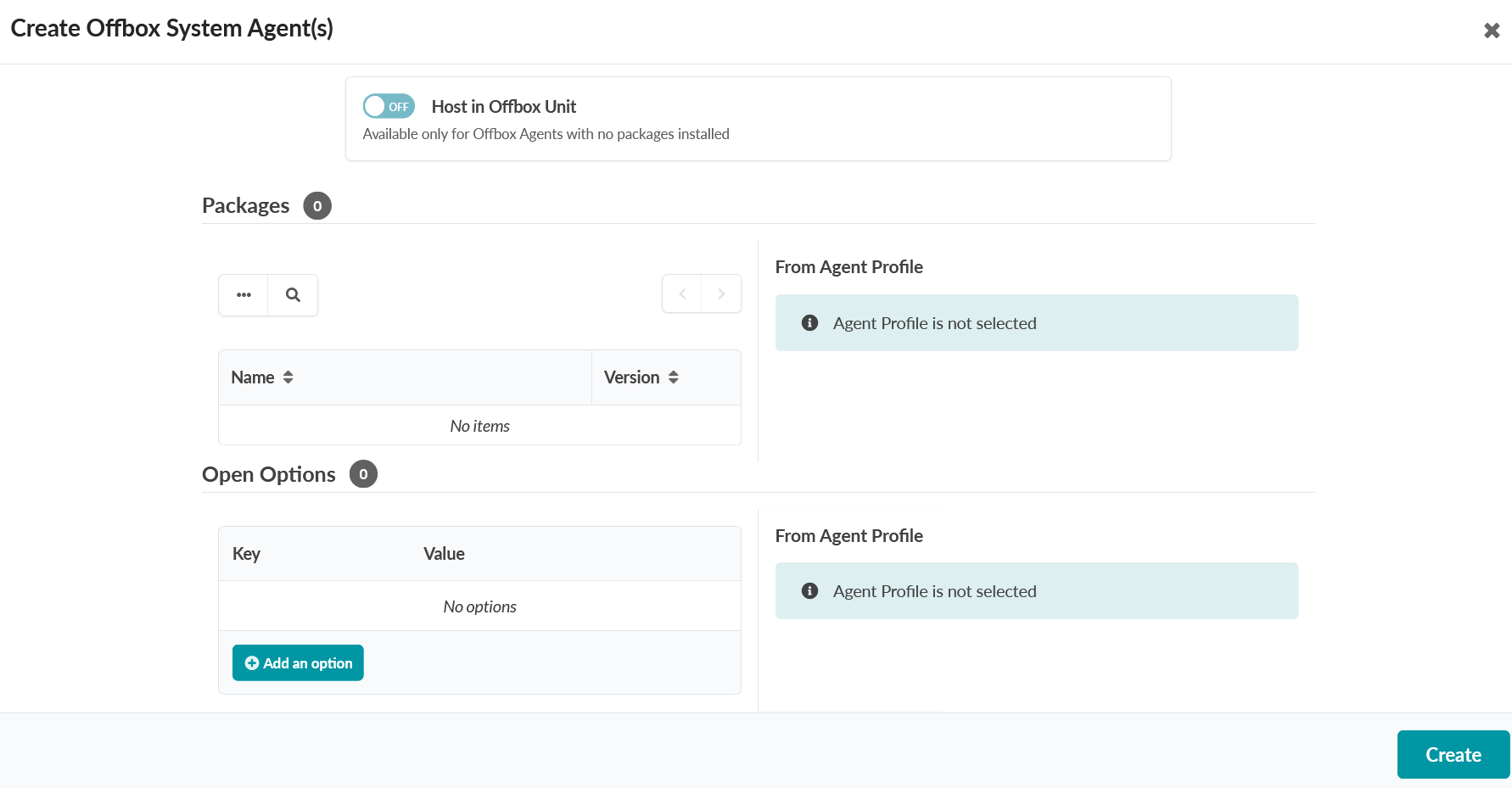
Packages that you've
previously installed appear in the Packages section.
Packages associated with selected agent profiles are listed here as well. Select
packages, as required.
-
Click Create.
During the agent install process, device configuration is validated; if the device contains configuration that could prevent service configuration from deploying, the agent install process raises an error.
In this case, check the device log for error details (Navigate to Devices / Managed Devices, click the three dots in the device's Actions panel (right column), then in the Agent menu click the Show Log button (eyeball).) Manually remove conflicting configuration and start the agent installation process again.
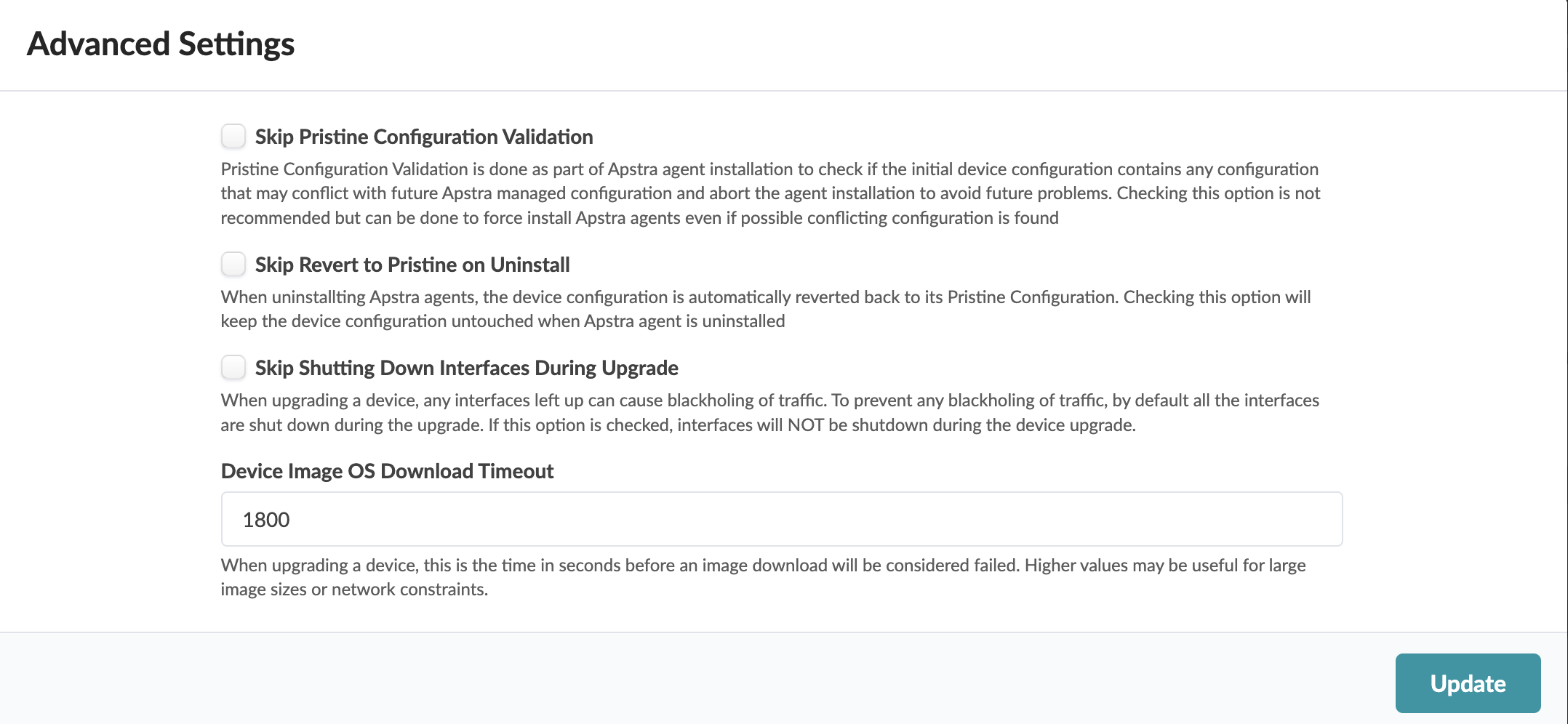
If you must complete the agent installation with configuration validation errors, you can disable pristine configuration validation. To do this, from Devices > Managed Devices, click Advanced Settings (top-right), select Skip Pristine Configuration Validation, then click Update.
For information about retaining pre-existing configuration when bringing devices under Apstra management, see Device Configuration Lifecycle.
Note:On some platforms (Junos for example) you can configure rate-limiting for management traffic (SSH for example). When the Apstra server interacts directly with devices it can be more bursty than when it interacts with a user. Rate-limiting configurations that are used for hardening security can impact device management, and lead to deployment failures and other agent-related issues.
While the task is active you can view its progress at the bottom of the screen in the Active Jobs section. The job status changes from Initialized to In Progress to Succeeded.
-
After the offbox agent is successfully created:
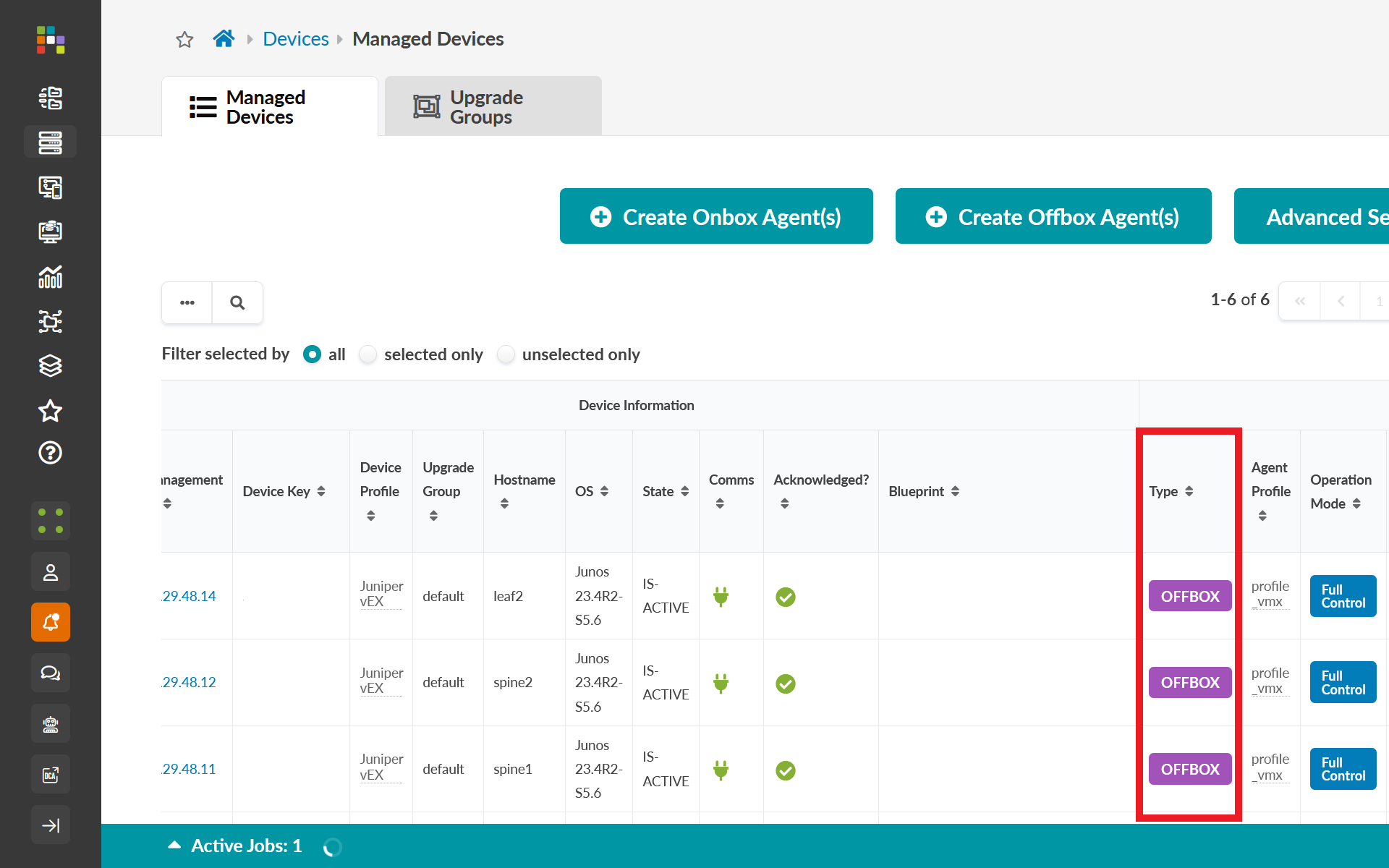
Navigate to Devices > Managed Devices to view the Agent Information table.
You can identify offbox agents in the table using the OFFBOX type in the Type column.
If you created an offbox agent with Host in Offbox Unit toggled on, consider changing the View Options on the Agent Information table to include the Agent Information: Host in Offbox Unit option. The Host in Offbox Unit column verifies if an agent has the option enabled or disabled. The Host in Offbox Unit column is not viewable in the table by default.
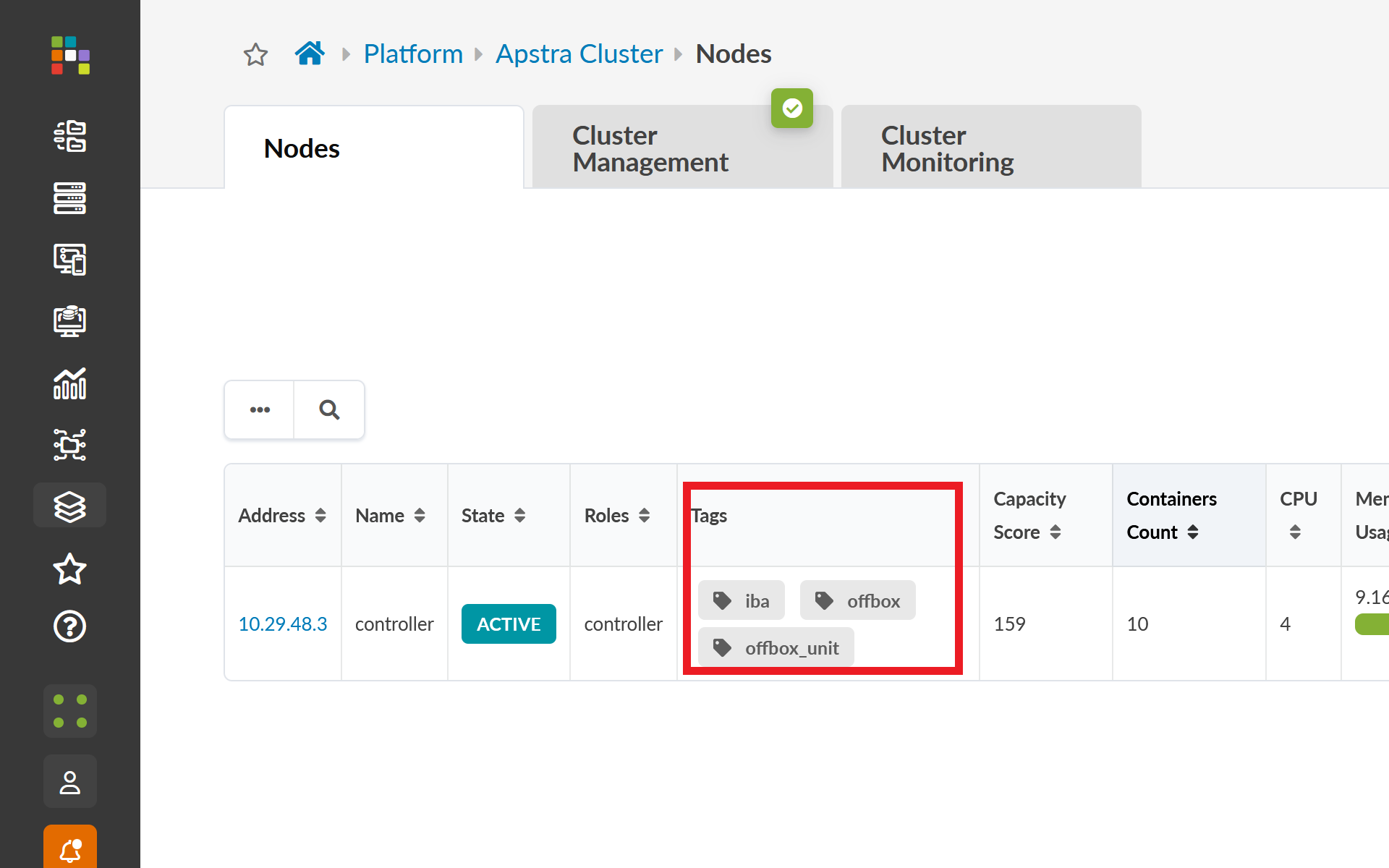
Navigate to Platform > Apstra Cluster > Nodes to view the cluster nodes.
Review the Tags column for the following tags:
-
offbox—node is using an offbox agent.
-
offbox_unit—node is using an offbox agent that can manage multiple devices from a single container.
You see this tag when Host in Offbox Unit is toggled on.
-
-
Navigate to Platform > Apstra Cluster > Cluster Monitoring.
You will see device names that include the keyword offbox when an offbox agent is enabled. You will also see container names that include the keyword offbox_unit to identify containers that are managing multiple devices.