Help us improve your experience.

Let us know what you think.

Do you have time for a two-minute survey?


Create External Generic System

When you want to connect your Apstra-managed fabric to a system that's not managed in the Apstra environment, you use generic systems and external generic systems. These systems can be external routers, firewalls, or whatever else you want; you specify their roles with tags. If the system is part of a rack topology, we call it a generic system. If the system is not part of a rack topology, we call it an external generic system. This page shows you a couple of ways to add external generic systems.

Create External Generic System (from Topology View)

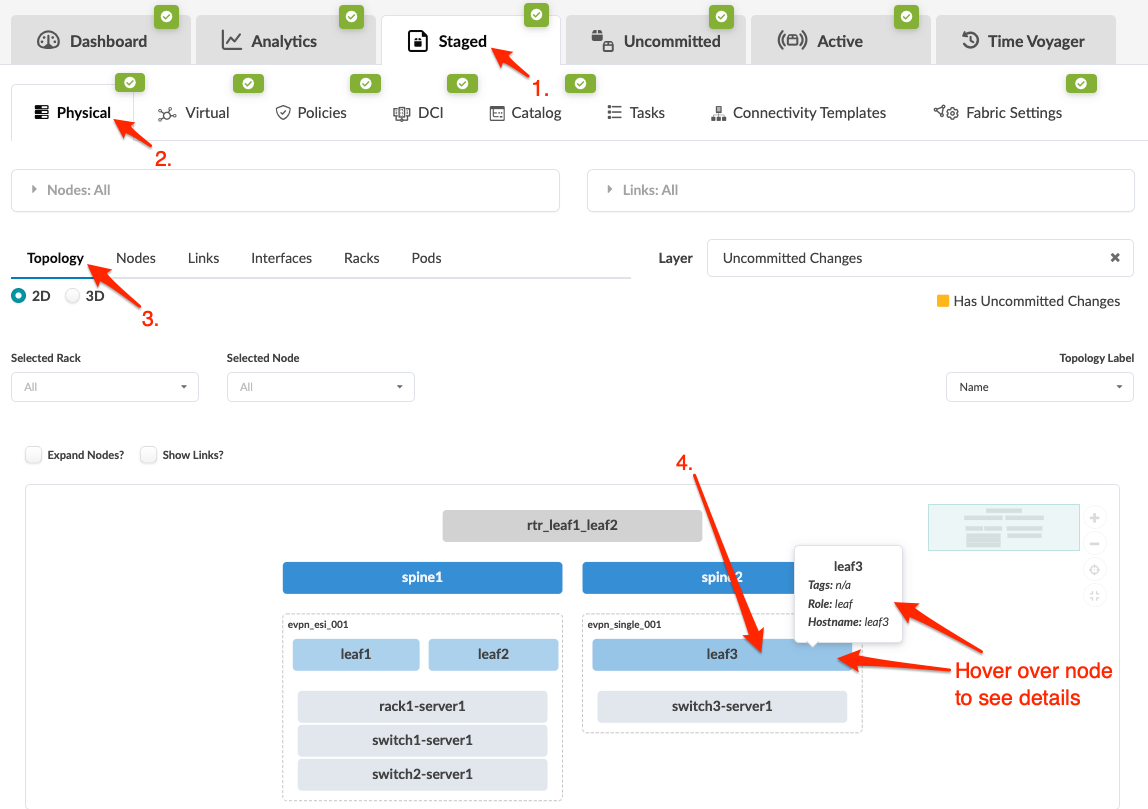
  1. From the blueprint, navigate to Staged > Physical > Topology and select the spine or leaf to connect to the new external generic system.
  2. Select the node check box to see the operations available for that node (and that you have permissions for). (Image below is for Apstra version 4.2.0.)
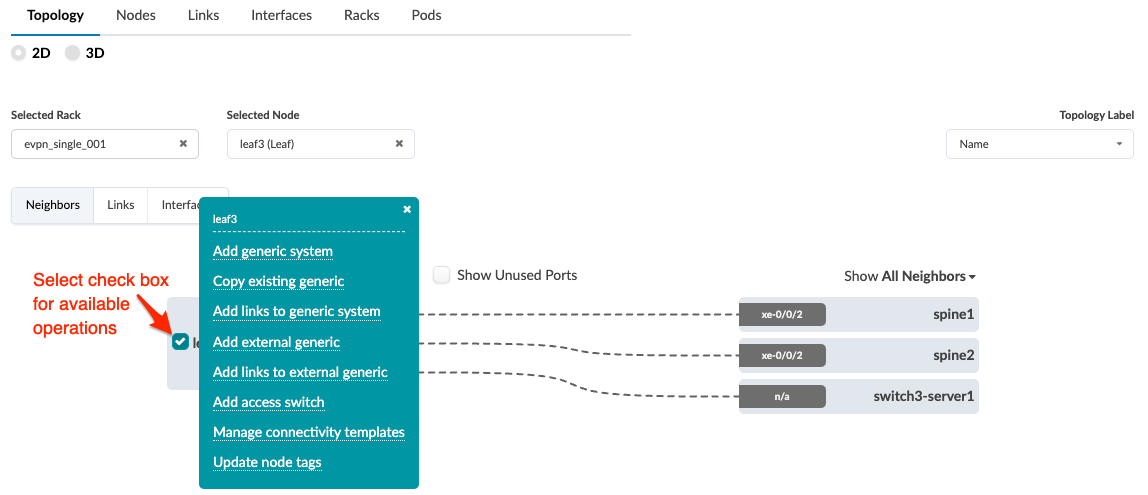
    Note:

    You can also get to the selection page from the Nodes view. From the blueprint, navigate to Staged > Physical > Nodes, click the node name in the table, then click the node name that appears at the top of the Selection panel (on the right side of the page).

  3. If you're using Apstra version 4.2.0, click Add external generic. If you're using Apstra version 4.2.1, click Add internal/external generic system as shown in the 4.2.1 screenshot below.
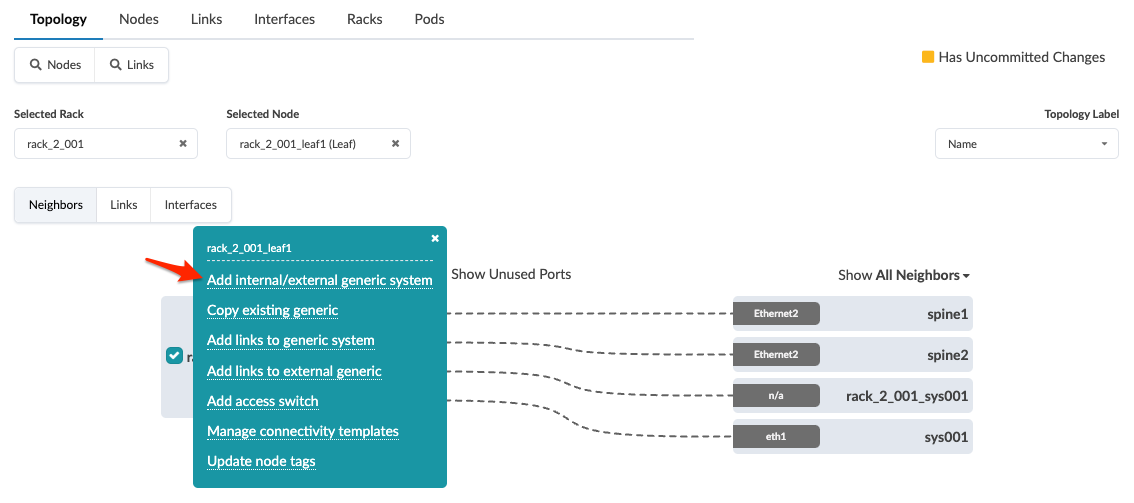
  4. If you're using Apstra version 4.2.1, select External generic type.
  5. Enter a unique label and (optional) hostname.
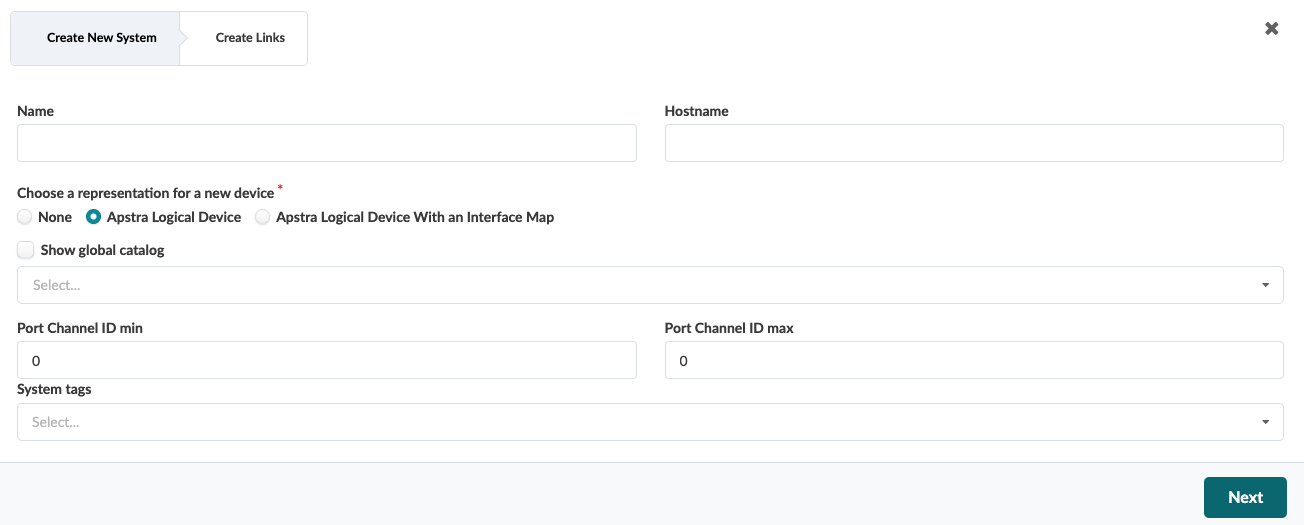
    User interface for creating a new system in an IT app with fields for Name, Hostname, device representation options, global catalog checkbox, Port Channel ID range, and System tags. Tabs for Create New System and Create Links with a Next button.
  6. Select the representation for the new node (none, logical device, or logical device with interface map), then select it from the drop-down list as applicable. (Selecting a logical device allows you to define port roles.)
  7. Enter the port channel ID min and max (new in 4.2.0). The values in the range are used to allocate PC IDs for all leafs, spines, and superspines attached to this external generic system. If you leave the values at zero, any available port-channel may be used. (Prior to Apstra version 4.2.0, all non-default port channel numbers had to be unique per blueprint. Port channel ranges could not overlap. This requirement has been relaxed, and now they need only be unique per system.)
  8. Enter tags (optional) to identify the role(s) of the new external generic system, then click Next. The Create Links dialog opens.
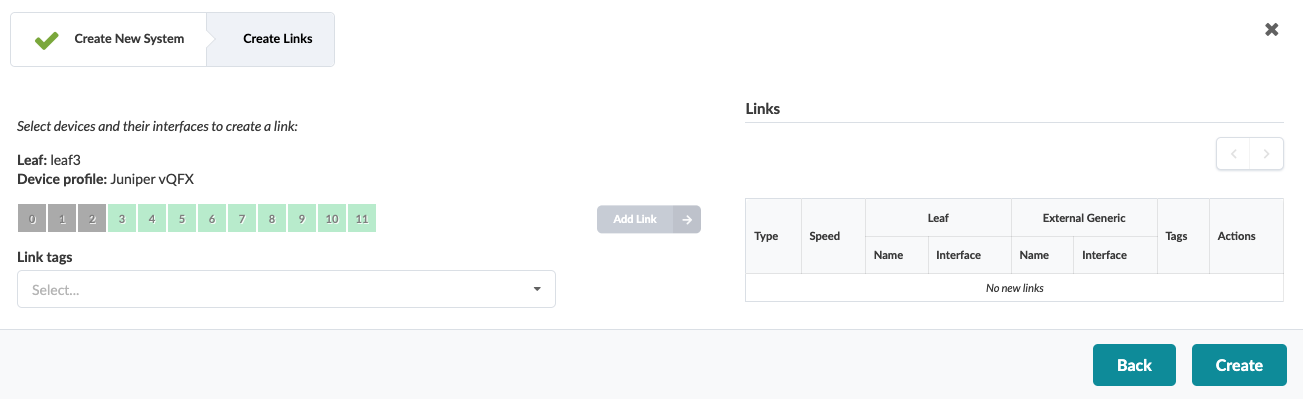
    Network configuration interface showing Create Links section with Leaf device leaf3 selected, interfaces available, and Add Link button.
  9. Select an available port and transformation, then click the Add Link button that turns from gray to green.
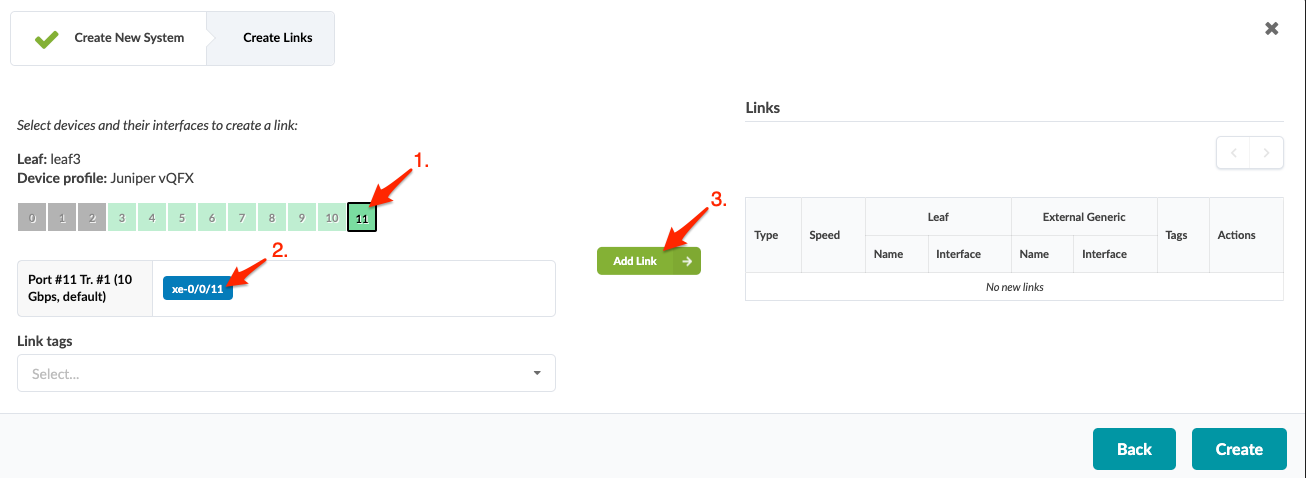
    Screenshot of network configuration tool showing device Leaf: leaf3 with interface port 11 selected, speed 10 Gbps. Add Link button is available. Links table is empty.
  10. Click Add Link. The link is added to the link table.
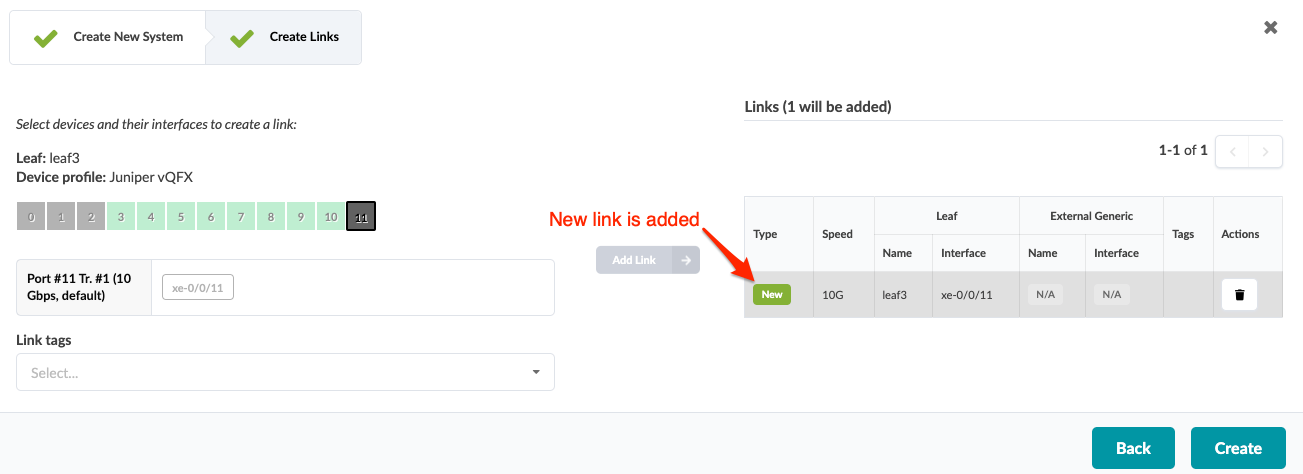
    Network configuration interface showing step Create Links for device Leaf leaf3 with profile Juniper vQFX. Port 11 selected 10 Gbps xe-0/0/11. New link added with details type New speed 10G interface xe-0/0/11. Back and Create buttons at bottom.
  11. Click Create to stage the change and return to the Topology view.

When you're ready to activate your changes, commit them from the Uncommitted tab.

Create External Generic System (from Nodes View) (4.2.0 only)

The Add external generic systems capability from the Nodes view is removed in Apstra version 4.2.1.
  1. From the blueprint, navigate to Staged > Physical > Nodes and click the Add external generic systems button to open its dialog.
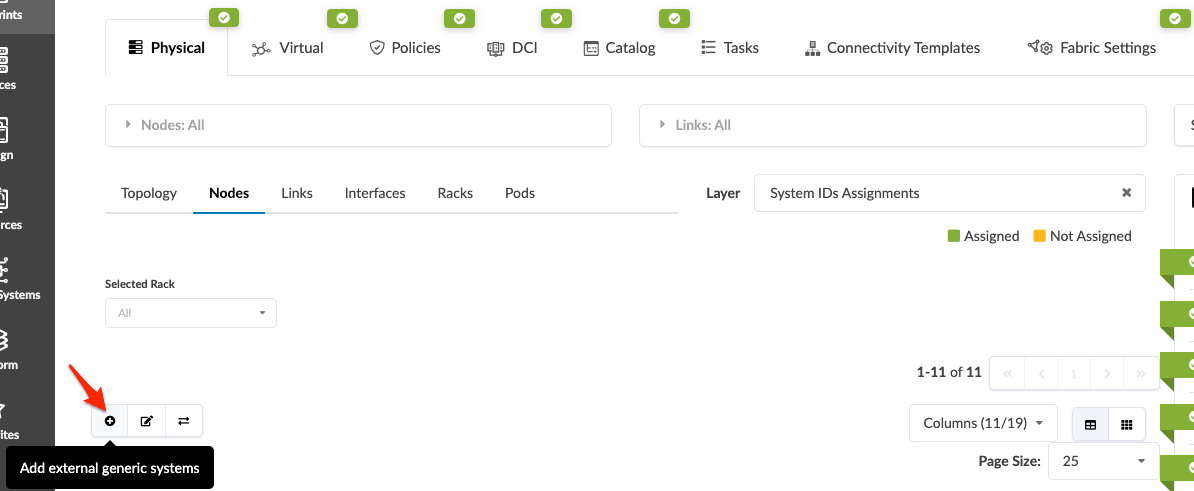
    User interface screenshot with Physical tab selected, showing nodes management section. Filters for Selected Rack and Layer set to System IDs Assignments. Bottom left button with plus icon to add external generic systems. Navigation controls display items 1-11 of 11.
  2. Enter a hostname, and if you want to be able to define port roles select a logical device from the drop-down list.
  3. Enter the port channel ID min and max (new in 4.2.0). The values in the range are used to allocate PC IDs for all leafs, spines, and superspines attached to this external generic system. If you leave the values at zero, any available port-channel may be used. (Prior to Apstra version 4.2.0, all non-default port channel numbers had to be unique per blueprint. Port channel ranges could not overlap. This requirement has been relaxed, and now they need only be unique per system.)
  4. Enter tags (optional) to identify the role(s) of the new external generic system.
  5. Click Create to stage the changes and return to the Nodes view.

You've created an external generic system that's not yet linked. You can either select the node (leaf, spine) first then link to the external generic system, or you can select the external generic system first, then link to a node. See below for links to the procedures.