Help us improve your experience.

Let us know what you think.

Do you have time for a two-minute survey?


Unassign Device (Datacenter)

Unassign Device (from Device Selection Panel)

  1. From the blueprint, navigate to Staged > Physical > Topology, and click the device to be removed.
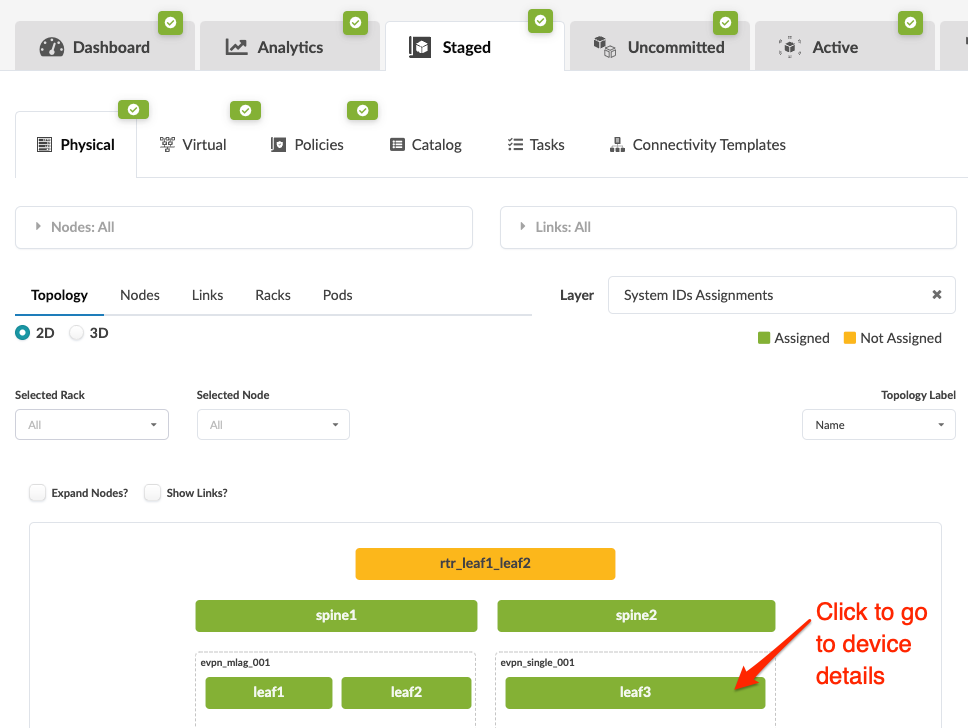
    Network management interface with a 2D topology view highlighting node leaf3 with a red arrow. Tabs include Dashboard, Analytics, Staged, Uncommitted, and Active.
    Note:

    In Apstra version 4.2.0, generic systems without assigned system IDs appear in yellow. In Apstra version 4.2.1, they appear in gray.

  2. In the Device panel (on the right), click the Edit button for deploy mode, and change it to Undeploy, then click the Save button.
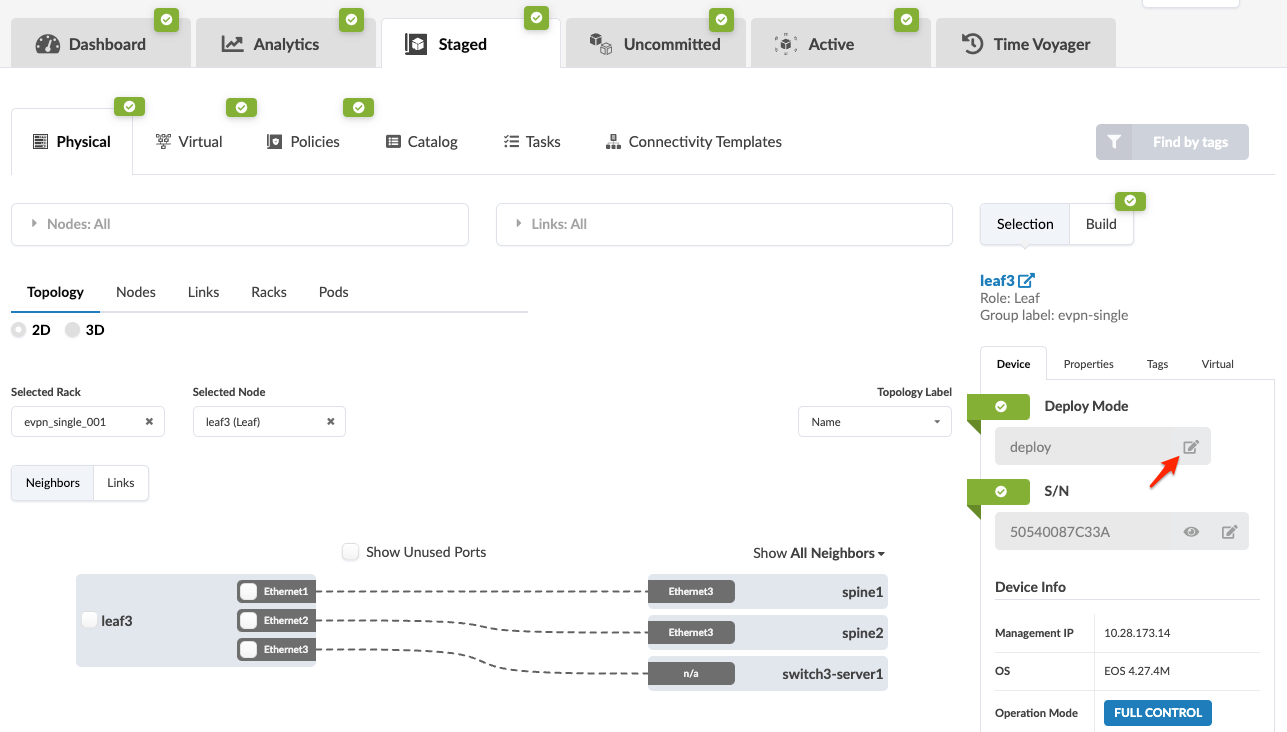
    Network management tool interface showing physical topology. Selected node leaf3 in deploy mode with OS EOS 4.27.4M connects to spine1, spine2, switch3-server1.
    Note:

    Another way to get to the Device selection panel from the Topology view (or Nodes, Links, Racks, or Pods view) is to click the Devices tab in the Build panel (on the right), click the status indicator for Assigned System IDs (to display the nodes and assigned system IDs), then click the node name that you want to unassign.

  3. In the S/N section, click the Edit button.
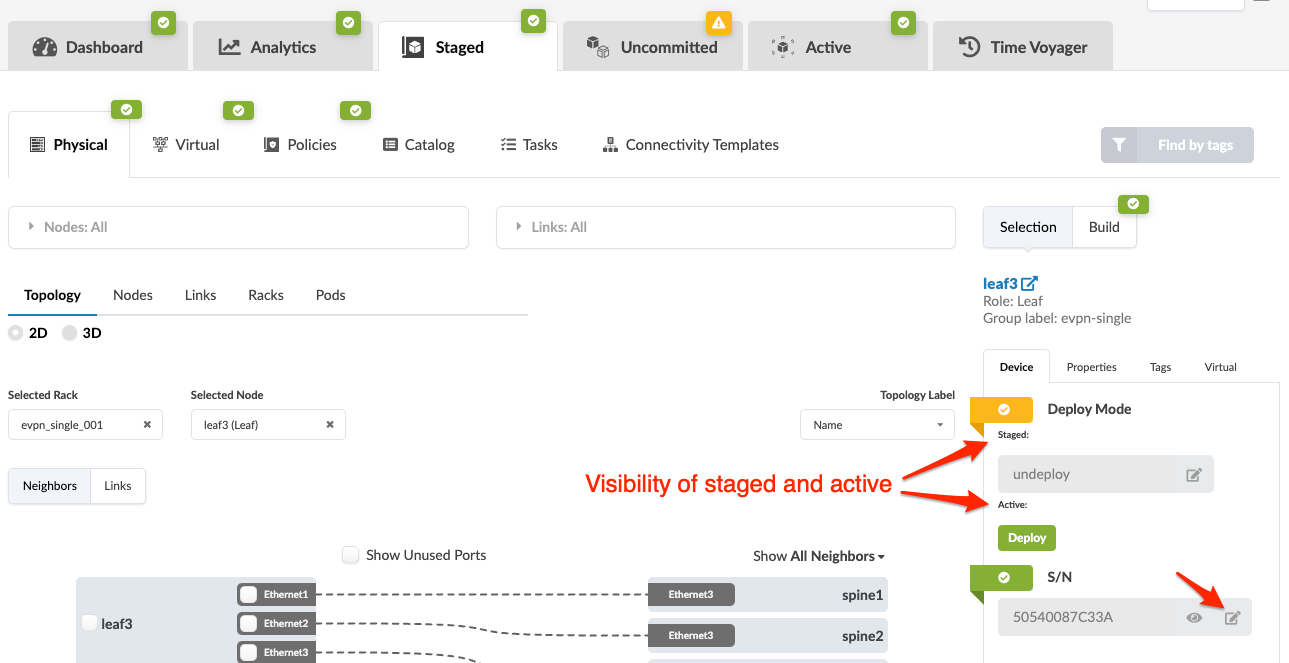
    Network management interface showing topology with leaf3 device connected to spine1 and spine2. Tabs and sections for configuration and deployment states.
  4. Click the red square in the S/N section to unassign the system ID.
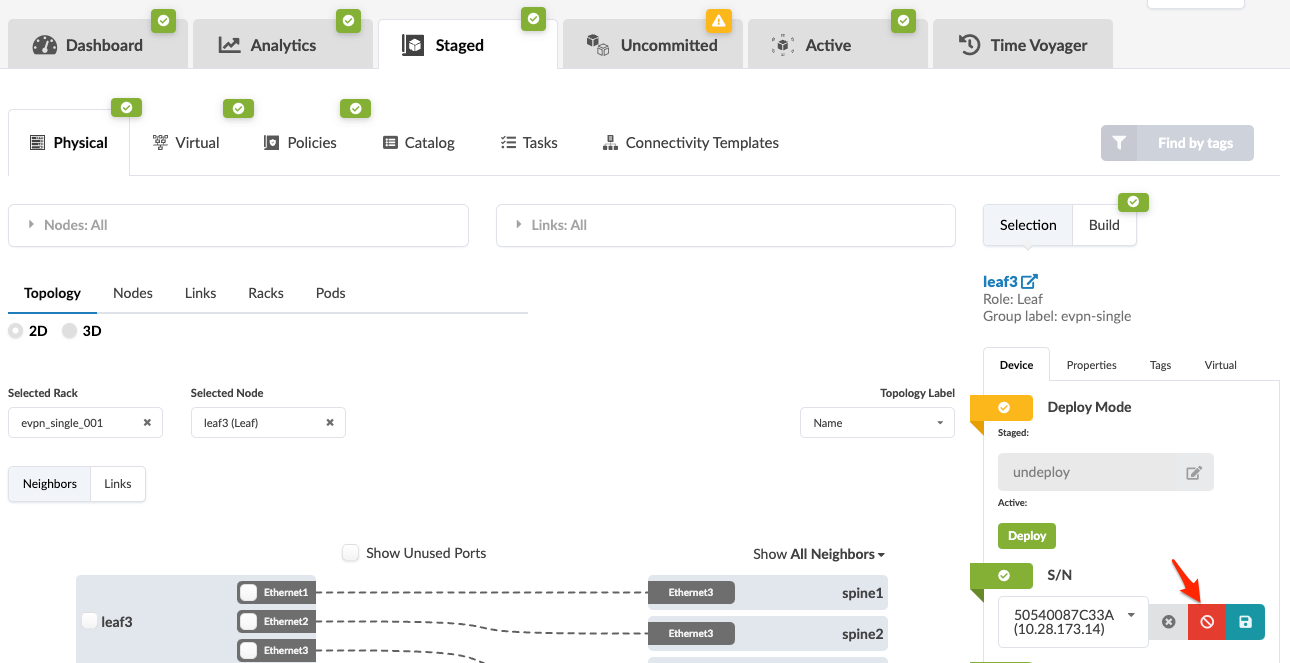
    Screenshot of network management software showing node leaf3 in rack evpn_single_001 with connections to spine1 and spine2. Options for 2D or 3D topology view, deploy configurations, and display of serial number and IP address are visible.
  5. Click Uncommitted and commit changes to the blueprint to remove the device from the fabric.
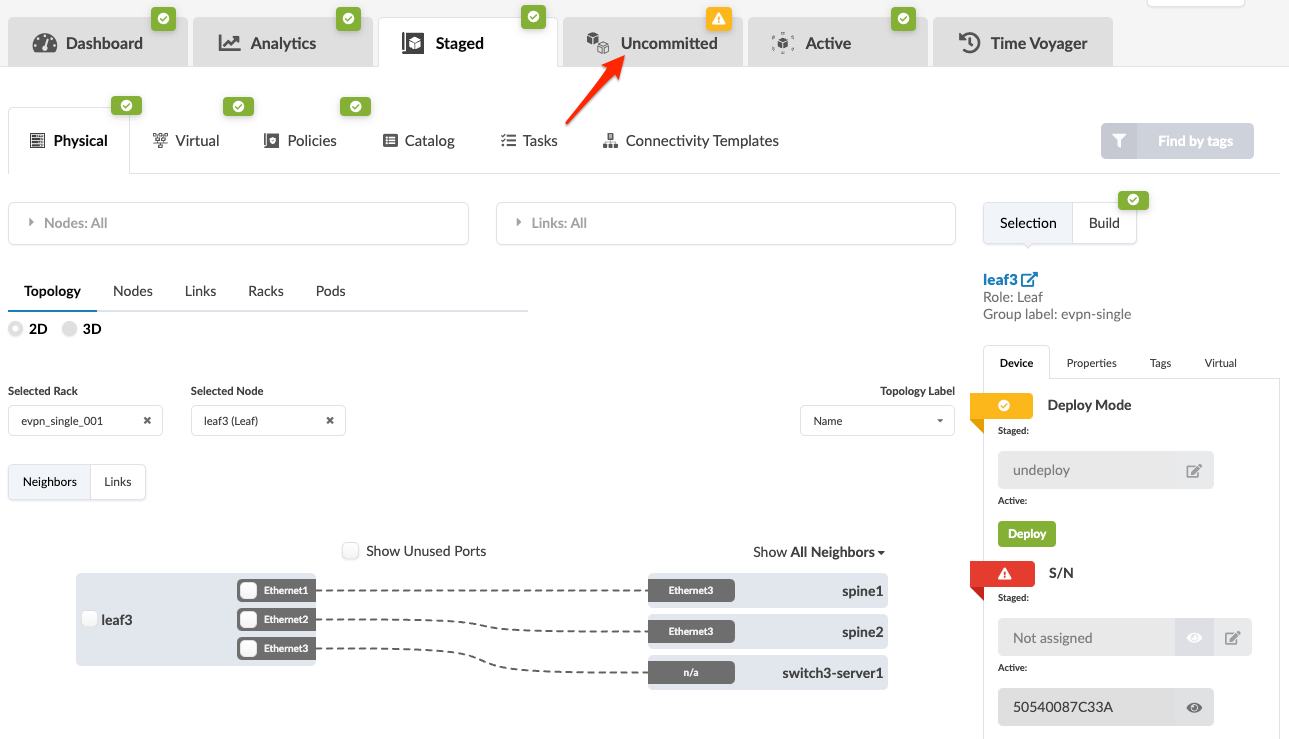
    Screenshot of a network management tool showing an uncommitted configuration in Physical view. Leaf3 node is selected with connections to spine1, spine2, and switch3-server1. Active serial number is 50540087C33A.

The device is still under Apstra management. It's ready and available to be assigned to any blueprint.

To remove the device completely from Apstra management, remove the device from Managed Devices.

Unassign Device(s) (from Devices Build Panel)

  1. From the blueprint, navigate to Staged > Physical > Topology, click the Devices tab in the Build panel (on the right), then click the status indicator for Assigned System IDs to display the nodes and assigned system IDs.
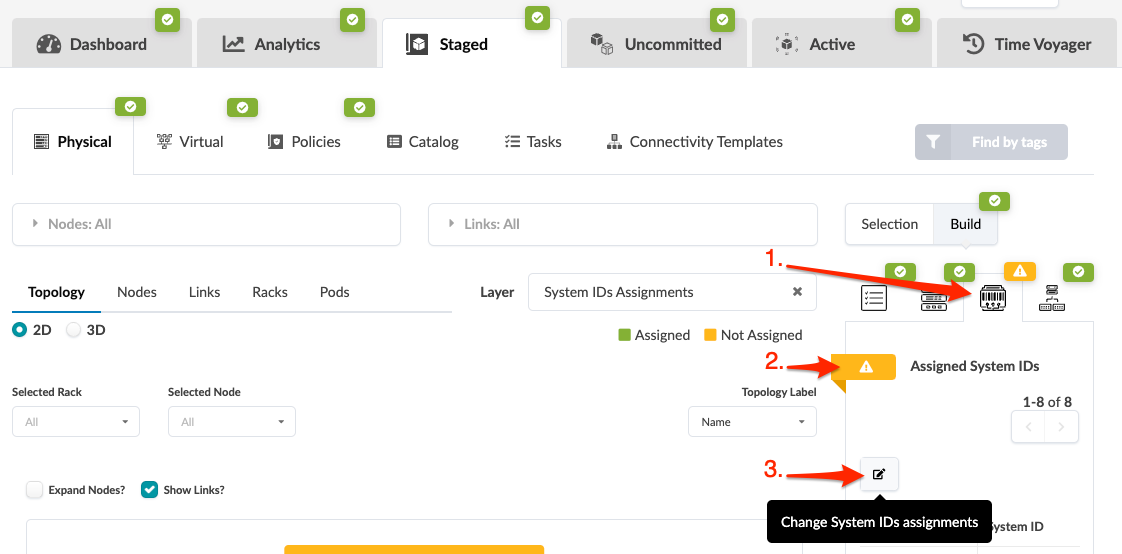
    Network management tool interface with tabs for Dashboard, Analytics, Staged, Uncommitted, Active, and Time Voyager. Sub-tabs include Physical, Virtual, Policies, Catalog, Tasks, and Connectivity Templates. Topology section shows 2D or 3D network view with options for filtering by Selected Rack and Node. System IDs Assignments layer highlights unassigned IDs with a warning icon. Button to change System IDs assignments is highlighted.
  2. Click the Change System IDs assignments button (below Assigned System IDs), then in the dialog that opens click the Remove assignment button for the device to remove. The deploy mode is automatically unselected.
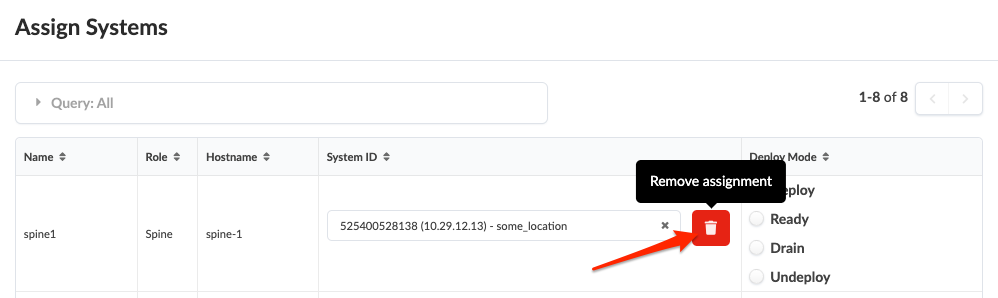
    User interface for assigning systems with columns for Name Role Hostname System ID and Deploy Mode. Row shows spine1 Spine spine-1 525400528138 10.29.12.13 some_location. Arrow points to trash can icon labeled Remove assignment.
  3. Click Update Assignments (bottom-right in dialog) to stage the change and return to the Topology view.
  4. Click Uncommitted and commit changes to the blueprint to remove the device from the fabric.

The device is still under Apstra management. It's ready and available to be assigned to any blueprint.

To remove the device completely from Apstra management, remove the device from Managed Devices.