
Juniper Apstra Device Replacement Guide
An essential operation in a working data center network is the need to replace a device that failed or needs to be re-allocated or reused for other purposes. This document describes how to replace a Juniper Apstra managed device using the Apstra GUI and Apstra Terraform Provider.
Replace a Managed Device Using the Apstra GUI
Replacing a managed device in the Apstra GUI is a straightforward set of tasks. The managed devices are abstracted from their role in the fabric using Logical Devices and Interface Maps and are assigned to a blueprint.
In these procedures, we are replacing the leaf2 device in the GUI. The replacement device (leaf2) is exactly the same physical device (make, model and port configuration) as the device we are replacing.
In this topic, we'll show you how to replace a device using the following methods:
- Delete a Leaf with a Still Connected Device
- Delete a Failed Leaf Device
- Add the Replacement Device to the Blueprint
Delete a Leaf with a Still Connected Device
From the left navigation menu in the Apstra GUI, navigate to Blueprints > Blueprint ID > Staged > Physical > Build, then click the Devices icon.
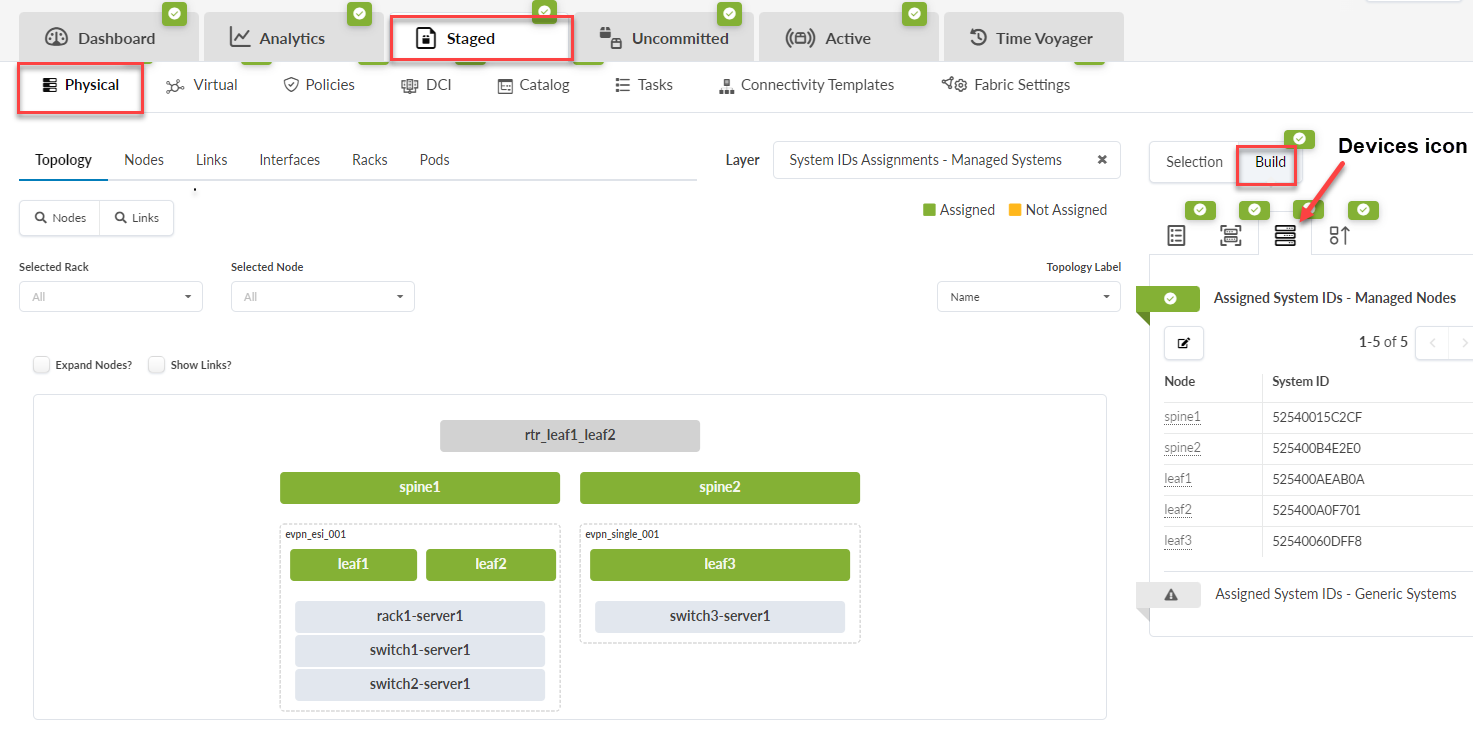
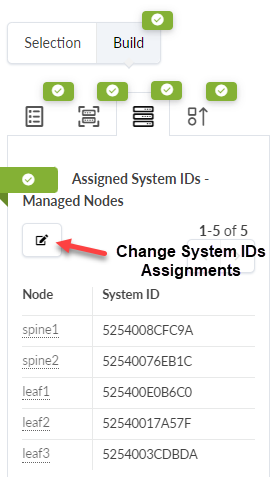
Click Assigned System IDs - Managed Nodes , then click the Change System IDs Assignments icon.
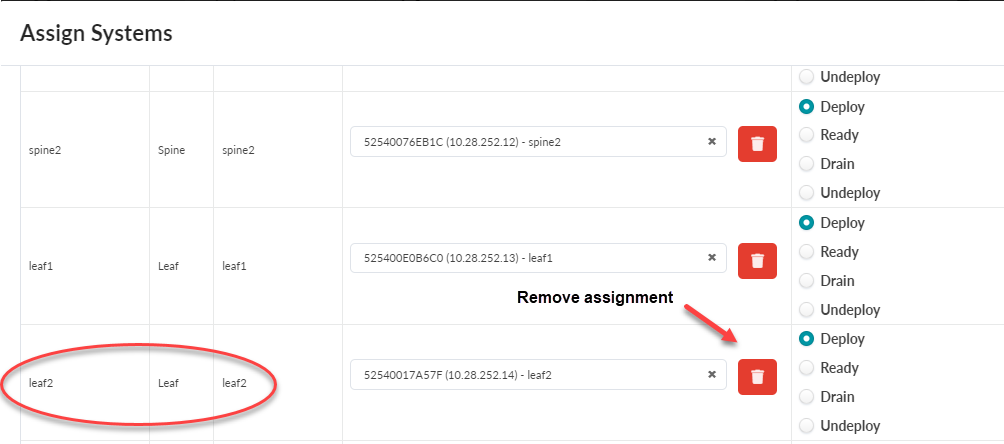
Click the trash icon, then click Update Assignments to unassign leaf2.
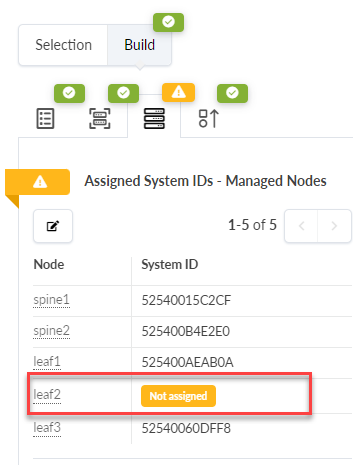
Here we can see that leaf2 in no longer assigned.
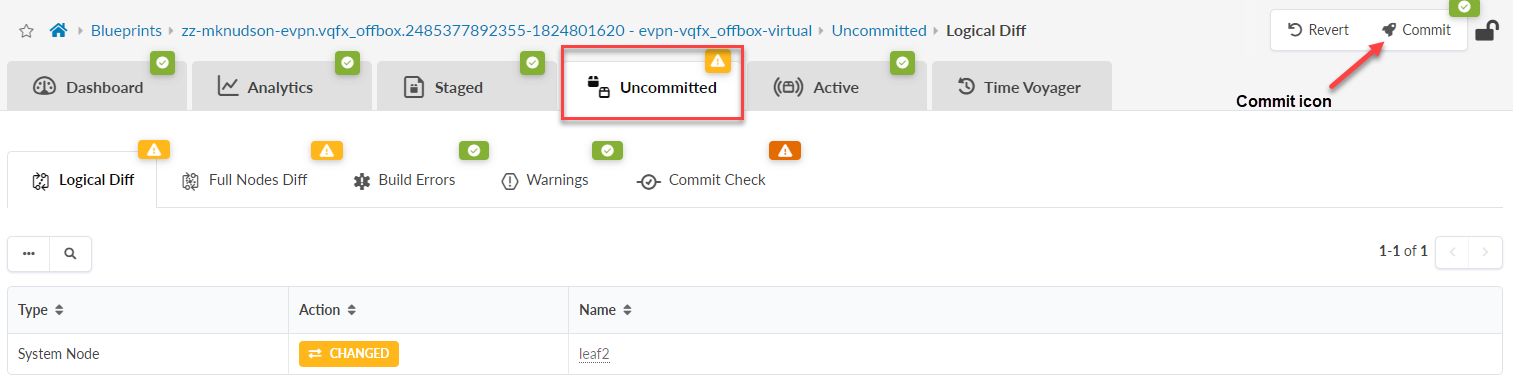
Navigate to the Uncommitted tab and click the Commit rocket icon.
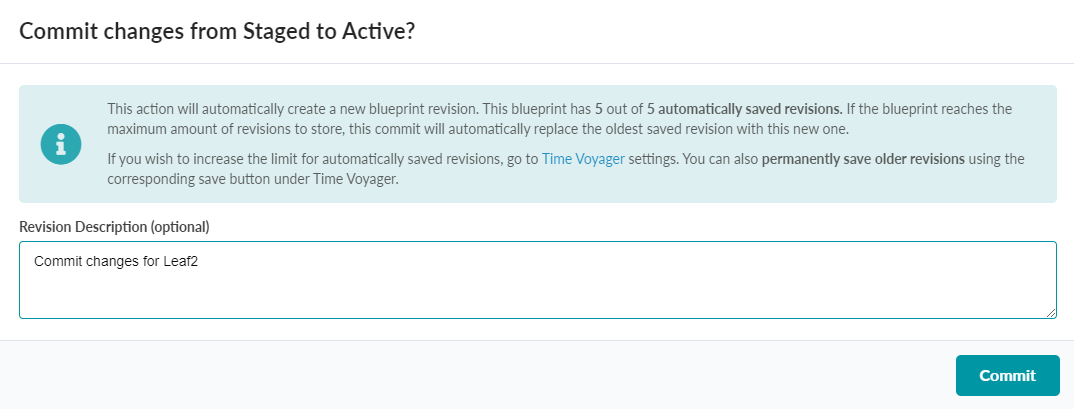
Add a comment if desired, and click Commit.
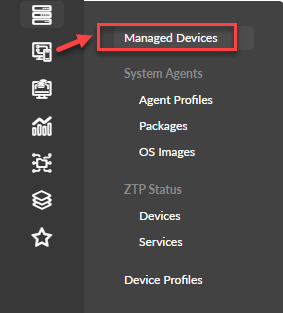
When the commit is complete, navigate to the Devices > Managed Devices to return to the Managed Devices table view.
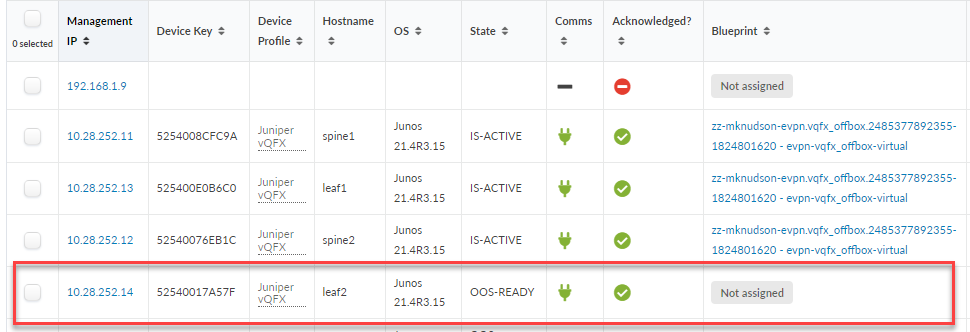
Leaf2 is now unassigned from the blueprint.
Uninstall the agent from leaf2 by clicking the Uninstall icon.
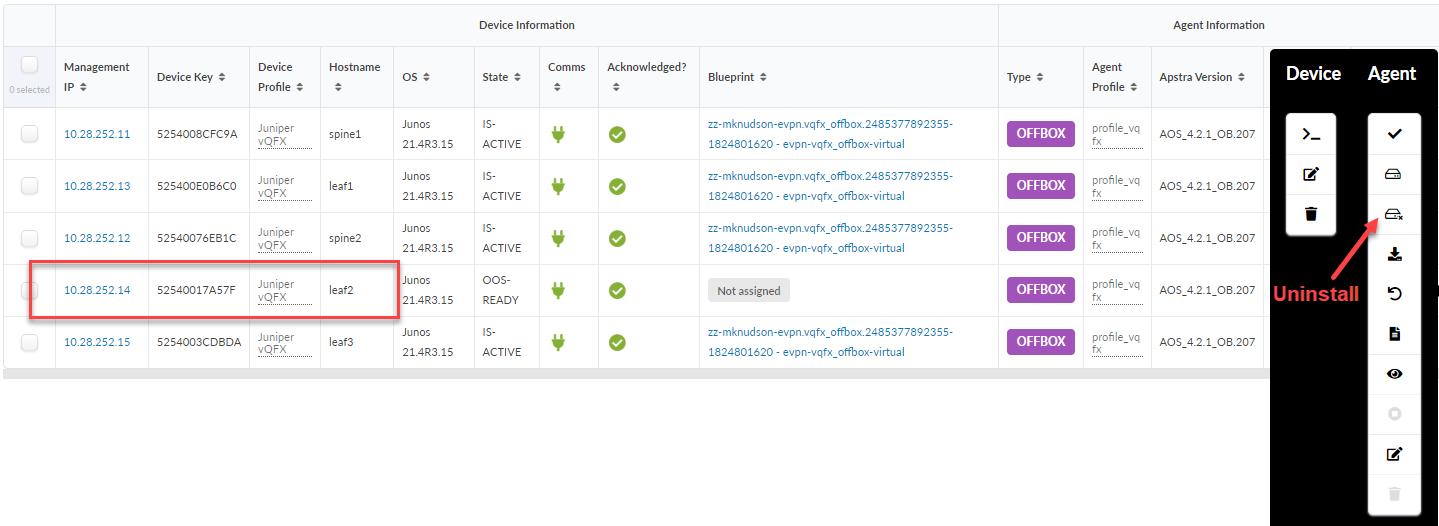
From the pop-up dialog box, click Confirm to uninstall the system agent.
After the uninstall completes, the leaf2 State shows as oos-nocomms with a red x in the Comms column.
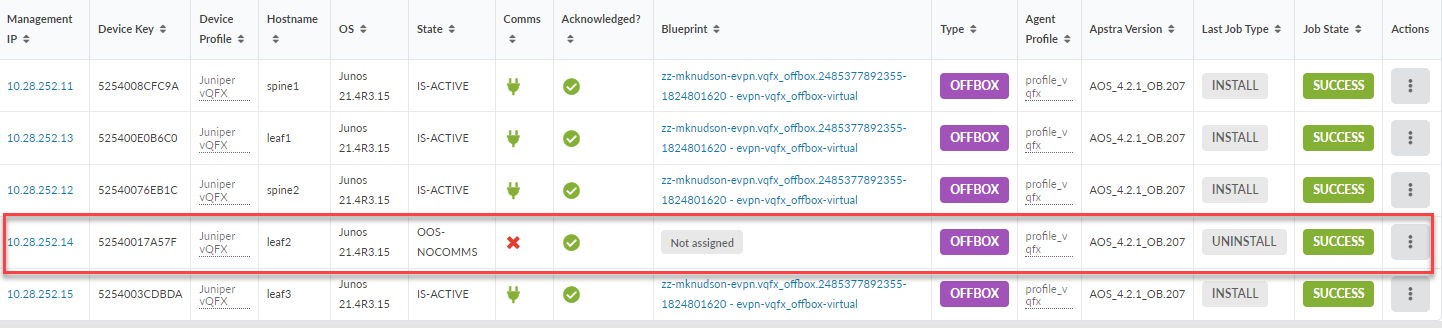
- The final step is to delete the leaf2 device completely from Apstra. There
are two steps:
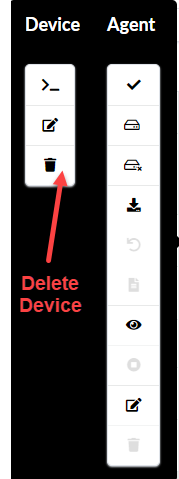
First, click the trash icon in the Device panel.
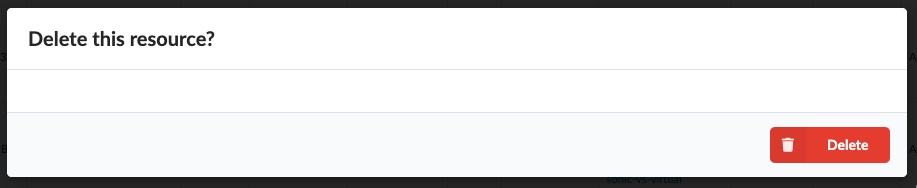
Then click Delete from the following dialog to remove the device.
The click the Agent Uninstall icon in the Agent panel.
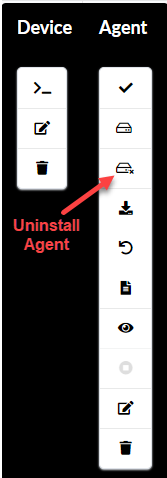
Then click Confirm from the dialog box to uninstall the agent.
When complete the leaf2 device is removed from the blueprint.
Delete a Failed Leaf Device
For this procedure, we'll delete a that has failed and is no longer communicating with Apstra.
From the left navigation menu in the Apstra GUI, navigate to Blueprints> Staged > Physical > Build and click the Devices icon. If the device already exists in the table, you can skip this step and proceed to Step 2.
Click Assigned System IDs - Managed Nodes > and click the Change System IDs Assignments icon.
Click the trash icon to remove the leaf2 assignment, then click Update Assignments.
Verify that leaf2 is no longer assigned.
Navigate to the Uncommitted tab, then click the Commit rocket icon.
Add a comment if desired, and click Commit.
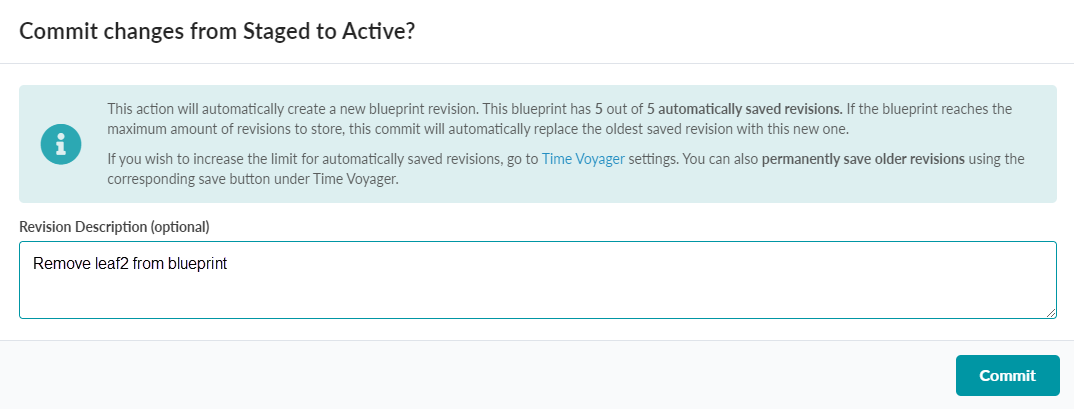
When the commit is complete, navigate to the Devices > Managed Devices panel to return to the managed devices table view.
The Leaf2 device is now unassigned from the blueprint.
Click the trash icon in the Device panel.
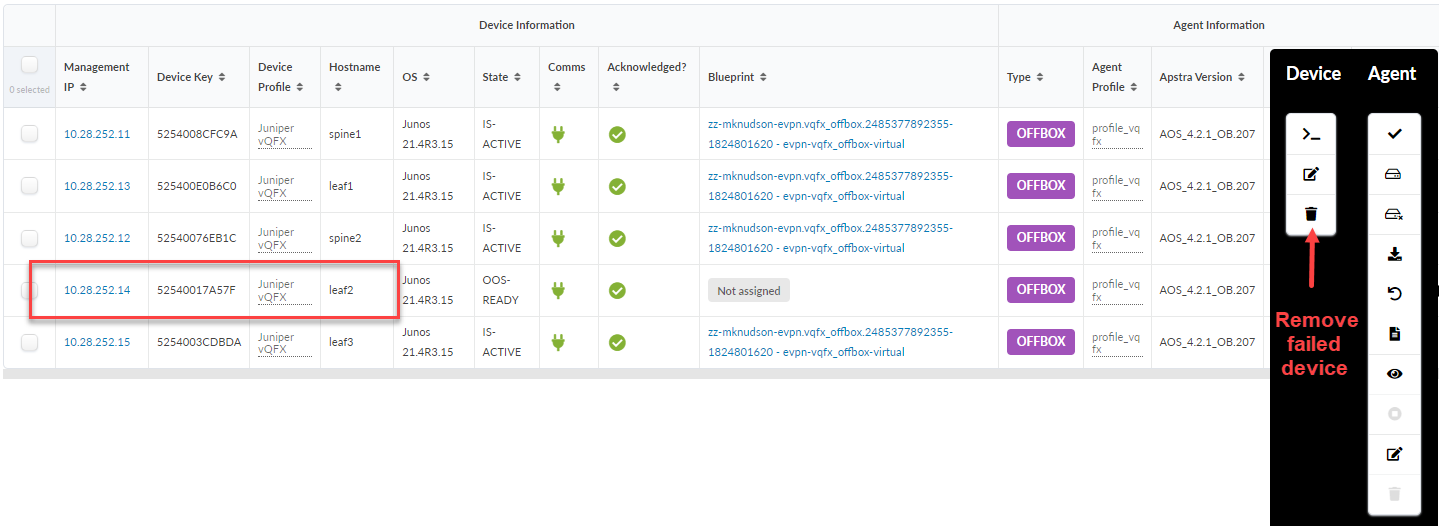
Click Delete to remove the failed device (leaf2) from the Managed Devices table.
Delete the agent from the device.
Select the device from the Managed Devices table (10.28.252.14 in our example) and click the trash icon in the Agent panel to delete the agent.
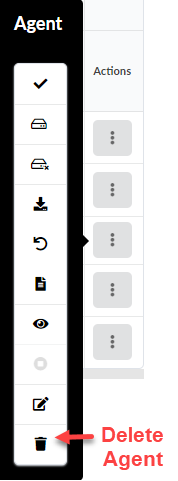
Click the Force delete check box, then click Delete to force the deletion.
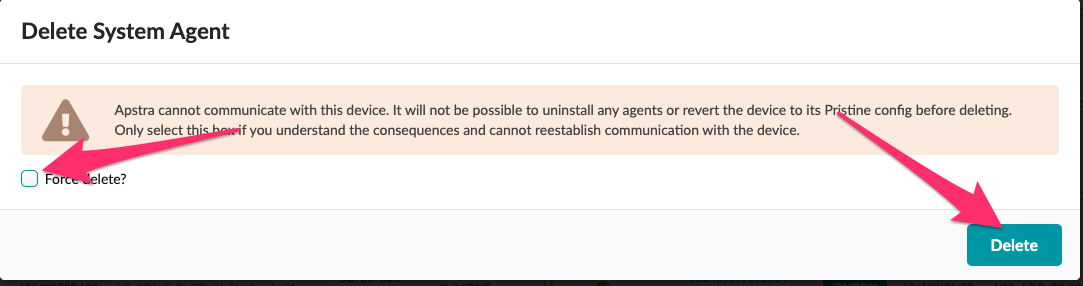
You successfully removed the failed device from the blueprint.
Add the Replacement Device to the Blueprint
Let's now take a look at what is required to replace the device back into the blueprint.
From the left navigation menu in the Apstra GUI, navigate to Devices > Managed Devices.
If the device already exists in the table, you can skip this step and proceed to Step 2.
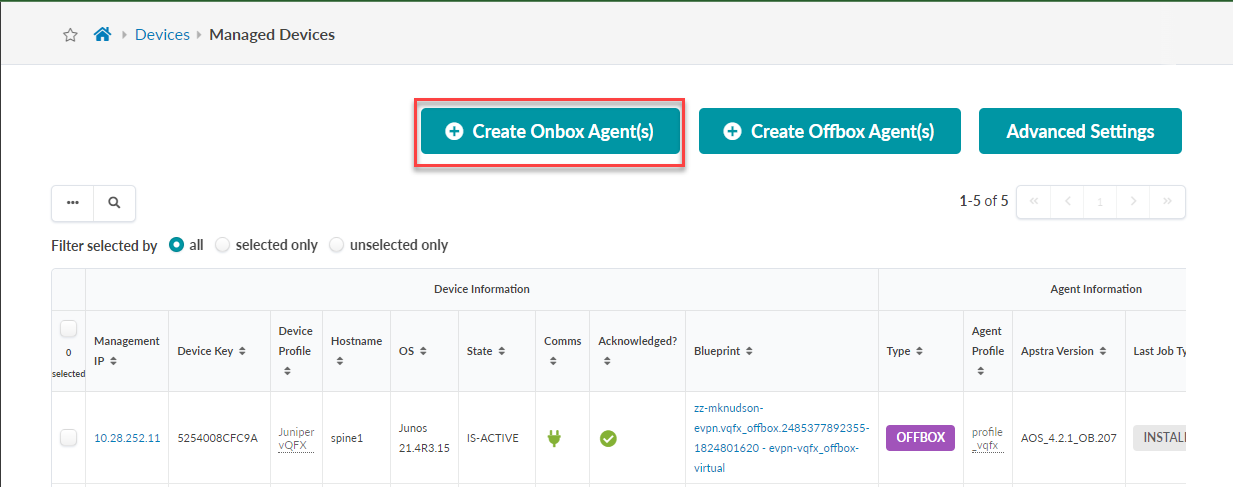
From the Managed Devices page, click Create Onbox Agents(s). Note that SONIC devices use Onbox Agents.
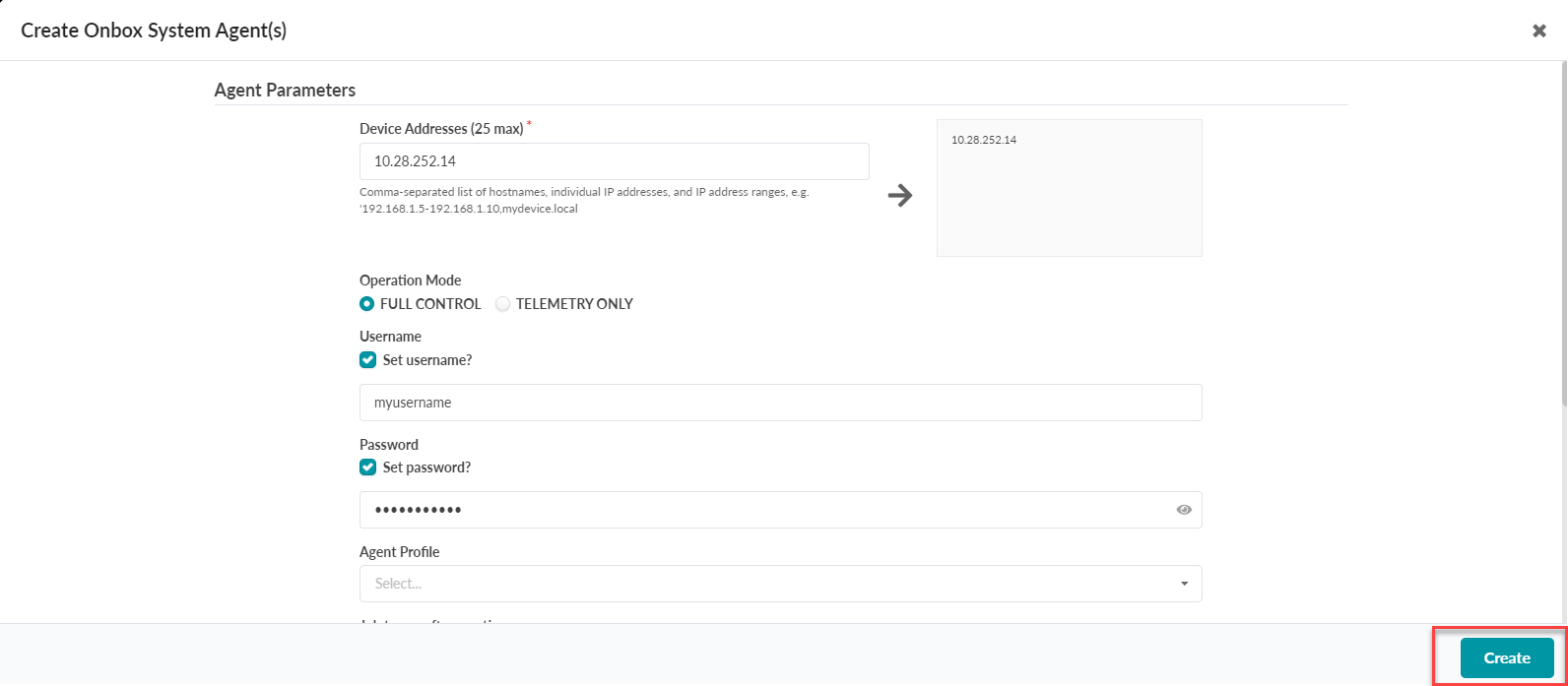
Enter the device address, username and password, then click Create.
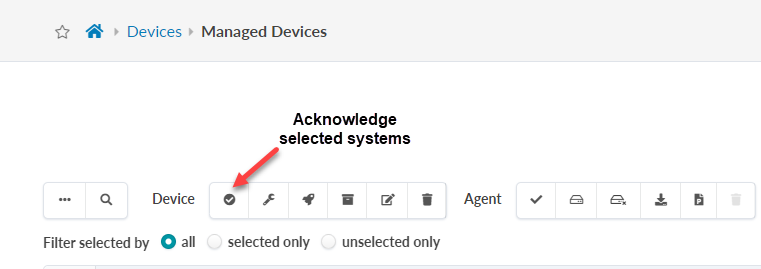
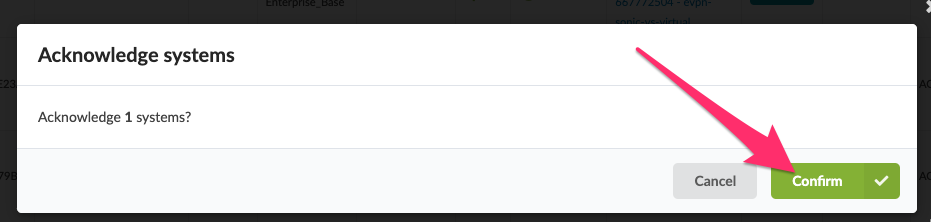
When the agent completes the installation, click Acknowledge selected systems from the Device panel located above the Managed Devices table.
Click Confirm from the dialog box to acknowledge the device.
Navigate to Blueprints > Blueprint ID > Staged > Physical > Build, then click the Devices icon.
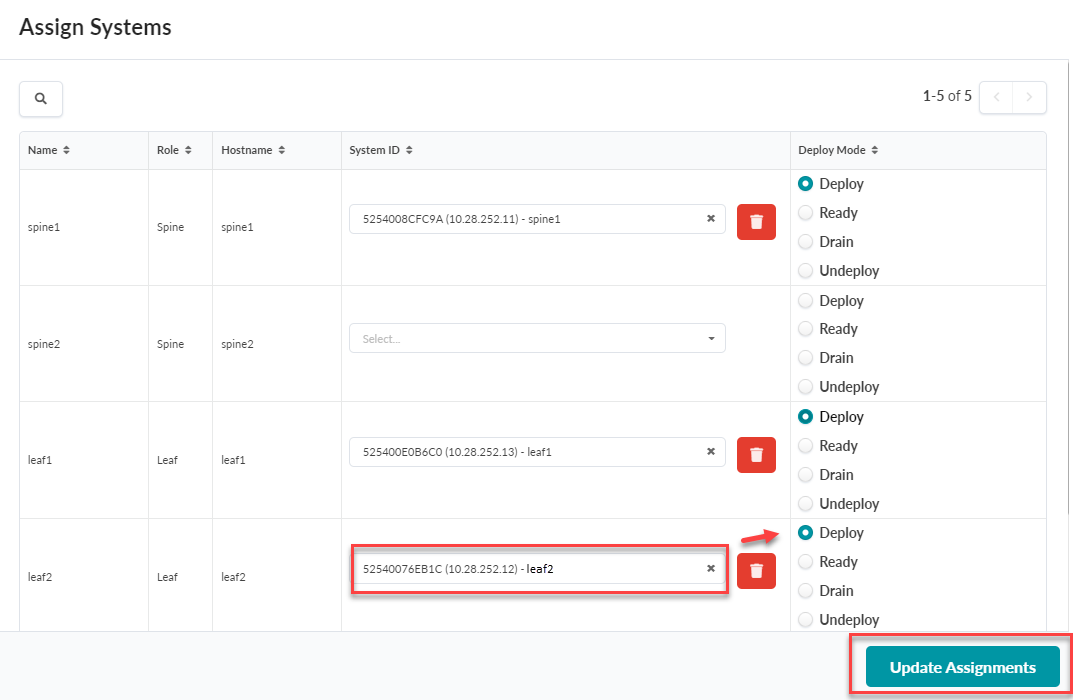
Click Assigned System IDs - Managed Nodes , then click the Change System IDs Assignments icon.
Select the leaf2 replacement device, click the Deploy radio button, then click Update Assignments.
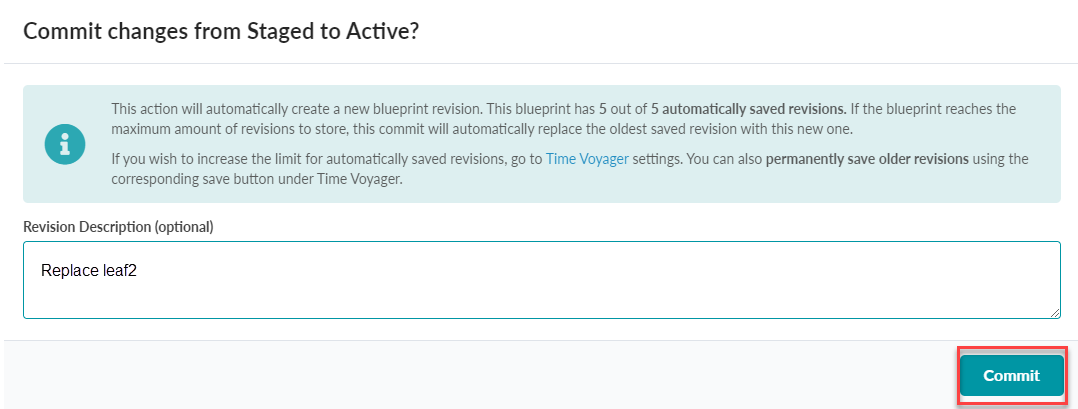
Commit the change by navigating to the Uncommitted tab, then click the Commit rocket icon.
Comment and click Commit to add the replacement device to your blueprint.
Note:The deployment will take some time to stabilize and any anomalies should eventually converge and disappear.
Replace a Device in Apstra Using Apstra Terraform Provider
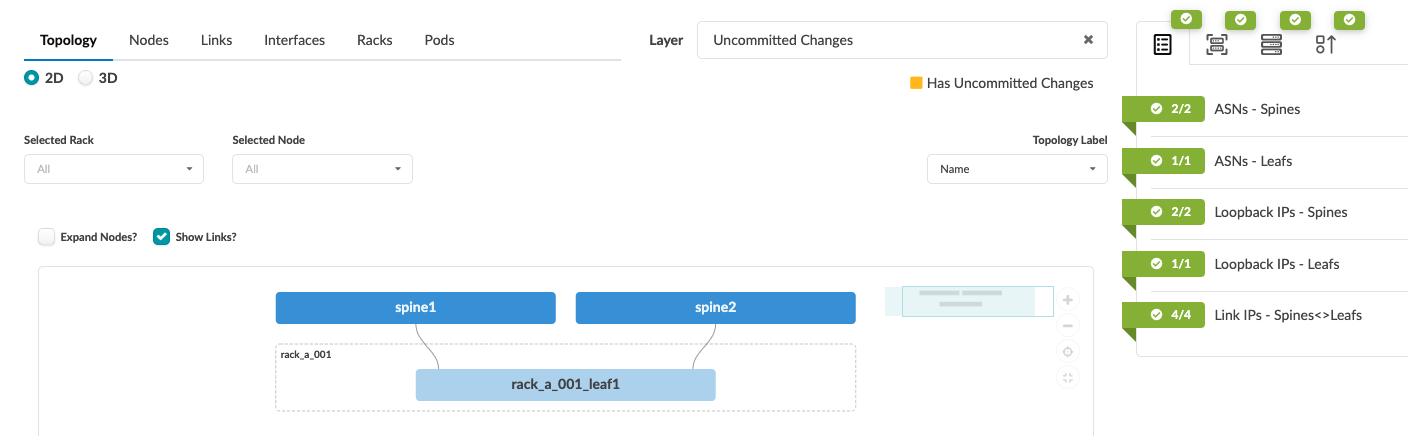
rack_a_001_leaf1).We assume that the Terraform configuration is applied to the Apstra server and all of the resources for the blueprint are allocated and committed.
Example Terraform Configuration
terraform {
  required_providers {
    apstra = {
      source = "Juniper/apstra"
    }
  }
}

provider "apstra" {
  url                     = "https://admin:admin@10.28.24.3:443"
  tls_validation_disabled = true
  blueprint_mutex_enabled = false
  experimental = true #New Apstra 4.2 API
}

resource "apstra_rack_type" "a_rack" {
  name  = "rack_a"
  leaf_switches = {
    leaf1 = {
      logical_device_id = "slicer-7x10⁻¹"
      spine_link_speed = "10G"
      spine_link_count = 1
    }
  }
  fabric_connectivity_design = "l3clos"
}
resource "apstra_template_rack_based" "a_template" {
  name = "template_a"
  asn_allocation_scheme = "unique"
  overlay_control_protocol = "evpn"
  spine = {
    logical_device_id = "slicer-7x10⁻¹"
    count = 2
  }
  rack_infos = {
    (apstra_rack_type.a_rack.id) = { count = 1}
  }
}
resource "apstra_datacenter_blueprint" "a_blueprint" {
  name = "blueprint_a"
  template_id = apstra_template_rack_based.a_template.id
}


resource "apstra_managed_device_ack" "spine1" {
  agent_id = "e44df49e-556b-446e-a02f-7fd23804901e"
  device_key = "525400BBC20C"
}
resource "apstra_managed_device_ack" "spine2" {
  agent_id = "b5726b1d-29ba-4ab0-ac76-5def33291cc4"
  device_key = "525400AF79BA"
}
resource "apstra_managed_device_ack" "leaf1" {
  agent_id = "8f448798-c260-46b7-b7fa-46609f0598d4"
  device_key = "525400E9E2FF"
}
resource "apstra_datacenter_device_allocation" "spine1" {
  blueprint_id = apstra_datacenter_blueprint.a_blueprint.id
  node_name = "spine1"
  device_key = apstra_managed_device_ack.spine1.device_key
  deploy_mode              = "deploy"
}
resource "apstra_datacenter_device_allocation" "spine2" {
  blueprint_id = apstra_datacenter_blueprint.a_blueprint.id
  node_name = "spine2"
  device_key = apstra_managed_device_ack.spine2.device_key
  deploy_mode              = "deploy"
}
resource "apstra_datacenter_device_allocation" "leaf1" {
  blueprint_id = apstra_datacenter_blueprint.a_blueprint.id
  node_name = "rack_a_001_leaf1"
  device_key = apstra_managed_device_ack.leaf1.device_key
  deploy_mode              = "deploy"
}
To replace a device using Terraform:
-
From the Device page, copy the encoded device key and agent ID from
the URL string.
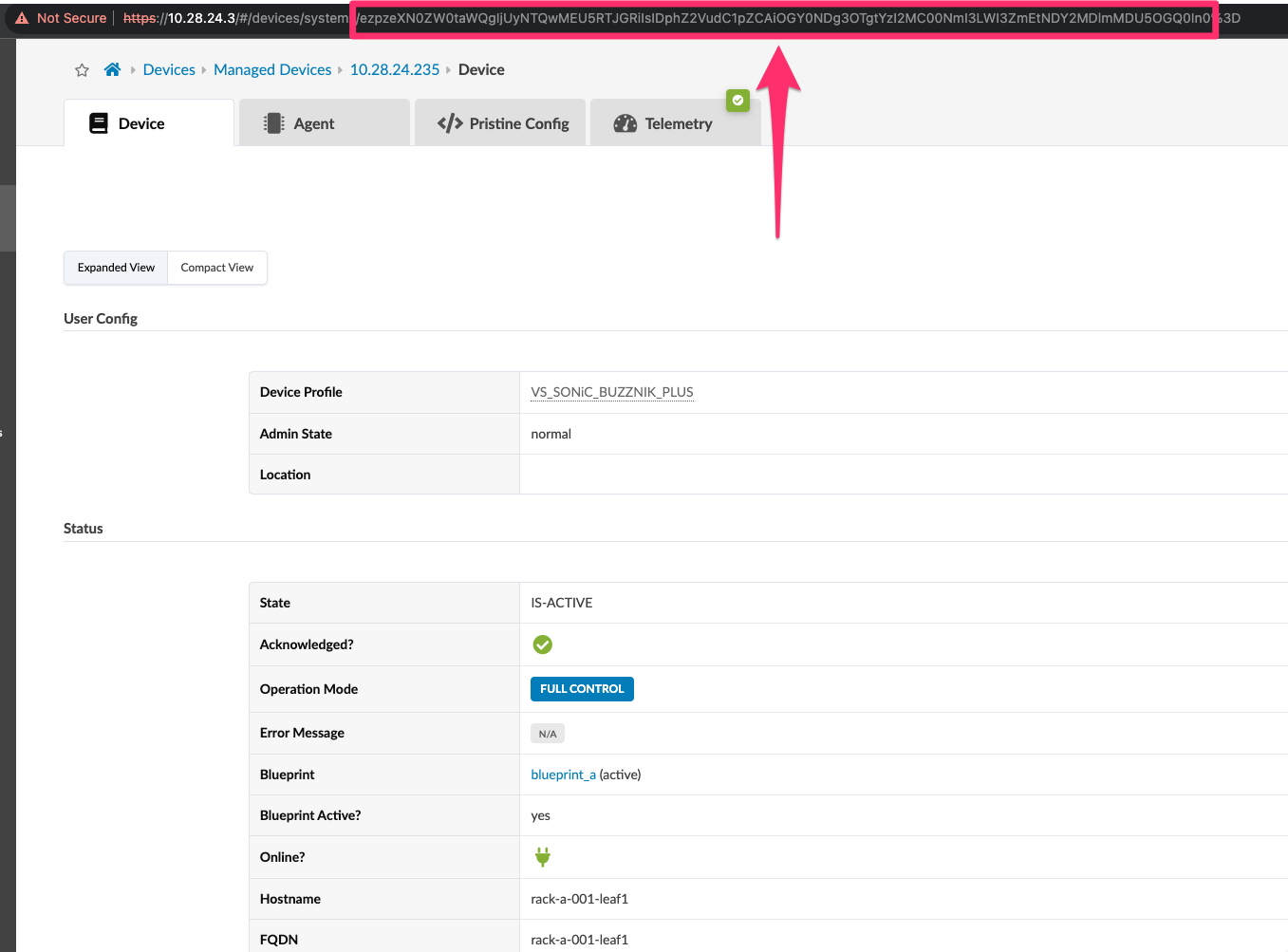 To decode the URL string and obtain the new
device_key(system-id) and agent ID values, run thepbpaste | base64 --decodecommand. For example:pbpaste | base64 --decode {:system-id "525400E9E2FF", :agent-id "8f448798-c260-46b7-b7fa-46609f0598d4%Note:You can also derive the agent-id from a data source, from Swagger, or from the Terraform resource that created it.
In our examples, we removed any existing configuration from the new device and performed a device reboot. However, in some use cases, such as SONiC devices, you might be required to remove any existing configuration from the device.
For example:
root@sonic:/home/admin# rm /etc/sonic/config_db.json
    root@sonic:/home/admin#  config-setup factory
    root@sonic:/home/admin# reboot
See the Juniper Apstra User Guide for information about configuring a SONiC device.