Help us improve your experience.

Let us know what you think.

Do you have time for a two-minute survey?


Creating a Custom Telemetry Collector

SUMMARY This topic describes the steps that are required to create a custom telemetry collector.

In this topic, we'll walk you through creating your own custom telemetry service using BFD as an example. In our example, the telemetry service collects the state of the BFD sessions you just configured. Our goal is to alert operations that a BFD session is down.

Execute the CLI Command

Starting in Apstra version 4.2.0, you can run CLI show commands for Junos devices directly from the Apstra GUI. Although you can run show commands without opening a CLI session, its primary purpose is to help you create your own custom telemetry collectors.

You can execute CLI commands from within the staged or active blueprint (shown in our example), or from the Devices > Managed Devices page.

To use the CLI command feature, navigate to a deployed Junos device in your blueprint as follows:

  1. From your blueprint, select Analytics > Staged Physical Topology (or Staged > Physical > Nodes) and then select your Juniper device node.
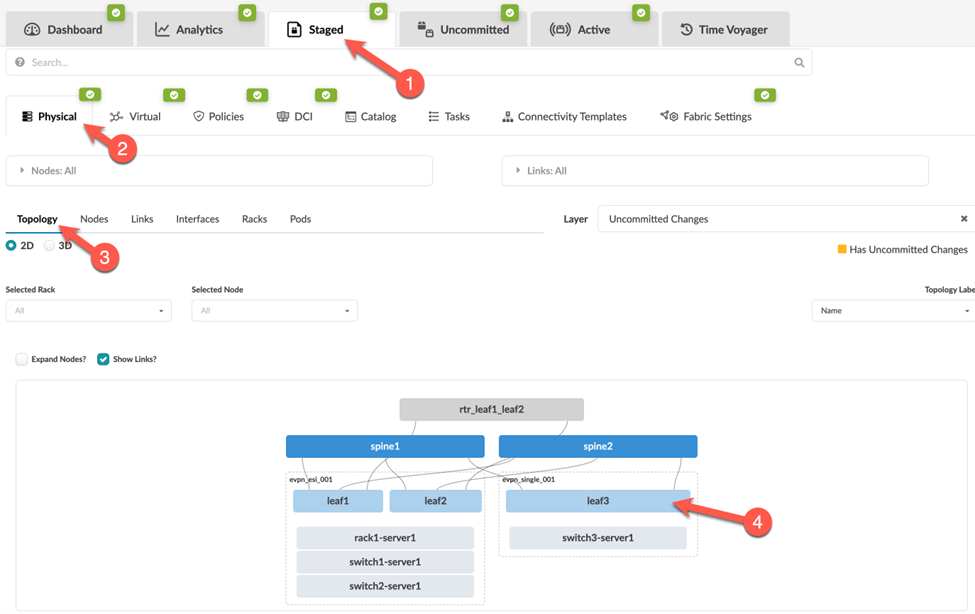
    Staged tab in network tool showing physical topology of a data center with spine-leaf architecture. Uncommitted changes highlighted.
  2. In the Selection section that appears in the right panel, on the Device tab, click Execute CLI Command.
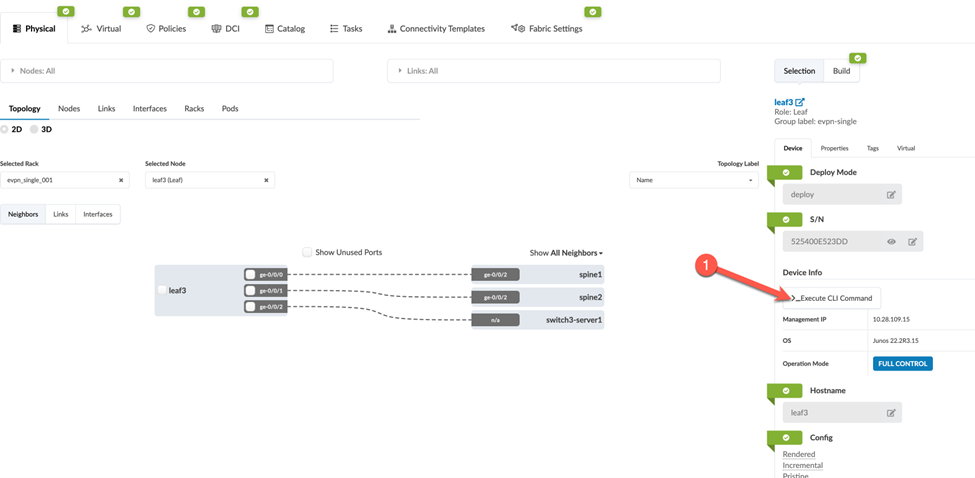
    Network management tool interface showing a topology view with node leaf3 connected to spine1, spine2, and switch3-server1. Device details for leaf3 include deploy mode, serial number, CLI command execution, management IP 10.28.109.15, OS Junos 22.3R3.15, and operation mode FULL CONTROL. Red arrow highlights the Execute CLI Command option.
    In the dialog box that opens, select how you want to view the results: Text Mode, XML Mode, or JSON mode. Here we show examples of Text Mode and XML Mode.
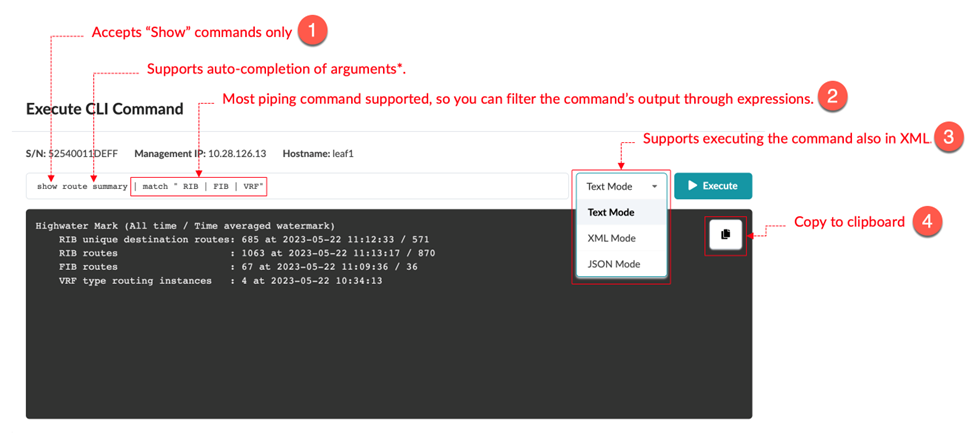
    Screenshot of a CLI interface highlighting features: accepts show commands only, supports auto-completion, piping, XML and JSON modes, and copy to clipboard.
    Note:

    The CLI supports only Junos show commands. You cannot run commands that affect the device state, such as request system reboot. For information about the various show commands, see the CLI User Guide for Junos OS.

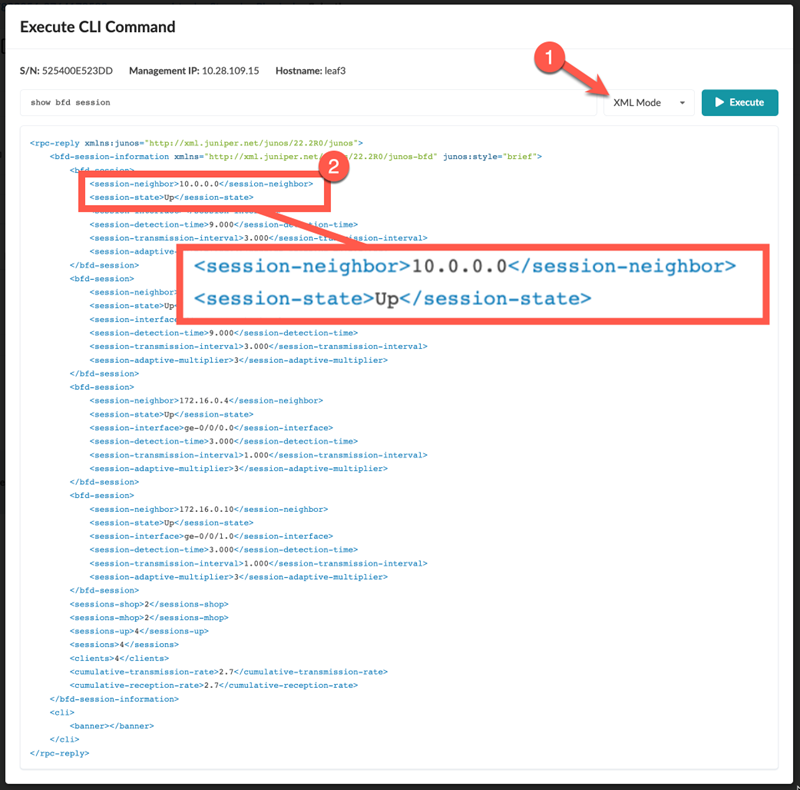
    Now, run the same show command (show route summary), but choose XML Mode.

    CLI command "show bfd session" executed; XML output shows BFD session with neighbor IP 10.0.0.0 and state "Up" indicating active session.
    In the XML output, the XML path (BDF session) information is highlighted. This session information is what we'll use to create our telemetry collection service.

Identify the Key and Value of Interest from the CLI Output

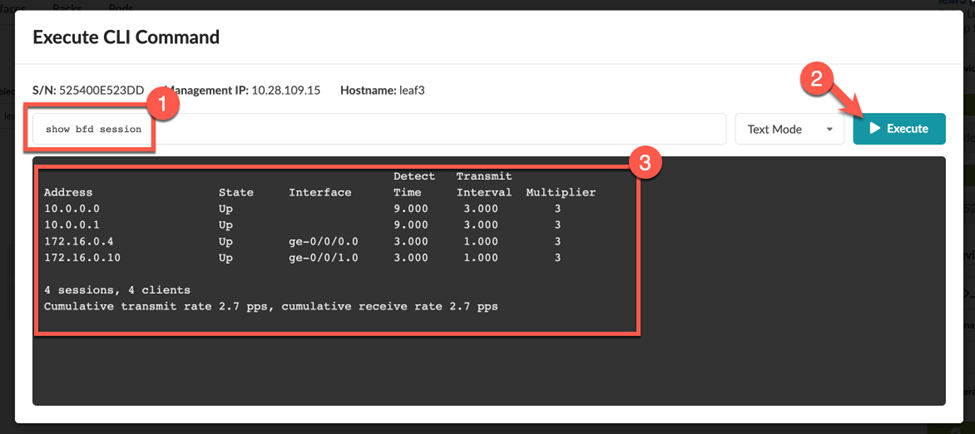
This example shows you how to use the Execute CLI Command to view the neighbor addresses and state information (Up or Down) for your BDF session.
  1. Enter the show command (in this example, show bfd session).
  2. Click Execute to view the CLI output.
    Network management interface showing CLI command show bfd session with output displaying BFD session details such as address, state, interface, detect time, transmit interval, multiplier; summary indicates 4 sessions, 4 clients, 2.7 packets per second transmit and receive rates.

Create a Service Schema

To create your custom service collector, you first need to create a service schema to define how you want the returned data to be structured and stored.
Note:

A single telemetry service schema can have multiple collectors associated with it.

  1. From the left navigation menu, navigate to Devices > Service Registry and click the Create Service Schema button.
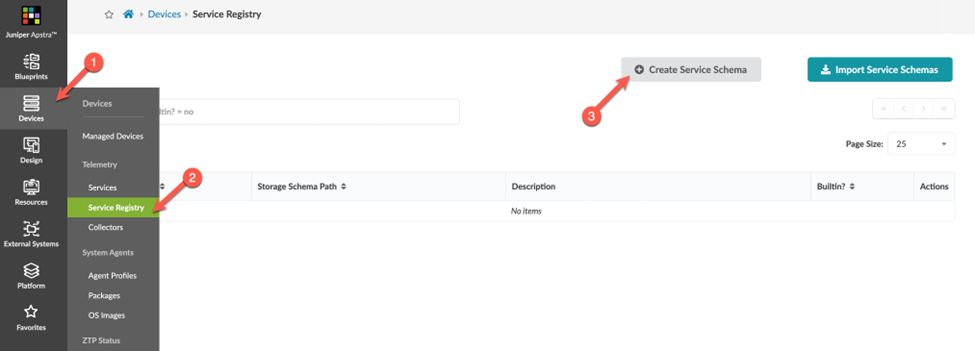
    Juniper Apstra Service Registry interface showing Devices menu with Service Registry highlighted, an empty table, and buttons to create or import service schemas.
  2. In the dialog box that opens, define your schema. This step identifies how the collector output is to be structured.
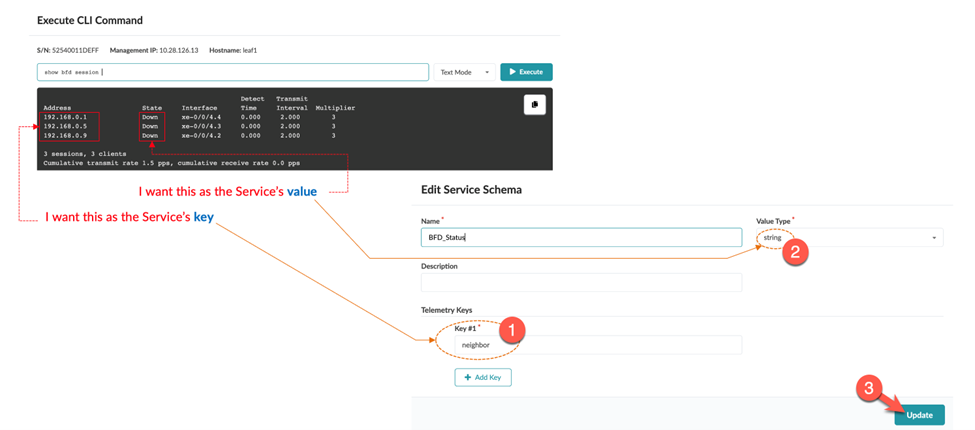
    CLI command output shows BFD sessions with addresses 192.168.0.1, 192.168.0.3, 192.168.0.9 in Down state. Edit Service Schema configures service BFD_Status with key neighbor and address as key, state as value.
  3. Map the Telemetry Keys and Value Type.
    The telemetry key and value type is collection of key-value pairs that gets posted to Apstra.
    • The telemetry key is a string that identifies the interface name.

    • The value type is the piece of data that the probe executes against. The value type is usually a string (text), but could also be an integer (whole number).

    In our example, we defined the Service's key as neighbor and the Value Type as string.
  4. Click Update.
Now, let's proceed to the final step, Create a Collector.

Create a Collector

We've defined the data to collect and how we want this data to be organized and structured. Now we'll map these parts together.
Note:

A single telemetry service schema can have multiple collectors associated with it.

  1. From the left navigation pane, navigate to Devices > Collectors > Create Collector.
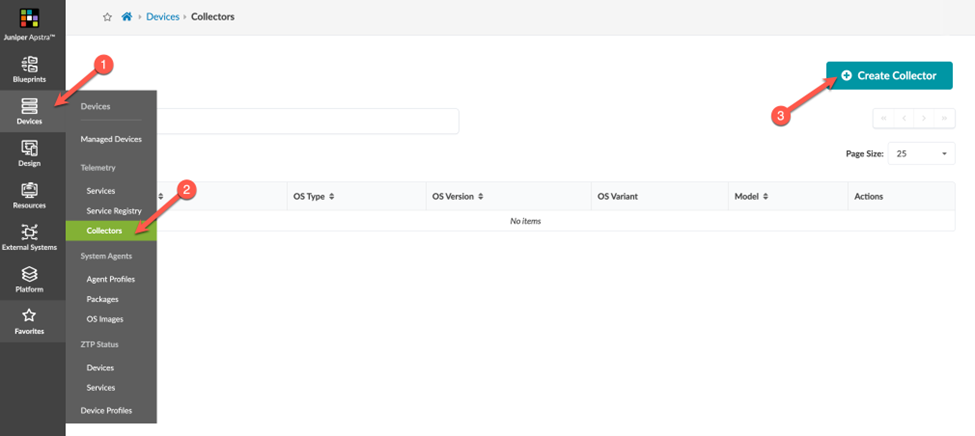
    Juniper Apstra interface showing Devices menu with Collectors section selected and Create Collector button highlighted. No existing collectors displayed.
  2. Select the existing service schema (BFD) you created in the previous step and click Next.
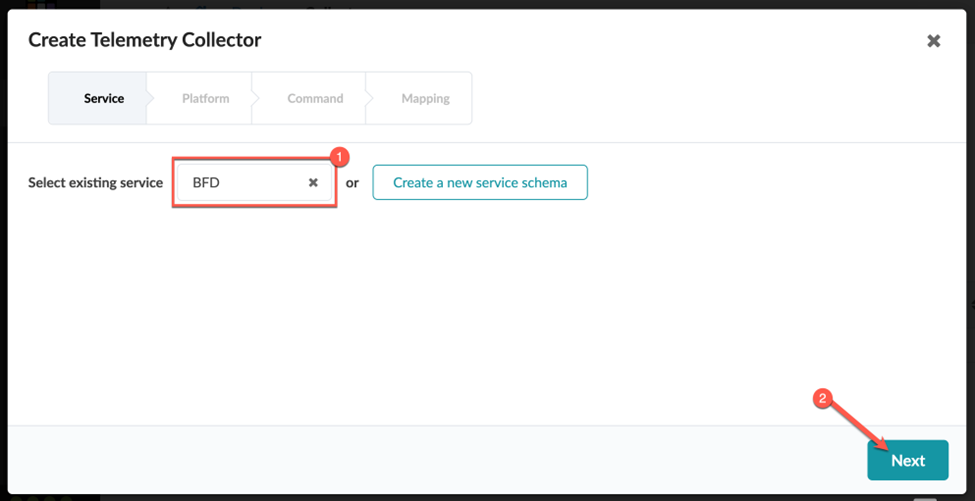
    User interface for creating telemetry collector with Service tab active. BFD service selected with option to remove or create new schema. Next button highlighted.
  3. Select the platform (OS, OS Variant, OS version, and Model) and devices to target for telemetry collection. Defining a mix of these inputs enables you to be very broad or very granular. For example, you might have a use case where you only want to apply telemetry on the border leaf devices.
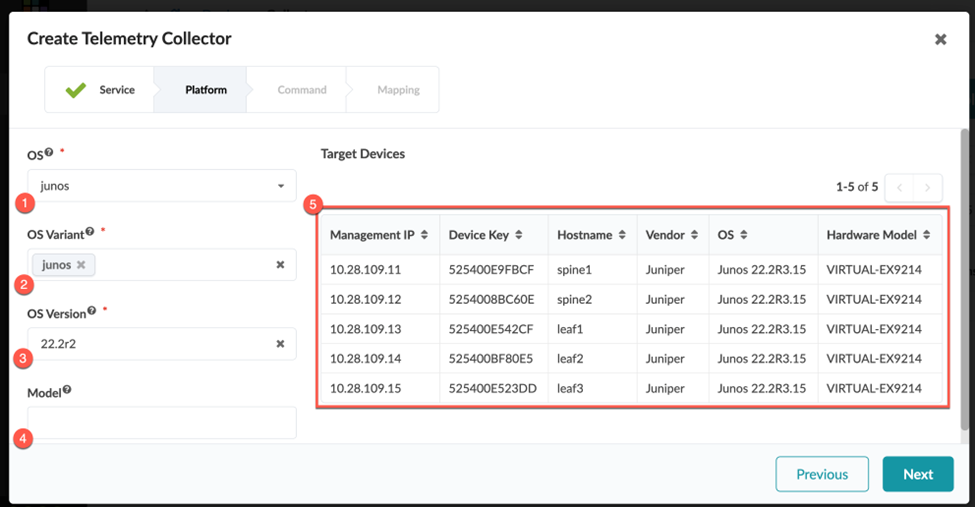
    Telemetry collector UI with Junos OS version 22.2r2. Target devices table lists IPs, device keys, hostnames, all using Juniper's VIRTUAL-EX9214 hardware.
    1. Select the OS type , either junos or junos-evo.
      For more information on Junos-evo (also known as Junos OS Evolved) see the Junos OS Evolved documentation.
      Note:

      If you do not define a Junos-evo collector for Junos-evo devices, the collector uses the corresponding Junos definition. This means if you use the same command between Junos and Junos-evo, you can create a single Junos collector definition for that service. If the command exists only on Junos-evo, you create a single collector definition for Junos-evo.

    2. Select the OS Variant the device belongs to and determine the CLI schema for a given device.
    3. Select the minimum OS Version the device must run for the collector to execute. If multiple collector definitions with different OS versions exist for the same service, the collector automatically chooses the one closest to the version the device is running.
    4. (Optional) Specify a Model or a regular expression to filter based on a device model or series.
      The table shows a list of target devices currently managed in Apstra and matches the applied combination of filters.
    5. Click Next.
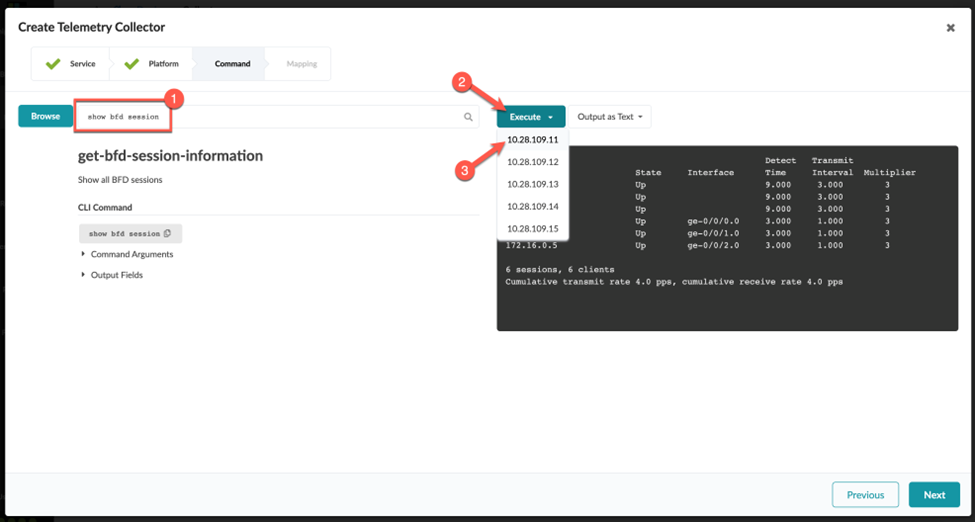
  4. Run the CLI command.
    Use the show command to gather the date you want to collect from the device (in this example, show bdf session ).
    User interface for creating telemetry collector for BFD sessions. Command show bfd session entered. Dropdown lists IPs for execution. Results show state Up, interface ge-0/0/0.0, detect time 9.000, transmit interval 3.000, multiplier 3. Summary indicates 6 total sessions with cumulative transmit and receive rate of 4.0 pps. Step labeled Command with Previous and Next buttons.
  5. Map the Keys and Value.
    So far, we've defined the service schema, the target platforms, and the command the custom telemetry collector will execute. Next, we'll map the key(s) you defined in your schema and the value you want to track.

    To map the keys:

    1. Click Expand All to search for the RPC value you want to map.
      In the previous step, we established session-neighbor as the key value.
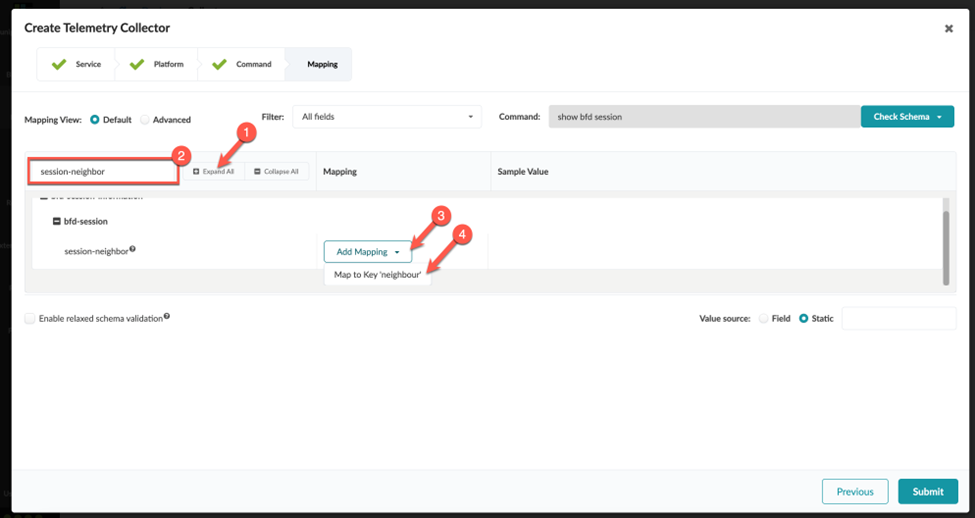
      User interface for telemetry collector creation: Mapping View options, Filter set to All fields, Command show bfd session, session-neighbor highlighted, Add Mapping dropdown to Key neighbour, option for relaxed schema validation, Previous and Submit buttons.
    2. Click Add Mapping.
    3. Assign session-neighbor to the key (in this example, neighbor).
      We defined this value earlier when we created a service schema.
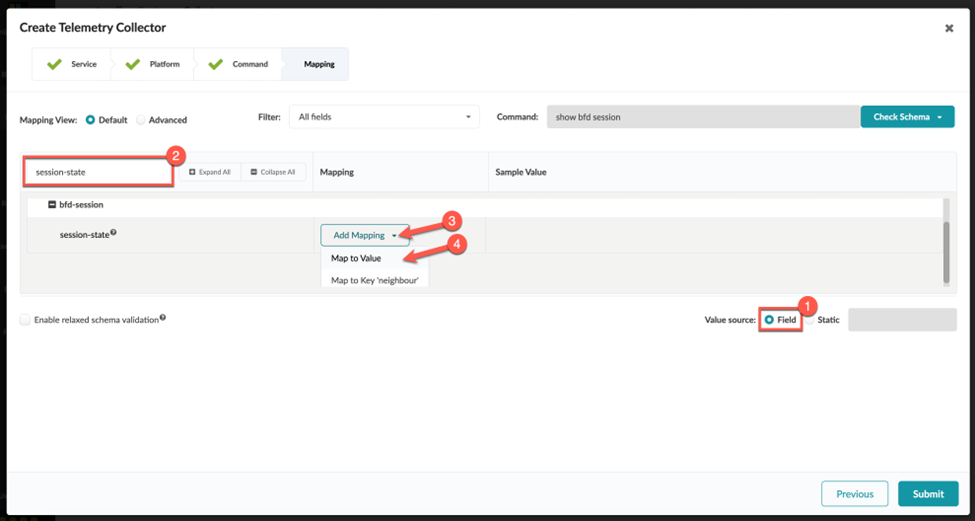
    To map the value:
    1. Select the Value Source. In our example, we want to populate the value based on the dynamic session-state field returned by this CLI command.
      Telemetry collector interface showing Mapping step with Field value source. Session-state field highlighted for configuration. Add Mapping dropdown open. Command: show bfd session. Submit button available.
    2. Search for the session-state field.
    3. Click Add Mapping.
    4. Assign session-state to map the value.
    5. Click Submit.

Validate That the Collector Is Working
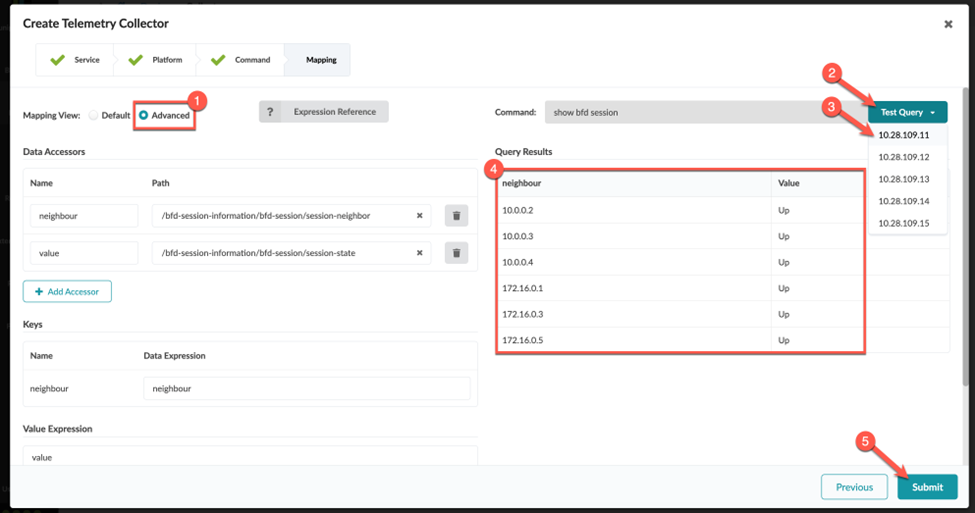
Finally, in Advanced view, validate that the collector is working. Verify that the query and test results match your expected results.

User interface for telemetry collector creation in Mapping step, advanced view selected. Command entered: show bfd session. Test Query and Submit buttons available. Query results show BFD session neighbors and states, all marked Up.

Congratulations! You successfully created a collector.

Note:

When you define the integer (number) values for a collector, you might need to enter a value expression for the collector to function. This is because Junos occasionally reports number data as a string. Before the collector can be processed, you must perform a conversion from string to integer on the Apstra side.
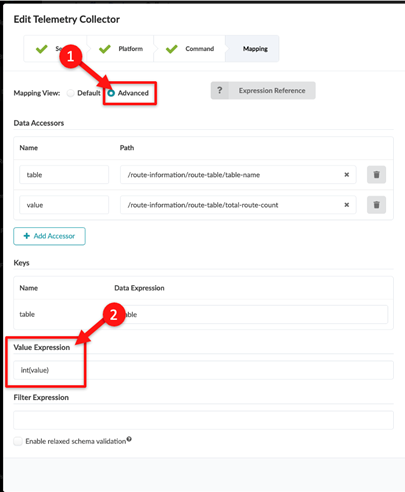
To define the integer (number) values for a collector, enter int(value) into the Value Expression field and click Submit.

Editing telemetry collector interface with advanced mapping view, data accessors, keys, and filter expression options.