
Step 2: Up and Running
Activating Your License
This section describes license activation for SaaS customers. For on-premise installations of Paragon Active Assurance, licenses are created and activated differently; see the Installation Guide, chapter Getting Started with Paragon Active Assurance.
- Log in to the Juniper EMS Portal at license.juniper.net/licensemanage/ with your Juniper account credentials. If you do not have such an account, you are invited to create one.
- You will also have received from Juniper a "Software Entitlement Certificate" which contains a
17-character activation code in the format
abCdeF-GhiJk-lmNOPq. If that code is listed in the My Product Licenses dialog, click the Activate button next to it. If the code is not listed, paste it into the box at the top and click the Activate button there.
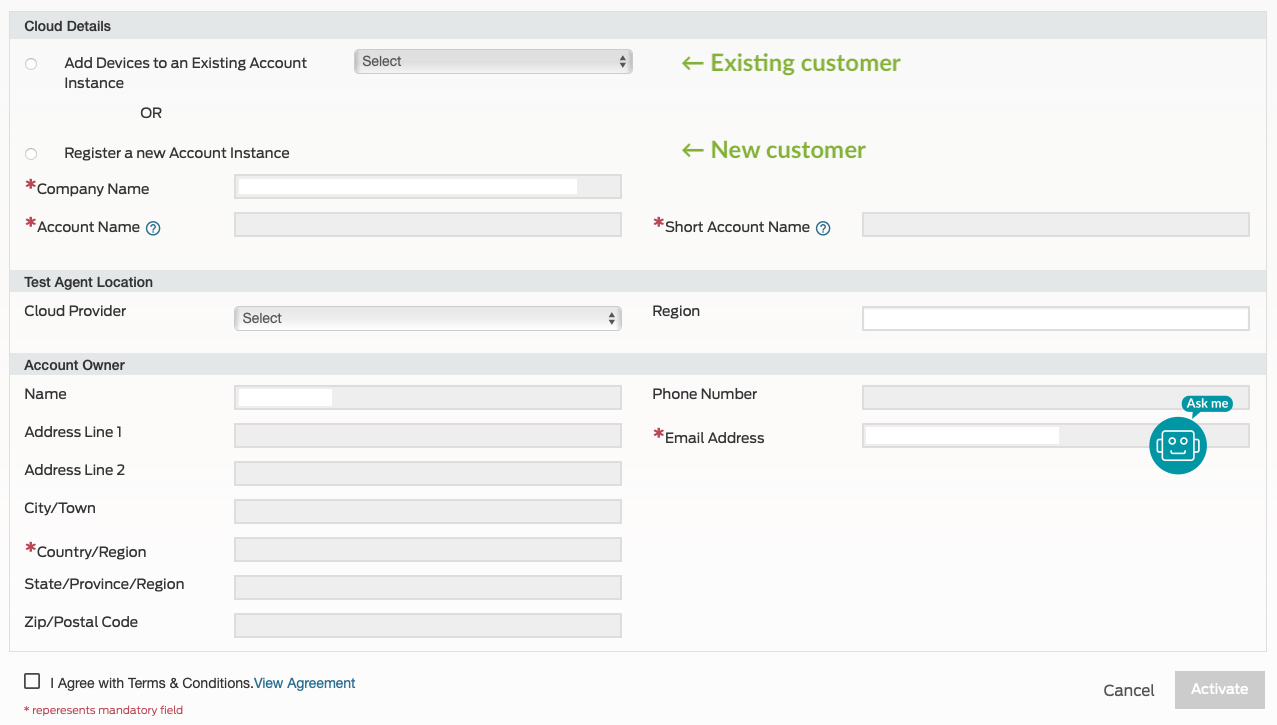
The procedure that follows is different for existing customers and new customers.
-
Existing customer: Under Cloud Details, select Add Devices to an Existing Account Instance, then select the short name of your Paragon Active Assurance account from the drop-down box. (Your account has both a full name and a short name, and the latter is what is found in the drop-down.) The rest of the dialog is populated with your account details. Proceed by clicking Activate.
Note: If you do not find your short account name in the drop-down, please talk to customer care before proceeding. - New customer: Under Cloud Details, select Register a New Account Instance and enter your account details. Note that you need to enter both a full and a short account name. Finish by clicking Activate.
Please note that the activation is not instantaneous but will take about 48 hours. You will receive a confirmation email acknowledging your request. A work order is sent to the license team, which will activate the capabilities granted to the account.
Logging In to the Paragon Active Assurance SaaS
The Paragon Active Assurance SaaS server is found at https://app.netrounds.com. The web GUI shows the following login dialog:
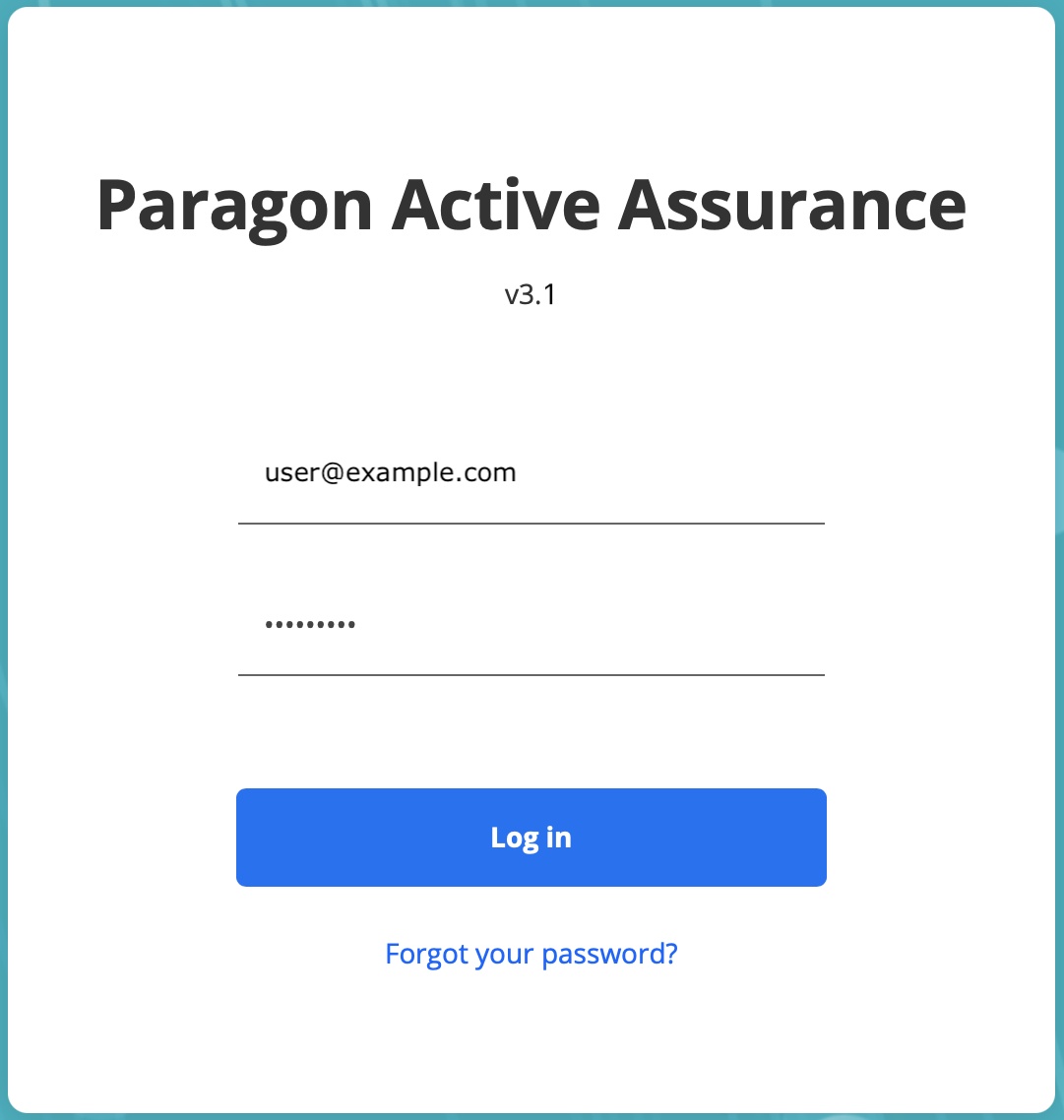
Enter the email and password for your Paragon Active Assurance user, then click the Log in button.