
Connect the SSR440 Routers to External Devices
This topic guides you on how to connect your SSR440 Routers to external mangement devices.
You can monitor and manage the SSR440 Routers by using a dedicated management channel. Use the USB 2.0 Type C console port located on the front panel or your router to connect your device to the management device.
Connect Your Device to a Management Console Using a USB-C Connector
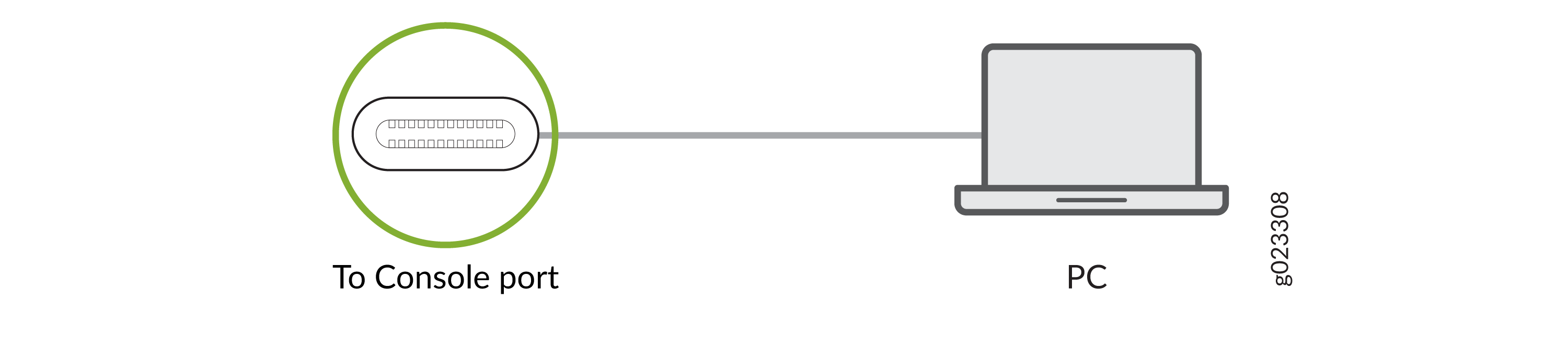
Connect a USB-C cable between your console server or laptop and the front USB-C port of the router.
Figure 1: Connect Your Device to a Management Console through a Console Server

Figure 2: Connect Your Device directly to a Management Console
Set the properties of the console server or terminal emulation software as follows:
- Baud rate: 115,200
- Flow control: Software
- Data: 8
- Parity: None
- Stop bits: 1