
Connect the SSR400 Routers to External Devices
Use the information in this topic to connect your SSR400 Router to an external management device.
You can monitor and manage the SSR400 Routers by using a dedicated management channel. Use the USB 2.0 Type C console port located on the front panel or your router to connect your device to the management device.
Connect Your Device to a Management Console Using a USB-C Connector
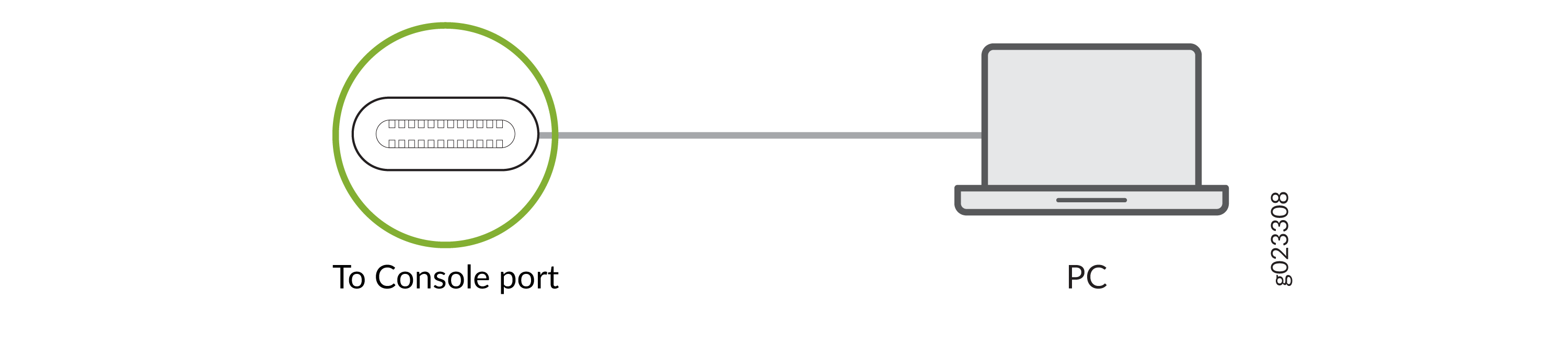
Connect a USB-C cable between your console server or laptop and the front USB-C port of the router.
Figure 1: Connect Your Device to a Management Console through a Console Server

Figure 2: Connect Your Device directly to a Management Console
Set the properties of the console server or terminal emulation software as follows:
- Baud rate: 115,200
- Flow control: Software
- Data: 8
- Parity: None
- Stop bits: 1