
SSR Chassis Manager
The SSR400 routers support an integrated Chassis Manager to help monitor connectivity, power, and temperature, as well as provide insight into other vital operational data.
Chassis Manager
You can interact with the Chassis Manager through CLI commands and button presses on the front of the SSR400 chassis. The Chassis Manager components include the LED Manager and the Temperature Manager.
LED Manager
The LED Manager translates status updates from internal SSR components and provides a high-level indication of system status through the system LED.
The System LED displays the following colors to report system state:
-
Steady green: Device is operating normally.
-
Amber: Device is starting up.
-
Purple: Device has degraded operation.
-
Red: An error has been detected in the device.
-
Off: Device has shut down.
show alarms command. See CLI Commands
for more information.Port Status LEDs
Port LEDs indicate port status through the following behavior. The following illustration identifies the port status LEDs for SFP and RJ-45 ports.
SFP Network Port Status LED Orientation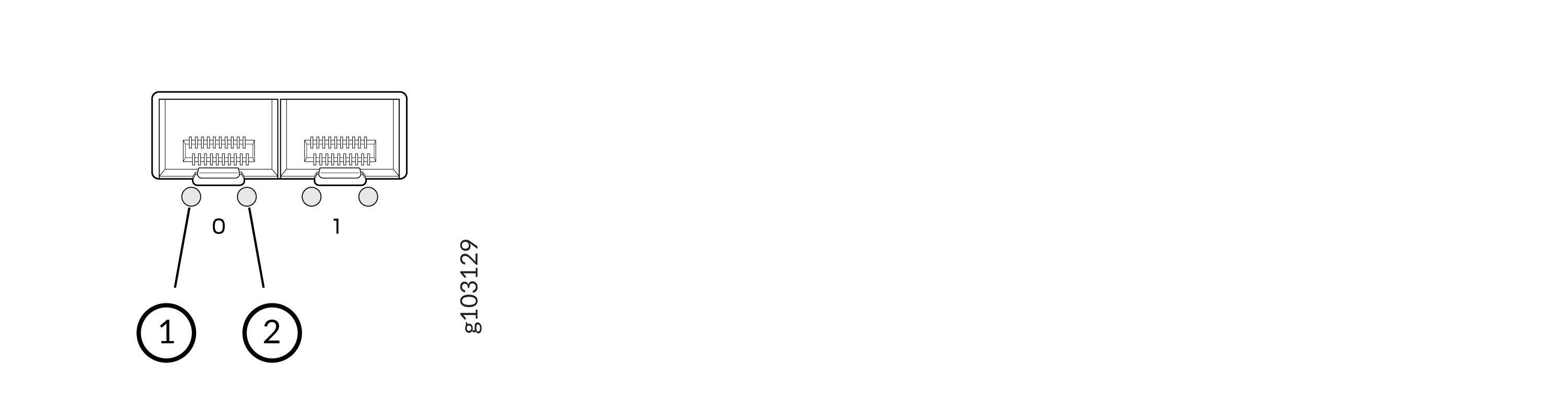
RJ-45 Network Port Status LED Orientation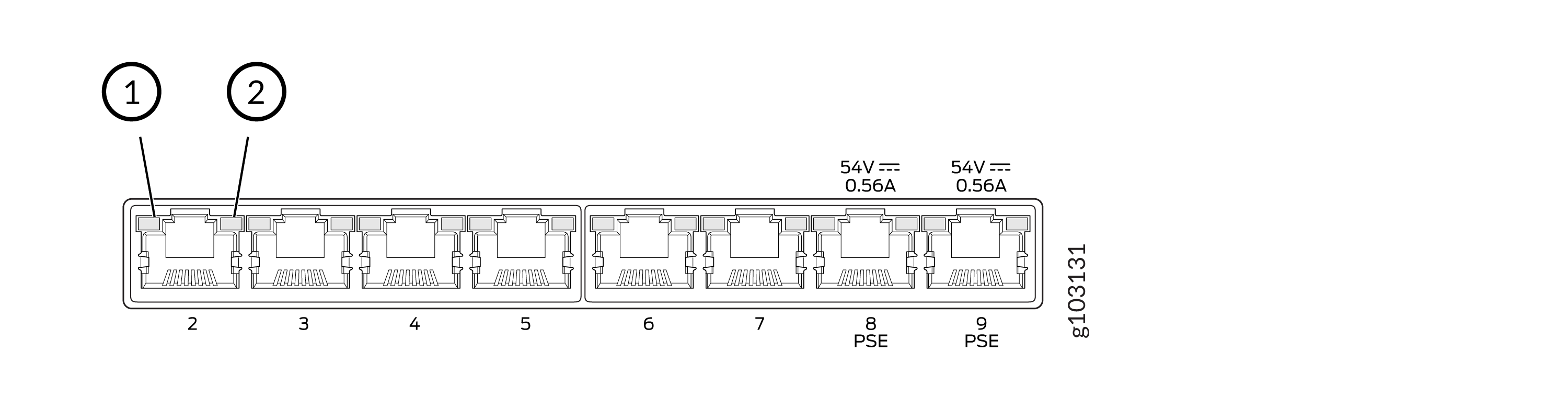
Left LED (1) - Port Link Activity
The left LED on each port indicates port activity with the following behavior:
-
Blinking green: The port and the link are active, and there is link activity.
-
Glowing steadily: The port and the link are active, but there is no link activity.
-
Unlit: The port is inactive.
Right LED (2) - Port Speed
The right LED on each port indicates port speed with the following behavior:
- Unlit: Below 100 Mbps
- Blinking green: 100 Mbps (1 blink per second)
- Glowing steadily: 1000 Mbps
Temperature Manager
Three temperature thresholds are specified for each sensor:
- Yellow: A major alarm is generated, warning of high temperatures, but no action is taken.
- Red: A critical alarm is generated, warning of an impending shutdown due to
critical temperature reachedreached state. The CPU is slowed and monitored to reduce heat generation. - Shutdown: When the critical temperature threshold is reached, the system generates a fatal error and immediately shuts down the SSR to prevent any damage to the device.
Use show chassis temperature-thresholds to see the thresholds for each
alarm level.
admin@node.router# show chassis temperature-thresholds
Thu 2025-07-17 23:56:07 UTC
Retrieving chassis status...

=========== ============== =========== ==========
 Sensor      Yellow Alarm   Red Alarm   Shutdown
=========== ============== =========== ==========
 cpu         97.0 C         99.0 C      101.0 C
 mac         104.0 C        107.0 C     110.0 C
 mainboard   86.0 C         89.0 C      92.0 C

Completed in 0.01 seconds
CLI Commands
Use the show commands to see the chassis status from the CLI.
| CLI Command | Function |
|---|---|
show chassis led |
Shows the current LED states on the chassis. The output includes the LED color, pattern, and description. |
show chassis led system |
Shows the status of the system LED. |
show chassis led port <number> |
Shows the status of a specific port number. |
show chassis environment |
Shows the current temperatures, fan speeds, and temperature thresholds. |
show chassis environment fans |
Shows the current fan speeds, along with their settings. |
show chassis environment temperature |
Shows all current ambient and CPU temperatures using lm_sensors and sysfs, respectively. |
show chassis environment temperature sensor <id> |
Shows current temperatures for the specified sensor. |
show chassis environment temperature-threshold |
Lists the thresholds to trigger the yellow alarm, red alarm, and fire shutdown. |
show chassis environment temperature-threshold sensor
<id> |
Lists the thresholds to trigger the yellow alarm, red alarm, and fire shutdown for the specified sensor. |
show chassis power |
Shows current PSU voltages and amperage levels. |
show chassis power component <id> |
Shows current PSU voltages and amperage levels for the specified PSU id. |
show chassis hardware |
Reports the hardware SKU, CLEI, revision (rev), and serial numbers from
/sys/kernel/leopard_idprom. |
show chassis firmware |
Shows CPLD and boot firmware versions from
/sys/kernel/leopard_cpld/version and
/sys/devices/virtual/dmi/id/bios_version, respectively. |
Power Supply Adapter LEDs
The power supply adapter LEDs are not managed by the Chassis Manager, but the LEDs located on the adapters are used to indicate status.
-
Steady green: Receiving power
-
Off: Power failure or no power
HA Port Status LEDs
The high availability (HA) port status LEDs located on the HA port on the rear of the device are not managed by the Chassis Manager. However, the LEDs are used to indicate the link activity and port speed.
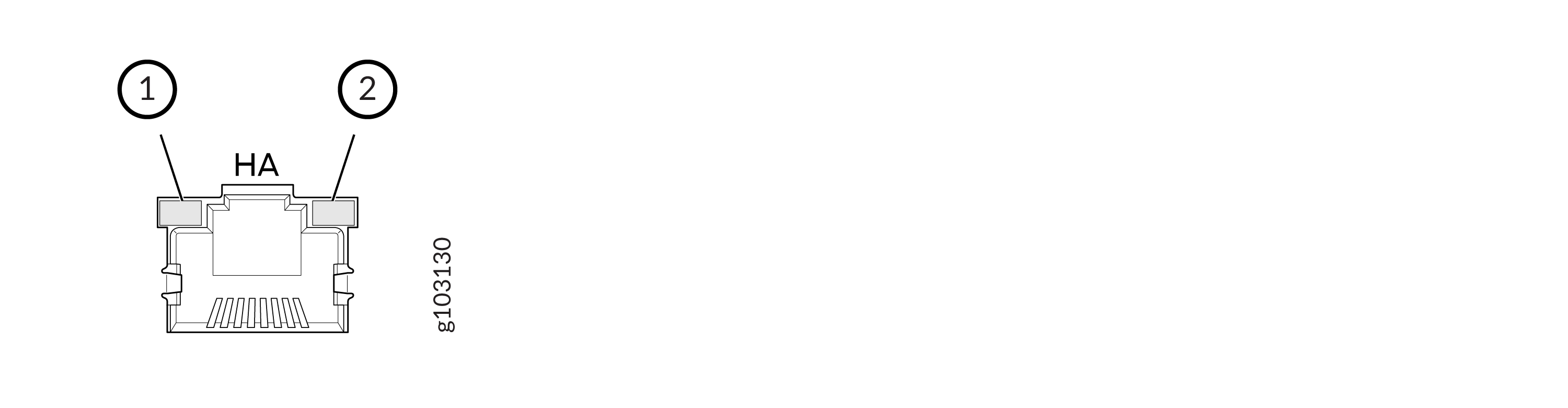
Left LED (1) - Port Link Activity
The left LED on each port indicates port link activity with the following behavior:
-
Blinking green: The port and the link are active, and there is link activity.
-
Steadily on: The port and the link are active, but there is no link activity.
-
Off: The port is inactive.
Right LED (2) - Port Speed
The right LED on each port indicates port speed with the following behavior:
-
Blinking green: 1000 Mbps (1 blink per second)
-
Steadily on: 100 Mbps
-
Unlit: 10 Mbps