
Onboarding an SSR Conductor-Managed SSR130 Onto Mist Cloud
SSR130 comes pre-installed with the Session Smart Router software version 5.4.4. The appliance includes a QR code that when scanned, automatically adopts your device into your Mist Organization. Scan the code using your Mist AI App or a QR Scanner and follow the on-screen instructions to adopt your device.
The Mist App can be downloaded from the following locations:
-
For Apple Device
-
For Android Devices
When a SSR130 device is assigned to a site and set to be managed by Mist, you will be prompted to upgrade to a version of software compatible with Mist. In some initial onboarding cases, the upgrade process may take thirty minutes or more.
For devices that are to be conductor-managed in a non-Mist environment, see QuickStart From the OTP ISO.
Pre-Onboarding Verification
When onboarding a conductor-managed appliance, the process is simplified by ensuring that the IP address of the managing conductor is configured for the site that will adopt the appliance. This is typically done during Site Configuration.
To verify the conductor IP address has been assigned:
-
Select Site Configuration from
the Organization menu.
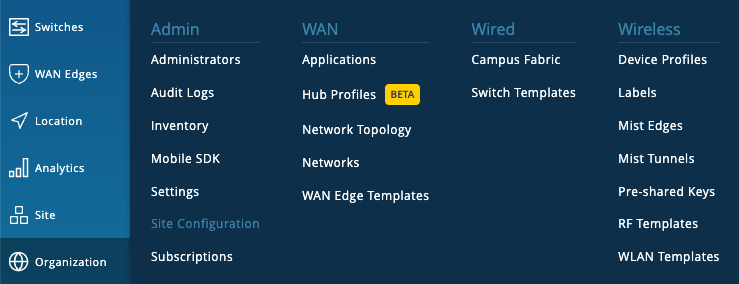
-
Scroll down to Session Smart Conductor and verify the
IP address.
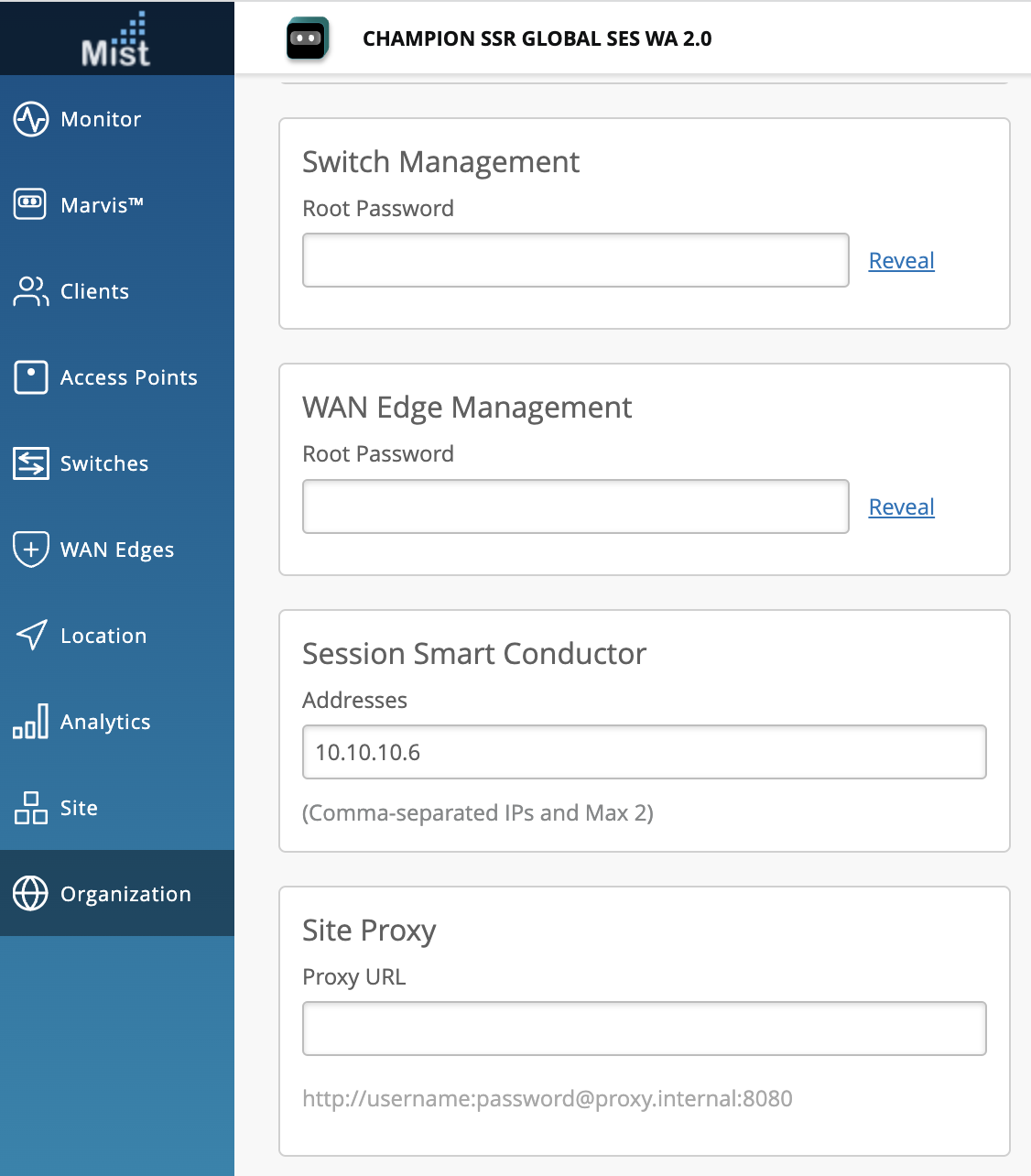
If no IP address is present, copy the IP address from the SSR GUI.
-
On the Configuration Home panel in the SSR GUI, click Authority.
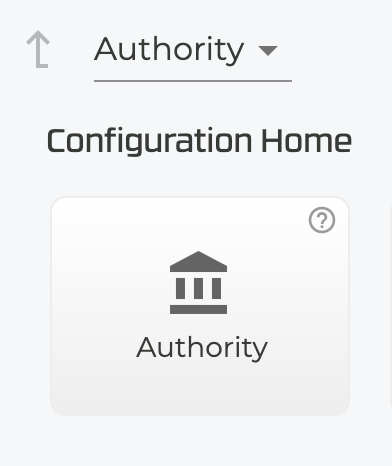
-
Under Authority Settings, scroll down to Conductor Addresses and copy the IP address of the conductor.
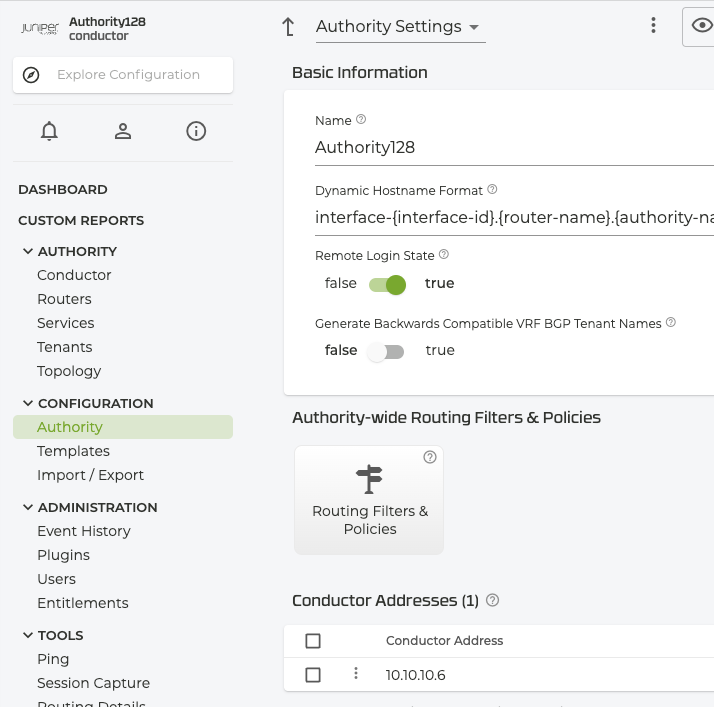
-
-
Return to the Mist Site Configuration, scroll down to
the Session Smart Conductor and add the
conductor IP address.
Onboarding a Conductor-Managed SSR130 Through the Mist Portal
Use the following process to onboard a conductor-managed SSR appliance into the Mist cloud using the Mist UI and your claim code.
-
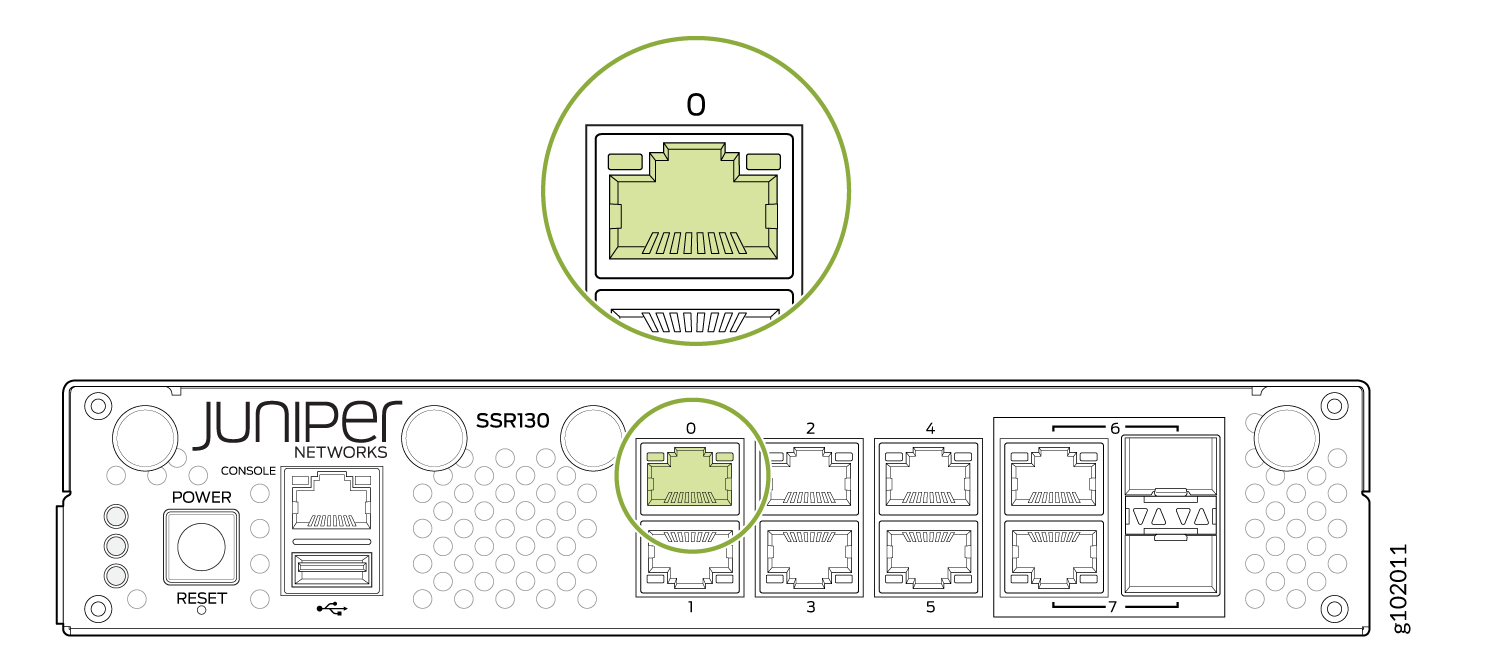
Connect to the WAN port. The port 0 on the front panel of the SSR130 appliance is the WAN 1 network
interface port.
-
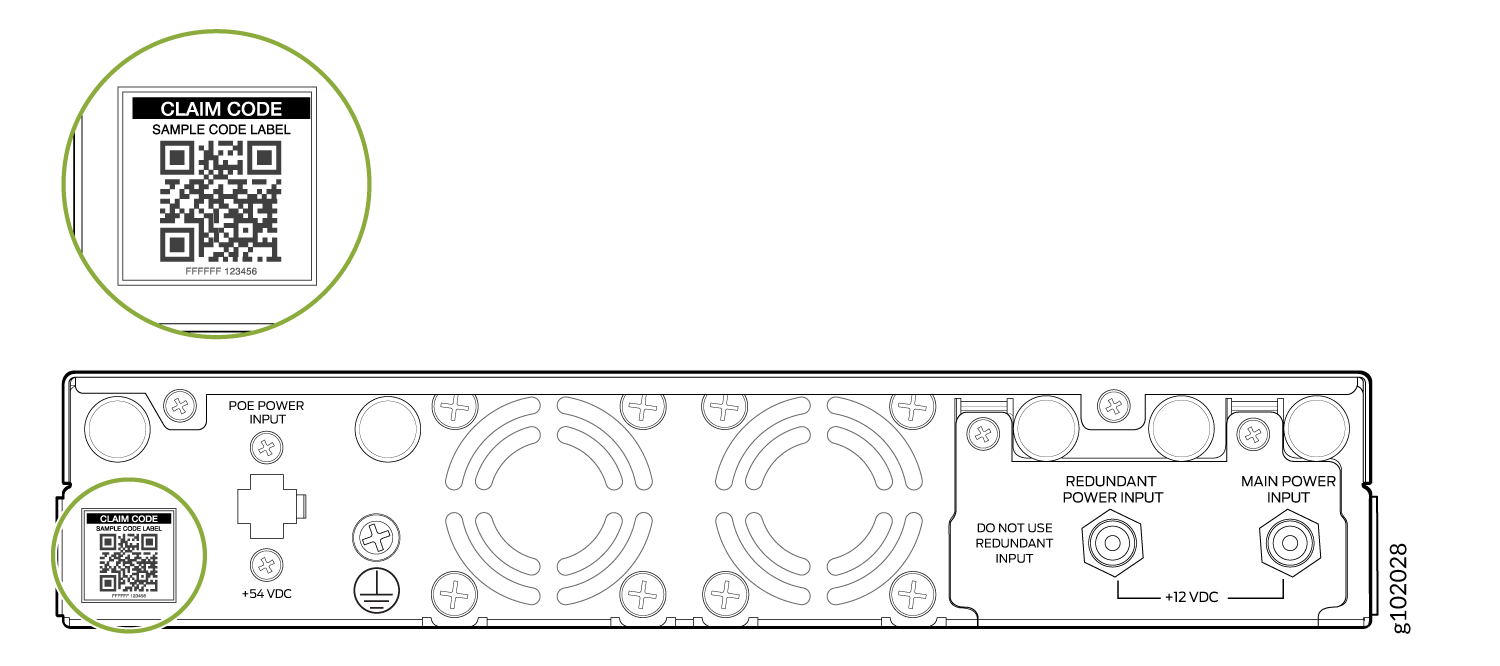
Copy the claim code from the QR sticker. The number listed
on the top is the claim code. For example: In the following picture,
the claim code is SAMPLECODELABEL.
-
Go to the WAN Edges page and click Claim
WAN Edges.

-
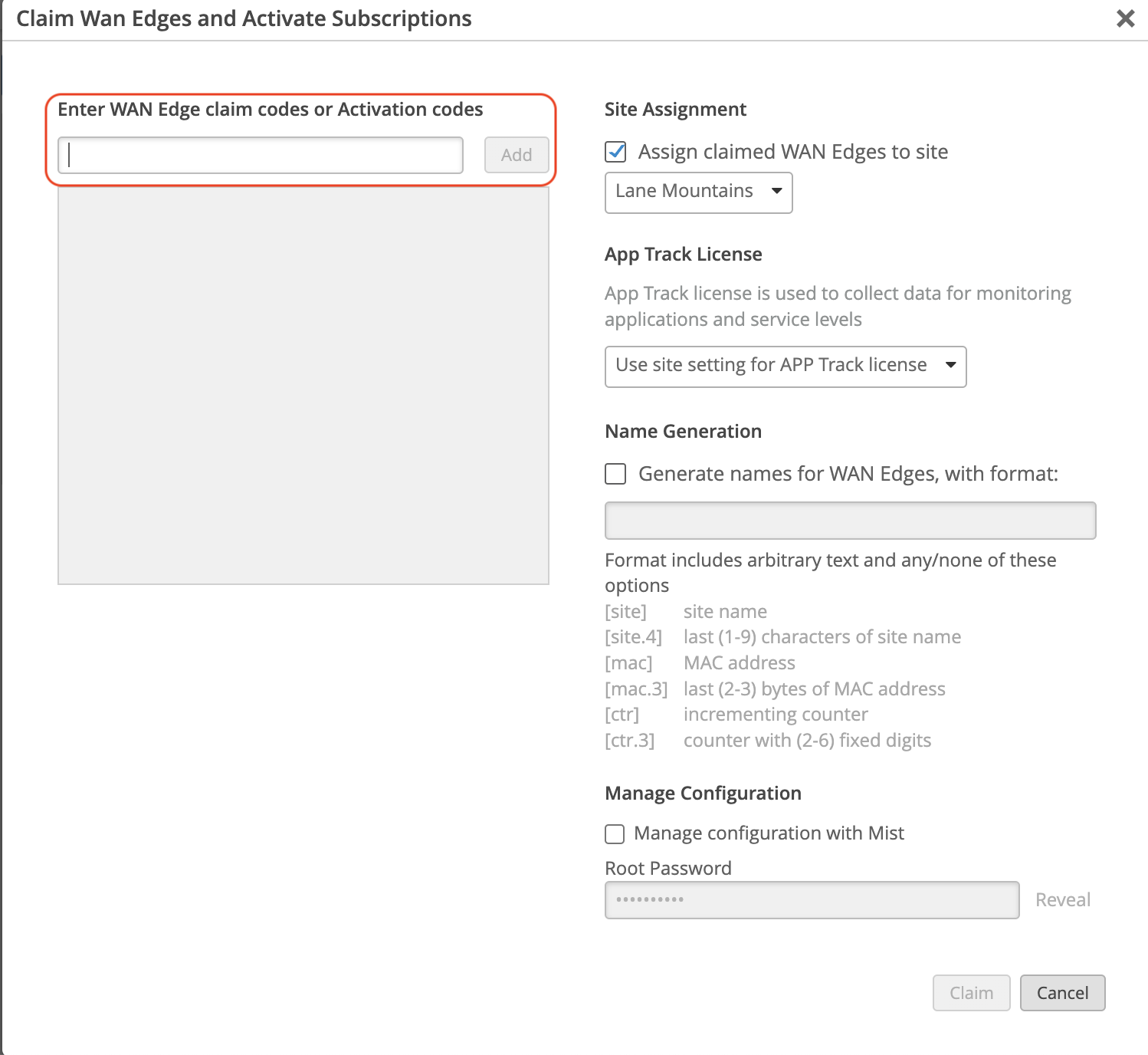
Enter the claim code.
Note:
Under Manage Configuration, do not check Manage Configuration with Mist if your SSR130 is running the SSR software version 5.4.4.
In the onboarding process, conductor-managed appliances reinitialize to use the factory-default configuration with the conductor IP address. During the initialization process, it reaches out to the conductor and pulls down the appropriate configuration.
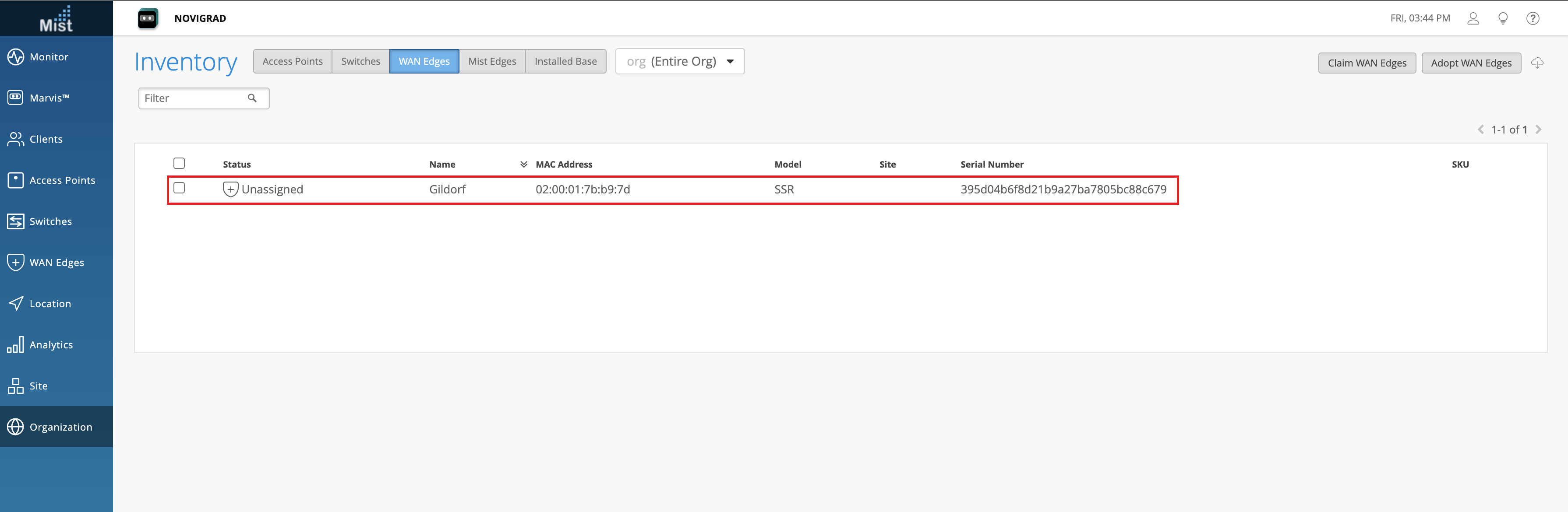
After a few minutes, the SSR130 appears in the Inventory with the status as Unassigned. Once it appears in the inventory, it must be assigned to a site. Assign the SSR130 appliance to a site to complete the SSR onboarding.
Assign SSR130 to a Site
After the SSR has been onboarded to the Mist Cloud, assign it to a site to begin managing the appliance configuration and gathering data in Mist.
In the Mist Inventory page, the new appliance shows as Unassigned.
-
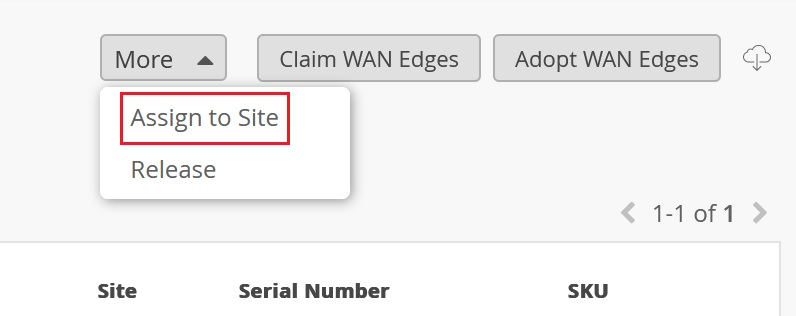
Select the new appliance. From the More drop-down list, select Assign to Site.
-
Select the site from the Site list.
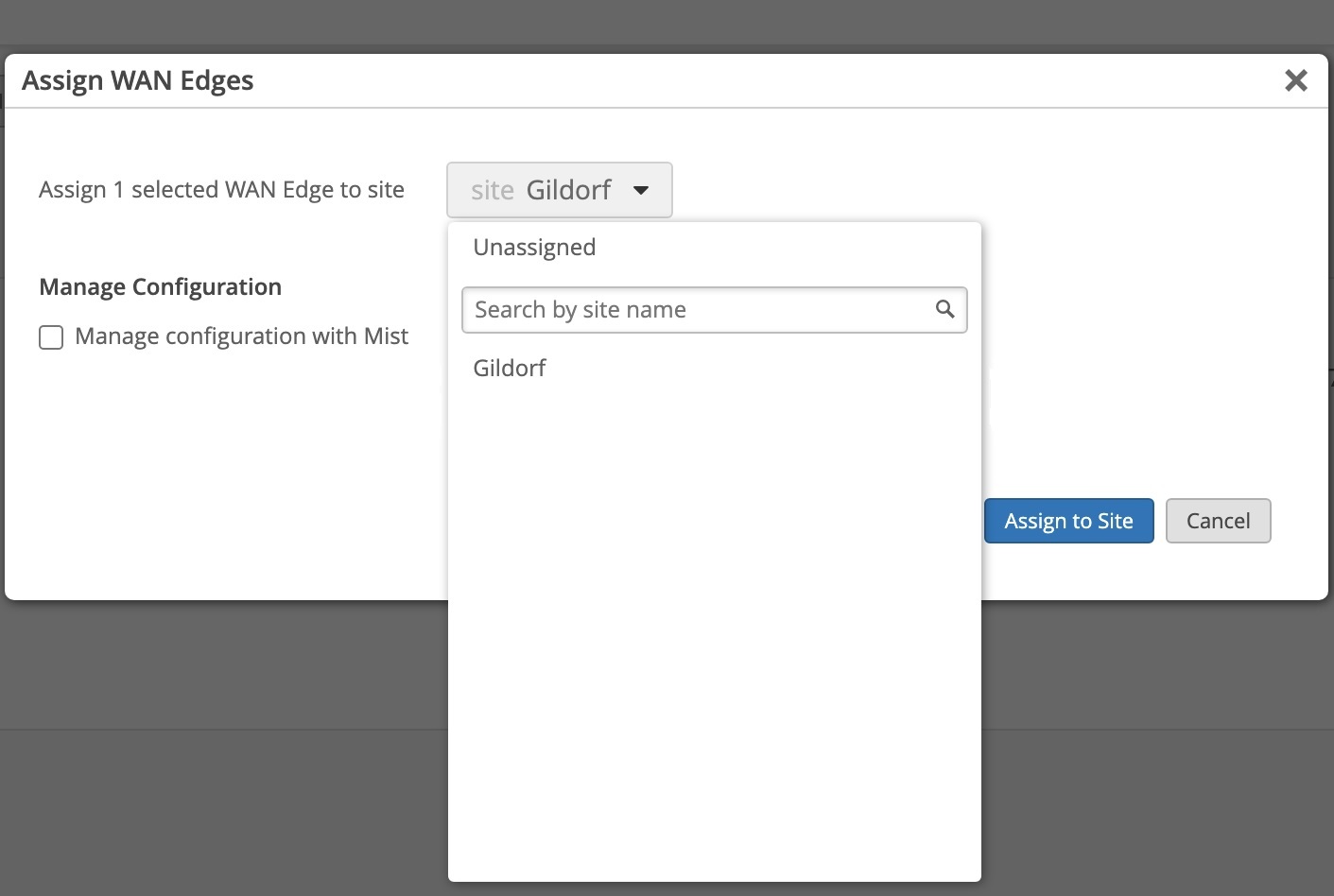
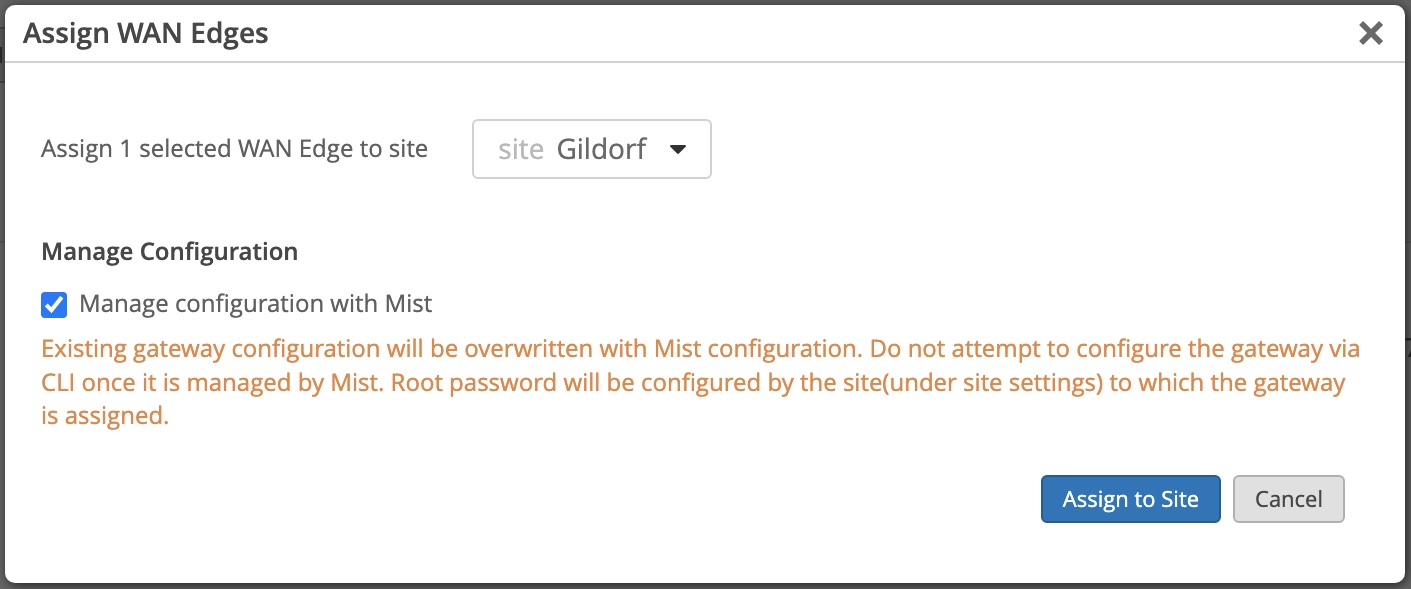
Under Manage Configuration, do not check Manage Configuration with Mist for the SSR Conductor managed appliance. This allows the device to reach out to the conductor IP address specified when the site was created to receive configuration information.
Note:If you are onboarding a Mist-managed appliance using Session Smart Router software version 6.0, select Manage Configuration with Mist. If Manage Configuration with Mist is not selected, the appliance will not be managed by Mist.
-
Click Assign to Site.
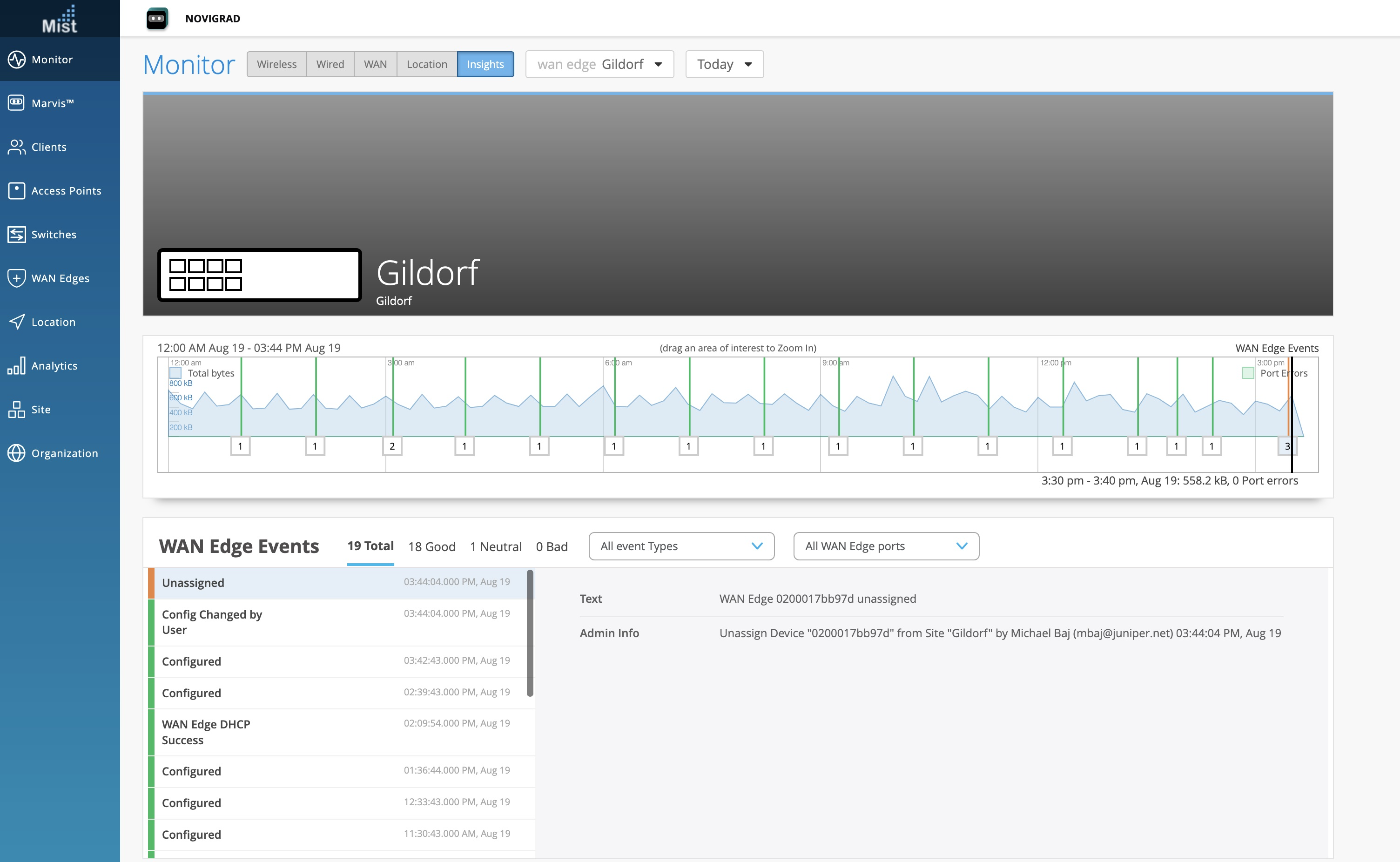
The site assignment will take a few minutes. After the site is fully onboarded, use the Mist WAN Edge - Device View to access the appliance, and the Insights view to view events and activity.