Connect the SRX400 Firewalls to External Devices
This topic guides you on how to connect your SRX400 Firewalls to external management devices.
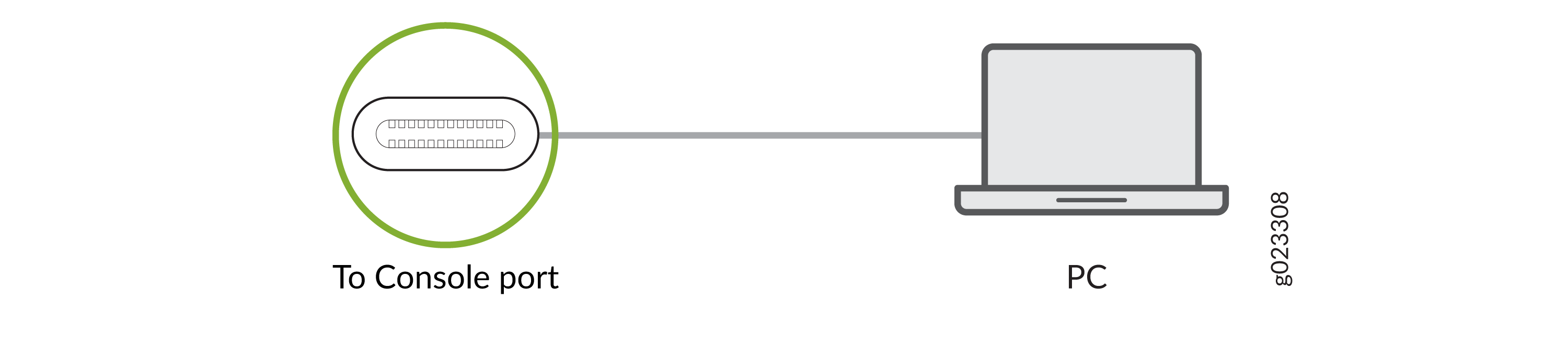
You can monitor and manage the SRX400 Firewalls by using a dedicated management channel. Use the USB 2.0 Type C console port located on the front panel of your firewall to connect to a management device.
Connect Your Device to a Management Console Using a USB-C Connector
Ensure that you have a USB cable that has a USB-C male connector at either end.
Set the HyperTerminal properties of the console server or management console as follows:
-
Baud rate—115200
-
Flow control—None
-
Data—8
-
Parity—None
-
Stop bits—1
To connect the device to a management console:
-
Connect the other end of the cable with the appropriate connector to the
console server or management console.
Figure 1: Connect Your Device to a Management Console Through a Console Server
 Figure 2: Connect Your Device Directly to a Management Console