
PTX12008 Flexible PIC Concentrators
Learn about the Flexible PIC Concentrators used on the PTX12008 and their specifications.
PTX12008 has eight horizontal Flexible PIC Concentrator (FPC) slots on the front panel. You can install the FPCs in those slots.The FPCs are hot-insertable and hot-removable field-replaceable units (FRUs). You can replace them without powering off the router or disrupting the router functions.
The FPCs combine a Packet Forwarding Engine and Ethernet interfaces enclosed in a single assembly. PTX12008 FPC architecture is based on a number of identical, independent Packet Forwarding Engine slices. Each FPC has three ASICs. The supported FPCs are:
-
PTX12K-LC54OSFP FPC
-
PTX12K-LC54QDD FPC
PTX12K-LC54OSFP FPC
Overview
The PTX12K-LC54OSFP FPC (model number: PTX12K-LC54-OD) is a 54-port FPC that offers a line rate throughput of 43.2 Tbps. The 54 800-Gigabit Ethernet (800GbE) OSFP ports support speeds of up to 800 Gbps. The FPC houses three ASICs, and each ASIC comprises of two Packet Forwarding Engines.
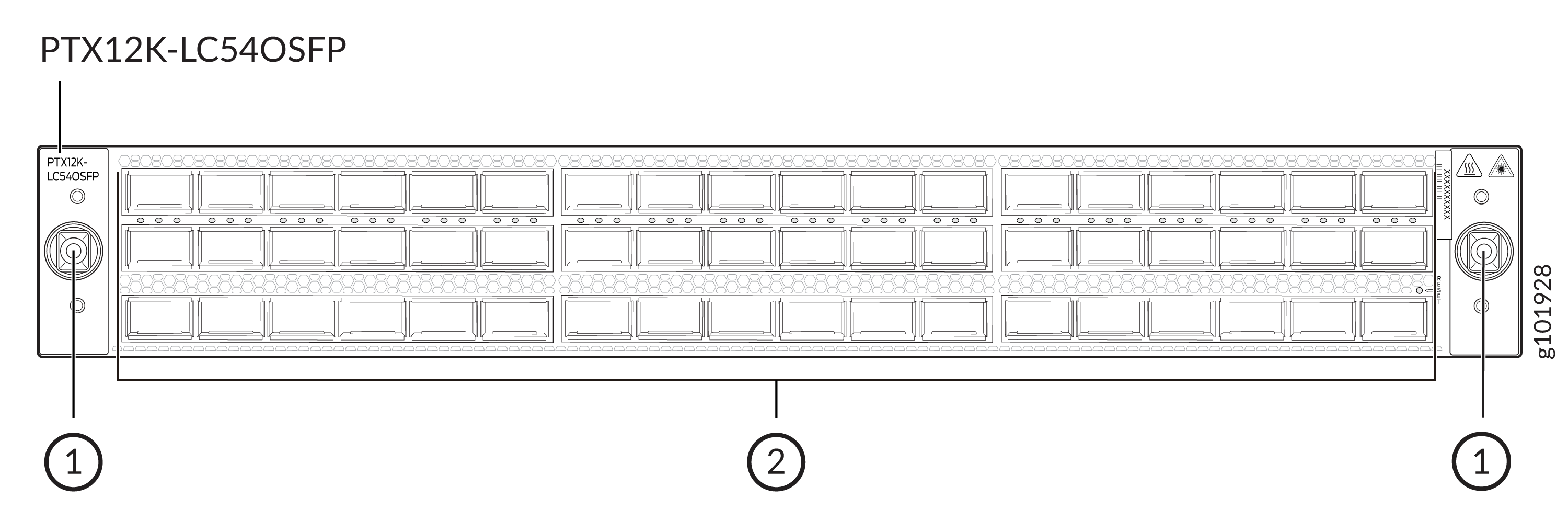
1 — Ejector tool handle receptacles | 2 — Ports |
See Hardware Compatibility Tool for the list of transceivers that the FPC supports.
Port Checker provides a visual representation of various Juniper network devices, and assists to configure and validate different port combinations.
If there is no transceiver installed in a port, you must install a dust cover in the port to prevents dust and particles from entering the FPC and to ensure properly airflow through the chassis.
Channelization
You can use breakout cables, active optical cables (AOCs), and the number-of-sub-ports (interface) configuration to channelize the ports to operate at the following speeds:
-
1x800 Gbps
-
2x400 Gbps
-
1x400 Gbps
-
8x100 Gbps
-
7x100 Gbps
-
6x100 Gbps
-
5x100 Gbps
-
4x100 Gbps
-
3x100 Gbps
-
2x100 Gbps
-
1x100 Gbps
-
8x50 Gbps
-
4x50 Gbps
-
2x50 Gbps
-
1x40 Gbps
-
8x25 Gbps
-
4x25 Gbps
-
4x10 Gbps
-
1x10 Gbps
The links on the ports come up at 800-Gbps speed by default. You can change the port speed by using the set interfaces <interface-name> speed <speed> command.
Boot Time
The boot time for the FPC is approximately 620 seconds.
Port LEDs
Each network port has an LED that indicates the status of the port. The red, amber, and green colors on the LED have different interpretations.
The port LEDs are in groups of three LEDs. The leftmost LEDs indicate status of the ports in the top row, the LEDs in the middle indicate the status of the ports in the middle row, and the rightmost LED indicate the status of the ports in the bottom row.
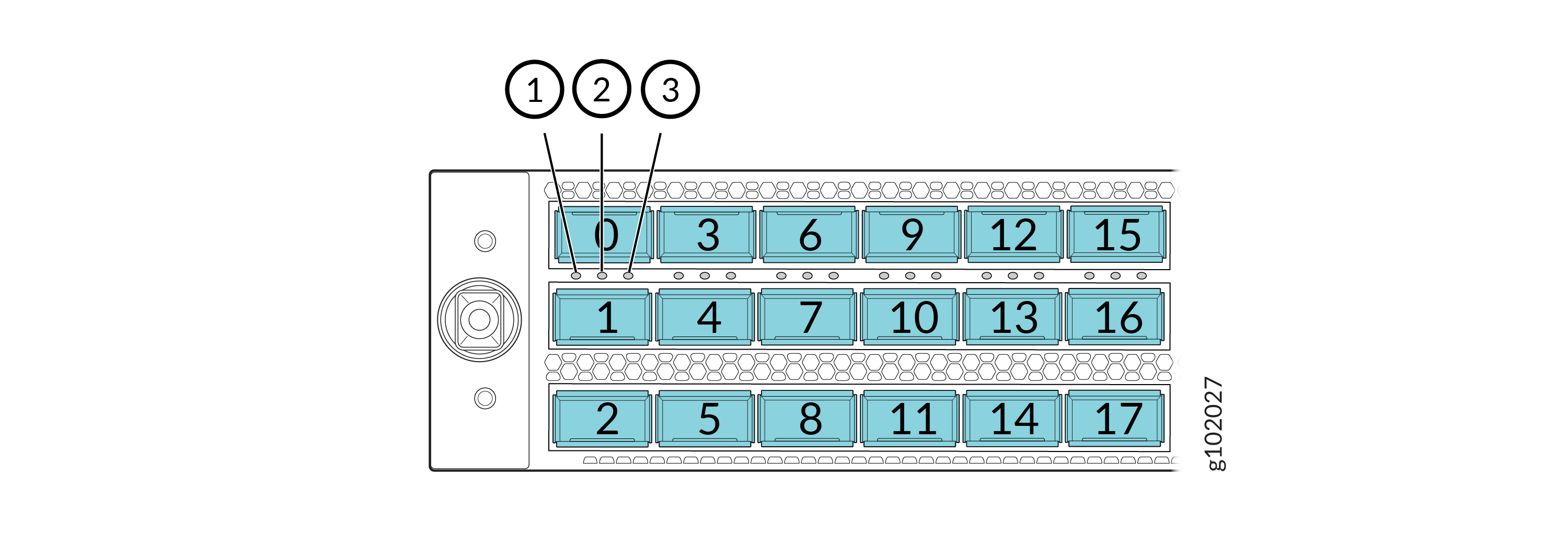
LED for the port in the top row
LED for the port in the middle row
LED for the port in the bottom row
|
Color |
State |
Description |
|---|---|---|
|
Green |
On steadily |
The port and all the channels are operational. |
|
Green |
Blipping |
The beacon function is enabled on the port. |
|
Amber |
On steadily |
One of the following:
|
|
Red |
On steadily |
The port has a hardware failure or a fault. |
|
Unlit |
Unlit |
There is no transceiver installed in the port. |
Physical Specifications
| Height | Width | Depth | Weight |
|---|---|---|---|
|
2.75 in. (7 cm) |
18.8 in. (47.8 cm) |
19.2 in. (48.8 cm) |
46 lb (21 kg) |
PTX12K-LC54QDD FPC
Overview
The PTX12K-LC54QDD FPC (model number: PTX12K-LC54-QD) is a 54-port FPC that offers a line rate throughput of 43.2 Tbps. The 54 800-Gigabit Ethernet (800GbE) QDD ports support speeds of up to 800 Gbps. The FPC houses three ASICs, and each ASIC comprises of two Packet Forwarding Engines.
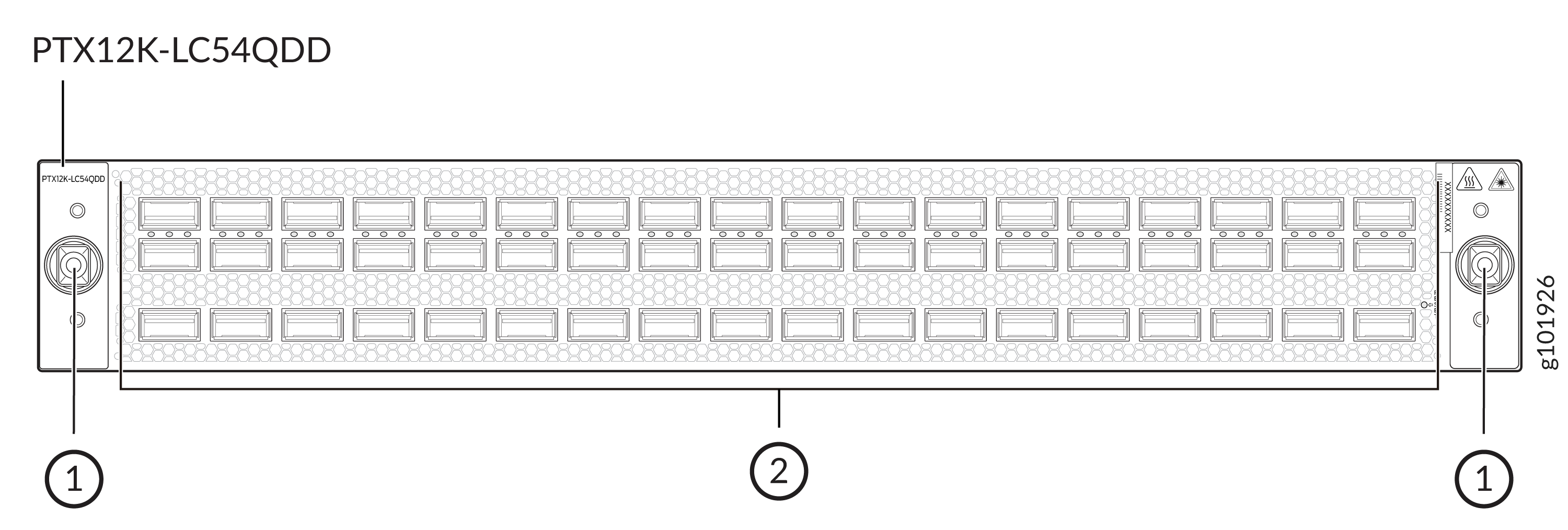
1 — Ejector tool handle receptacles | 2 — Ports |
See Hardware Compatibility Tool for the list of transceivers that the FPC supports.
Port Checker provides a visual representation of various Juniper network devices, and assists to configure and validate different port combinations.
If there is no transceiver installed in a port, you must install a dust cover in the port to prevents dust and particles from entering the FPC and to ensure properly airflow through the chassis.
Channelization
You can use breakout cables, active optical cables (AOCs), and the number-of-sub-ports (interface) configuration to channelize the ports to operate at the following speeds:
-
1x800 Gbps
-
2x400 Gbps
-
1x400 Gbps
-
8x100 Gbps
-
7x100 Gbps
-
6x100 Gbps
-
5x100 Gbps
-
4x100 Gbps
-
3x100 Gbps
-
2x100 Gbps
-
1x100 Gbps
-
8x50 Gbps
-
4x50 Gbps
-
2x50 Gbps
-
1x40 Gbps
-
8x25 Gbps
-
4x25 Gbps
-
4x10 Gbps
-
1x10 Gbps
The links on the ports come up at 800-Gbps speed by default. You can change the port speed by using the set interfaces <interface-name> speed <speed> command.
Boot Time
The boot time for the FPC is approximately 620 seconds.
Port LEDs
Each network port has a single tricolored LED that indicates link activity and status. The red, amber, and green colors on the LED have different interpretations depending on whether the port is channelized or not channelized, and whether the beacon is activated. If the beacon feature is activated on the port, the port blinks.
The port LEDs are in groups of three LEDs. The leftmost LEDs indicate the link activity and status for the ports in the top row, the LEDs in the middle indicate the link activity and status for the ports in the middle row, and the rightmost LED indicate the link activity and status for the ports in the bottom row.
LED for the port in the top row
LED for the port in the middle row
LED for the port in the bottom row
|
Color |
State |
Description |
|---|---|---|
|
Green |
On steadily |
The port and all the channels are operational. |
|
Green |
Blipping |
The beacon function is enabled on the port. |
|
Amber |
On steadily |
One of the following:
|
|
Red |
On steadily |
The port has a hardware failure or a fault. |
|
Unlit |
Unlit |
There is no transceiver installed in the port. |
Physical Specifications
| Height | Width | Depth | Weight |
|---|---|---|---|
|
2.75 in. (7 cm) |
18.8 in. (47.8 cm) |
19.2 in. (48.8 cm) |
47 lb (21.3 kg) |
Cable Management System
The cable management system helps organize, secure, and route the cables attached to the ports on the FPCs. You can use it to prevent the cables from dislodging or developing stress points. The cable management system consists of a tray, two receptacles, and two screws.
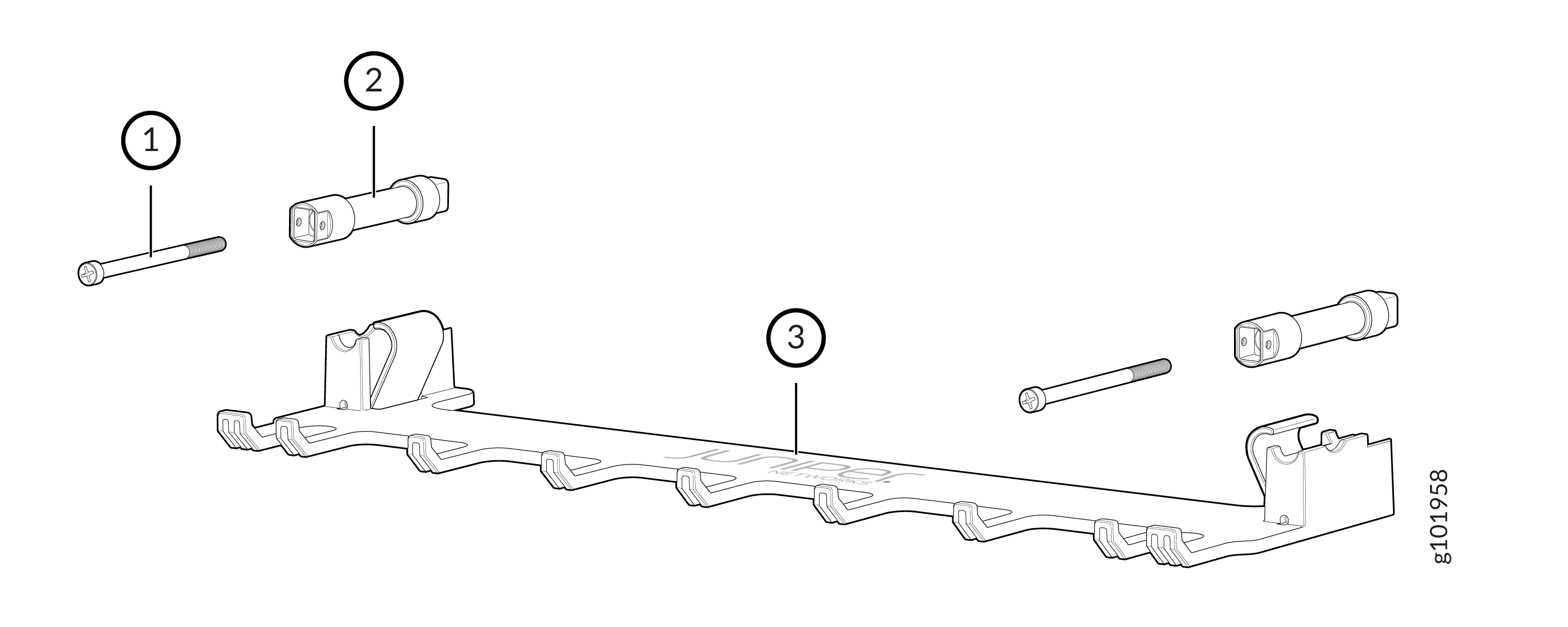
1 — Screws | 3 — Tray |
2 — Receptacles |