
ON THIS PAGE
Connect the MX301 and MX301-M to a Network for Out-of-Band Management
Connect the MX301 and MX301-M to a Management Console Using an RJ-45 Connector
Connect the MX301 and MX301-M to a Management Console Using a Mini USB-B Connector
Connect the MX301 and MX301-M to a Management Console Using a USB-C Connector
Connect the MX301 and MX301-M to External Clocking and Timing Devices
Connect the MX301 and MX301-M to External Devices
This topic guides you on how to connect your MX301 and MX301-M to external mangement or timing devices.
You can monitor and manage the MX301 and MX301-M by using a dedicated management channel. Use the management port to connect your device to the management device.
You can also connect the MX301 and MX301-M to external clocking and timing devices.
Connect the MX301 and MX301-M to a Network for Out-of-Band Management
Ensure that you have an Ethernet cable that has an RJ-45 connector at each end.
To connect a device to a network for out-of-band management (OOBM):
-
Connect the other end of the cable to the management device.
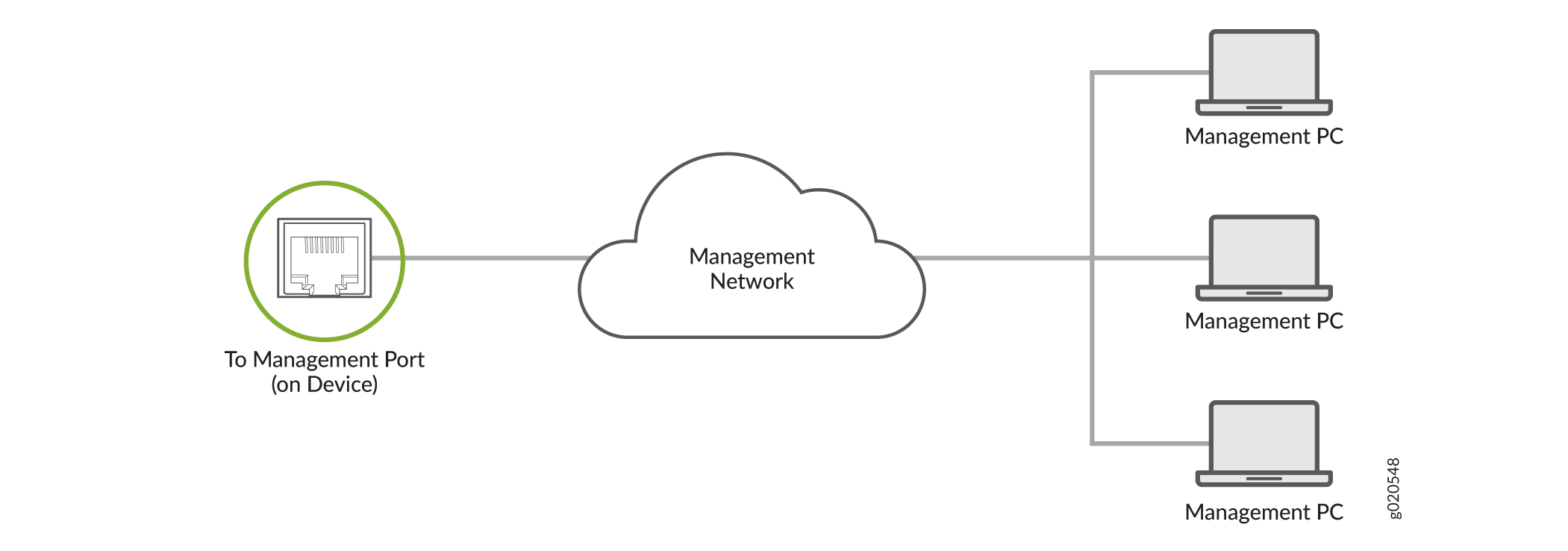
Figure 1: Connect Your Device to a Network for Out-of-Band Management
Connect the MX301 and MX301-M to a Management Console Using an RJ-45 Connector
Ensure that you have an Ethernet cable that has an RJ-45 connector at either end. You will also need the appropriate adapter (not provided) depending upon your console server or management console.
You can separately order the following adapters from Juniper Networks:
-
RJ-45 to DB-9 adapter (JNP-CBL-RJ45-DB9)
-
RJ-45 to USB-A adapter (JNP-CBL-RJ45-USBA)
-
RJ-45 to USB-C adapter (JNP-CBL-RJ45-USBC)
If you want to use the RJ-45 to USB-A or RJ-45 to USB-C adapter, you must have X64 (64-Bit) Virtual COM port (VCP) driver installed on your PC. See https://ftdichip.com/drivers/vcp-drivers/ to download the driver.
To connect the device to a management console:
-
Connect the other end of the cable to the console server or PC.
Figure 2: Connect Your Device to a Management Console Through a Console Server
 Figure 3: Connect Your Device Directly to a Management Console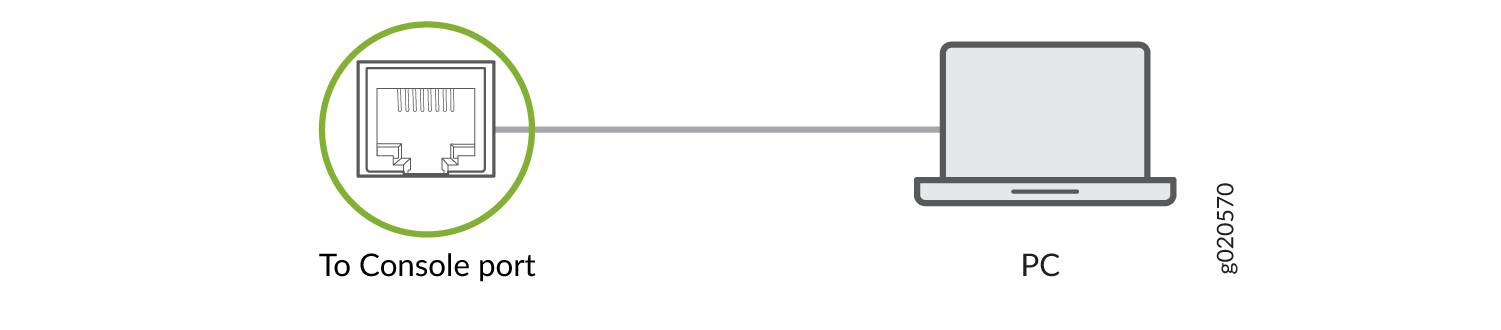
Connect the MX301 and MX301-M to a Management Console Using a Mini USB-B Connector
Ensure that you have a USB cable that has a mini USB-B connector at one end and a standard USB-A connector at the other. You will also need the appropriate adapter (not provided) depending upon your console server or management console.
Ensure that the USB-to-serial driver is installed on the host machine.
By default, the RJ-45 port is the active console port. You must configure the mini USB-B console port before using it. Set the HyperTerminal properties of the console server or management console as follows:
-
Baud rate—9600
-
Flow control—None
-
Data—8
-
Parity—None
-
Stop bits—1
-
DCD state—Disregard
To connect the device to a management console:
-
Connect the standard USB-A connector of the cable to the console server or management
console.
Figure 4: Connect Your Device to a Management Console Through a Console Server
 Figure 5: Connect Your Device Directly to a Management Console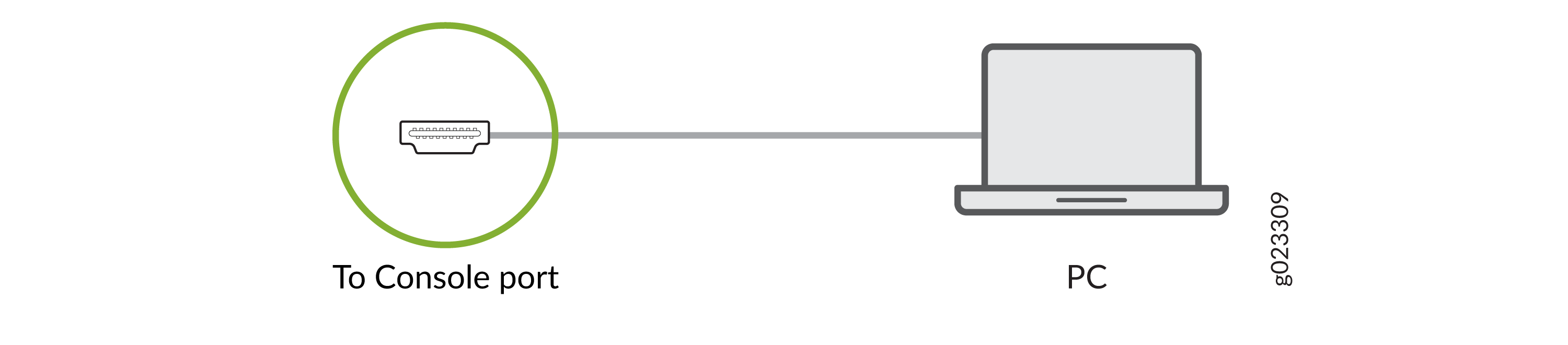
Connect the MX301 and MX301-M to a Management Console Using a USB-C Connector
Ensure that you have a USB cable that has a USB-C connector at either end. You will also need the appropriate adapter (not provided) depending upon your console server or management console.
Ensure that the USB-to-serial driver is installed on the host machine.
By default, the RJ-45 port is the active console port. You must configure the USB-C console port before using it. Set the HyperTerminal properties of the console server or management console as follows:
-
Baud rate—9600
-
Flow control—None
-
Data—8
-
Parity—None
-
Stop bits—1
-
DCD state—Disregard
To connect the device to a management console:
-
Connect the other end of the cable to the console server or management console.
Figure 6: Connect Your Device to a Management Console Through a Console Server
 Figure 7: Connect Your Device Directly to a Management Console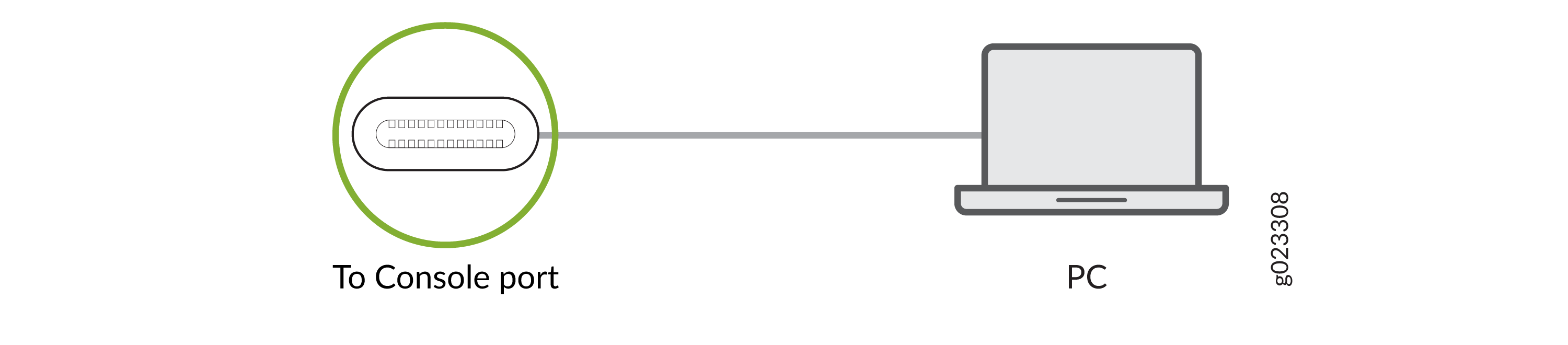
Connect the MX301 and MX301-M to External Clocking and Timing Devices
Connect 1-PPS and 10-MHz Timing Devices
Your device has GPS clock ports that you can use to connect it to a 1-pulses per second (PPS) and 10-megahertz (MHz) timing device. These ports require 2x1 DIN 1.0/2.3 latching plug connectors.
You can configure your device as a timing primary device or a client device. As a timing primary device, the device receives inputs from the timing device through the input ports and sends outputs to a client device through the output ports. As a timing client device, the device receives inputs from the timing device through the input ports.
To connect your device to a 1-PPS and 10-MHz timing device:
Connect the MX301 and MX301-M to a Time-of-Day Device
You can use the time-of-day (TOD) port on your device to connect it to a TOD timing device.
To connect your device to a TOD timing device: