
ME-X2-M Chassis
ME-X2-M Front Panel
A front bezel covers the front panel of the ME-X2-M. Remove the front bezel to access the front panel.
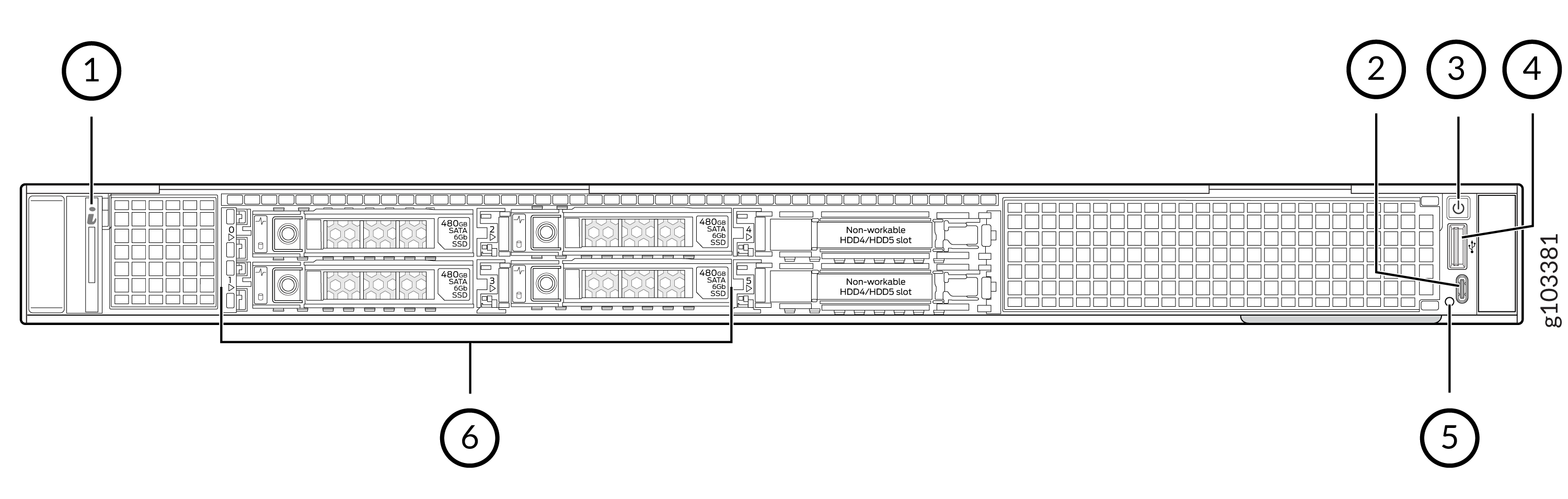
| Callout | Component | Description |
|---|---|---|
|
1 |
System health and system ID indicator |
Indicates the device health.
|
|
2 |
iDRAC direct port |
Micro-AB type USB port to access iDRAC |
|
3 |
Power button |
Used to manually power on or power off the device |
|
4 |
USB 2.0 port |
Used to connect USB devices |
|
5 |
iDRAC port LED |
Indicates the status of the iDRAC connection.
|
|
6 |
Storage drives |
Used for data storage |
Storage Drive LEDs

| Callout | LED | Color | Description |
|---|---|---|---|
| 1 |
Link LED |
Solid green |
The drive is online. |
|
Blinking green |
The drive is being identified or is being prepared for removal. |
||
|
Blinking green slowly |
The drive is being rebuilt. |
||
|
Blinking green, amber, and then off |
An unexpected drive failure has occurred. |
||
|
Blinking green for three seconds, amber for three seconds, and then off |
The drive rebuild has stopped. |
||
|
Blinking amber |
The drive has failed. |
||
|
Off |
The drive is ready for removal. |
||
| 2 |
Activity LED |
Blinking green |
The drive is being accessed. |
|
Off |
There is no drive activity. |
ME-X2-M Rear Panel
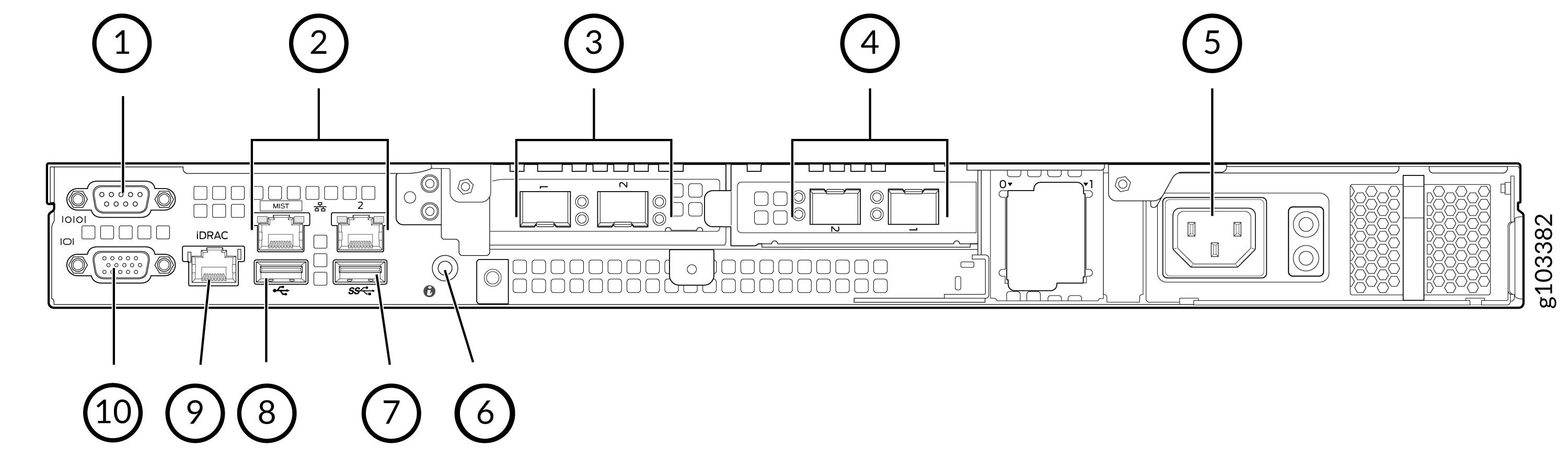
| Callout | Component | Description |
|---|---|---|
|
1 |
Serial port |
Used to connect a serial device |
|
2 |
Management ports |
Two 1-GbE RJ-45 management ports The first one, labeled MIST is used for out-of-band management (OOBM). The second port is not used. |
|
3 and 4 |
Data ports |
Four 10-GbE SFP+ ports They act as the endpoint for tunnels from the APs. 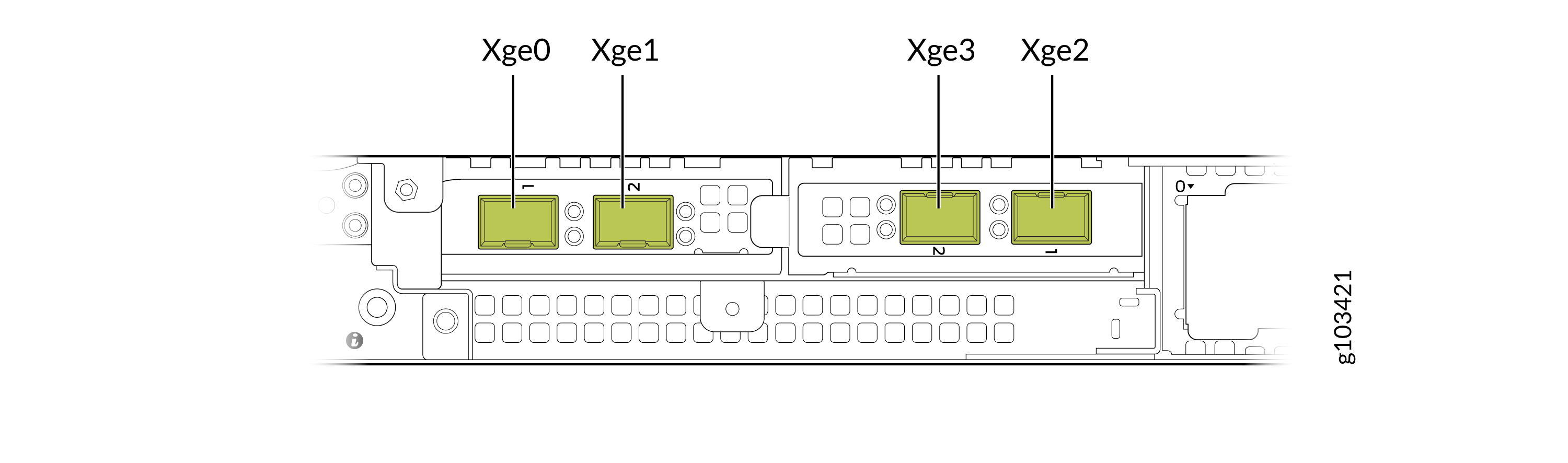 |
|
5 |
PSU |
One cabled 450-W AC PSU |
|
6 |
System identification button |
|
|
8 |
USB ports |
One USB 3.2 Gen 1 port and one USB 2.0 port Used to connect USB devices |
|
9 |
iDRAC dedicated port |
Used to remotely access iDRAC |
|
10 |
VGA port |
Used to connect a display device |
Data Port LEDs
| Link LED indicator | Activity LED indicator | Description |
|---|---|---|
|
Off |
Off |
Port is not connected to the network. |
|
Solid green |
Blinking green |
Port is connected to the network at the maximum port speed and has link activity. |
|
Off |
Port is connected to the network at the maximum port speed and has no link activity. |
|
|
Solid amber |
Blinking green |
Port is connected to the network at less than the maximum port speed and has link activity. |
|
Off |
Port is connected to the network at less than the maximum port speed and has no link activity. |
|
|
Blinking green |
Off |
Port identity is enabled through the NIC configuration utility. |
Management Port LEDs
| Link LED indicator | Activity LED indicator | Description |
|---|---|---|
|
Off |
Off |
Port is not connected to the network. |
|
Solid green |
Blinking green |
Port is connected to the network at the maximum port speed and has link activity. |
|
Off |
Port is connected to the network at the maximum port speed and has no link activity. |
|
|
Solid amber |
Blinking green |
Port is connected to the network at less than the maximum port speed and has link activity. |
|
Off |
Port is connected to the network at less than the maximum port speed and has no link activity. |
|
|
Blinking green |
Off |
Port identity is enabled through the NIC configuration utility. |
Power Supply LEDs
| Status | Description |
|---|---|
|
Off |
There is no power supply connected to the PSU or the PSU is faulty. |
|
Green |
A valid power source is connected to the PSU and the PSU is operational. |