You can configure and manage a Junos Space
Appliance by using a dedicated console. Every appliance has a console
port with an RJ-45 connector. Use the console port to connect the
appliance to the management console or to a console server. Ensure
that you have an Ethernet cable with an RJ-45 connector available.
An RJ-45 cable, as shown in Figure 1, and
an RJ-45 to DB-9 serial port adapter are supplied with the appliance.
Figure 1: Ethernet
Cable Connector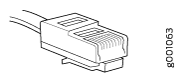
To connect the appliance to a management console, do
the following:
- Connect the RJ-45 to DB-9 serial port adapter to the serial
port of the management device (laptop or PC) that you will use to
access the Junos Space CLI.
Note: If your laptop or PC does not have a DB-9 plug connector
pin and you want to connect your laptop or PC directly to the appliance,
use a combination of the RJ-45 to DB-9 socket adapter supplied with
the appliance and a USB to DB-9 plug adapter. You must provide the
USB to DB-9 plug adapter.
- Connect one end of the Ethernet cable into the console
port (labeled CONSOLE) on the front panel of
the appliance.
- Connect the other end of the Ethernet cable into the RJ-45
to DB-9 serial port adapter.
