
EX4100-H-12T LEDs
This topic describes the LEDs on the EX4100-H-12T.
The LEDs on the EX4100-H-12T indicate the status of the device and its components. You can also use the LEDs for troubleshooting.
Chassis Status LEDs
EX4100-H-12T switches have four chassis status LEDs (labeled SYS, ALM, MST, and CLD) on the rightside of the front panel.
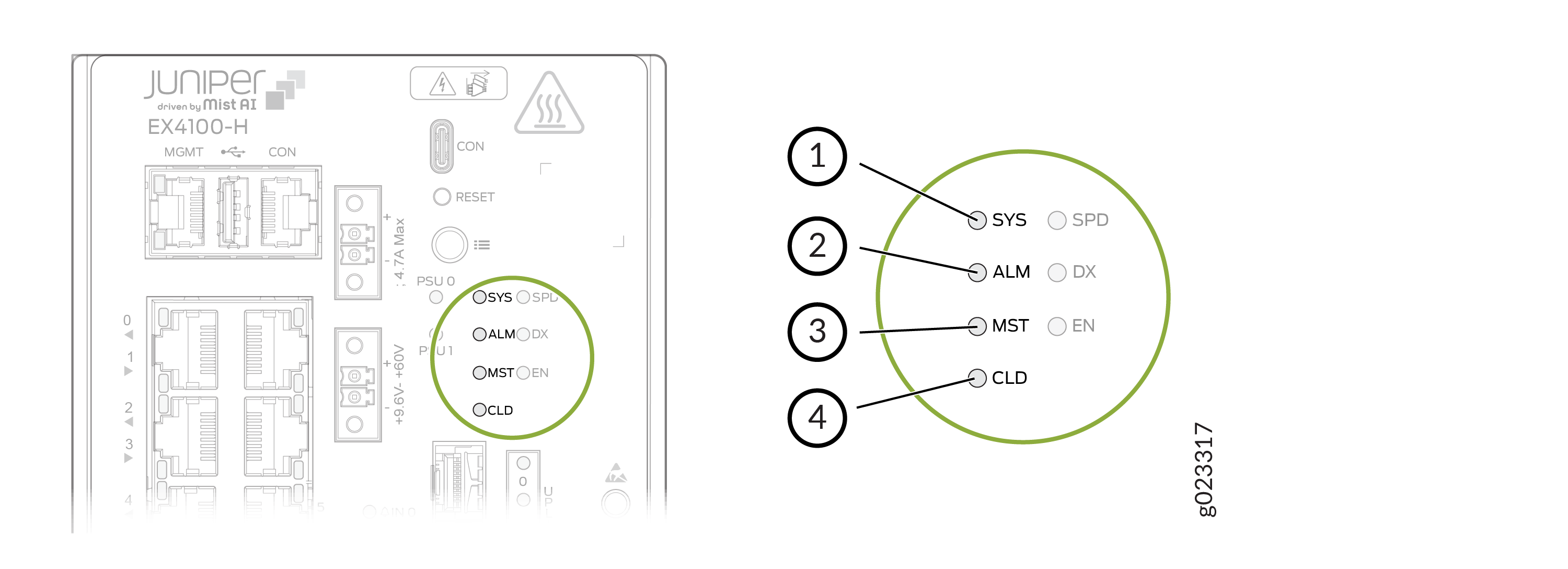
The following table describes the chassis status LEDs labeled SYS, ALM, and
MST on an EX4100-H-12T switch. The table also describes the LED color patterns and
their status descriptions. You can view the colors of the LEDs remotely through the CLI by
issuing the show chassis led operational mode command. Note that all LEDs
can be lit simultaneously.
For information on the blink patterns of the CLD LED, which provide the cloud connection status of the switch, see Cloud Ready LED Blink Patterns, and to understand how the cloud connection works, see Cloud Connection Process.
| Label | Color | State and Description |
|---|---|---|
|
SYS |
Green |
|
|
Unlit |
The switch is powered off or is halted. |
|
|
ALM |
Red |
A major hardware fault, such as a temperature alarm or a power failure alarm, occurred, and the switch is halted. A major alarm indicates a critical error condition that requires immediate attention |
|
Amber |
A minor alarm, such as a software or a hardware error, occurred. Power off the switch and then power it back on. Monitor the switch to see whether it is working properly. A minor alarm indicates a non-critical condition that requires monitoring or maintenance. A minor alarm that is left unchecked might cause interruption in service or performance degradation. |
|
|
Unlit |
No alarm is in effect, or the switch is halted. |
|
|
MST |
Green |
In a standalone switch:
|
|
Green |
In a Virtual Chassis configuration:
|
When issuing show system alarms, only the ALM LED of the master switch
in a Virtual Chassis system glows to display the alarm state. Backup switch and linecard
ALM LEDs will be unlit. However, when issuing show chassis alarms, ALM
LED glows on all of the individual member switches, displaying their individual alarm
states.
For Virtual Chassis deployments managed from the cloud, the CLD LED on individual Virtual Chassis members will reflect the state of the Master, except when a software download is in progress. When a software download is in progress, the CLD LED on a Virtual Chassis member will display the Junos OS upgrading LED pattern and color.
Management Port Status LEDs
The management port, labeled MGMT, on the front panel of EX4100-H-12T switches has two LEDs that indicate the link activity and port status.
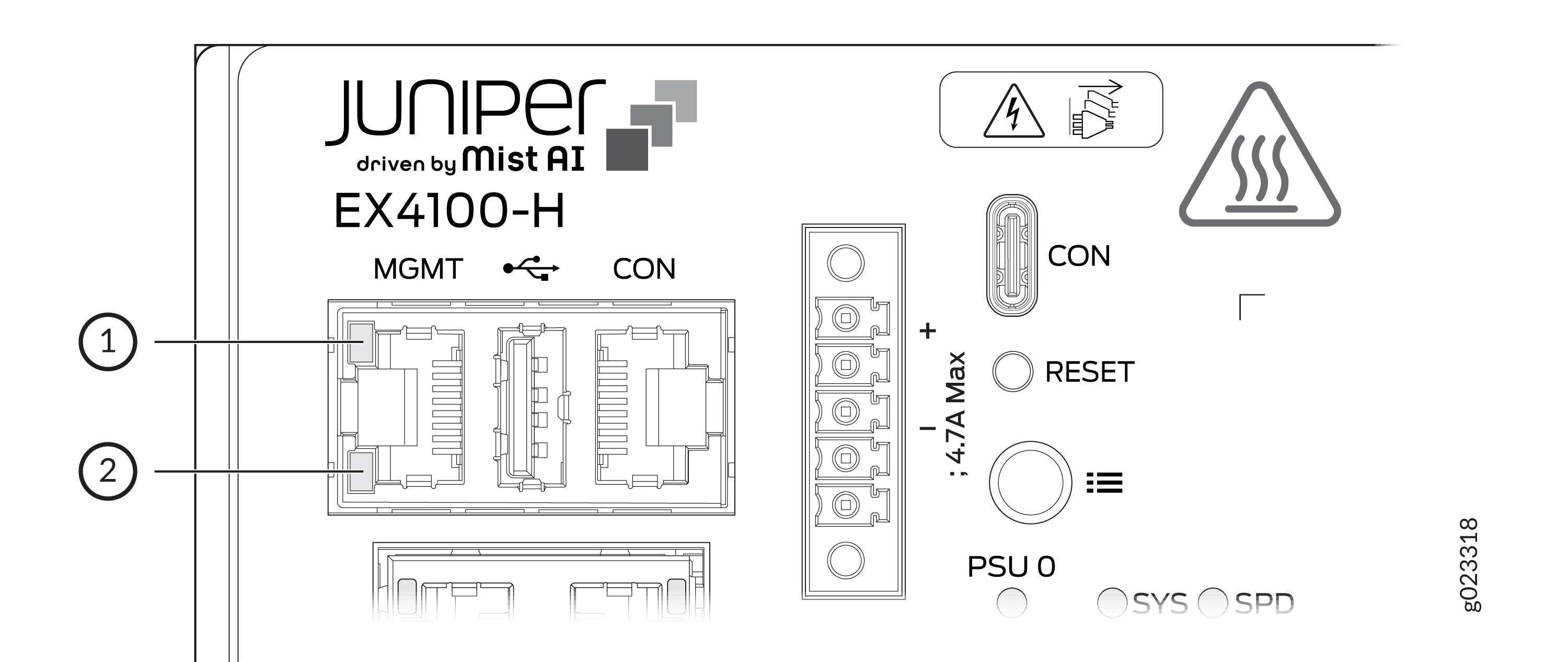
1 — Link activity LED | 2 — Status LED |
| Label | State | Description |
|---|---|---|
|
Link activity |
Green |
|
|
Status |
Green |
Indicates the speed:
|
PSU Status LEDs on the Switch Chassis
The PSU 0 and PSU 1 LEDs on the chassis display status of the external PSUs connected to the switch.
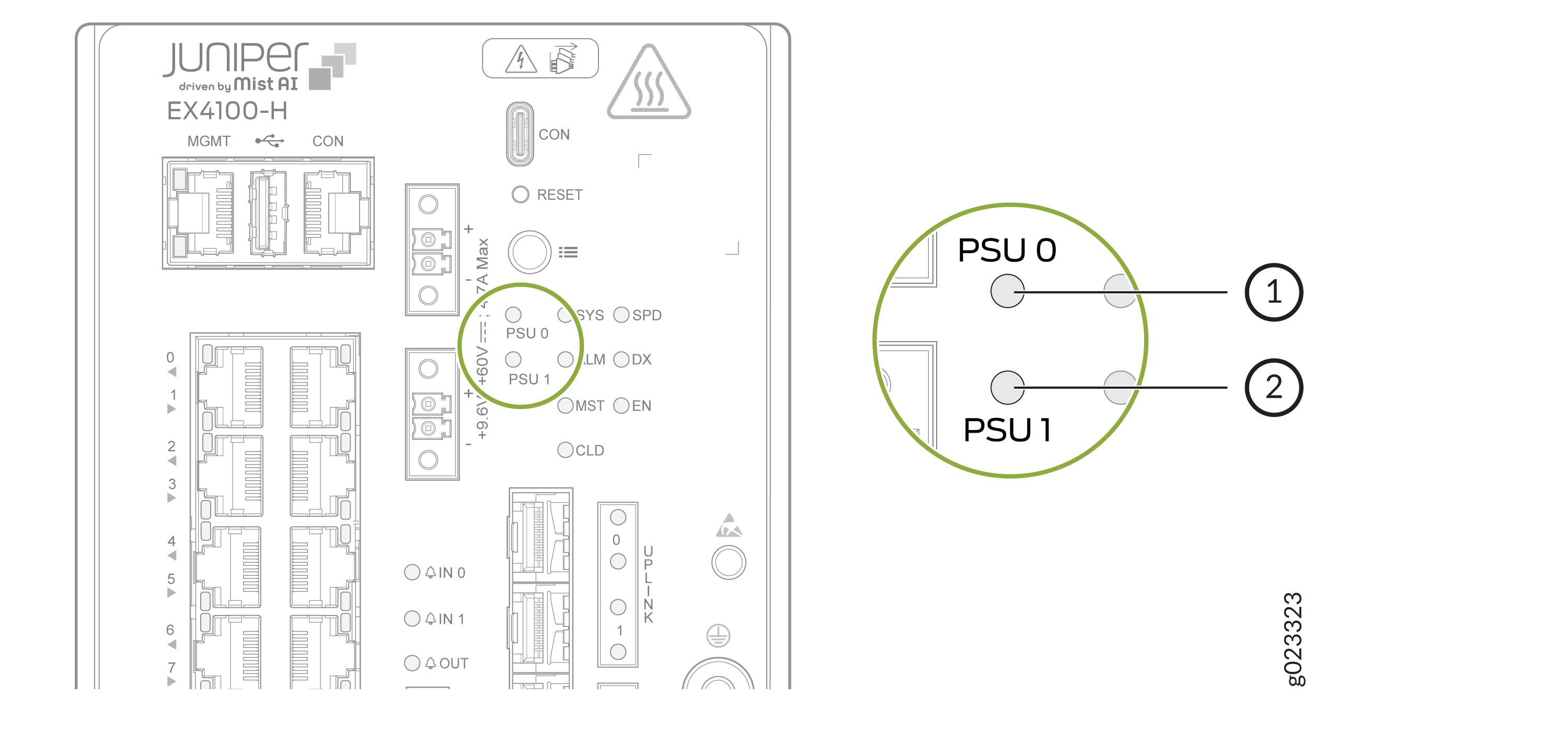
The following table describes the colors and statuses of the LEDs.
|
PSU LED Label |
Color |
State and Description |
|---|---|---|
|
PSU 0 PSU 1 |
Green |
9.6~60V input OK |
|
Off |
Any of the following:
|
RJ-45 Network Port Status, Virtual Chassis Ports, and Uplink Ports LEDs
The LEDs on the RJ-45 network ports, SFP+ uplink ports, and SFP+ Virtual Chassis ports on EX4100-H-12T switches show the link activity and port status.
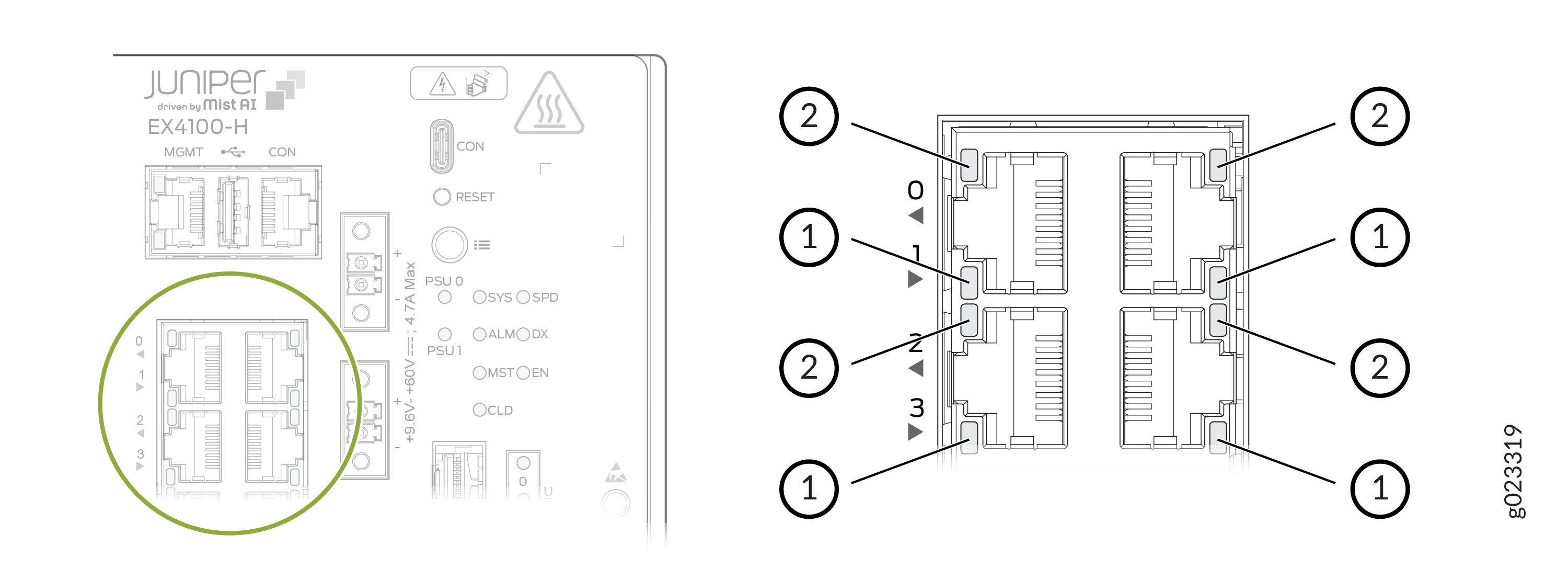
1 — Link activity LED | 2 — Status LED |
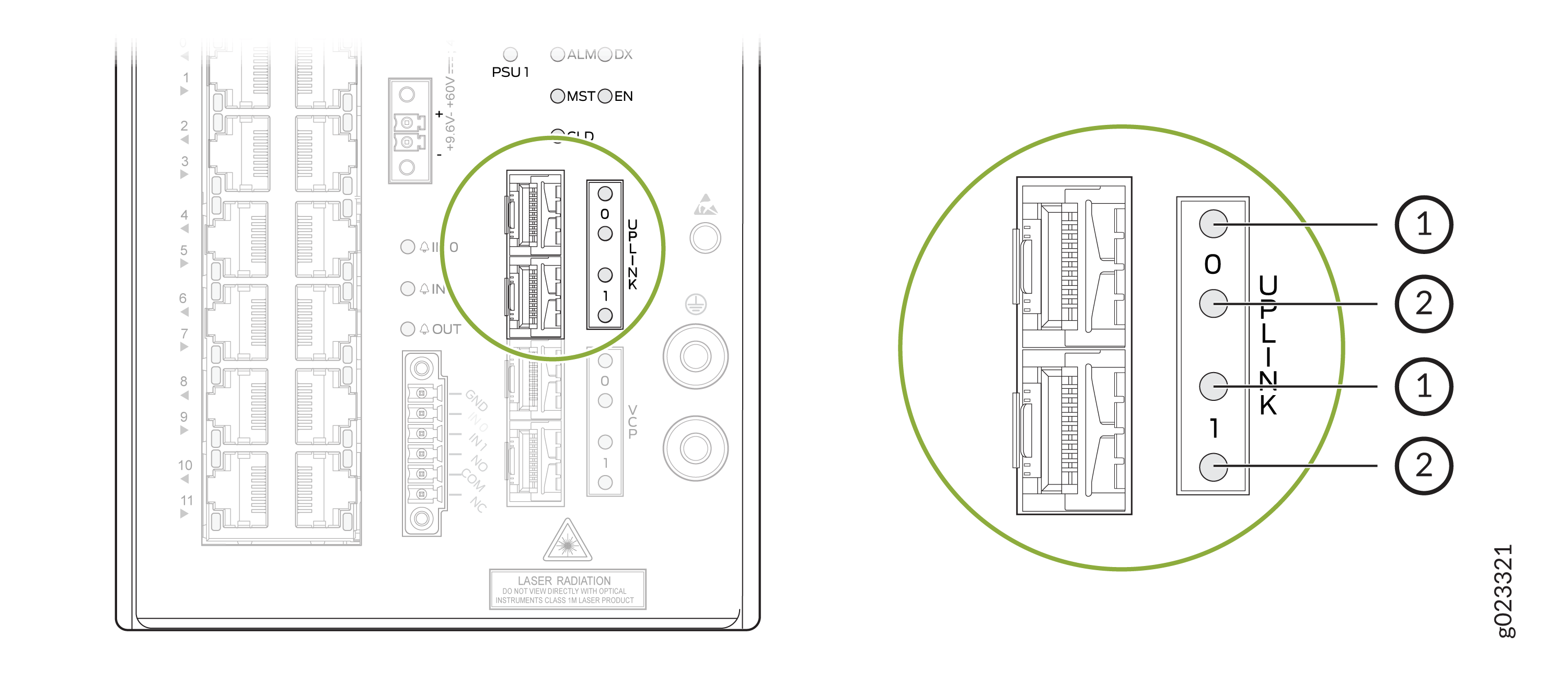
1 — Link activity LED | 2 — Speed (LED in SPD mode) |
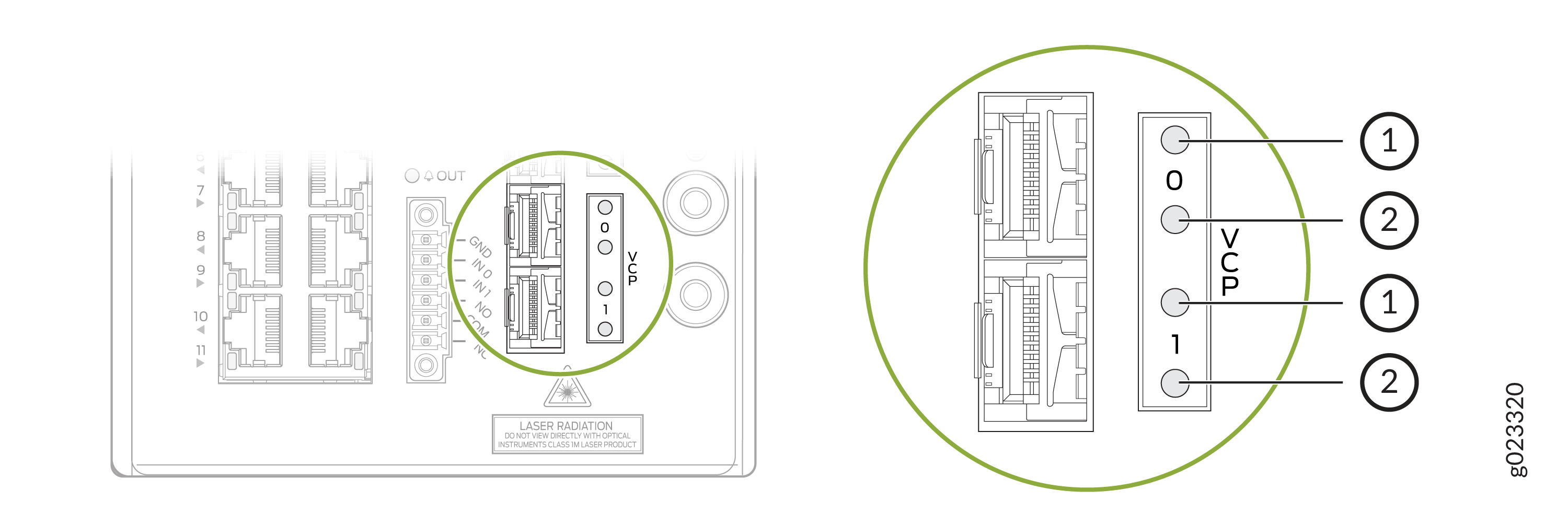
1 — Link activity LED | 2 — Speed (LED in SPD mode) |
| Link Activity LED Color | Link Status LED State and Description |
|---|---|
|
Green |
|
|
LED |
Colors |
State |
Description |
|---|---|---|---|
|
Link Activity |
Green |
Off |
Link inactive |
|
On steadily |
Link active |
||
|
Blinking |
There is link activity |
||
|
Speed (LED in SPD mode) |
Green |
Blinking - 1 per second |
Link speed is 1000 Mbps |
|
Solid green |
10 Gbps |
Port Mode LEDs
The EX4100-H-12T switch has network port mode LEDs (labeled SPD, DX, EN) on the right side of the front panel. These LEDs indicate the status of the network ports. Use the mode button on the right side of the front panel to toggle the status LEDs. You toggle the status LEDs to show the different port parameters for the network ports. The LED that is lit indicates the port parameter. The following table describes the status LEDs.
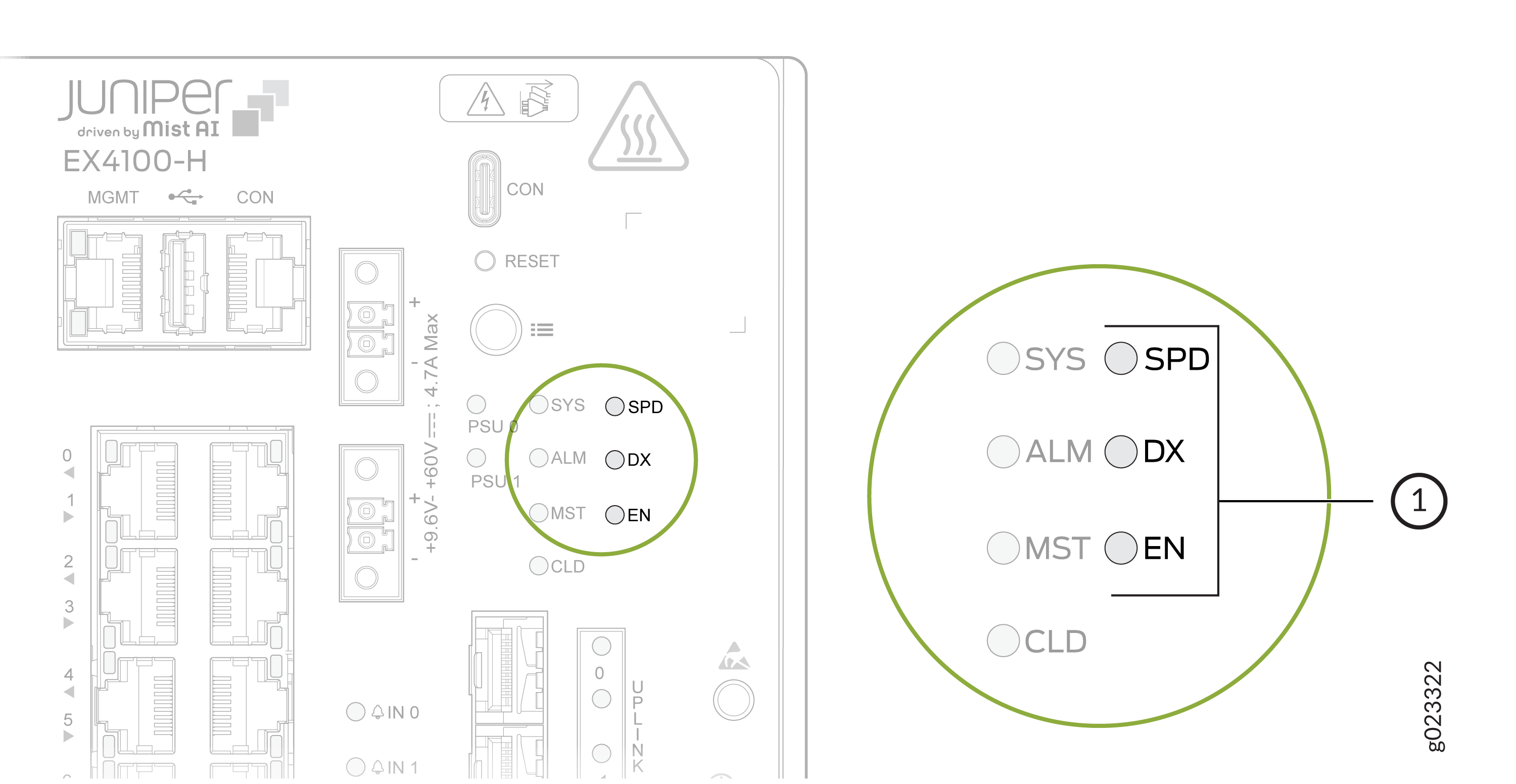
| LED | Color | State and Description |
|---|---|---|
|
SPD |
Green |
|
|
DX |
Green |
Indicates the duplex mode
|
|
EN |
Green |
Indicates the duplex mode
|
Dry Contact Alarm LEDs
The EX4100-H-12T switch has three LEDs to indicate alarm conditions. Two LEDs are for input alarms (IN0 AND IN1) and one LED is for output alarm (OUT).
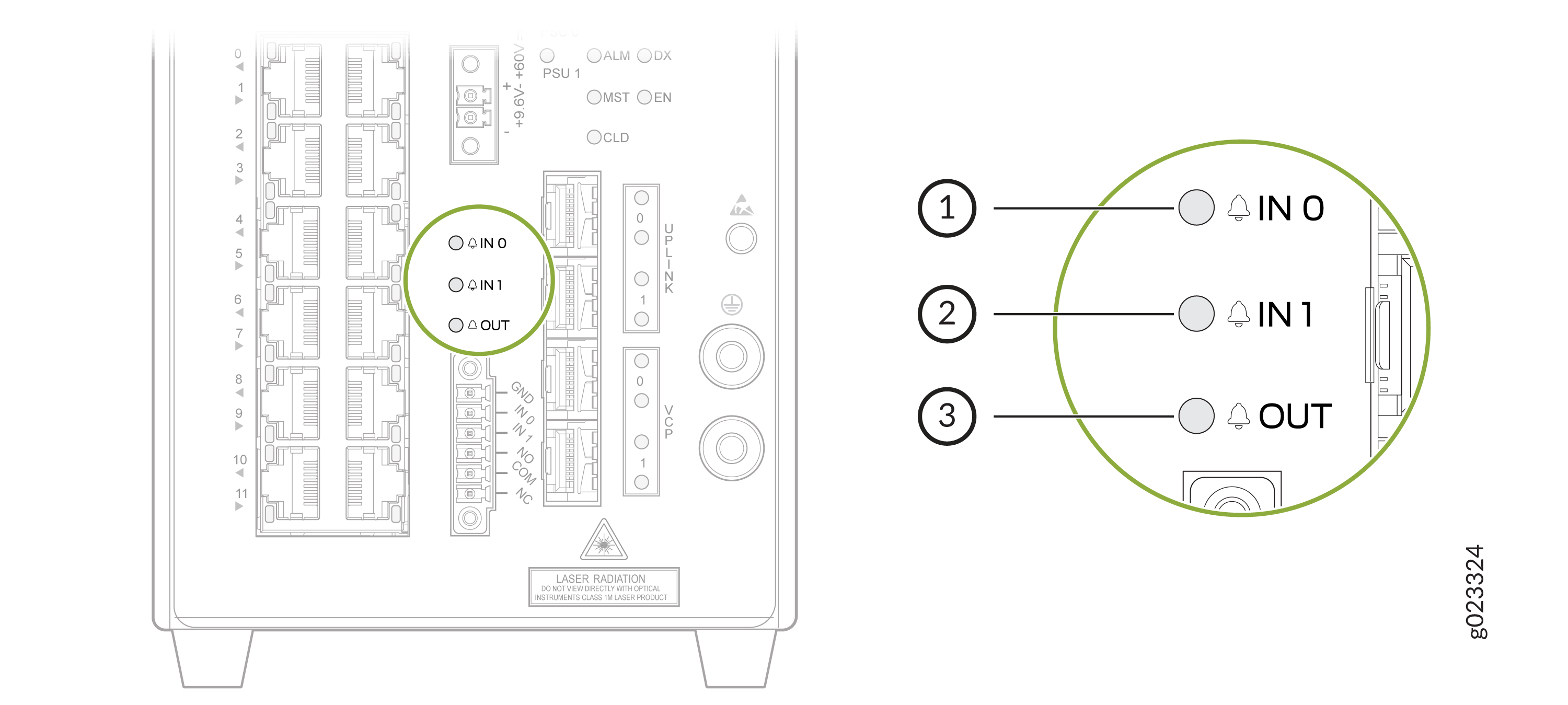
| OUT | |
|---|---|
| Color | System Status |
|
Off |
Alarm OUT not configured, or the switch in off mode. |
|
Green |
Alarm OUT configured, no alarm detected, or an input alarm detected with severity NONE. |
|
Red |
Output port triggered or activated. |
| IN0 and IN1 | |
|---|---|
| Color | System Status |
|
Off |
Alarm IN0 or IN1 not configured. |
|
Green |
Alarm IN0 or IN1 configured, no alarm detected |
|
Blinking Red |
Major alarm detected |
|
Red |
Minor alarm detected |