Help us improve your experience.

Let us know what you think.

Do you have time for a two-minute survey?


Replace Breakout Cables

Breakout cables have one transceiver preattached to one end and two or more transceivers preattached to the other end. You can use the cables to channelize a port and increase the number of interfaces. For example, you can channelize the QSFP28 ports on the rear panel of EX4400 switches by connecting breakout cables and by using CLI configuration when those ports are configured as network ports.

Disconnect a Breakout Cable

Before you disconnect a breakout cable from a device, ensure that you have taken the necessary precautions for safe handling of laser (see Laser and LED Safety Guidelines and Warnings).

Ensure that you have the following parts and tools available:

  • An antistatic bag or an antistatic mat to store the cable, if you are disconnecting the cable from all the ports it is connected to

  • Rubber safety caps to cover the ports on the device, or a replacement cable

  • Rubber safety caps to cover the transceivers at the ends of the cable

  • An electrostatic discharge (ESD) grounding strap—not provided

To disconnect a breakout cable:

  1. Disable the port to which the cable is connected by issuing the following command:
  2. Place the antistatic bag or antistatic mat on a flat, stable surface if you are disconnecting the cable from all the devices it is connected to.
  3. Wrap and fasten one end of the ESD wrist strap around your bare wrist, and connect the other end of the strap to a site ESD point.
  4. Label the cable so that you can reconnect it correctly.
    CAUTION:

    Do not leave the transceivers at the ends of the cable uncovered except when connecting or disconnecting the cable. The rubber safety cap keeps the transceivers clean and protected.

    CAUTION:

    Do not bend the cables beyond their minimum bend radius. An arc smaller than a few inches in diameter can damage the cables and cause problems that are difficult to diagnose.

    CAUTION:

    Do not let the cables hang free from the connector. Do not allow fastened loops of cables to dangle, which stresses the cables at the fastening point.

  5. By using your fingers, pull the tab on the transceiver attached to the cable to disengage it.
    Figure 1: Disconnect a Breakout Cable Diagram of a network cable splitter showing a single cable splitting into two, with arrows indicating data flow.
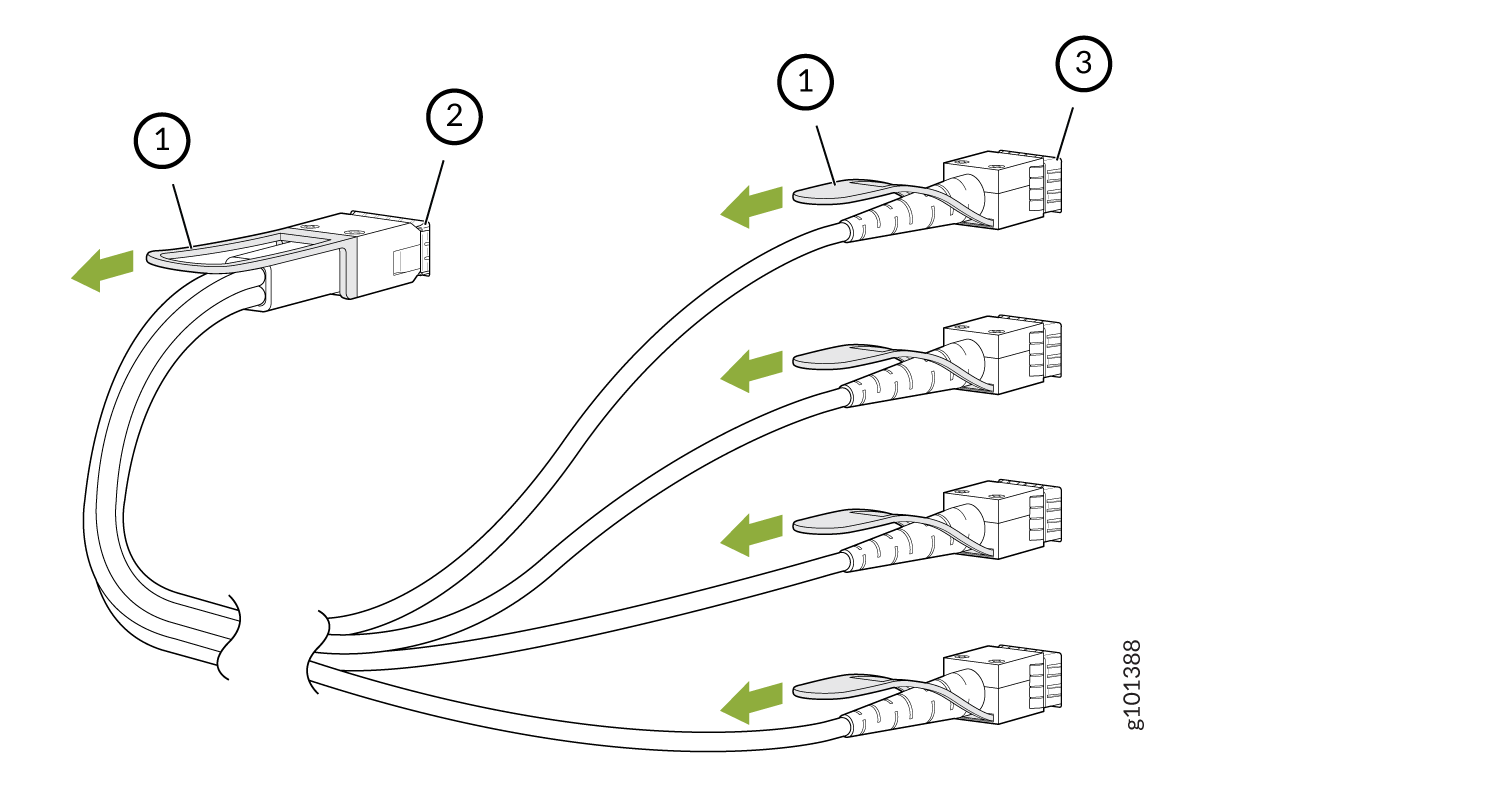
    Callout

    Item

    1

    Tab to pull the transceiver

    2

    Channelized port on a device

    3

    Port at the other end

  6. Grasp the transceiver and gently slide it approximately 0.5 in. (1.3 cm) straight out of the port.
    CAUTION:

    To prevent ESD damage to the transceiver, do not touch the connector pins at the end of the transceiver.

  7. By using your fingers, grasp the body of the transceiver and pull it straight out of the port.
  8. Cover the transceiver with a rubber safety cap.
  9. Secure the cable so that it does not support its own weight as it hangs to the floor. If there is a cable management system, arrange the cable in the cable management system to prevent it from dislodging or developing stress points. Place excess cable out of the way in a neatly coiled loop in the cable management system. Placing fasteners on the loop helps to maintain its shape.
  10. If you are disconnecting the cable from all the devices it is connected to, place the cable in the antistatic bag or on the antistatic mat placed on a flat, stable surface.

The procedure to disconnect other types of breakout cables is the same as the procedure described in this topic.

Connect a Breakout Cable

We recommend that you use only optical transceivers and optical connectors purchased from Juniper Networks with your Juniper Networks device.

CAUTION:

The Juniper Networks Technical Assistance Center (JTAC) provides complete support for Juniper-supplied optical modules and cables. However, JTAC does not provide support for third-party optical modules and cables that are not qualified or supplied by Juniper Networks. If you face a problem running a Juniper device that uses third-party optical modules or cables, JTAC may help you diagnose host-related issues if the observed issue is not, in the opinion of JTAC, related to the use of the third-party optical modules or cables. Your JTAC engineer will likely request that you check the third-party optical module or cable and, if required, replace it with an equivalent Juniper-qualified component.

Use of third-party optical modules with high-power consumption (for example, coherent ZR or ZR+) can potentially cause thermal damage to or reduce the lifespan of the host equipment. Any damage to the host equipment due to the use of third-party optical modules or cables is the users’ responsibility. Juniper Networks will accept no liability for any damage caused due to such use.

Before you connect a breakout cable to a device, ensure that you have taken the necessary precautions for safe handling of laser (see Laser and LED Safety Guidelines and Warnings).

CAUTION:

To prevent ESD damage to the transceiver, do not touch the connector pins at the end of the transceiver.

Ensure that you have an electrostatic discharge (ESD) grounding strap (not provided).

Note:

After you connect a cable or after you change the media-type configuration, wait for 6 seconds for the interface to display operational commands.

To connect a breakout cable:

  1. Wrap and fasten one end of the ESD wrist strap around your bare wrist, and connect the other end of the strap to a site ESD point.
  2. Remove the cable from its bag.
    CAUTION:

    Do not leave the transceivers at the ends of the cable uncovered except when connecting or disconnecting the cable. The rubber safety cap keeps the transceivers clean and protected.

  3. If the transceiver attached to the cable is covered with a rubber safety cap, remove the cap. Save the cap.
  4. If the port on the device is covered with a rubber safety cap, remove the cap. Save the cap. If you are hot-swapping a cable, wait for at least 10 seconds after removing the cable from the port before installing a new cable.
    CAUTION:

    Before you slide the transceiver into the port, ensure that the transceiver is aligned correctly. Misalignment might cause the pins to bend, making the cable unusable.

  5. By using both hands, carefully insert the transceiver in the empty port. The connectors must face the chassis. Slide the transceiver in gently until it is fully seated.
    Figure 2: Connect a Breakout Cable Diagram of cable assembly with connectors showing attachment process. Labeled parts: main connector, protective cap, and end connectors. Arrows indicate cap attachment direction.
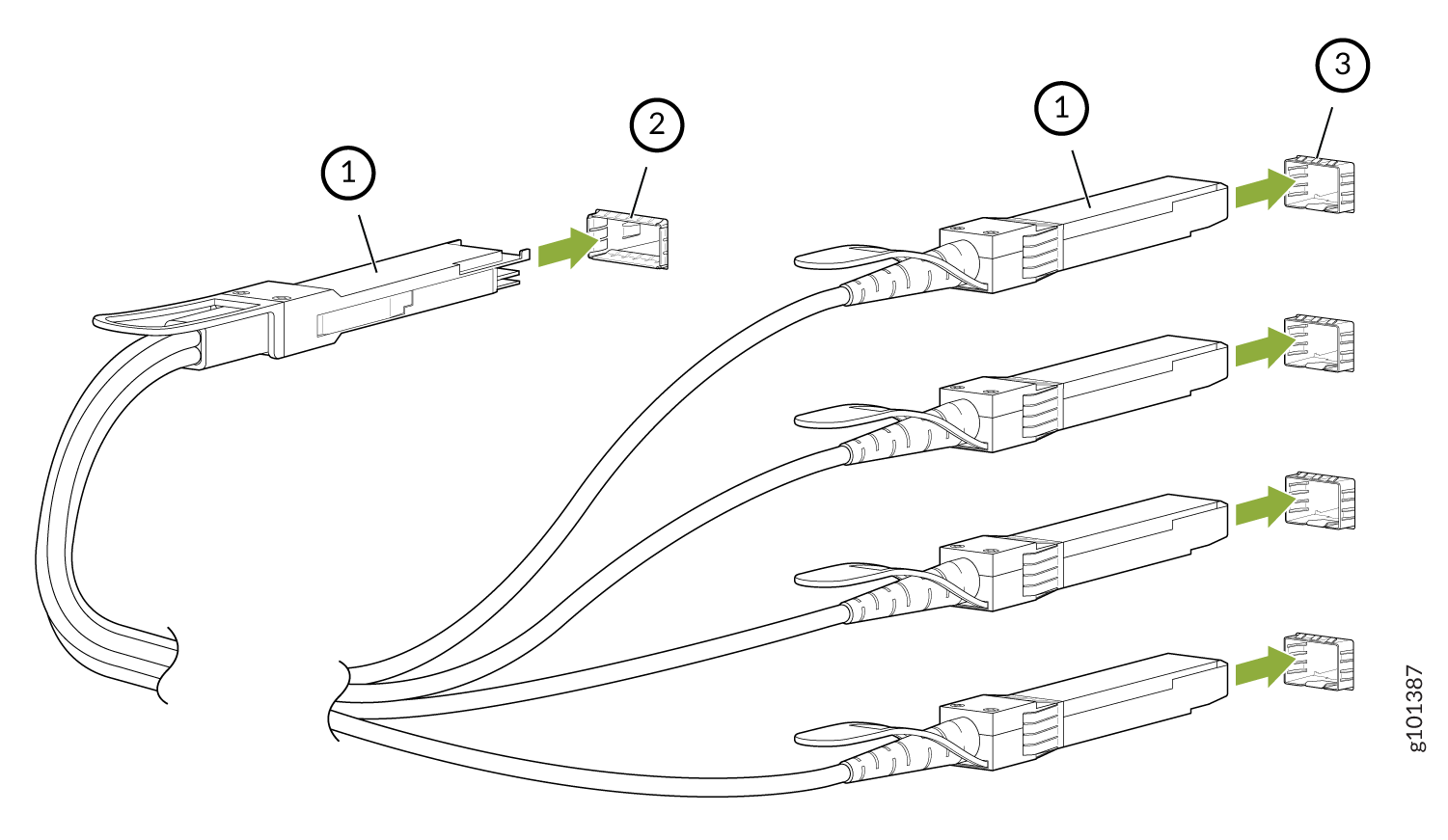
    Callout

    Item

    1

    Tab to pull the transceiver

    2

    Channelized port on a device

    3

    Ports at the other end

  6. Repeat Step 5 for all ports to which the cable must be connected.
  7. Secure the cable so that it does not support its own weight as it hangs to the floor. If there is a cable management system, arrange the cable in the cable management system to prevent the cable from dislodging or developing stress points. Place excess cable out of the way in a neatly coiled loop in the cable management system. Placing fasteners on the loop helps to maintain its shape.
    CAUTION:

    Do not bend the cables beyond their minimum bend radius. An arc smaller than a few inches in diameter can damage the cables and cause problems that are difficult to diagnose.

    Do not let the cables hang free from the connector. Do not allow fastened loops of cables to dangle, which stresses the cables at the fastening point.

The procedure to connect other types of breakout cables is the same as the procedure described in this topic.