Help us improve your experience.

Let us know what you think.

Do you have time for a two-minute survey?


Windows 디바이스에 대한 PEAP-EAP-TLS 인증 구성

EAP-TLS를 내부 인증 방법으로 사용하여 PEAP(Protected Extensible Authentication Protocol) 인증에 대한 Windows 클라이언트 디바이스를 구성하려면 다음 단계를 따르십시오.

PEAP(Protected Extensible Authentication Protocol)는 인증 프로세스에 터널링된 EAP 방법을 사용합니다. PEAP는 TLS(전송 레이어 보안)를 사용하여 클라이언트와 인증 서버 간에 안전하고 암호화된 터널을 설정합니다. 이 터널 내에서 EAP 인증 프로세스를 캡슐화하여 클라이언트와 서버 간에 인증 데이터를 안전하게 교환할 수 있습니다.

참고: 주니퍼 Mist Access Assurance는 EAP-TLS 인증으로만 PEAP를 지원합니다. EAP-MSCHAP v2가 포함된 PEAP는 지원되지 않습니다.

PEAP-EAP-TLS는 보안 터널 내에서 내부 인증 방법으로 EAP-TLS를 사용합니다. EAP-TLS는 상호 인증을 위해 클라이언트 및 서버 인증서가 모두 필요합니다. Windows 디바이스에서 PEAP-EAP-TLS를 구성하려면 다음을 수행합니다.

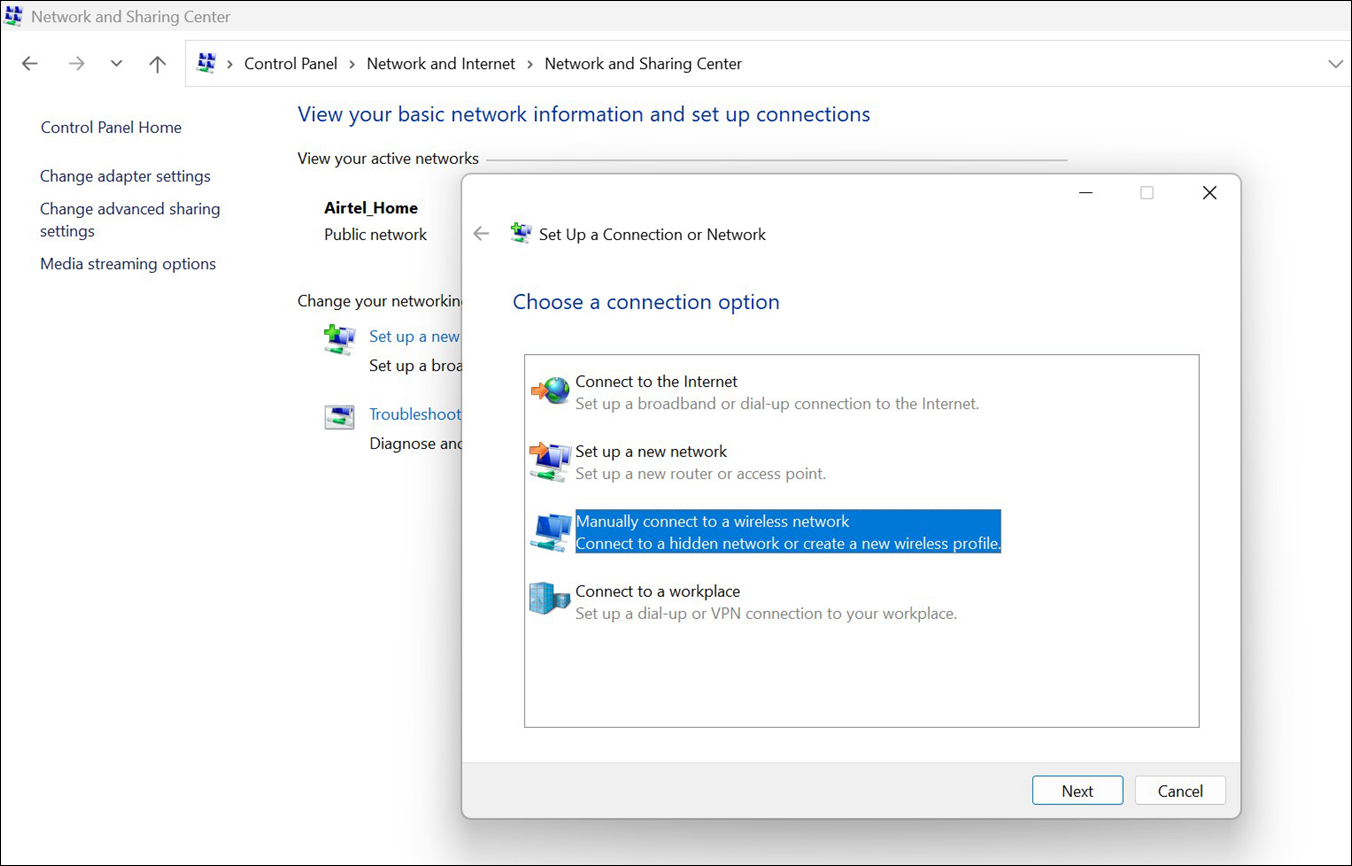
  1. Windows 디바이스에서 제어판 > 네트워크 및 인터넷 > 네트워크 및 공유 센터로 이동합니다. 그런 다음 새 연결 또는 네트워크 설정을 클릭합니다.
  2. 무선 네트워크에 수동 연결을 선택하고 다음을 클릭합니다.
    Network and Sharing Center showing options to set up network connections with Manually connect to a wireless network highlighted.
  3. 무선 네트워크에 대한 다음 세부 정보를 입력하고 다음을 클릭합니다.
    • 네트워크 이름—SSID 이름을 제공합니다.

    • 보안 유형—또는 WPA3-Enterprise 옵션을 선택합니다WPA2-Enterprise.
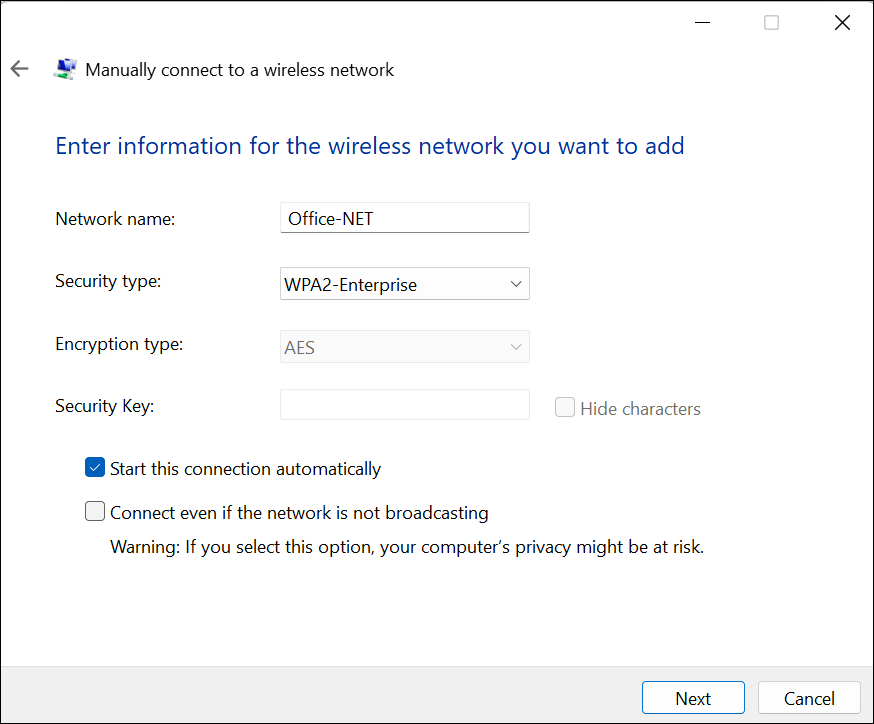
    Windows interface for manually connecting to a wireless network. Fields include Network name, Security type, Encryption type, and Security Key. Options: Start connection automatically and Connect to hidden network. Next and Cancel buttons at the bottom.

  4. 연결 설정 변경을 클릭합니다.
    Wireless Network Properties(무선 네트워크 속성) 대화 상자가 열립니다.
  5. 보안 탭을 선택하고 네트워크 인증 방법 선택 아래에서 설정을 클릭합니다.
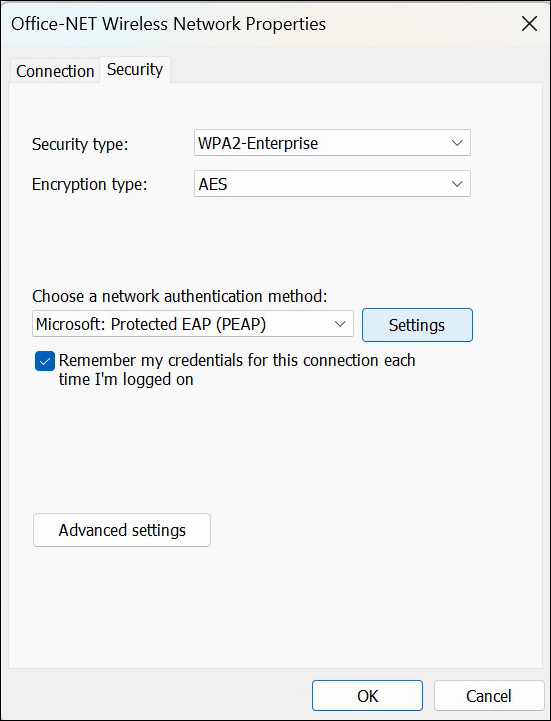
    Wireless Network Properties window with Security tab selected, showing WPA2-Enterprise encryption, PEAP authentication, and a checkbox for remembering credentials. Buttons include Settings, Advanced settings, OK, and Cancel.

  6. 보호된 EAP 속성 대화 상자에서 다음 옵션을 선택합니다.
    • Connect to these servers—기본 Mist Access Assurance 서버 인증서를 사용하는 경우 입력합니다 auth.mist.com . 사용자 지정 RADIUS 서버 인증서를 사용하는 경우 인증서 SAN:DNS 이름을 제공합니다.
    • 신뢰할 수 있는 루트 인증 기관—Mist 조직 CA 인증서(또는 사용자 지정 RADIUS 서버 인증서)를 선택합니다.
    • 인증 방법 - 선택 Smart Card or other certificate (EAP-TLS)
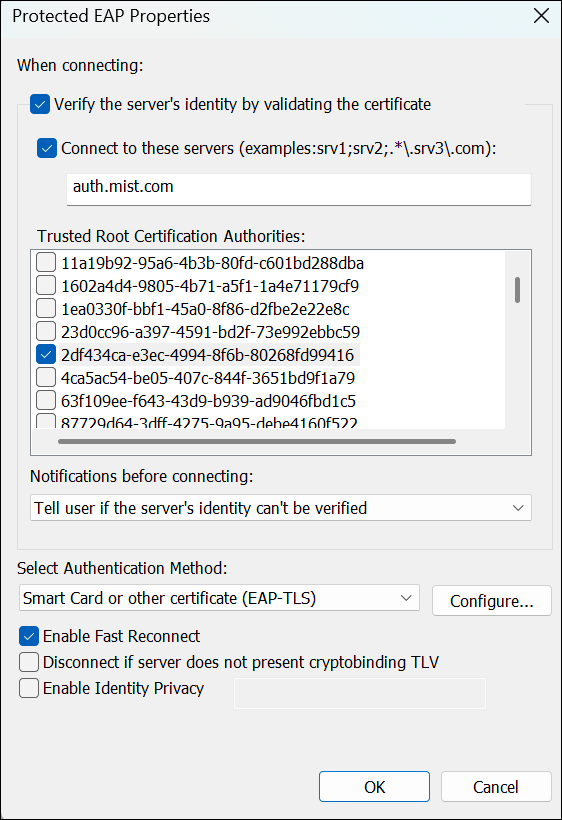
    Protected EAP Properties window for configuring secure wireless authentication. Server identity verification and certificate validation are enabled. Server name auth.mist.com specified. Smart Card or other certificate EAP-TLS authentication method selected. Fast Reconnect enabled. OK and Cancel buttons at the bottom to save or discard changes.

    구성을 클릭합니다.

    스마트 카드 또는 기타 인증서 속성 대화 상자가 나타납니다.

  7. 서버가 auth.mist.com 로 나열되는지 확인합니다. Mist 조직 CA 인증서를 선택하고 확인을 클릭합니다.
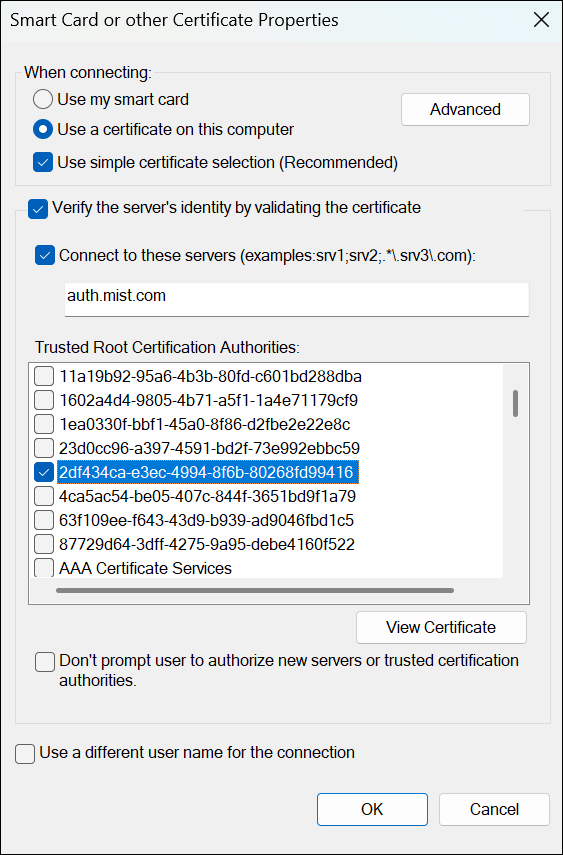
    Smart Card or Certificate Properties dialog box for configuring certificate-based authentication, with options for server validation, trusted certificates, and connection settings.
  8. 무선 네트워크 속성 대화 상자의 보안 탭에서 고급 설정을 클릭합니다.
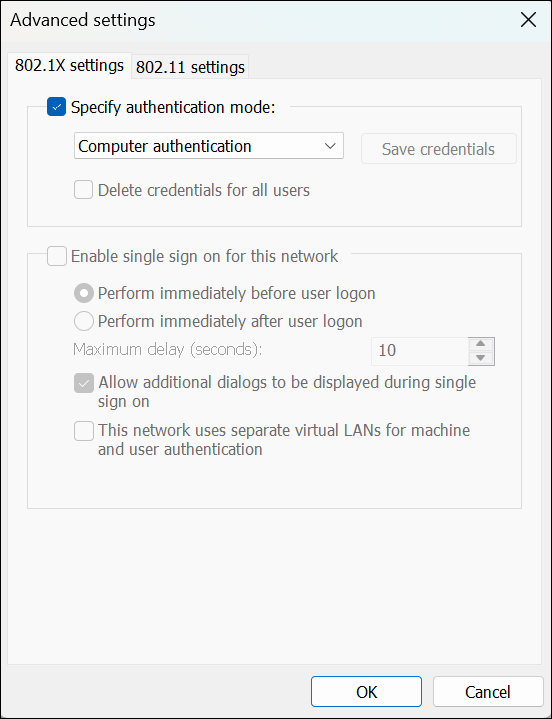
  9. 고급 설정 대화 상자에서 다음을 수행합니다.
    1. 인증 모드 지정 확인란을 선택하고 적절한 인증 모드를 선택합니다.
    2. 확인을 클릭한 다음 닫기를 클릭합니다.
    Advanced settings window for 802.1X authentication with options for specifying authentication mode, deleting credentials, enabling single sign-on, configuring timing and dialogs, and using separate virtual LANs. Tabs for 802.1X and 802.11 settings are at the top, with OK and Cancel buttons at the bottom.
  10. 구성 확인:
    1. 주니퍼 Mist 포털에서 인증 정책을 생성합니다. PEAP-TLS 인증 유형을 허용하는 규칙을 추가합니다.
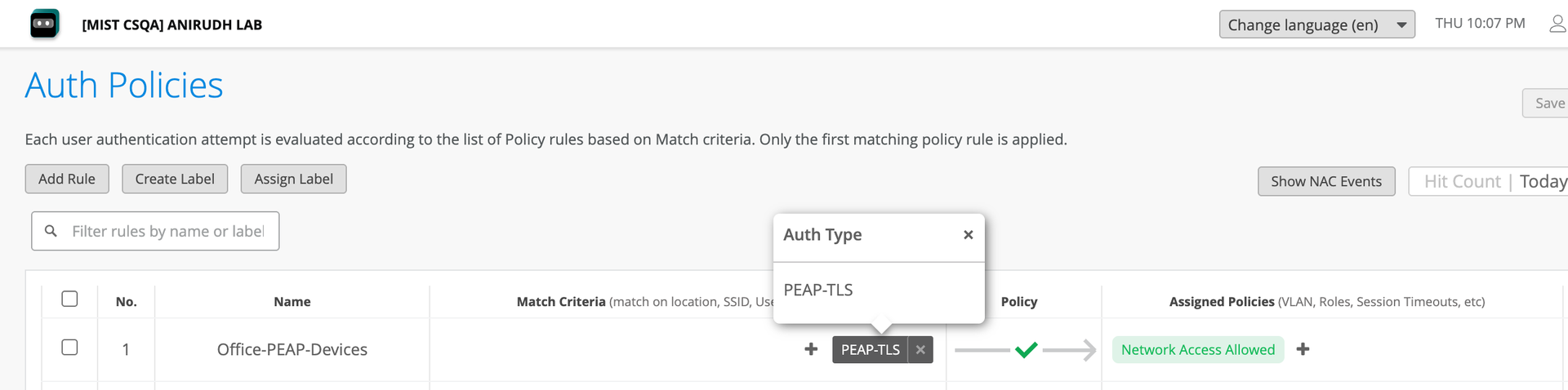
      Auth Policies configuration page for user authentication showing options to add rule, create label, assign label, filter policies, and a table listing policy details such as number, name, match criteria, auth type, and permissions.
    2. CA 인증서를 추가하여 주니퍼 Mist Access Assurance가 추가한 CA에서 발급한 클라이언트 인증서를 신뢰할 수 있도록 합니다. 인증서를 추가하려면 조직 > 액세스 > 인증서> 인증 기관 추가 페이지로 이동합니다. CA 인증서를 추가하는 방법에 대한 자세한 단계는 CA(인증 기관) 인증서 사용을 참조하십시오.
    3. 클라이언트를 네트워크에 연결합니다.
    4. Monitor > Service Levels > Insights 페이지로 이동하여 Client Events 섹션으로 이동합니다. NAC 클라이언트 인증 이벤트를 확인합니다.
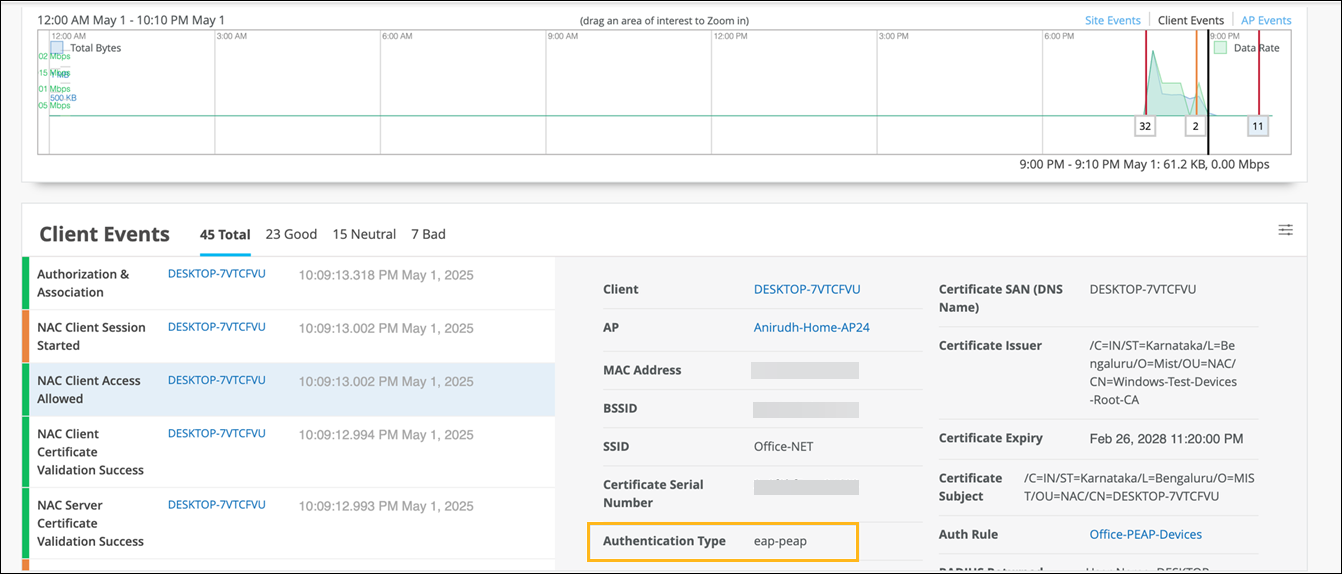
      Network monitoring dashboard showing data rate usage on May 1, 2025, client events, and authentication details.