Help us improve your experience.

Let us know what you think.

Do you have time for a two-minute survey?


Policy Enforcerリリース23.1R1をPolicy Enforcerリリース24.1R1に移行します。

Junos Space Security Directorリリース24.1R1以降、スタンドアロンのPolicy Enforcerを使用することはできません。Security Director Insights 24.1R1で実行されているPolicy Enforcerに移行する必要があります。

スタンドアロンのPolicy Enforcerリリース23.1R1データをSecurity Director Insights 24.1R1に移行する必要があります。

Policy Enforcerの移行手順は、既存のバックアップおよびリストア機能に基づいています。

手記:

スタンドアロンのPolicy Enforcerリリース23.1R1データをSecurity Director Insights 24.1R1に移行する必要があります。

スタンドアロンのPolicy EnforcerをSecurity Director Insights Policy Enforcerに移行する前に、まずJunos Spaceネットワーク管理プラットフォーム 23.1R1またはSecurity Director 23.1R1からJunos Spaceネットワーク管理プラットフォーム 24.1R1またはSecurity Director 24.1R1にアップグレードする必要があります。

アップグレード手順の詳細については、 Junos Spaceネットワーク管理プラットフォームリリース24.1R1へのアップグレードを参照してください。

スタンドアロンのPolicy EnforcerをSecurity Director InsightsのPolicy Enforcerに移行するには:

  1. Security Directorリリース23.1R1での変更のバックアップを取り、リモートサーバーに保存します。「Policy Enforcer Backup and Restore」に記載されている手順に従います。

    バックアップを開始する前に、スタンドアロンPolicy Enforcerリリース23.1R1 V2またはSecurity Director Insights Policy Enforcerを利用可能な最新のホットパッチバージョンにアップグレードする必要があります。

  2. バックアップが取られたPolicy Enforcerをシャットダウンします。
  3. Security Director Insights 24.1 Policy EnforcerをSecurity Directorに追加します。
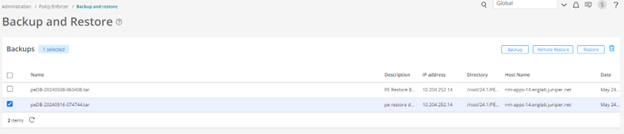
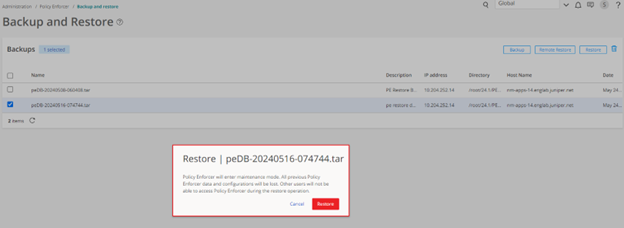
  4. 図 1 に示すように、復元プロセスを開始します。
    図1:バックアップと復元Backup and Restore interface displaying a list of backups with details such as name, description, IP address, directory, host name, and date. Selected backup is highlighted in blue. Options include Backup, Manual Restore, and Restore. Backup and Restore interface with a selected backup file. Warning dialog: Restoring puts Policy Enforcer in maintenance mode, losing all data. Options: Cancel, Restore.
  5. 図 2 に示すように復元プロセスが完了したら、Policy Enforcer を再度追加します。
    図2:ステータスJob management interface showing completed restore job ID 393537 with 100 percent success on pcDE 393537.の復元
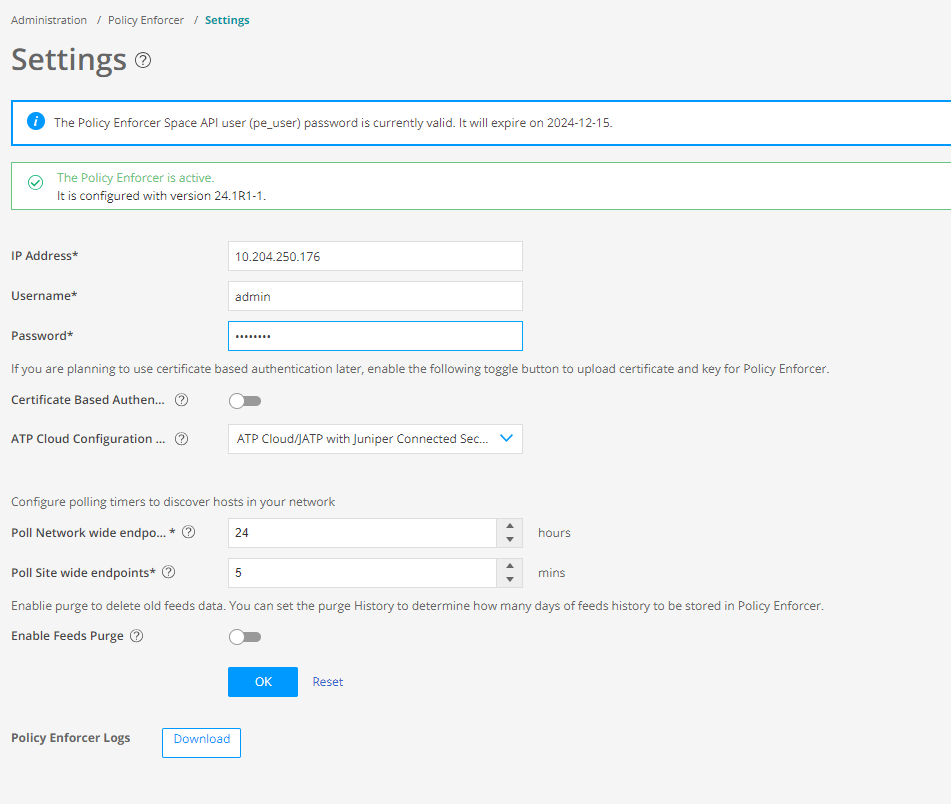
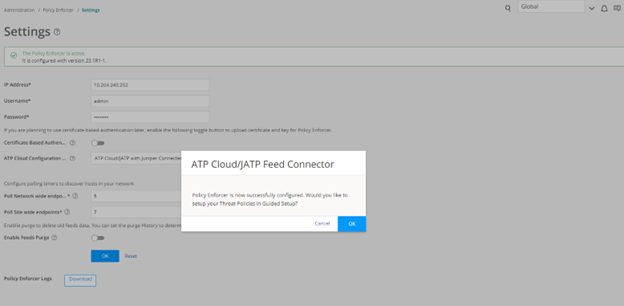
  6. [管理] > Policy Enforcer > 設定に移動し、設定ウィンドウで必要な詳細を入力して [OK] をクリックします。詳細については、図 3 を参照してください。
    図3:Policy EnforcerPolicy Enforcer settings page showing status, configuration fields, and options for certificate-based authentication, ATP Cloud, polling timers, and action buttons.の再追加
  7. Policy Enforcer を構成すると、図 4 に示すように、ガイド付きセットアップで脅威ポリシーを設定するかどうかを確認するプロンプトが表示されます。[OK] をクリックしますが、脅威ポリシーのガイド付き設定は冗長であるため無視してください。
    図4:脅威ポリシーの防御 Security system settings page with fields for IP address, username, password, and options for certificate authentication and ATP CloudJATP configuration. Pop-up message asks to set up Threat Policies in Guided Setup with Cancel or OK options. Buttons for downloading logs and resetting configurations are present.
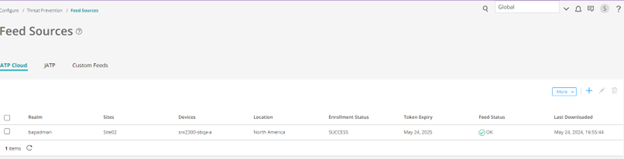
  8. [Configure > Threat Prevention > Feed Sources] に移動し、レルムを再度追加して、サイトをレルムに割り当てます。これは、フィードとデバイスをレルムおよびPolicy Enforcerと同期するためです。
  9. レルムがいつの間にか同期し、フィードの状態が OK であることを確認します (図 5 参照)。
    図 5: フィード ソース Feed Sources page in cybersecurity software showing ATP Cloud tab with realm bagelman, site Site1, device vmx200-1 at spoke, location North America, enrollment status SUCCESS, token expiry May 24 2025, feed status OK with green checkmark, last downloaded May 24 2024. Options to add or edit feed sources are available.
  10. デバイスのセキュリティ インテリジェンスの URL と IP アドレスが表示されていることを確認します。次に例を示します。
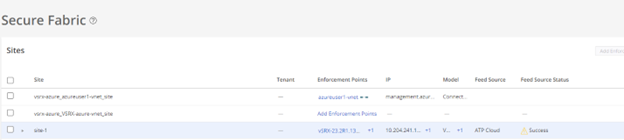
  11. [Secure Fabric > Sites] に移動し、[Feed Source Status] に [Success] と表示されているかどうかを確認します。詳細については、図 6 を参照してください
    図6:セキュアファブリック Secure Fabric interface listing sites with columns for Tenant, Enforcement Points, IP, Model, Feed Source, and Feed Source Status. One site shows Success with a warning icon in Feed Source Status.
  12. [Configure > Threat Prevention > Policies> Threat Prevention Policies]に移動し、バックアップから回復したポリシーのステータスを確認します。詳細については、図 7 を参照してください。
    図7:脅威防御ポリシー User interface for managing Threat Prevention Policies in a cybersecurity platform. Shows policies with details on configurations, statuses, and actions like edit or delete. Includes navigation and filter options for IT administrators.
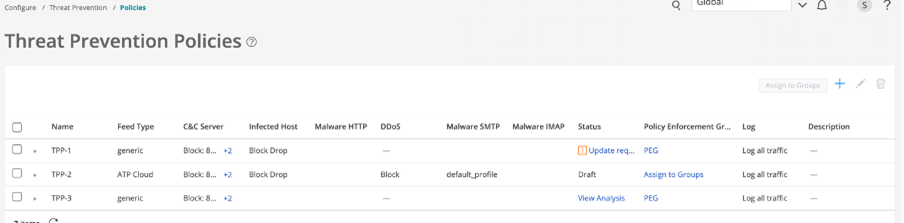
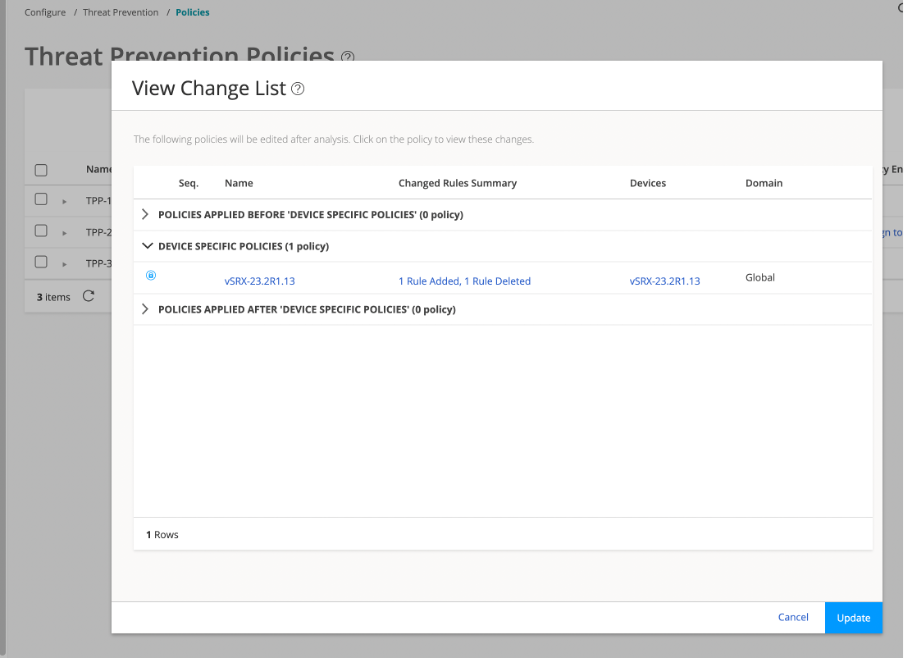
  13. [脅威防止ポリシー] の [ステータス] タブで [更新が必要] をクリックし、更新を続行します。
    古いポリシーは新しいポリシーに置き換えられます( 図8参照)。
    図 8: ポリシー変更リスト View Change List dialog showing no policies before or after Device Specific Policies; 1 rule added and 1 deleted for vSRX-23.2R1.13 in Global domain.
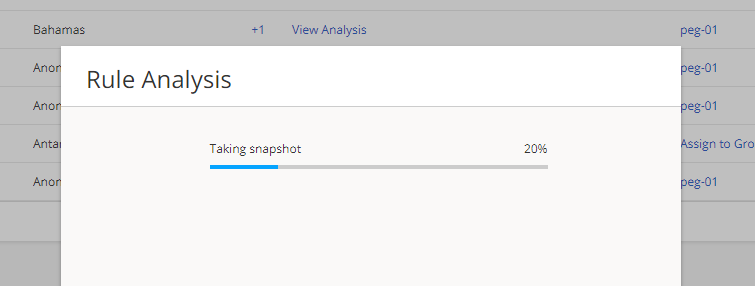
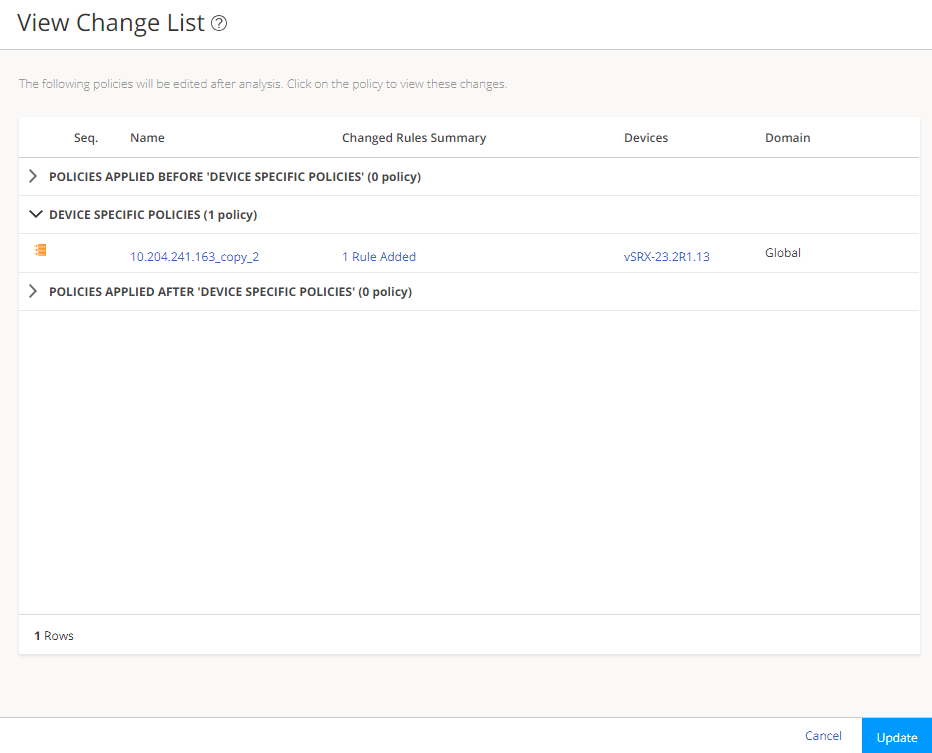
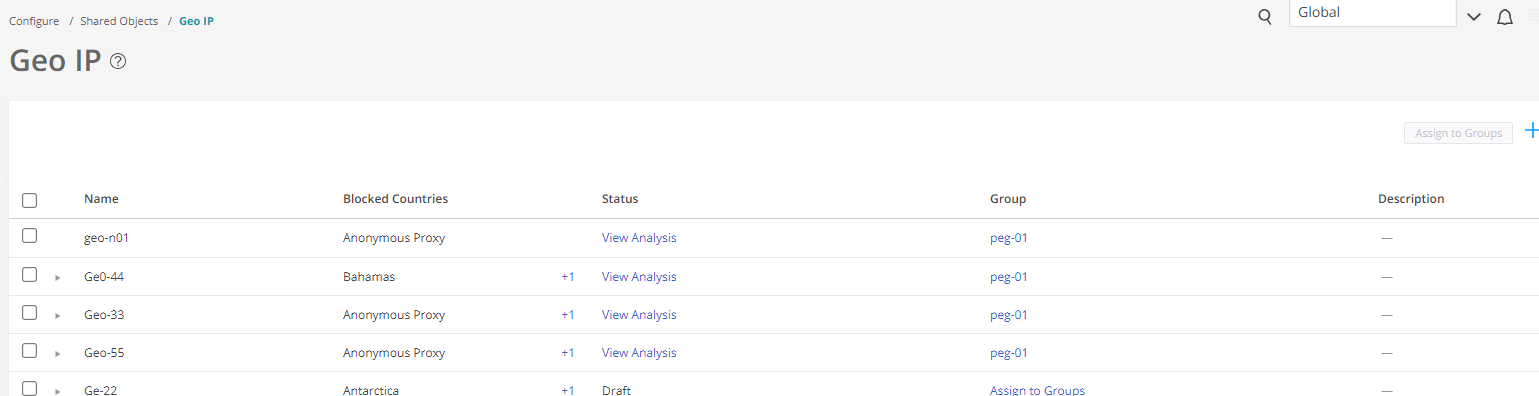
  14. [Configure > Shared Objects > Geo IP] に移動し、Geo IP 分析を実行して、生成されたポリシーをデバイスに更新します。詳細については、図 9 を参照してください。
    図9:地域IP Geo IP settings interface with columns for Name, Blocked Countries, Status, Group, and Description. Options to assign groups and add entries. Rule Analysis interface with 20 percent progress on snapshot. Background table lists Bahamas and Antarctica with View Analysis and peg-01 details. View Change List interface showing one device-specific policy named 10.204.241.163_copy_2 with one rule added for vSRX-23.2R1.13 in Global domain. Options to Cancel or Update changes.
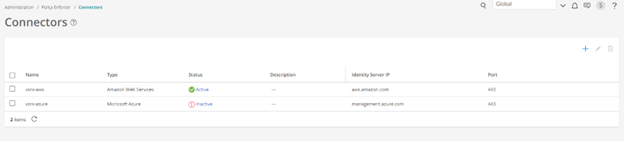
  15. 図 10 に示すように、[Administration > Policy Enforcer > Connectors] に移動します。
    図10:コネクタConnectors interface listing AWS as active with IP aws.amazon.com and Azure as inactive with IP management.azure.com. Options to add connectors and selection checkboxes.
    コネクタのステータスは、デフォルトで [非アクティブ ] と表示されます。
  16. 失敗したコネクタを変更または削除して再追加し、アクティブにします。
    既存のコネクタを編集してコネクタを再度追加する場合は、次の手順を実行する必要があります。
    • 資格情報と pem ファイルを再度追加します。

    • タグの他の値を正しく選択していることを確認してください。

    スタンドアロンのPolicy EnforcerからSecurity Director Insightsへの移行 Policy Enforcerが完了しました。
    手記:

    移行されたカスタムフィードは、スキーマのバージョン管理、SRXデバイスで使用できるフィードのマニフェスト生成に関連する内部アクティビティにより、同期に約10分かかる場合があります。所要時間は、フィードの種類とフィード量によって異なります。