Help us improve your experience.

Let us know what you think.

Do you have time for a two-minute survey?


アラートとメール通知を構成する

[アラート] ダッシュボードに表示するアラートを有効にします。必要に応じて、綿密に監視する問題のメール通知を有効にします。

ビデオの概要

このビデオでは、アラートを構成する手順の概要について説明します。

The one thing I wanted to show is the alert framework. We get asked a lot in terms of, hey, what can we do in terms of the different alerts that the system is looking at? So you can see here I have my information turned off. I'm going to turn that on.

But real quickly, I wanted to go through, we have this alert framework. And you can look at alerts based on a per site basis. You can look at alerts based on an entire organization.

You can look at alerts just like if you want to get granular on client insight capabilities, the network rewind stuff. So we do the same thing with alerts. You can look at alerts for today. You can look at them for the last 60 minutes. You can do custom dates and ranges and things like that to see what's been going on if something gets reported. Or you just want to look at the current status from an alert perspective.

You can go through, and you can actually sort on different alert types. So if I wanted to just click on security, for example, now I'm looking at the security alerts. I can look at any type. And then I can actually turn them off. So if I didn't want to look at informational alerts, I just click on that box and turn them off. OK, so just that's a quick at-a-glance alerts.

Now, how do you configure these things? What types of alerts are in there? So if you go over here and click on alert configuration, I'll click on this. So what you can do is that you can set up different alert templates. You can set it up for an entire organization.

You can set it up for an individual site. And you can actually mix them. So maybe you wanted to have specific alerts for an entire organization that you have out there. But for a specific site or specific sites, maybe you wanted to get some additional learning information out there for different reasons. So you actually have the ability to do that. So right now, you can see here that this applies to scope, for example, my entire organization.

If I wanted to do a particular site, I can do that, click plus, and then add a site to this if that's something I wanted to do. The other thing that you can do is over here, I can click on this button. And what it would do is that it would actually clone or provide a copy of this current template.

You can rename that and configure it and then apply it to something else if that's something that you wanted to do. So you can actually clone templates as well. The other thing that you could do is, what it will do is that it will send alerts, send these alerts to the admins of the organization. Or you can actually say, just send it to the site admins. And then you could actually add additional recipients. So maybe you have folks on the security team, for example.

So you wanted to set up a template that was specific to security alerts. And when those security alerts got triggered, for example, like a rogue AP, maybe you want to send an email to somebody on the security team. That's just an example of something that you could do.

So if you look at the alert types, we have these, they're kind of segmented into a few different categories. You have the infrastructure side where if devices are online or offline, you can actually enable an alert. There's kind of two columns here. You can enable the alert, it will show up in the dashboard. And then you could also click on this box to send an email notification. So you can configure it that way as well.

And then if you scroll down in here, you got the infrastructure alerts, you got Marvis alerts. I'll show you what a non-compliant AP is as well. You got different, like all the stuff that's available from a Marvis actions perspective.

AP is authentication, DHCP, DNS, switches, gateways, things like that. If there's stuff going on with those devices, you could actually have alerts configured to be sent on those. And then on the security side, maybe you want to know, hey, if a rogue AP pops up, I want to make sure I have an alert.

And then I want to send an email to someone in IT or security or both that I have that. So I encourage you all to kind of go in here and check out all the different alert types that we have and what you can actually set this thing up to alert on. Okay, so that's alerts.

And just wanted to point that out. Like I said, I encourage you all to go in there, check it out, play with it, test it, do all that fun stuff and see how it works for you.

構成

アラートを構成するには:

  1. 左側のメニューから [Monitor > Alerts] を選択します。
  2. 「アラート」ページの右上隅にある「アラート構成」ボタンをクリックします。
    Location of the Alerts Configuration Button on the Alerts Page

    構成ページはセクションに分かれており、スコープの設定、アラート通知の受信者の識別 (オプション)、監視するアラートの有効化を行います。

    Options for Alert Configuration
  3. [スコープに適用] で、次のいずれかのオプションを選択します。
    • 組織全体 — 組織全体のアラートを設定します。

    • サイト - 組織の他の部分とは異なる方法で監視するサイトのアラートを構成します。プラス記号をクリックしてサイトを選択します。

  4. (オプション) [電子メール受信者の設定] で、有効にする電子メール通知の電子メール配布リストを設定します。
    手記:ここでは、 受信者を識別しています。[アラートの種類] セクションで、電子メールで監視するアラートの 通知を有効にします。

    オプションには以下が含まれます。

    • 組織管理者へ - 組織全体へのアクセスを許可する権限を持つすべての管理者を含めるには、このオプションを選択します。

    • サイト管理者へ - スコープ セクションで指定されたサイトへのアクセス権を持つ管理者のみを含めるには、このオプションを選択します。

    • 追加の電子メール受信者へ - 管理者アカウントJuniper Mist持たないがアラートを監視する必要がある担当者を指定するには、このオプションを選択します。複数のメールアドレスを入力する場合は、カンマで区切ります。

  5. [アラートの種類] セクションで、監視するイベントのダッシュボード アラートと電子メール通知を有効にします。

    さまざまなアラートの詳細については、「 Juniper Mistアラートタイプ」を参照してください。

    アラートの種類ごとに、次のオプションがあります。

    • [アラートの有効化(Enable Alert)]:このアラートを [アラート(Alerts)] ダッシュボードに含めます。(ダッシュボードを表示するには、Juniper Mist ポータルの左側のメニューから [Montior > Alerts ] を選択します。

    • [電子メール通知の有効化(Enable Email Notification)]:[電子メールの受信者(電子メールの受信者)] セクションで指定した担当者にアラート通知を送信します。

    先端:

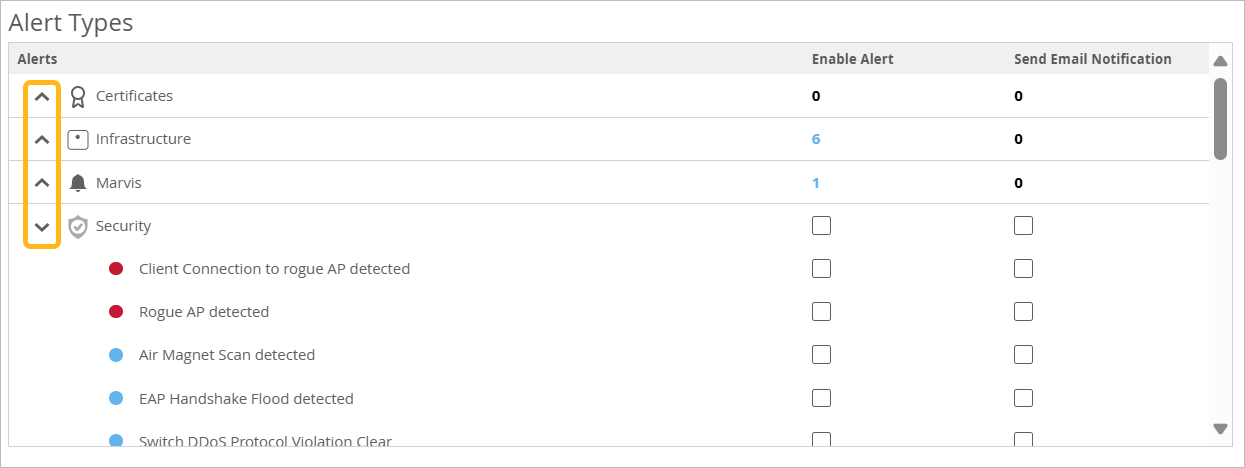
    [アラートの種類] セクションの左側にある展開/折りたたみボタンを使用して、一度に 1 種類のアラートに焦点を合わせます。たとえば、次に示すように、 [セキュリティ] のみを展開し、他の種類のアラートを折りたたみます。

    Location of the Expand/Collapse Buttons in the Alert Types Section of the Screen

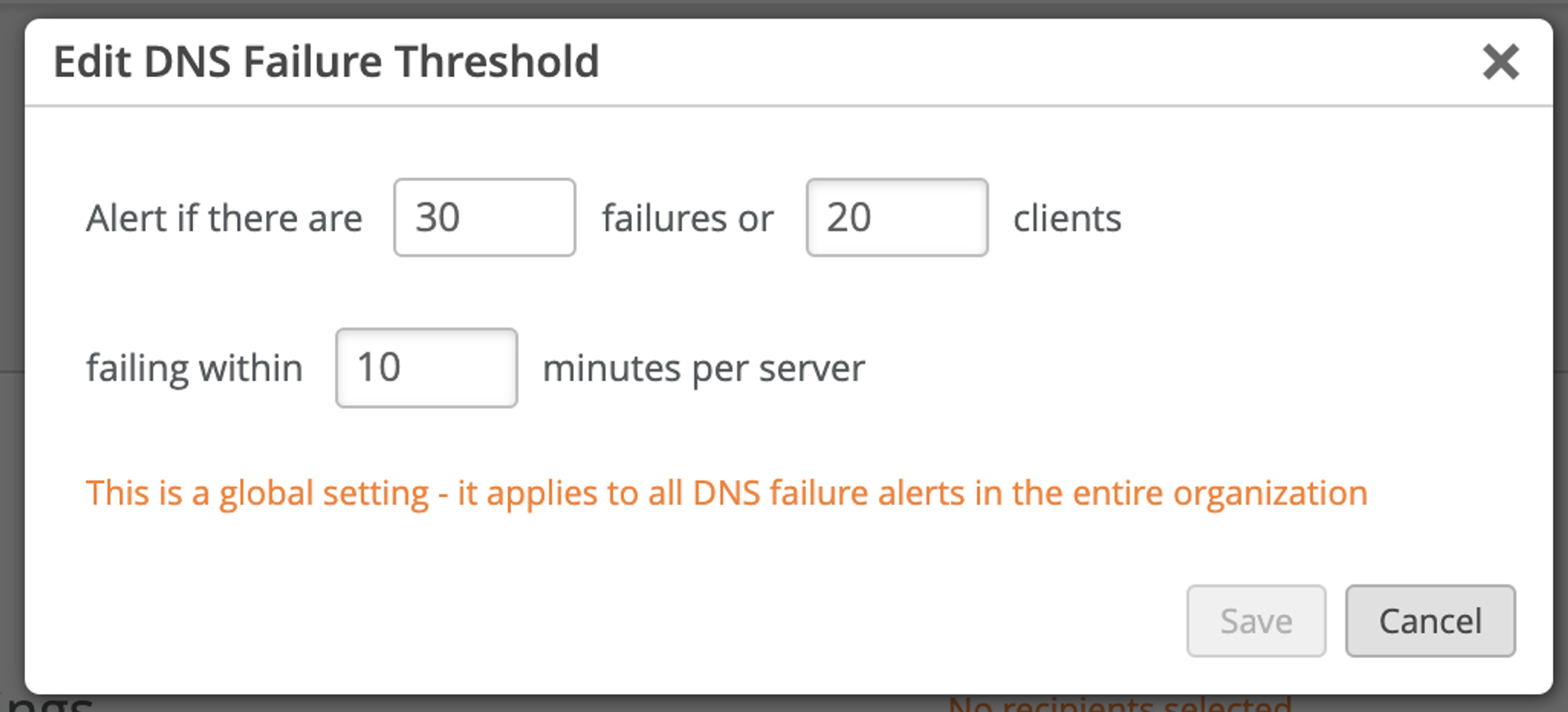
  6. 鉛筆アイコンの付いたアラートを有効にした場合は、アイコンをクリックして設定を構成します。

    たとえば、[DNS Failure] の鉛筆アイコンをクリックすると、失敗の数、影響を受けるクライアント、および期間に基づいてしきい値を設定できます。

    Configurable Alert Example: DNS Failure
  7. [アラートの構成] ページの右上隅にある [保存] をクリックします。