Help us improve your experience.

Let us know what you think.

Do you have time for a two-minute survey?


Windowsデバイス用のPEAP-EAP-TLS認証を設定する

次の手順に従って、EAP-TLSを内部認証方法として使用して、保護拡張可能な認証プロトコル(PEAP)認証用にWindowsクライアントデバイスを設定します。

Protected Extensible Authentication Protocol(PEAP)は、認証プロセスにトンネル化されたEAP方式を使用します。PEAPは、トランスポート層セキュリティ(TLS)を使用して、クライアントと認証サーバーの間にセキュアで暗号化されたトンネルを確立します。このトンネル内でEAP認証プロセスをカプセル化することで、クライアントとサーバー間での認証データの安全な交換を可能にします。

注:ジュニパー Mist Access Assuranceは、EAP-TLS認証のみでPEAPをサポートします。EAP-MSCHAP v2 を使用した PEAP はサポートされていません。

PEAP-EAP-TLSは、セキュアトンネル内の内部認証方法としてEAP-TLSを使用します。EAP-TLSでは、相互認証にクライアント証明書とサーバー証明書の両方が必要です。WindowsデバイスでPEAP-EAP-TLSを設定するには:

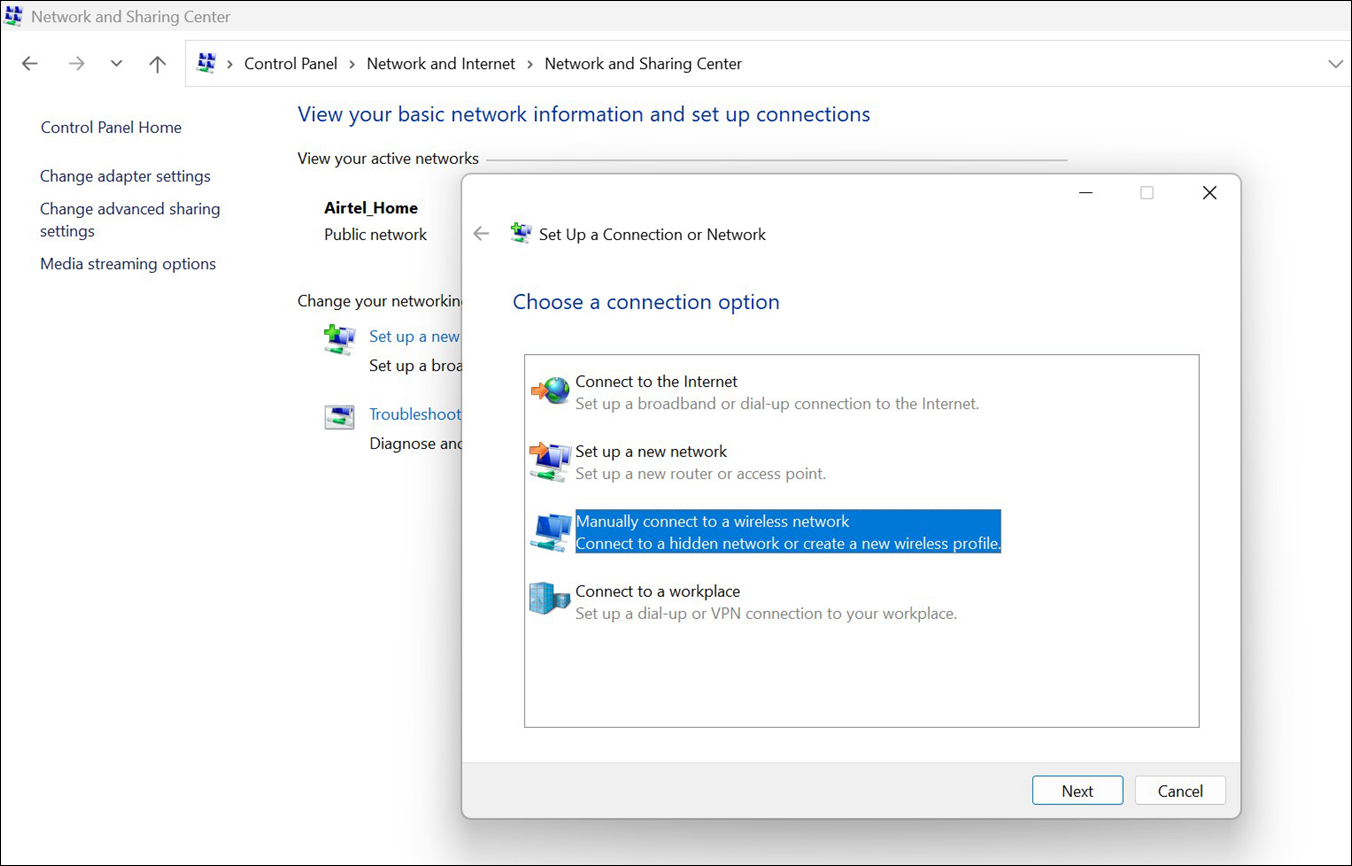
  1. Windows デバイスで、[ コントロール パネル ] > [ネットワークとインターネット >ネットワーク と共有センター] に移動します。次に、[ 新しい接続またはネットワークの設定] をクリックします。
  2. [無線ネットワークに手動で接続する]を選択し、[次へ]をクリックします。
    Network and Sharing Center showing options to set up network connections with Manually connect to a wireless network highlighted.
  3. 無線ネットワークについて以下の詳細を入力し、 次へをクリックします。
    • ネットワーク名—SSID名を指定します。

    • セキュリティタイプ— WPA2-Enterprise または WPA3-Enterprise オプションを選択します。
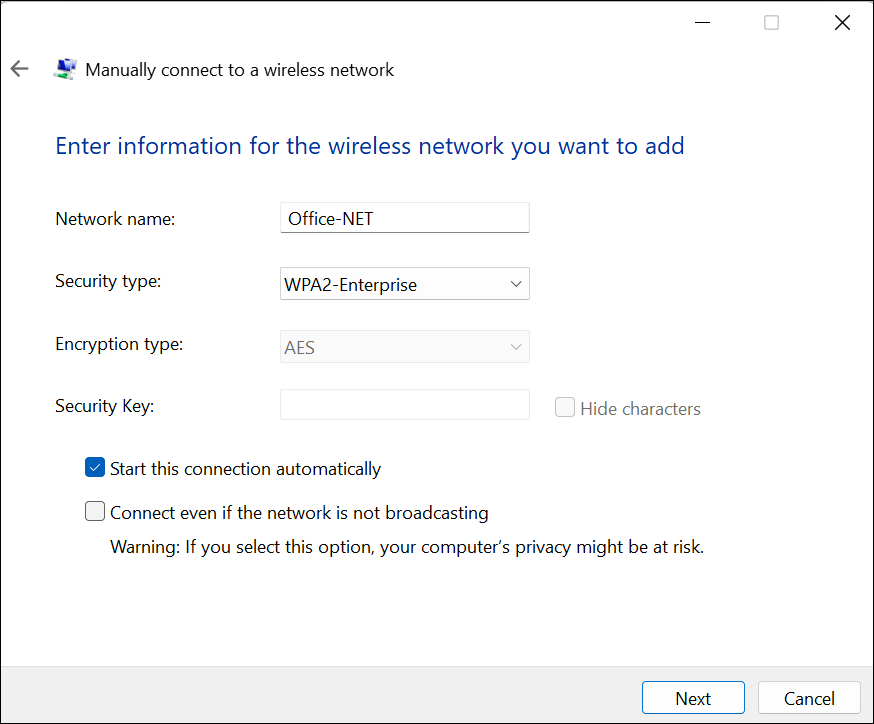
    Windows interface for manually connecting to a wireless network. Fields include Network name, Security type, Encryption type, and Security Key. Options: Start connection automatically and Connect to hidden network. Next and Cancel buttons at the bottom.

  4. 接続設定の変更をクリックします。
    [Wireless Network Properties]ダイアログボックスが表示されます。
  5. セキュリティタブを選択し、ネットワーク認証方法の選択にある設定をクリックします。
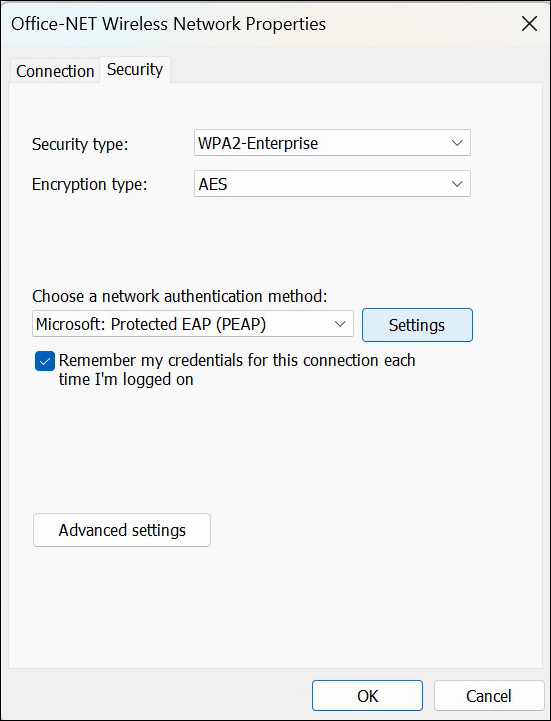
    Wireless Network Properties window with Security tab selected, showing WPA2-Enterprise encryption, PEAP authentication, and a checkbox for remembering credentials. Buttons include Settings, Advanced settings, OK, and Cancel.

  6. 保護されたEAPのプロパティダイアログボックスで、次のオプションを選択します。
    • これらのサーバーに接続—デフォルトのMist Access Assuranceサーバー証明書を使用している場合は、 auth.mist.com を入力します。カスタム RADIUS サーバー証明書を使用している場合は、証明書 SAN:DNS 名を指定します。
    • 信頼できるルート認証機関—Mist組織のCA証明書(またはカスタムRADIUSサーバー証明書)を選択します。
    • 認証方法—選択 Smart Card or other certificate (EAP-TLS)
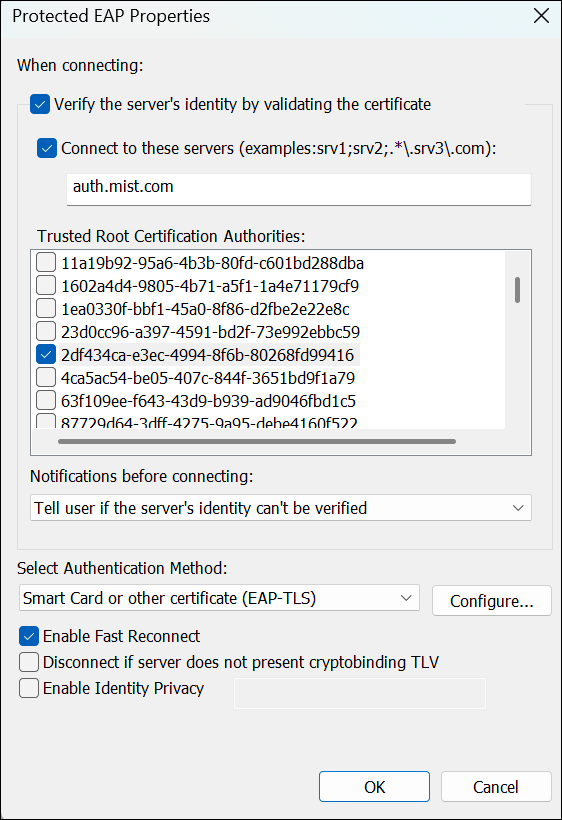
    Protected EAP Properties window for configuring secure wireless authentication. Server identity verification and certificate validation are enabled. Server name auth.mist.com specified. Smart Card or other certificate EAP-TLS authentication method selected. Fast Reconnect enabled. OK and Cancel buttons at the bottom to save or discard changes.

    設定をクリックします。

    [スマートカードまたはその他の証明書のプロパティ]ダイアログボックスが表示されます。

  7. サーバーが auth.mist.com として表示されていることを確認します。Mist組織のCA証明書を選択し、 OKをクリックします。
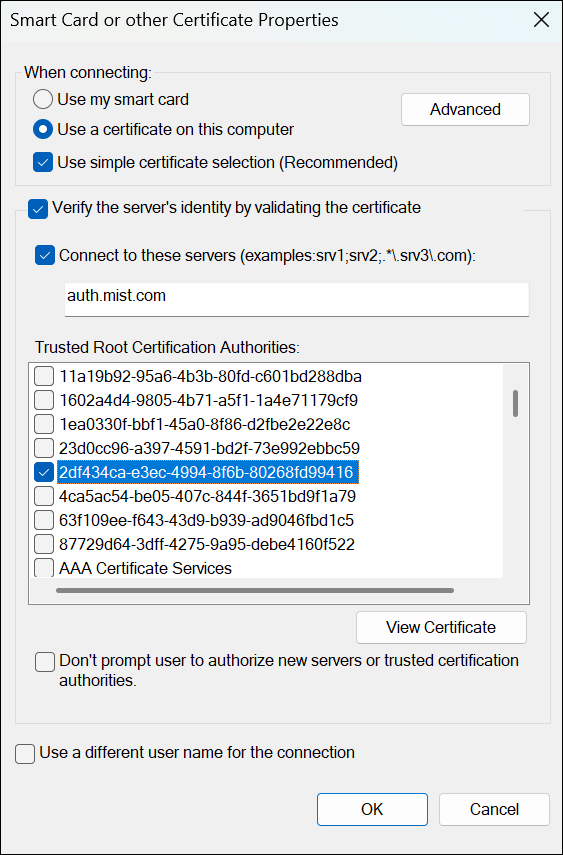
    Smart Card or Certificate Properties dialog box for configuring certificate-based authentication, with options for server validation, trusted certificates, and connection settings.
  8. [ワイヤレス ネットワークのプロパティ] ダイアログ ボックスの [セキュリティ] タブで、[ 詳細設定] をクリックします。
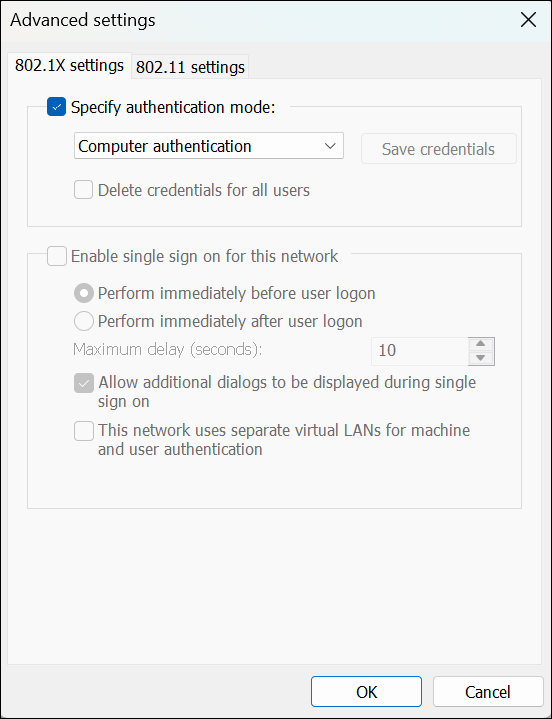
  9. 詳細設定ダイアログボックスで、次の操作を行います。
    1. 認証モードを指定チェックボックスを選択し、適切な認証モードを選択します。
    2. OKをクリックし、閉じるをクリックします。
    Advanced settings window for 802.1X authentication with options for specifying authentication mode, deleting credentials, enabling single sign-on, configuring timing and dialogs, and using separate virtual LANs. Tabs for 802.1X and 802.11 settings are at the top, with OK and Cancel buttons at the bottom.
  10. 設定を確認します。
    1. ジュニパー Mistポータルで、認証ポリシーを作成します。PEAP-TLS認証タイプを許可するルールを追加します。
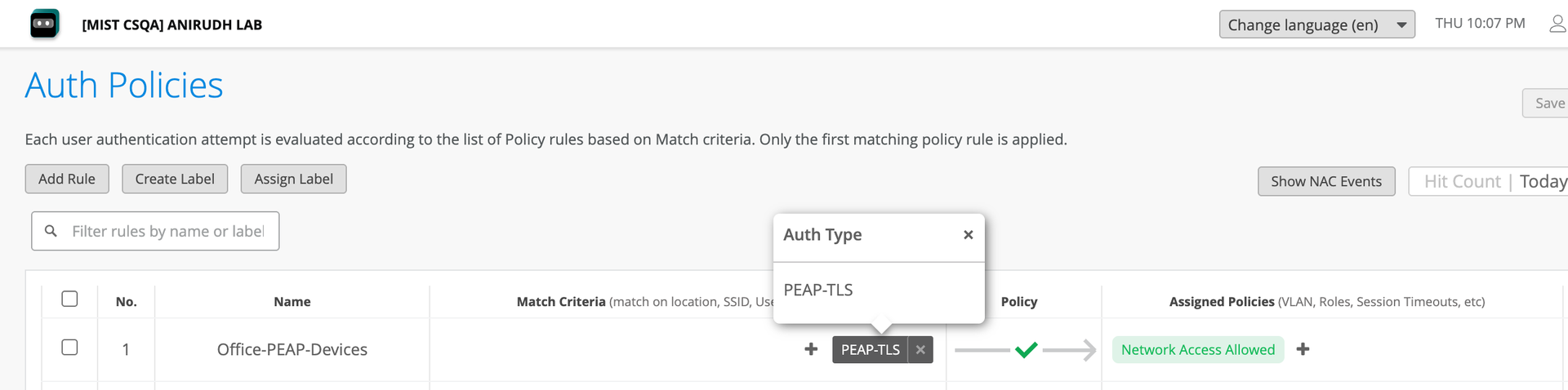
      Auth Policies configuration page for user authentication showing options to add rule, create label, assign label, filter policies, and a table listing policy details such as number, name, match criteria, auth type, and permissions.
    2. CA証明書を追加して、ジュニパー Mist Access Assuranceが、追加したCAによって発行されたクライアント証明書を信頼できるようにします。証明書を追加するには、組織>アクセス>証明書に移動します>認証局の追加ページ。CA証明書を追加する詳細な手順については、「認証機関(CA)証明書を使用する」を参照してください。
    3. クライアントをネットワークに接続します。
    4. 監視>サービスレベル>インサイトページに移動し、クライアントイベントセクションに移動します。NACクライアント認証イベントを確認します。
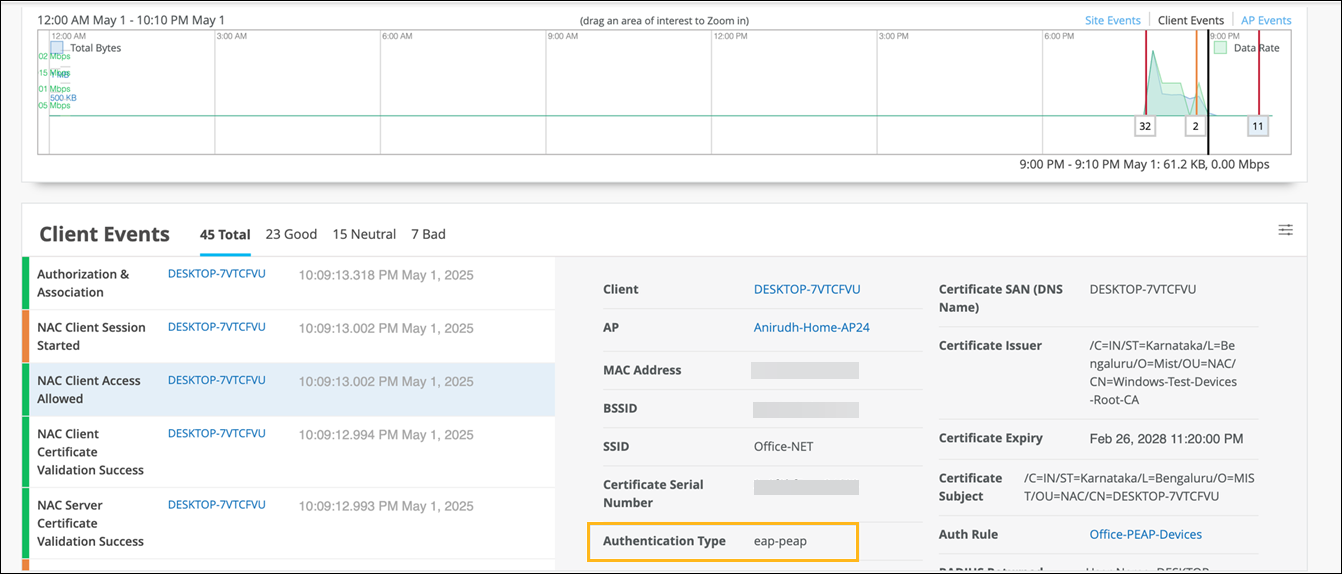
      Network monitoring dashboard showing data rate usage on May 1, 2025, client events, and authentication details.