Help us improve your experience.

Let us know what you think.

Do you have time for a two-minute survey?


ME-X6を取り付けます

このトピックでは、デバイスを 2 支柱ラックまたは 4 支柱ラックに取り付ける手順を説明します。

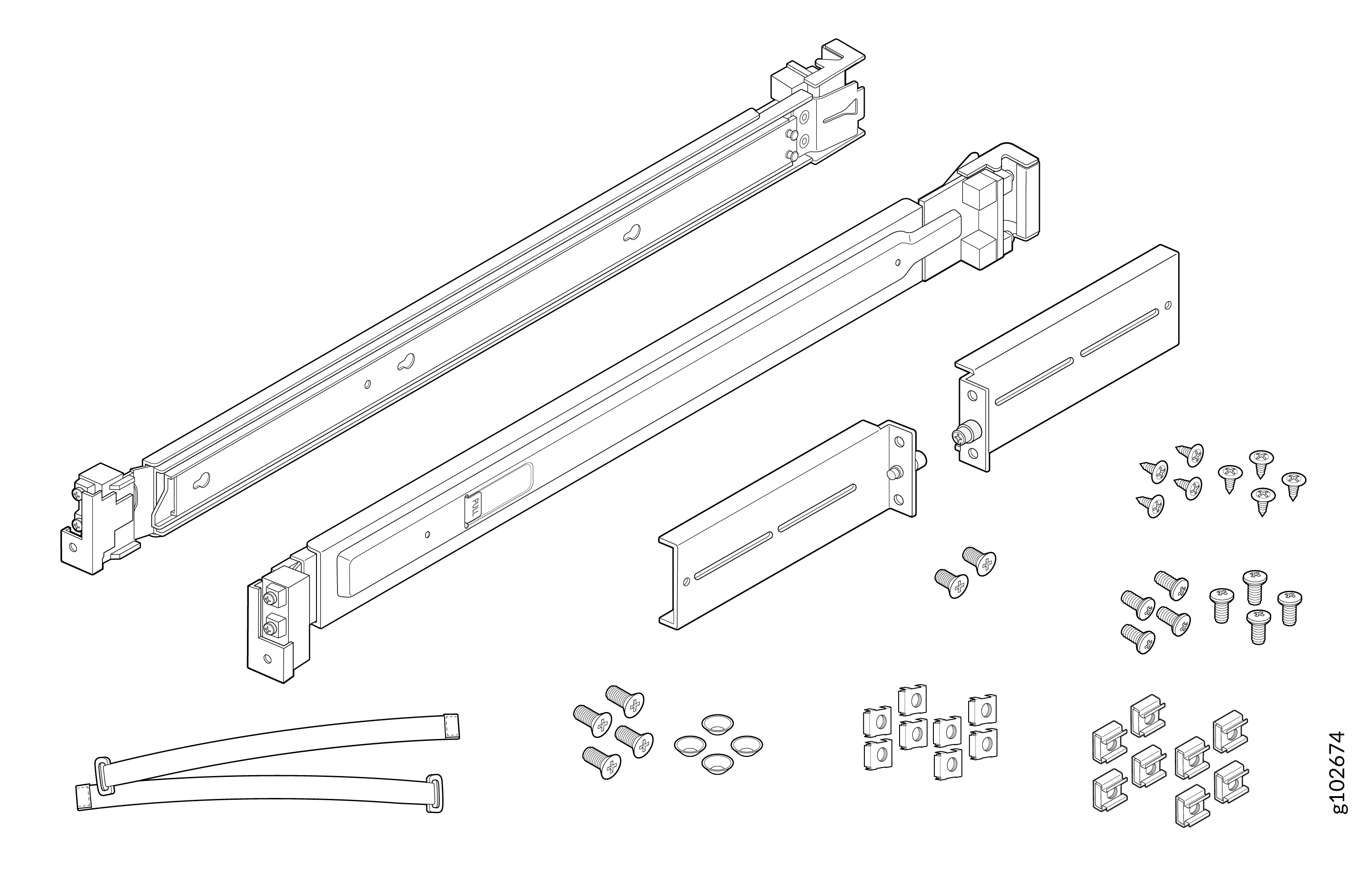
ME-X6に同梱されているラック取り付けキットには、次の部品が含まれています。

  • 2 つのレール取り付けアセンブリ

  • L 字型ブラケット 4 個

  • 取り付けブラケットをデバイスに取り付けるための 2 本のネジ

  • 取り付けレールアセンブリをラック支柱に取り付けるための 4 本のネジ

  • 4つの円錐ワッシャー

  • L 字ブラケットを取り付けレールアセンブリに取り付けるための 8 本のネジ

  • L 字ブラケットをラック支柱に取り付けるための 8 本のネジ

  • ケージナット8個

  • 8つの角ワッシャー

  • 2 本のケーブル管理タイ

図 1:ラック マウント キットのコンポーネント Exploded view of a rail kit assembly for mounting servers into a rack including rails, mounting brackets, screws, nuts, and cable management arms.

デバイスを 4 ポスト ラックに取り付けます

デバイスを 4 ポスト ラックに取り付けるには、次の手順に従います。
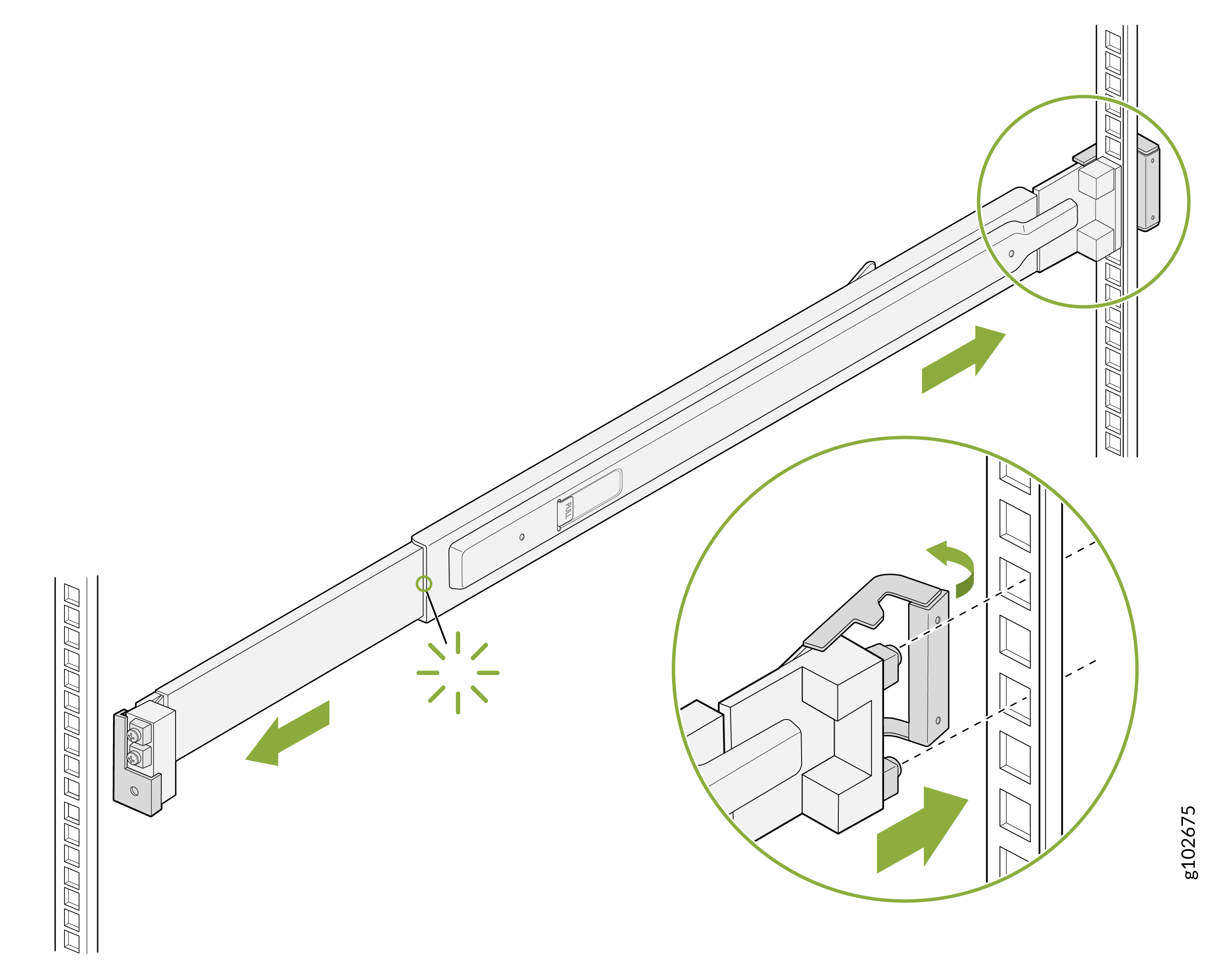
  1. 取り付けレールアセンブリの背面レールにあるラッチを開きます。リアレールのガイドブロックをリアポストの穴に合わせます。背面レールをラックの後方に押して、ガイド ブロックが背面支柱の穴にスライドするようにします。背面ラッチを所定の位置にロックします。
    図2:背面レールRack-mounted rail system installation showing rail attachment to vertical rack posts with green arrows indicating movement and a green circle highlighting the locking mechanism.の取り付け
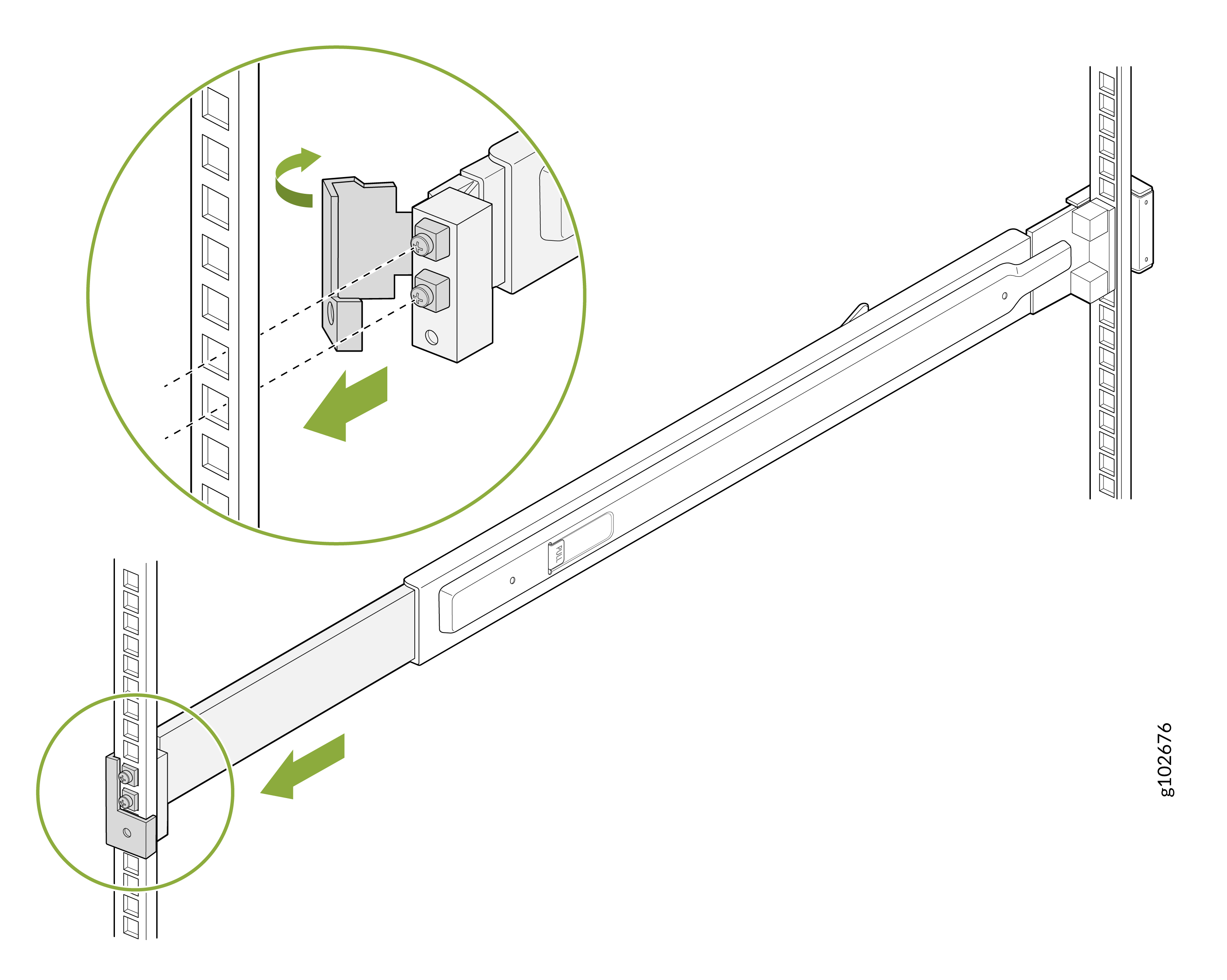
  2. 取り付けレールアセンブリの前面レールにあるラッチを開きます。前面レールのガイドブロックを前面支柱の穴に合わせます。ガイド・ブロックが前面支柱の穴にスライドするように、前面レールをラックの前方に引きます。
    図3:前面レールTechnical illustration of a rack-mount rail system for server racks. Green arrows show rail attachment to vertical posts with square holes.の取り付け
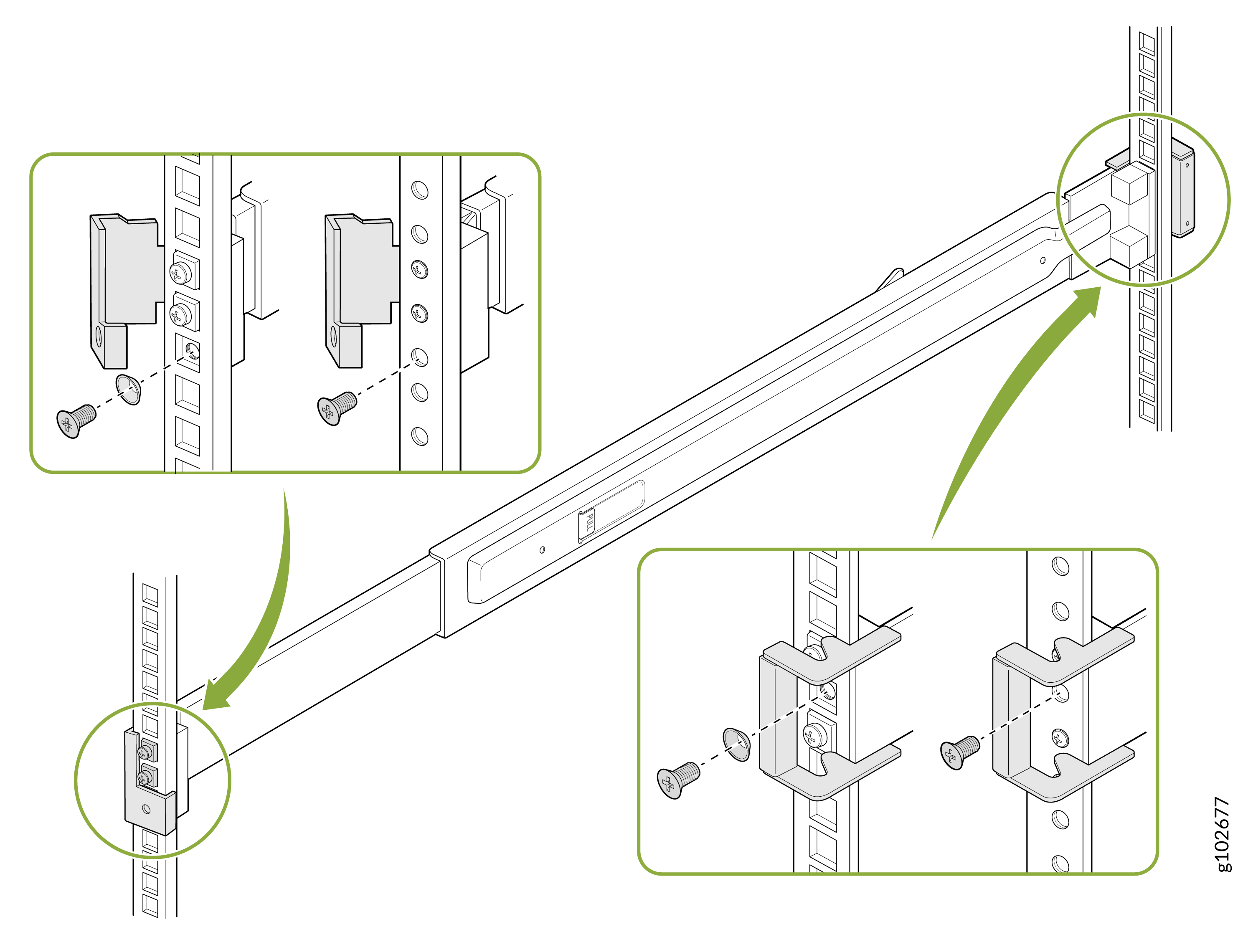
  3. 付属のネジを使用して、取り付けレールをラック支柱に固定します。前面ラッチを所定の位置にロックします。
    四角い穴のあるラックの場合は、円錐形ワッシャーを使用します。
    図4:取り付けレールInstructional diagram for installing a rack-mount rail system with rails, mounting brackets, screws, vertical rack posts, and zoomed-in views showing details. Green arrows and circles highlight key installation steps.固定
  4. もう一方の取り付けレールアセンブリについてもこのプロセスを繰り返します。
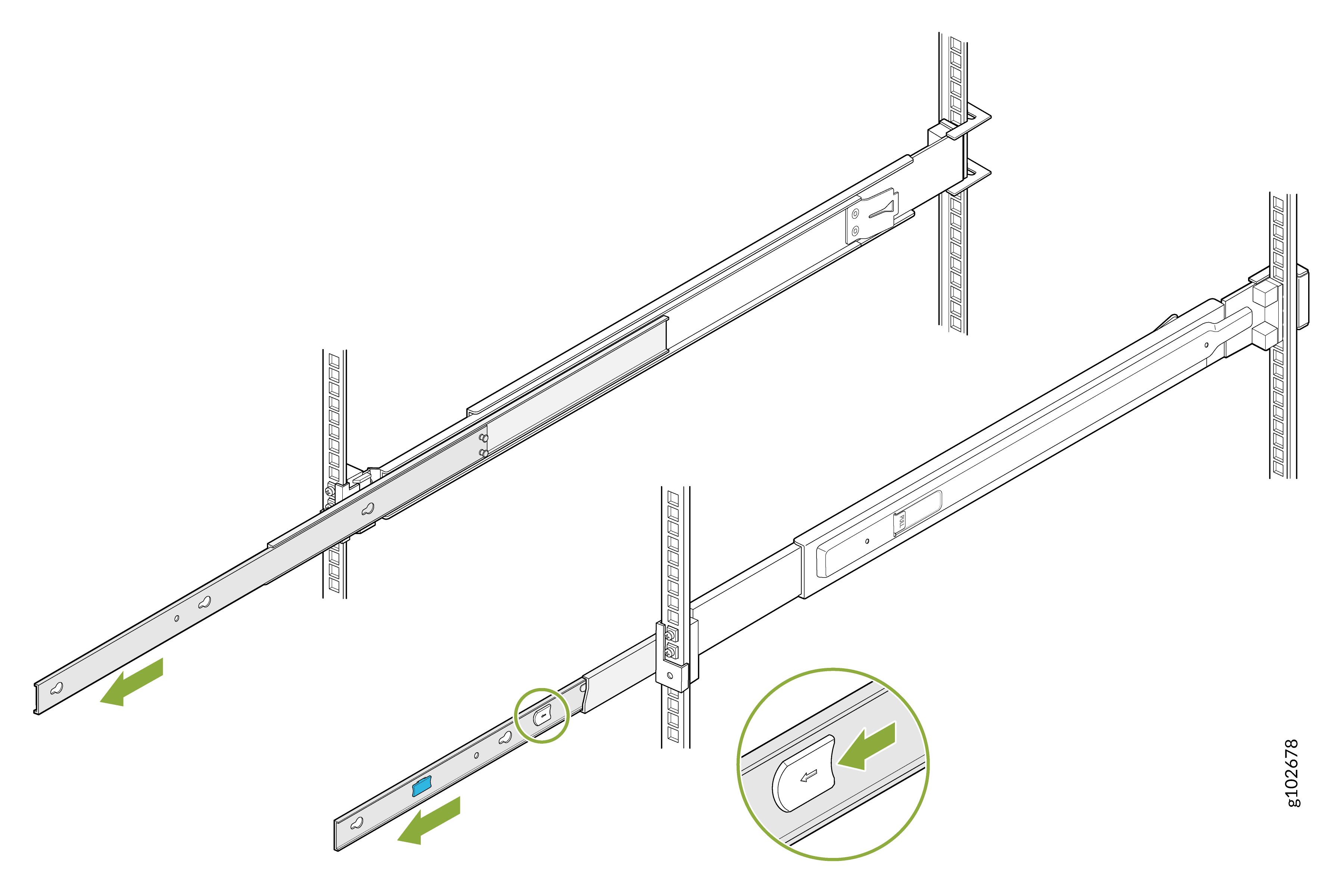
  5. 取り付けレールを完全に引き出します。各レールのラッチを押し、最も内側の取り付けブラケットを引いて取り外します。
    図5:取り付けブラケットIllustration of sliding rails being installed onto vertical rack posts with arrows showing movement direction and zoom-in of a locking mechanism.を取り外す
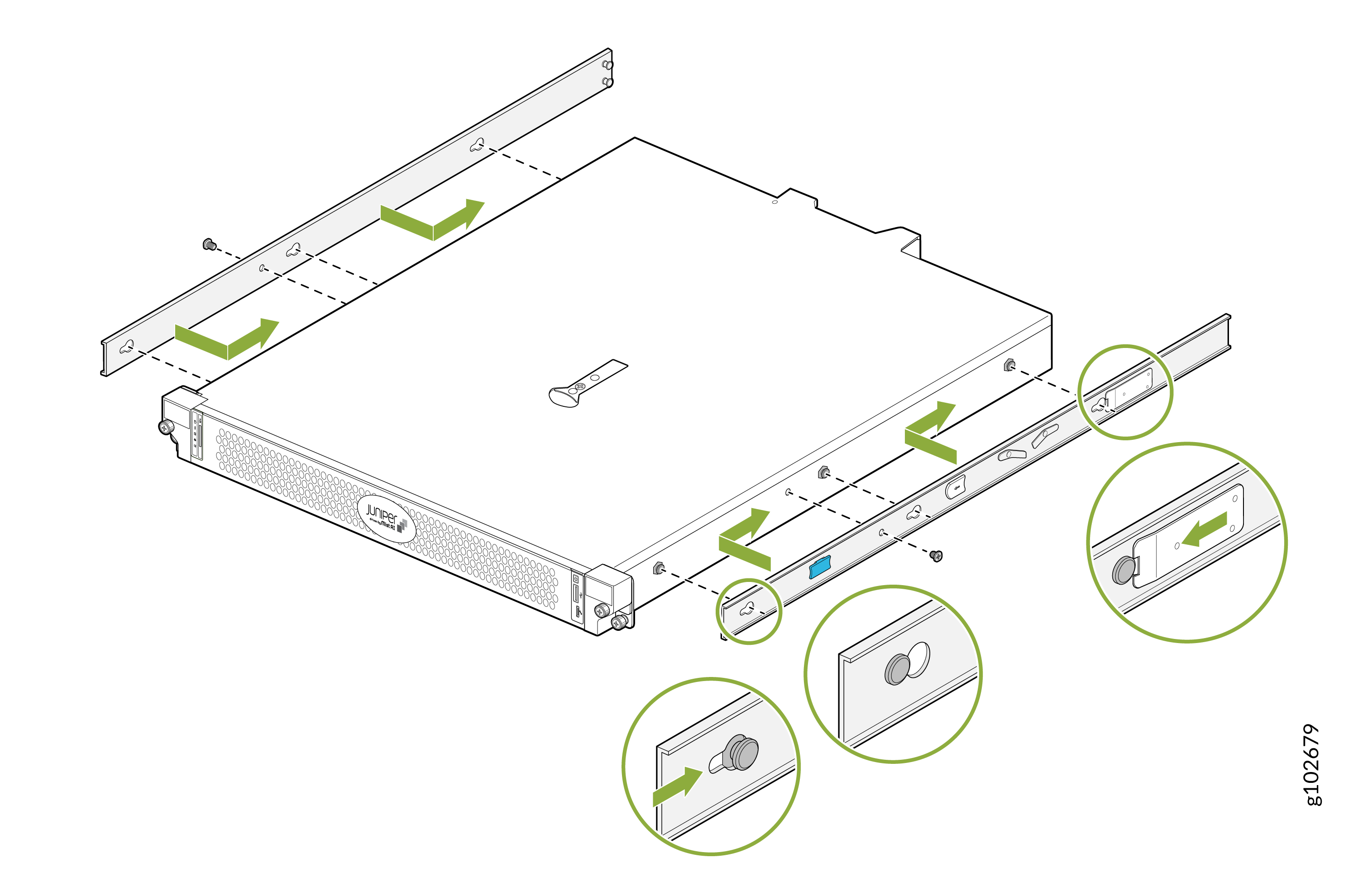
  6. 各取り付けブラケットの穴を、デバイス側面の肩付きネジに合わせます。取り付けブラケットをデバイスの背面方向にスライドさせて取り付けます。付属のネジを使用して、取り付けブラケットをデバイスに固定します。
    図6:取り付けブラケットをデバイス Installing a Juniper Networks appliance in a server rack with green arrows showing rail alignment and magnified details of locking mechanisms and screw placements.に取り付ける
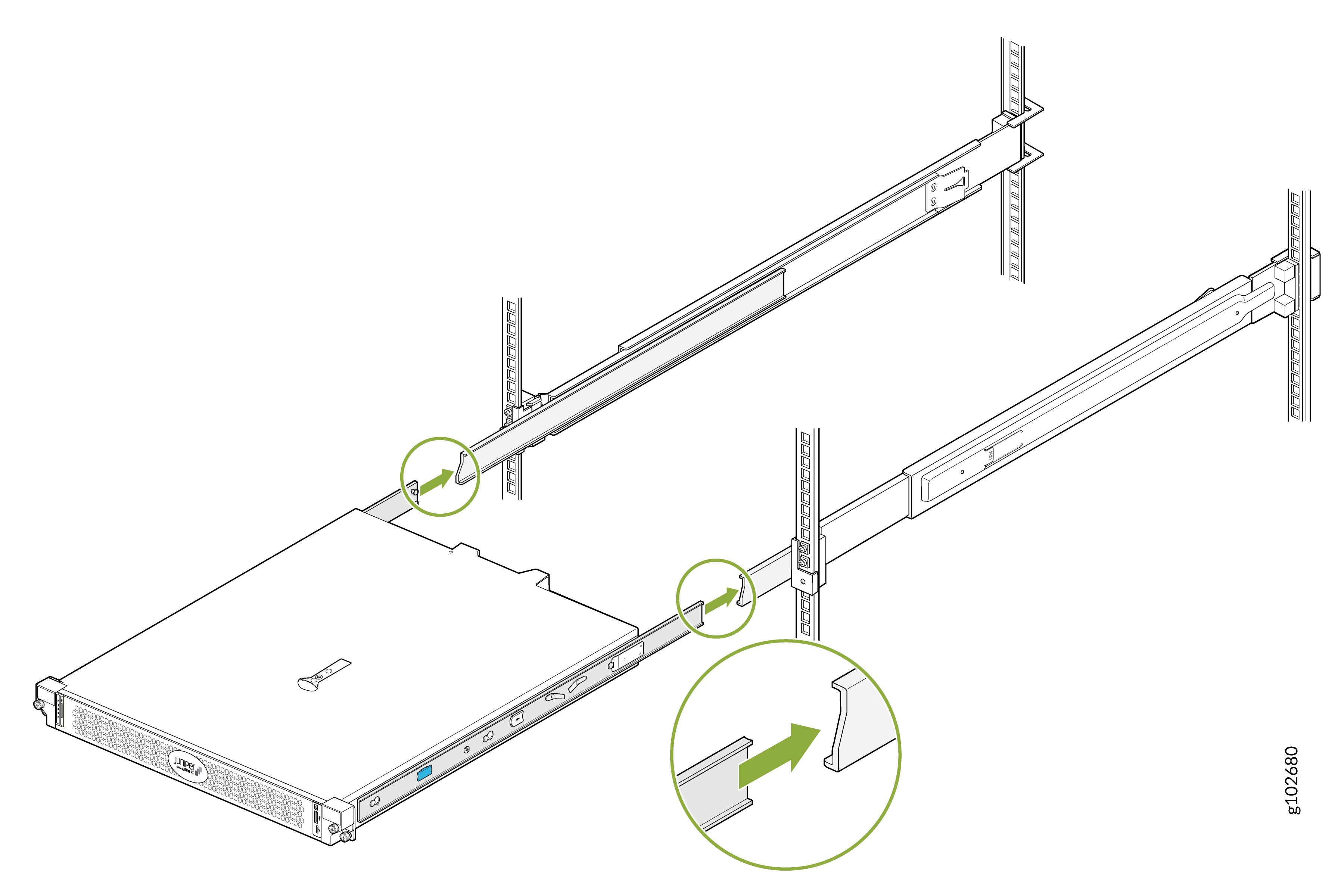
  7. デバイスを持ち上げて、取り付けブラケットが取り付けレールと揃うように配置します。デバイスをスライドさせて取り付けレールのチャネルに挿入します。
    図7:デバイスを取り付けレールServer being installed into rack on sliding rails with green circles highlighting attachment clips for securing.にスライドさせます
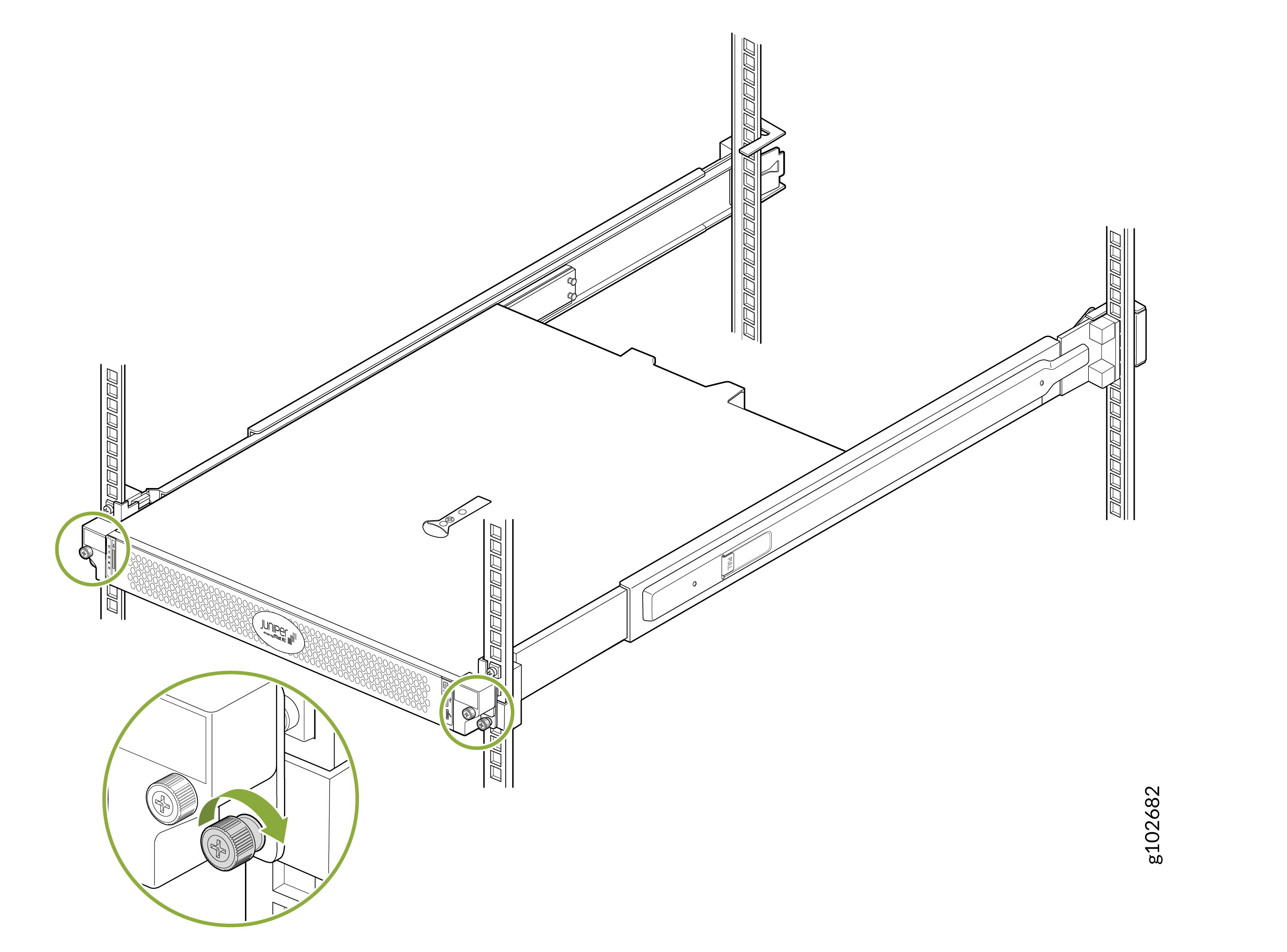
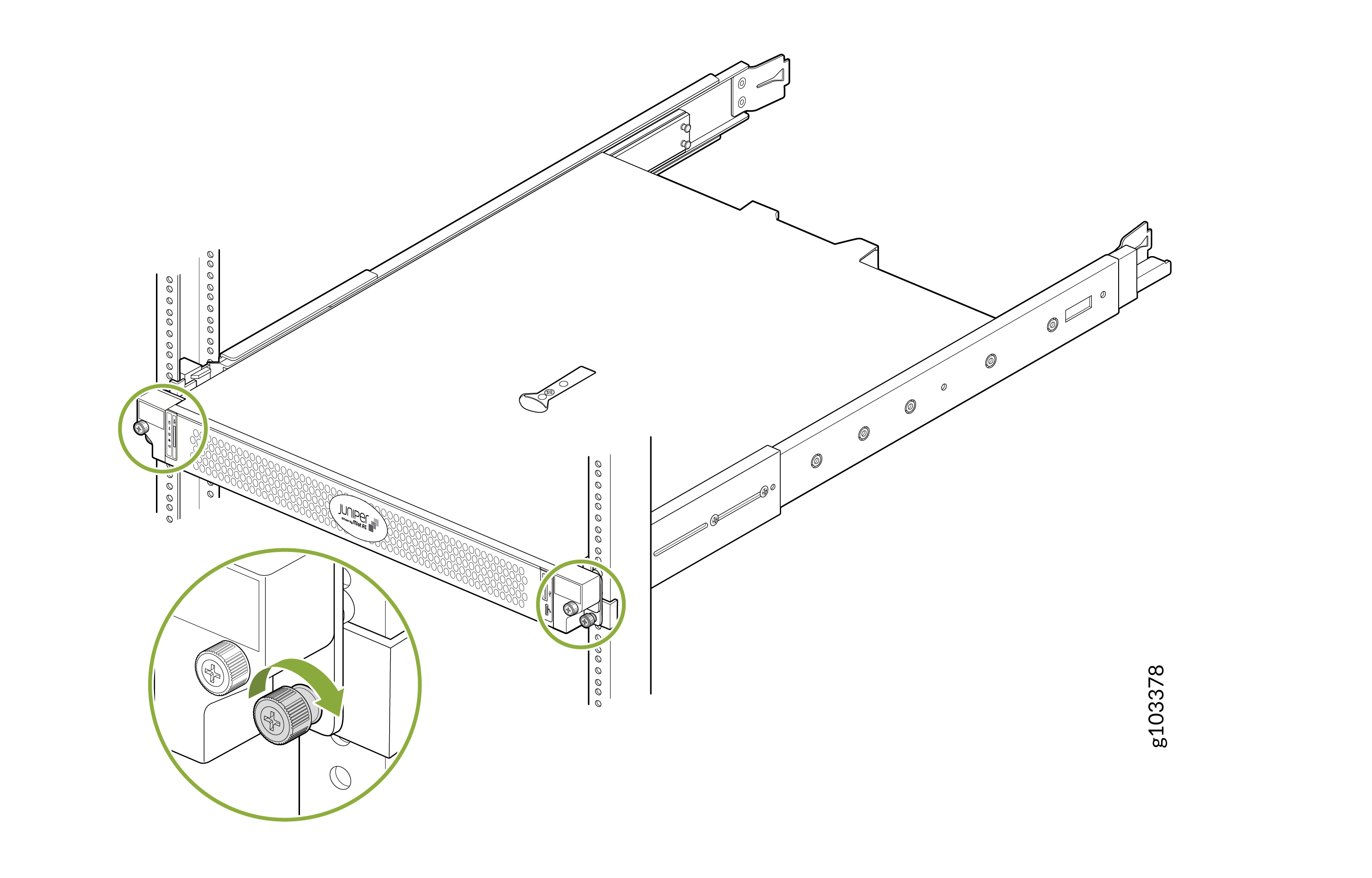
  8. デバイスの前面フランジのネジを締めて、ラックに固定します。
    図 8: デバイス Rack-mounted server secured on sliding rails in a server rack with a close-up of a fastening mechanism. のセキュリティ保護

デバイスを 2 ポスト ラックに取り付けます(センター マウント)

デバイスを 2 ポスト ラックに中央に取り付けるには、次の手順に従います。
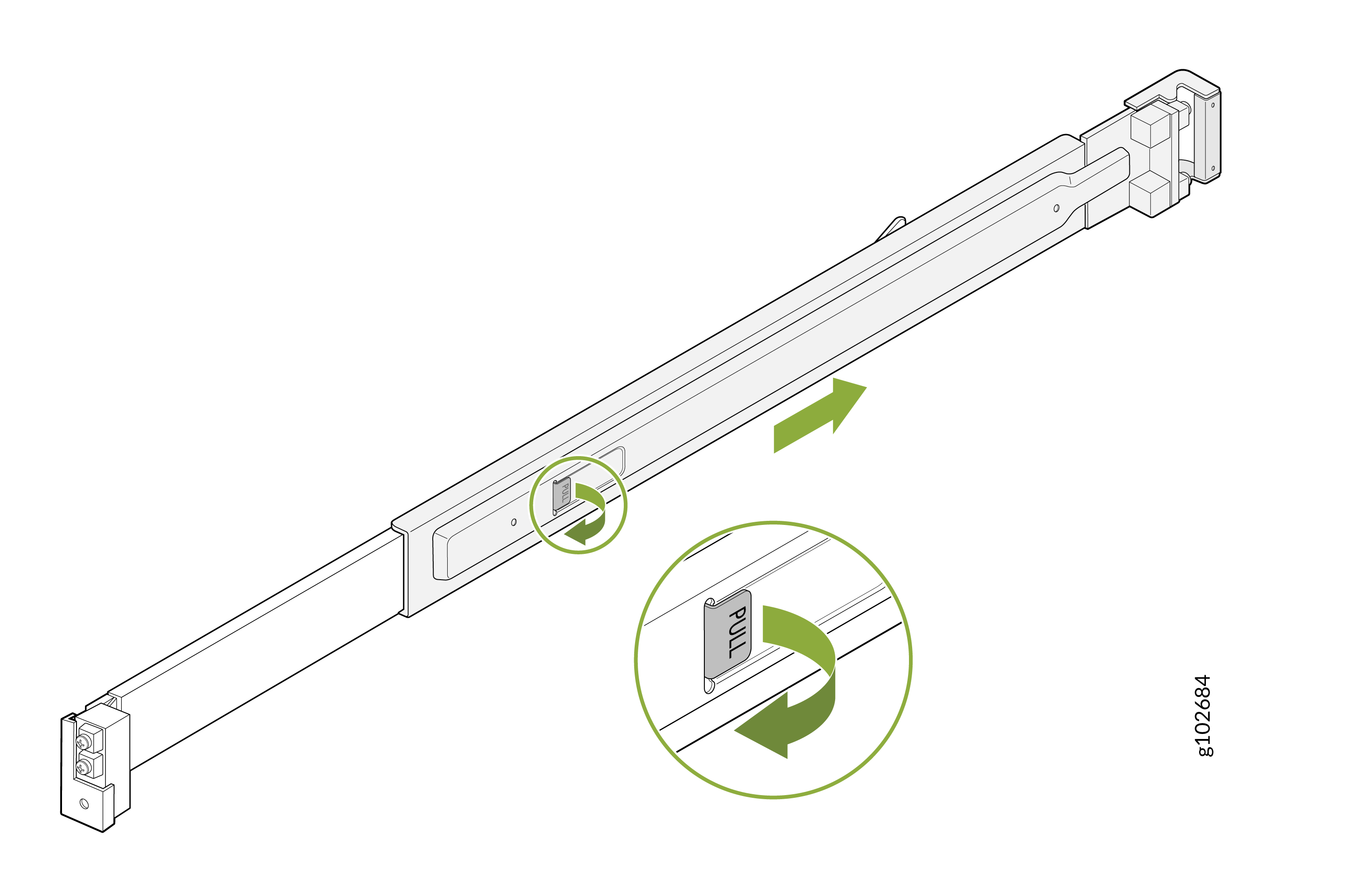
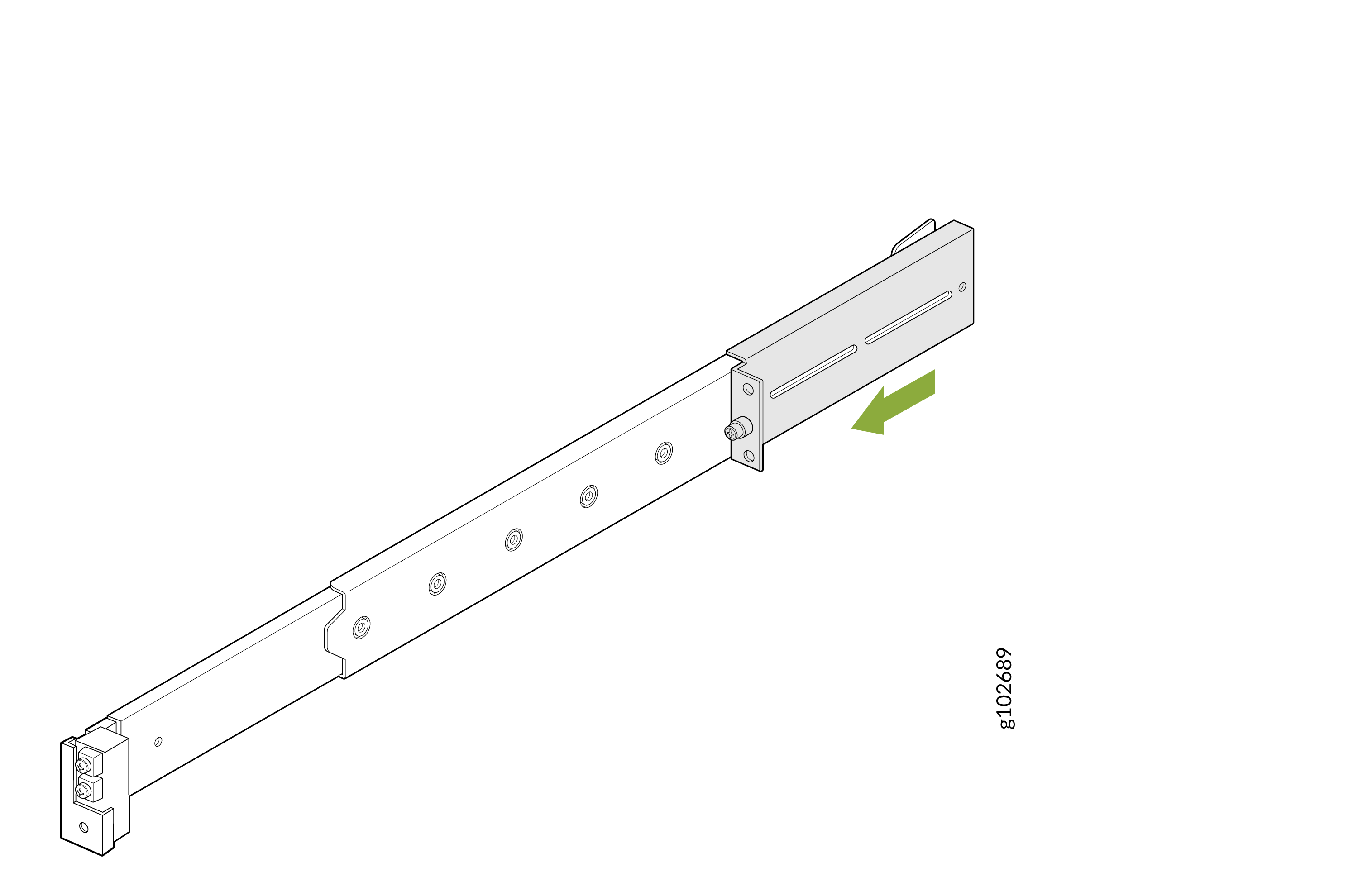
  1. 取り付けレールアセンブリのラッチを引き、背面レールを引き出します。
    図9:背面レールの取り外し
    Adjusting telescopic rail with green arrows indicating movement direction and close-up of PULL tab for operation.
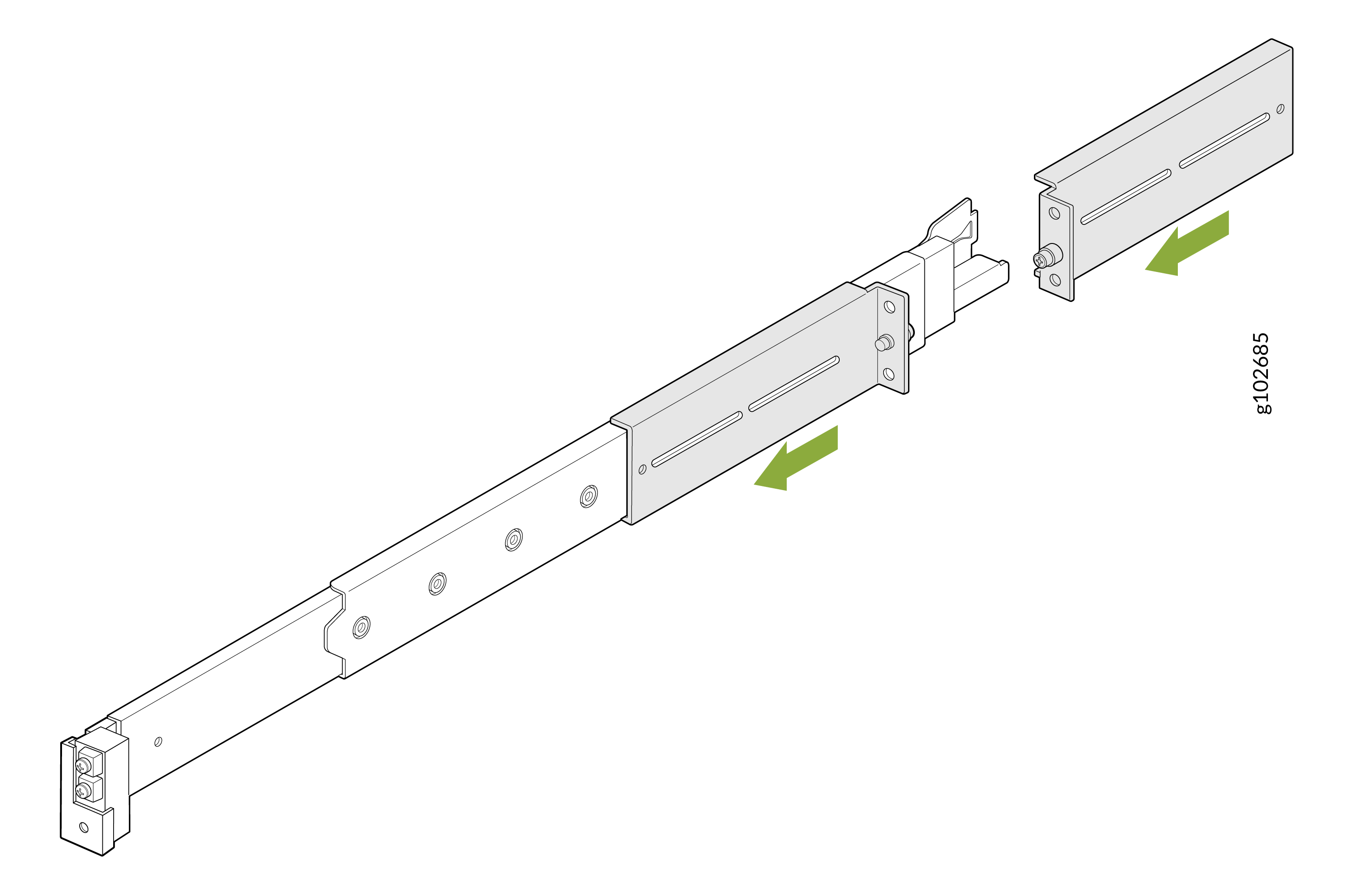
  2. 取り付けレールアセンブリの前面レールに 2 つの L 字ブラケットをスライドさせます。L字型ブラケットのフランジが互いに向いていることを確認してください。
    図10:L字ブラケットExploded view of a telescopic rail mechanism with arrows showing assembly direction; includes main rail, sliding sections, and adjustable brackets.の取り付け
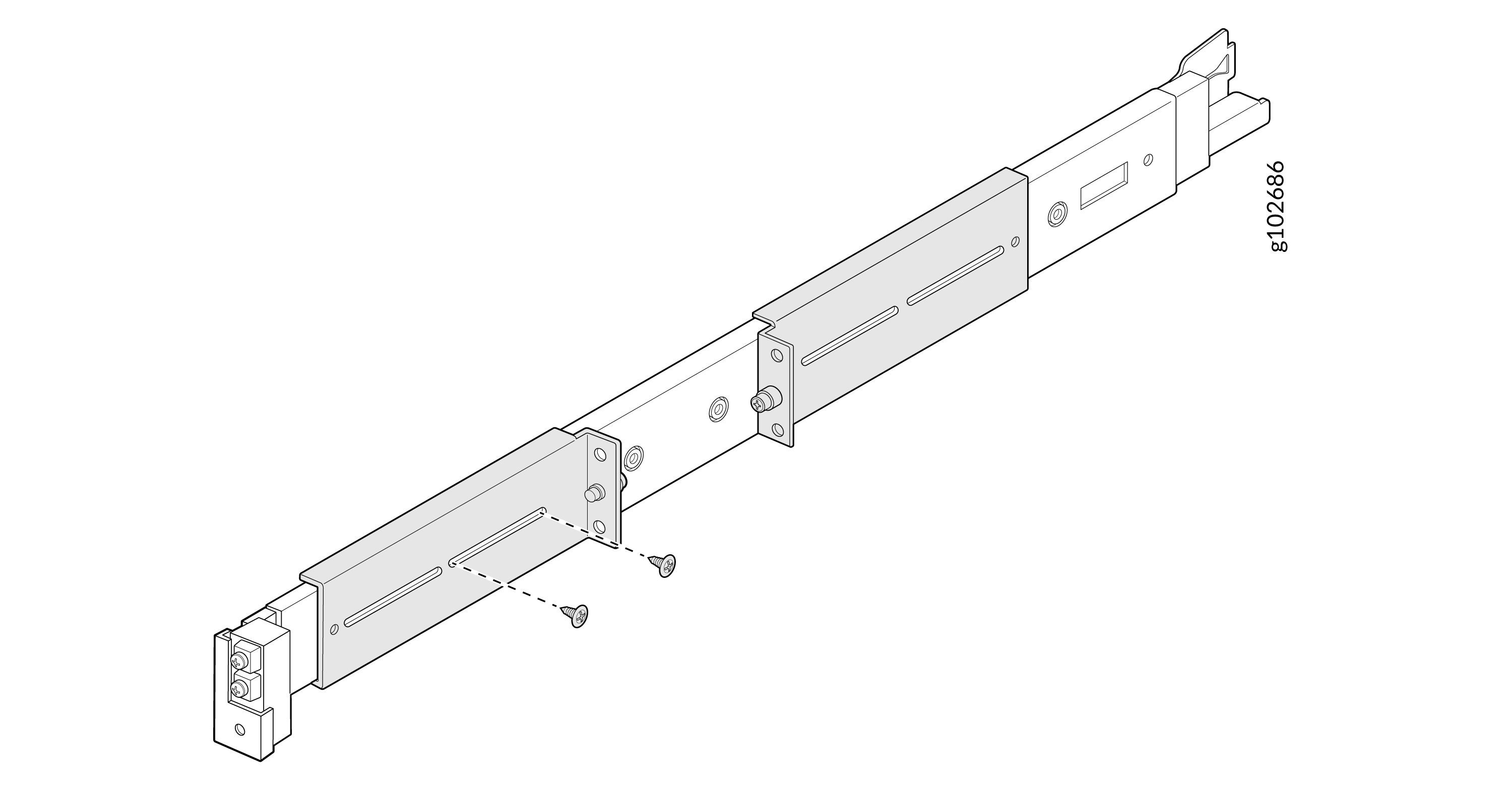
  3. 付属のネジを使用して、前面 L ブラケットを取り付けレールアセンブリに固定します。
    図11:前面L字型ブラケットTechnical diagram of a sliding rail assembly with metal brackets, screws, and adjustable slots, labeled part number g102686.の固定
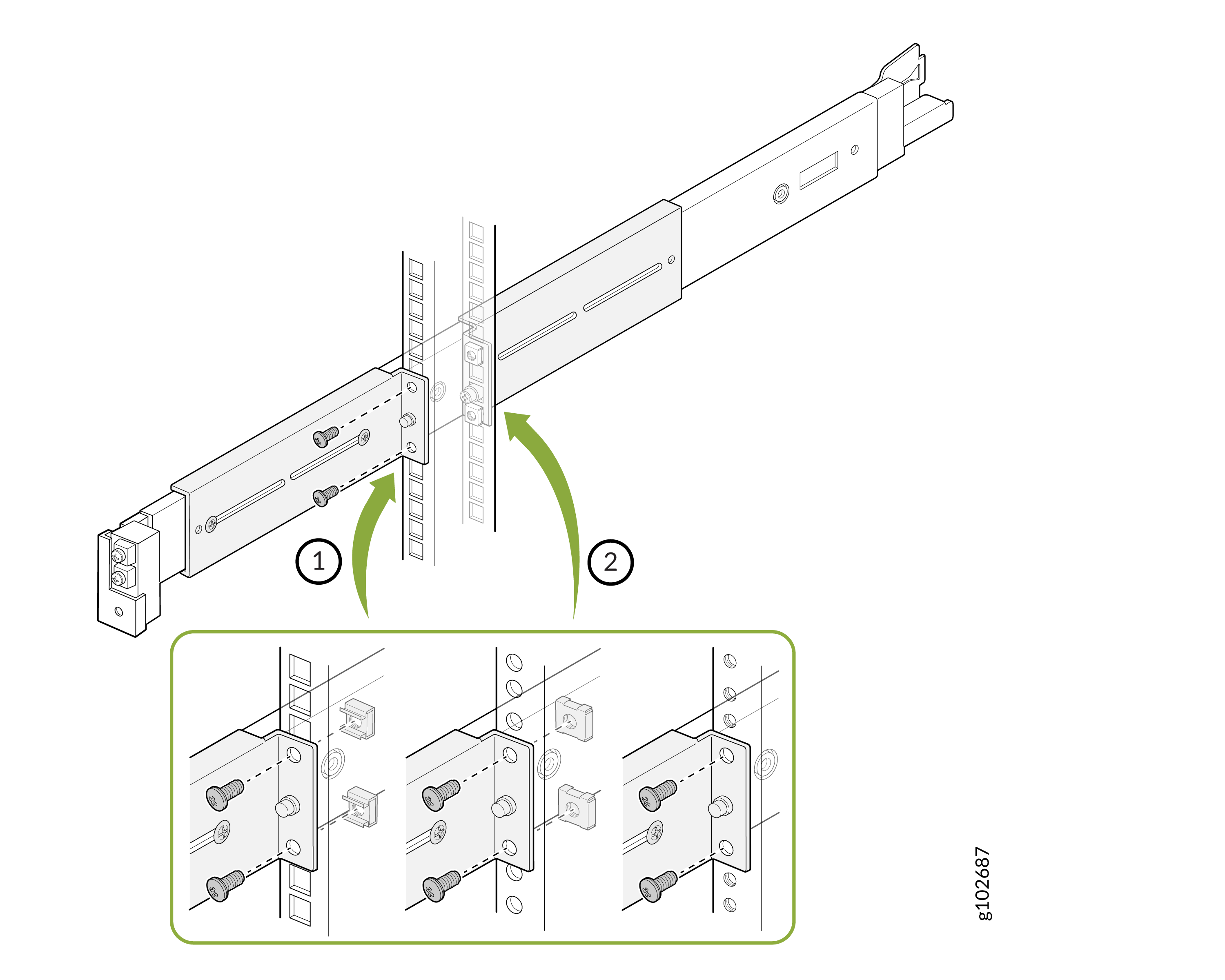
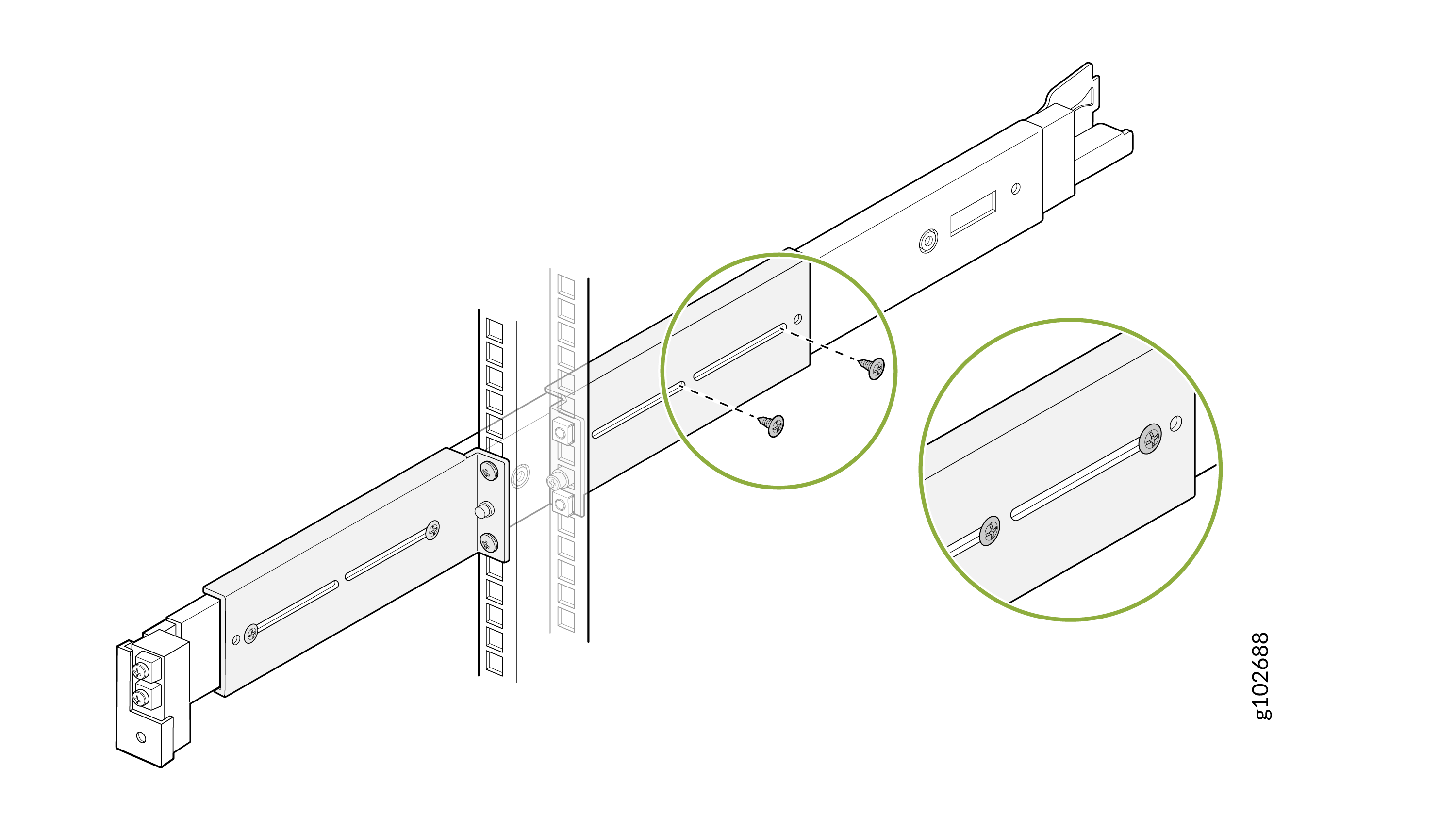
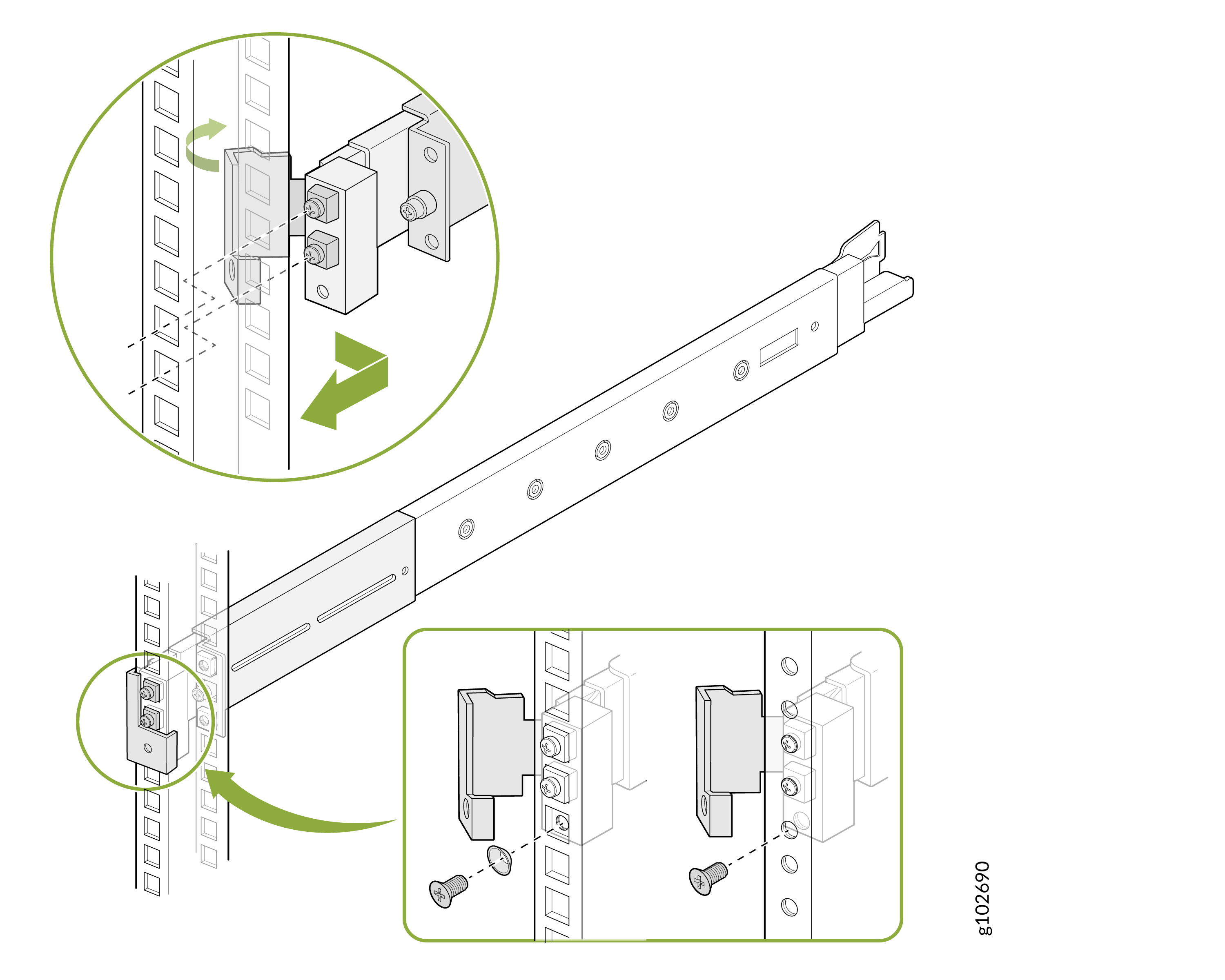
  4. 付属のネジとワッシャーを使用して、前面と背面の L ブラケットをラック支柱に取り付けます。
    図12:L字ブラケットをラックRack-mount rail system installation guide showing how to attach rails to vertical rack posts with screws and brackets.に取り付け
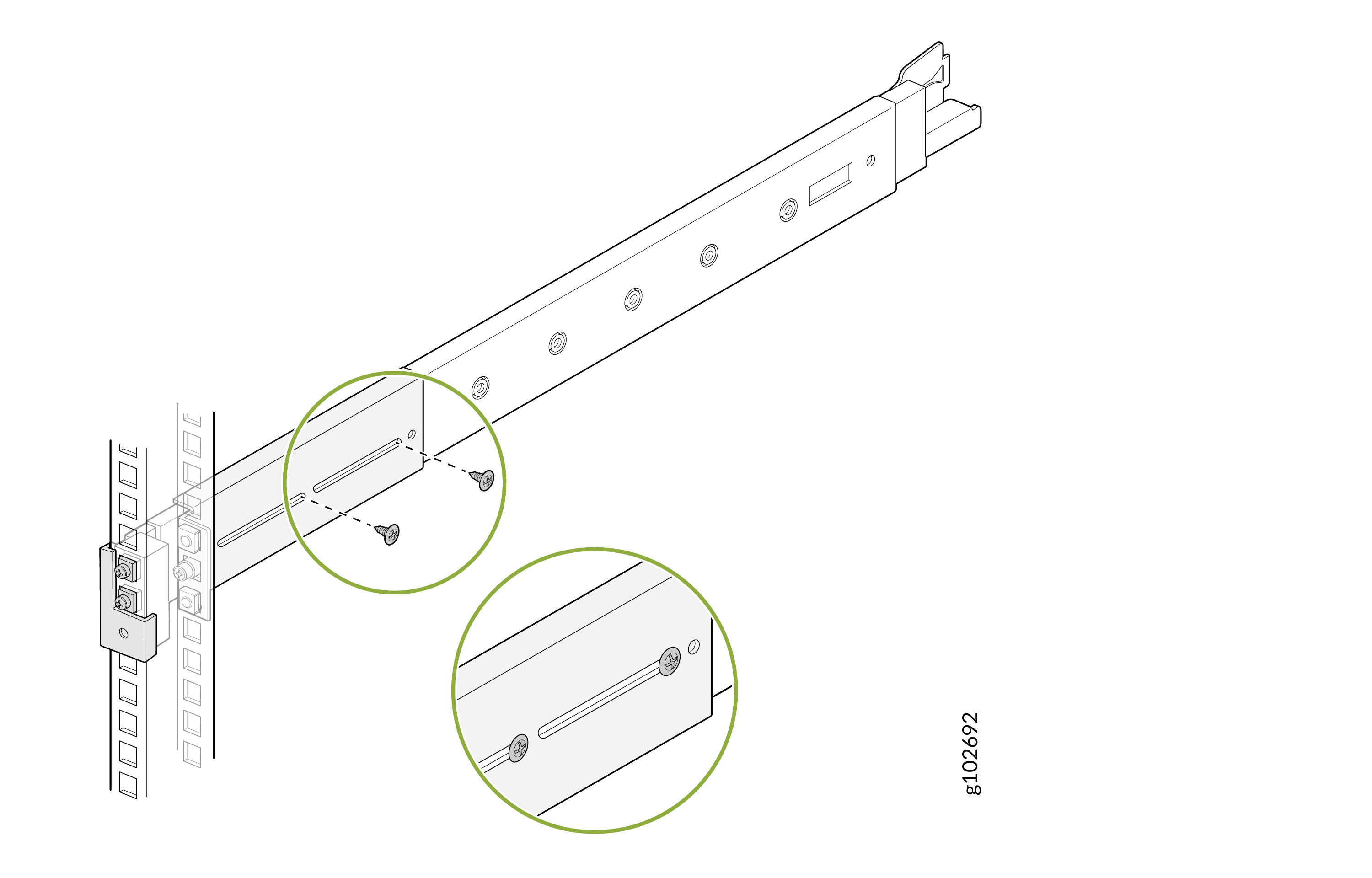
  5. 付属のネジを使用して、背面の L ブラケットを取り付けレールアセンブリに固定します。
    図13:背面L字ブラケットSliding rail assembly being secured to a vertical rack post with screws, used for mounting servers in data centers.の固定
  6. もう一方の取り付けレールアセンブリについてもこのプロセスを繰り返します。
  7. 取り付けレールを完全に引き出します。各レールのラッチを押し、最も内側の取り付けブラケットを引いて取り外します。
    図14:取り付けブラケットIllustration of sliding rails being installed onto vertical rack posts with arrows showing movement direction and zoom-in of a locking mechanism.を取り外す
  8. 各取り付けブラケットの穴を、デバイス側面の肩付きネジに合わせます。取り付けブラケットをデバイスの背面方向にスライドさせて取り付けます。付属のネジを使用して、取り付けブラケットをデバイスに固定します。
    図15:取り付けブラケットをデバイス Installing a Juniper Networks appliance in a server rack with green arrows showing rail alignment and magnified details of locking mechanisms and screw placements.に取り付ける
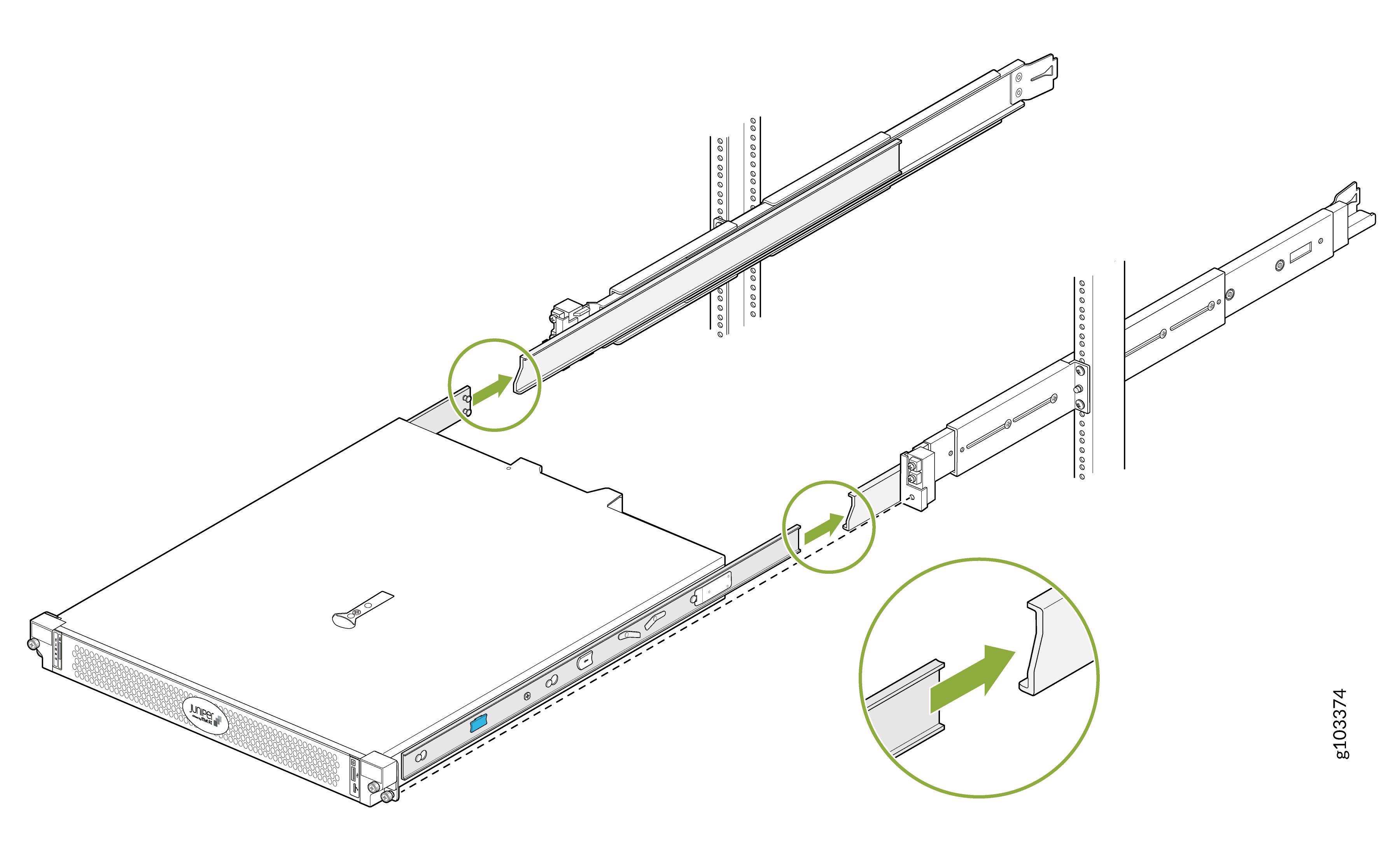
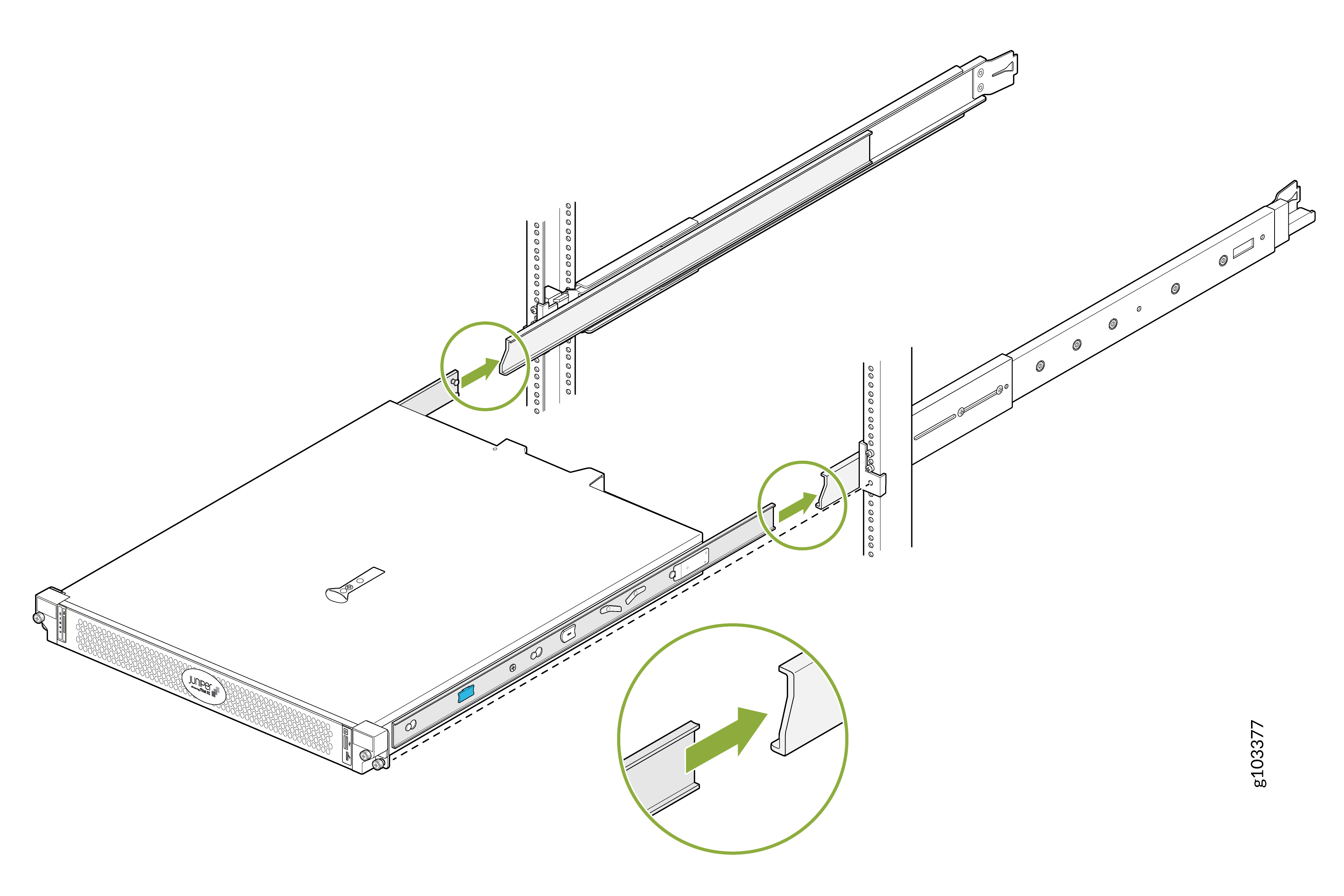
  9. デバイスを持ち上げて、取り付けブラケットが取り付けレールと揃うように配置します。デバイスをスライドさせて取り付けレールのチャネルに挿入します。
    図16:デバイスを取り付けレールInstalling a rack-mounted server with sliding rails and brackets, showing steps with green arrows and highlighted components.にスライドさせます Server being installed into rack on sliding rails with green circles highlighting attachment clips for securing.
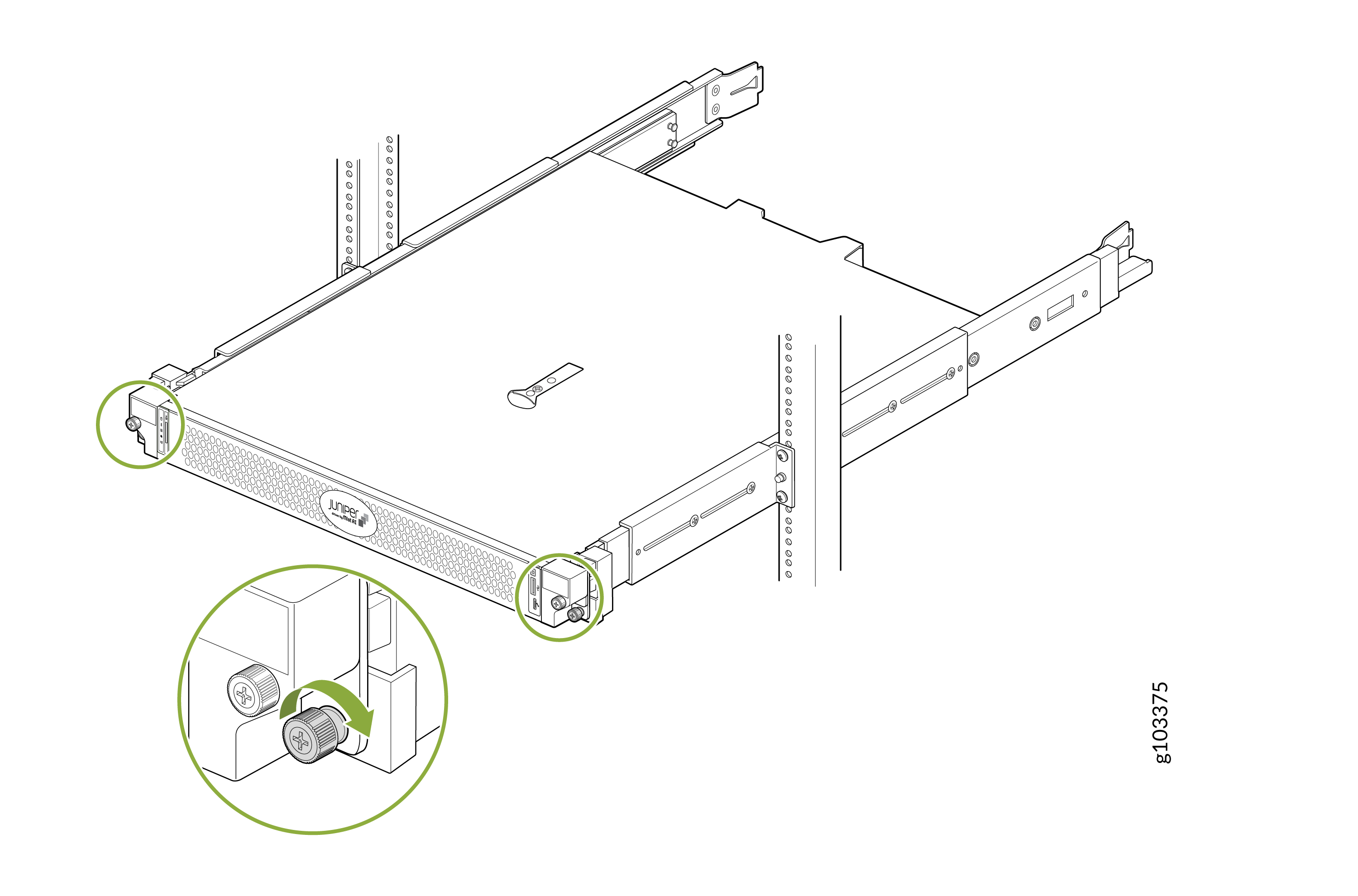
  10. デバイスの前面フランジのネジを締めて、ラックに固定します。
    図17:デバイスRack-mounted Juniper Networks device installation with focus on securing mechanism, attachment points, and sliding rails.の保護

デバイスを 2 ポスト ラックに取り付ける(埋め込み型)

デバイスを 2 ポスト ラックにフラッシュ マウントするには:
  1. 取り付けレールアセンブリのラッチを引き、背面レールを引き出します。
    図18:リアレールAdjusting telescopic rail with green arrows indicating movement direction and close-up of PULL tab for operation.を取り外す
  2. 取り付けレール アセンブリの L 字ブラケットをスライドさせて、フランジがラックの前面に面するようにします。
    図19:L字型ブラケットSliding rail mechanism with green arrow indicating movement direction. Features mounting holes and slots, part of an extendable system.の取り付け
  3. 取り付けレールアセンブリの前面レールにあるラッチを開きます。前面レールのガイドブロックを前面支柱の穴に合わせます。ガイド・ブロックが前面支柱の穴に差し込まれるように、前面レールをラックの前面方向に引きます。付属のネジと円錐ワッシャーを使用してフロントレールを固定します。ラッチをロックします。
    図 20:前面レール Assembly guide showing attachment of a horizontal beam to a vertical frame using brackets and screws, with arrows for direction.の取り付け
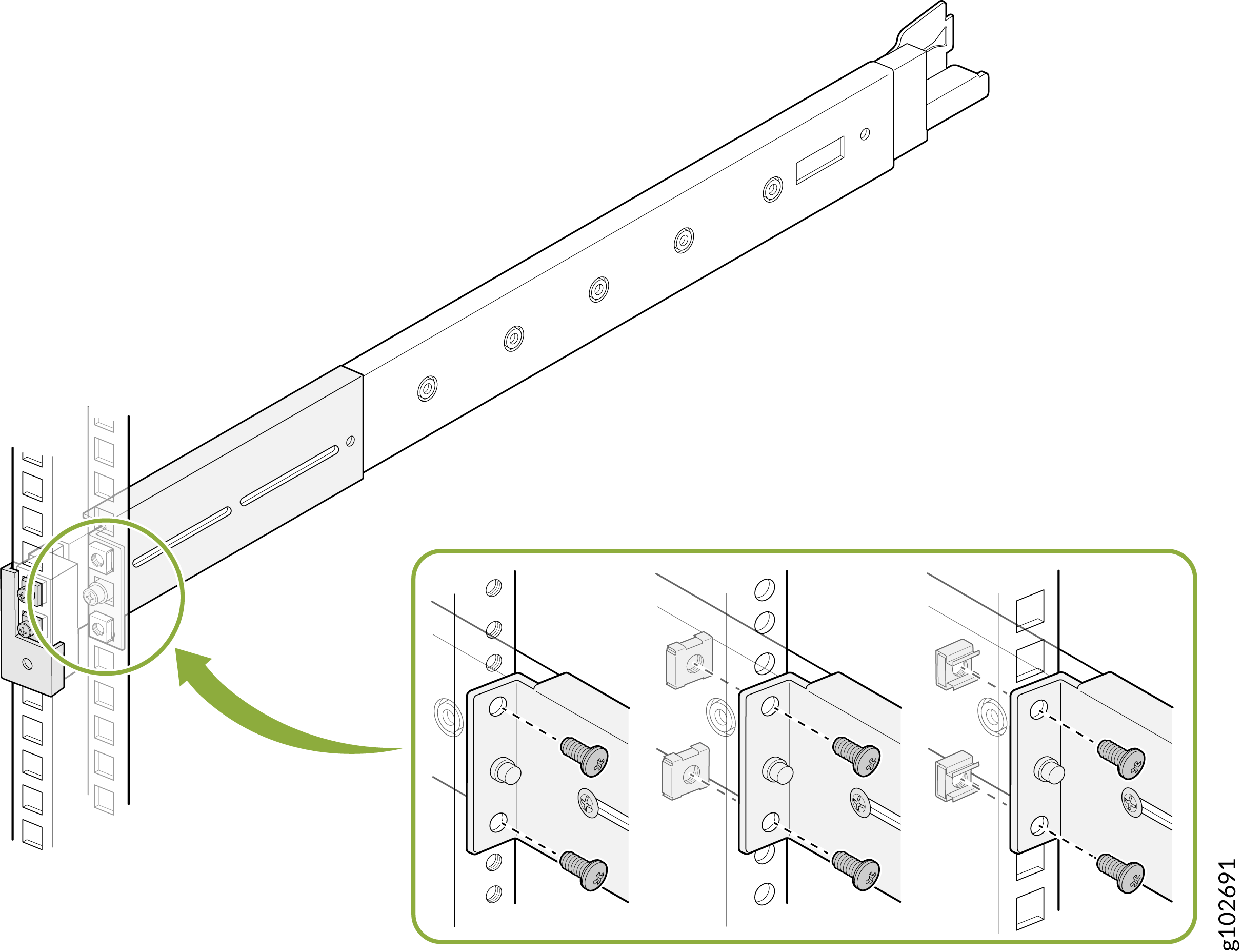
  4. 付属のネジとワッシャーを使用して、L ブラケットをラック支柱に固定します。
    図 21:L 字ブラケットをラック支柱Installation guide for attaching a server rack rail using screws and nuts in a data center environment.に取り付け
  5. 付属のネジを使用して、L 字ブラケットを取り付けレールアセンブリに固定します。
    図 22:L 字ブラケットの取り付けレールアセンブリへの取り付け Illustration of a rail bracket being attached to a vertical frame with screws, showing adjustable slots for shelving configuration.
  6. 取り付けレールを完全に引き出します。各レールのラッチを押し、最も内側の取り付けブラケットを引いて取り外します。
    図23:取り付けブラケットIllustration of sliding rails being installed onto vertical rack posts with arrows showing movement direction and zoom-in of a locking mechanism.の取り外し
  7. 各取り付けブラケットの穴を、デバイス側面の肩付きネジに合わせます。取り付けブラケットをデバイスの背面方向にスライドさせて取り付けます。付属のネジを使用して、取り付けブラケットをデバイスに固定します。
    図24:取り付けブラケットをデバイス Installing a Juniper Networks appliance in a server rack with green arrows showing rail alignment and magnified details of locking mechanisms and screw placements.に取り付ける
  8. デバイスを持ち上げて、取り付けブラケットが取り付けレールと揃うように配置します。デバイスをスライドさせて取り付けレールのチャネルに挿入します。
    図25:デバイスを取り付けレールIllustration of server installation into rack using sliding rails with green arrows highlighting attachment points and securing mechanism.にスライドさせます
  9. デバイスの前面フランジのネジを締めて、ラックに固定します。
    図 26: デバイス Installation of a Juniper Networks device into a rack, highlighting attachment to rack rails with screws, with green circles marking fastening points.の保護