
配置和管理警报和通知
启用警报和电子邮件通知,以便在发生对用户造成影响的重大事件时及时了解这些事件。(可选)创建模板以为不同的站点配置不同的警报和通知。
视频概述
此视频概述了配置警报的过程。
The one thing I wanted to show is the alert framework. We get asked a lot in terms of, hey, what can we do in terms of the different alerts that the system is looking at? So you can see here I have my information turned off. I'm going to turn that on.
But real quickly, I wanted to go through, we have this alert framework. And you can look at alerts based on a per site basis. You can look at alerts based on an entire organization.
You can look at alerts just like if you want to get granular on client insight capabilities, the network rewind stuff. So we do the same thing with alerts. You can look at alerts for today. You can look at them for the last 60 minutes. You can do custom dates and ranges and things like that to see what's been going on if something gets reported. Or you just want to look at the current status from an alert perspective.
You can go through, and you can actually sort on different alert types. So if I wanted to just click on security, for example, now I'm looking at the security alerts. I can look at any type. And then I can actually turn them off. So if I didn't want to look at informational alerts, I just click on that box and turn them off. OK, so just that's a quick at-a-glance alerts.
Now, how do you configure these things? What types of alerts are in there? So if you go over here and click on alert configuration, I'll click on this. So what you can do is that you can set up different alert templates. You can set it up for an entire organization.
You can set it up for an individual site. And you can actually mix them. So maybe you wanted to have specific alerts for an entire organization that you have out there. But for a specific site or specific sites, maybe you wanted to get some additional learning information out there for different reasons. So you actually have the ability to do that. So right now, you can see here that this applies to scope, for example, my entire organization.
If I wanted to do a particular site, I can do that, click plus, and then add a site to this if that's something I wanted to do. The other thing that you can do is over here, I can click on this button. And what it would do is that it would actually clone or provide a copy of this current template.
You can rename that and configure it and then apply it to something else if that's something that you wanted to do. So you can actually clone templates as well. The other thing that you could do is, what it will do is that it will send alerts, send these alerts to the admins of the organization. Or you can actually say, just send it to the site admins. And then you could actually add additional recipients. So maybe you have folks on the security team, for example.
So you wanted to set up a template that was specific to security alerts. And when those security alerts got triggered, for example, like a rogue AP, maybe you want to send an email to somebody on the security team. That's just an example of something that you could do.
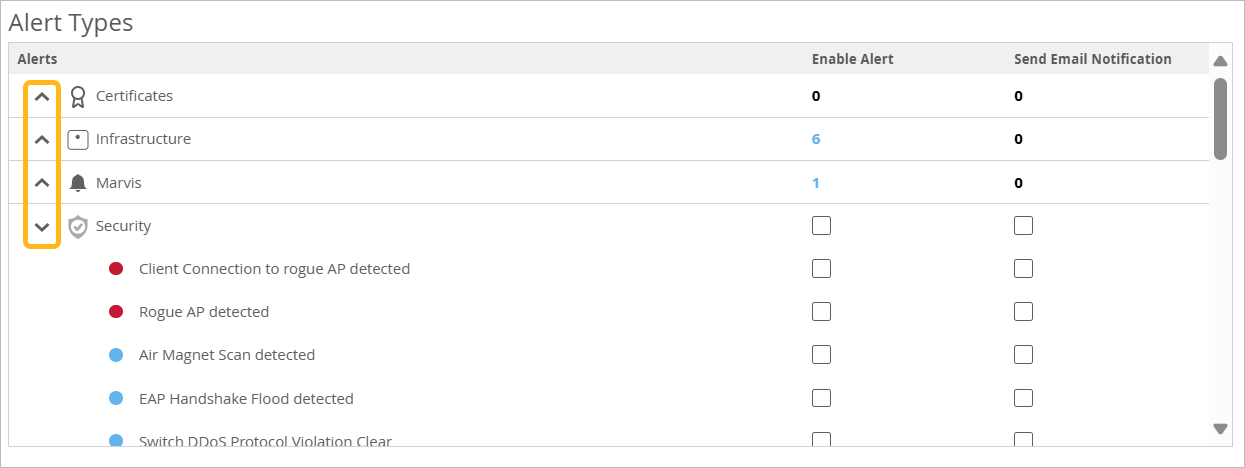
So if you look at the alert types, we have these, they're kind of segmented into a few different categories. You have the infrastructure side where if devices are online or offline, you can actually enable an alert. There's kind of two columns here. You can enable the alert, it will show up in the dashboard. And then you could also click on this box to send an email notification. So you can configure it that way as well.
And then if you scroll down in here, you got the infrastructure alerts, you got Marvis alerts. I'll show you what a non-compliant AP is as well. You got different, like all the stuff that's available from a Marvis actions perspective.
AP is authentication, DHCP, DNS, switches, gateways, things like that. If there's stuff going on with those devices, you could actually have alerts configured to be sent on those. And then on the security side, maybe you want to know, hey, if a rogue AP pops up, I want to make sure I have an alert.
And then I want to send an email to someone in IT or security or both that I have that. So I encourage you all to kind of go in here and check out all the different alert types that we have and what you can actually set this thing up to alert on. Okay, so that's alerts.
And just wanted to point that out. Like I said, I encourage you all to go in there, check it out, play with it, test it, do all that fun stuff and see how it works for you.
查找警报配置页面
从左侧菜单中,选择 监控 > 警报。在告警页面右上角,单击 告警配置 按钮。

操作
在“警报配置”页面上,您可以:
-
配置 默认 模板。您可以将此模板设置为应用于整个组织或选定站点。
注意:您可以在“警报配置”页面左侧找到模板名称。 -
使用“ 暂停警报” 按钮可暂时停止警报和通知。您可以在“警报配置”页面右上角附近找到此按钮。
-
使用“ 创建模板” 按钮为不同的站点创建不同的模板。您可以在“警报配置”页面右上角附近找到此按钮。
建议警报
在默认警报模板中以及创建自己的模板时,会为您预先选择建议的警报。您可以保留这些选择或清除复选框以将其删除。
进行更改后,如果要恢复建议设置,请单击“警报类型”部分右上角附近的“ 启用 Mist 建议警报 ”按钮。
选择要监视的警报范围、收件人和类型
要选择警报:
- 在 “警报类型”下,在“监视>警报”页(“启用警报” 复选框)或通过电子邮件(“发送电子邮件通知 ”复选框)选择要监视的事件。
-
有关各种告警的信息,请参阅 瞻博网络 Mist 告警类型。
-
使用警报类型部分左侧的展开/折叠图标可重点关注特定的警报类型。
-
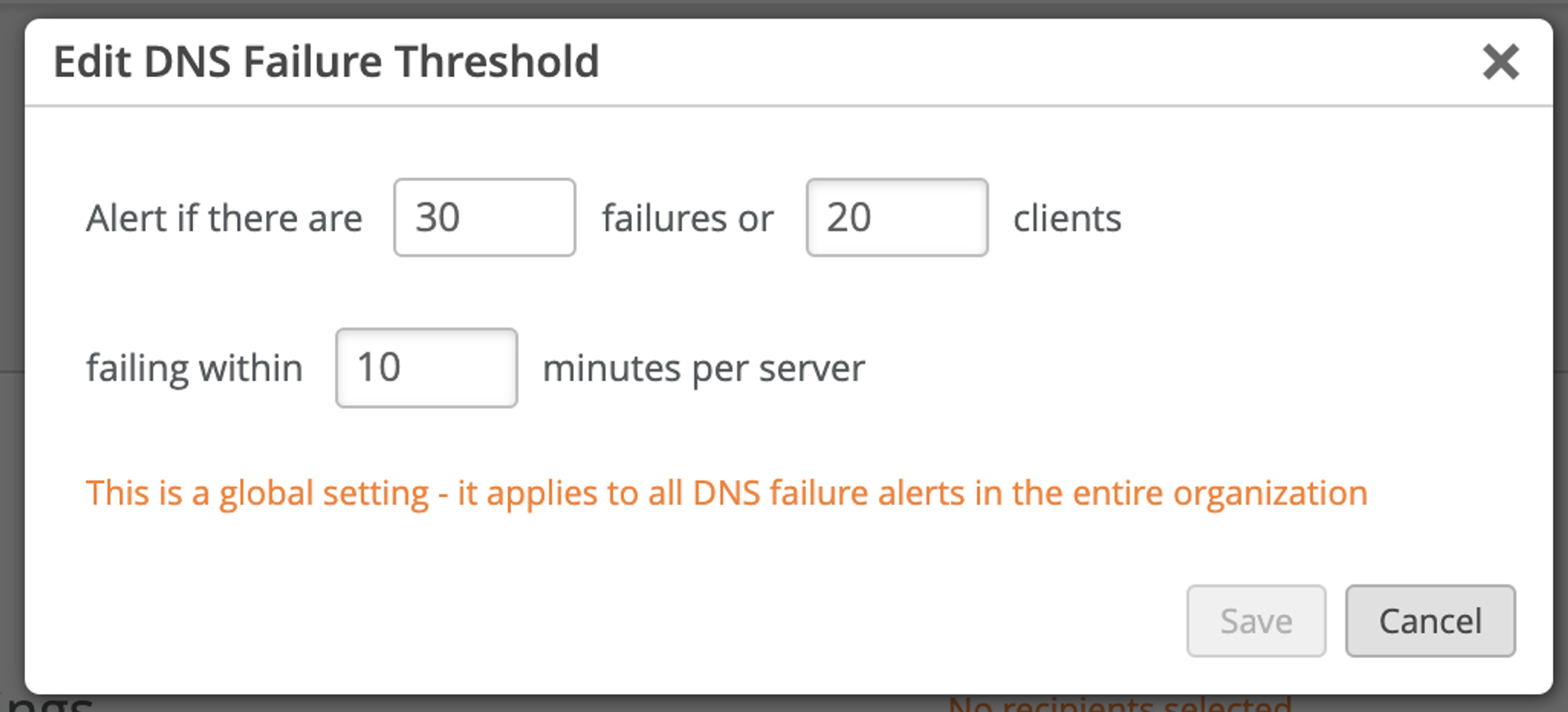
- 如果警报有铅笔图标,请单击它以配置设置。
例如,如果单击 DNS 故障的铅笔图标,则可以根据故障次数、受影响的客户端和持续时间设置阈值。
创建和管理警报模板
您可以为不同的位置、人员或目的创建不同的模板。
-
要创建模板 - 在警报配置页面的右上角,单击 创建模板。在页面左侧输入模板名称。选择范围、收件人和警报类型。然后单击配置区域右上 角的创建 。
-
要通过复制创建模板 - 在页面左侧,单击要复制的模板。然后单击配置区域右上角的复制按钮。页面左侧会出现一个新模板,名称开头有短语 Copy of 。
-
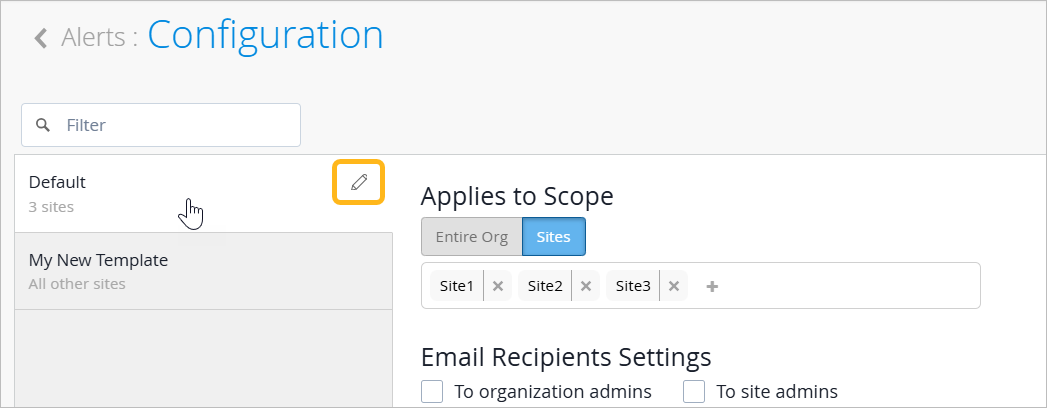
重命名模板 - 在页面左侧,单击模板名称。然后单击铅笔图标,输入名称,然后单击复选标记按钮。
-
要更改模板中的设置 - 在页面左侧,单击模板名称。进行更改,然后单击配置区域右上角附近的 保存 。
-
要删除模板 - 在页面左侧,单击模板名称。然后单击配置区域右上角附近的删除图标。
暂时暂停您的警报
你将指定时间段和范围。例如:
-
暂停整个组织中所有设备的警报。
-
仅暂停组织级设备(如 Mist Edge)的告警。
-
暂停特定站点的警报。
-
仅暂停一个站点的警报。
在指定的时间段内,指定设备和站点的所有警报都将暂停。对于任何超出范围的设备和站点,您将继续收到正常警报。一段时间过去后,所有已启用的警报将照常恢复。
要暂时暂停警报:
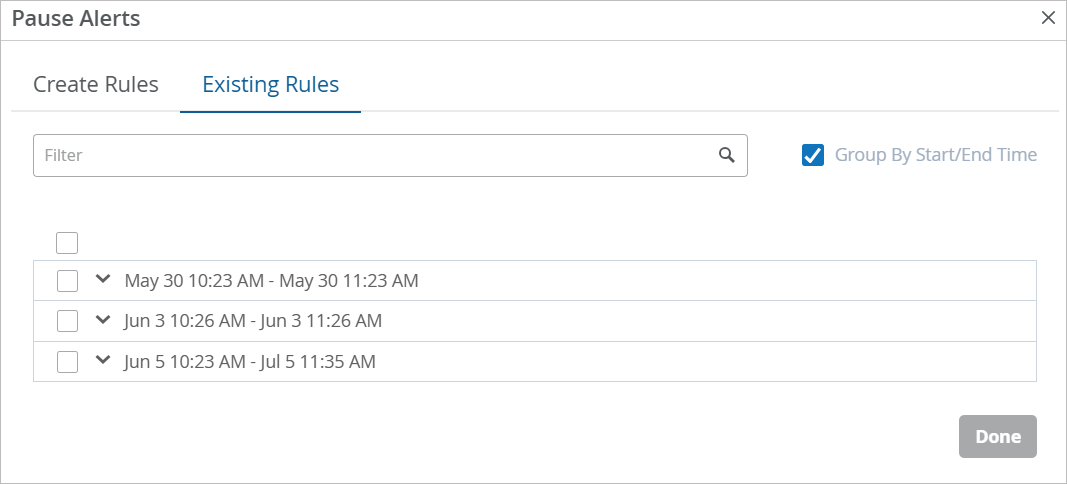
- 在“暂停警报”窗口中,使用“ 创建规则 ”选项卡和“ 现有规则” 选项卡创建和管理暂停规则。
表 1:创建新的暂停规则 新规则的范围 说明 暂停整个组织中的所有警报。 此方法适用于整个组织,但您可以指定要包含的设备类型。 -
单击 “创建规则” 选项卡。
-
单击 “整个组织”。
-
选中一个或两个复选框以指定要包括的设备类型:
-
组织 - 选中此框以包括分配给组织(而不是特定站点)的设备(如 Mist Edge)。如果未选中该框,您将收到组织级设备的正常警报。
-
站点 - 选中此框以包括分配给特定站点的设备。此选项包括 Mist 组织中的大多数设备,因为载入通常涉及将设备分配到站点。如果未选中此框,您将收到站点分配设备的正常警报。
-
-
选择 开始时间 和 结束时间。
-
单击 “创建” 以保存规则。
此时将显示“现有规则”选项卡。如果仅选择组织设备,则会看到一条新规则。如果选择了站点设备,则会看到组织中每个站点的单独规则。
暂停特定站点的警报。 此方法仅涵盖您指定的站点。你将继续像往常一样收到其他站点的警报。
-
单击 “创建规则” 选项卡。
-
单击站点组 + 站点。
-
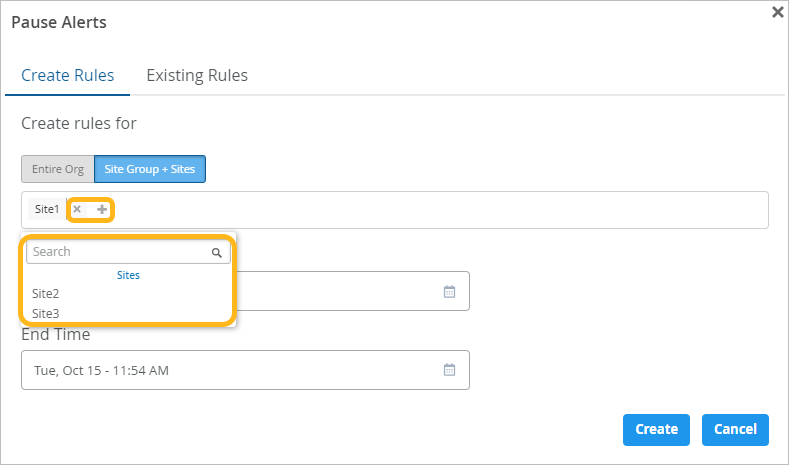
单击 + 按钮,然后选择组或站点。
-
根据需要重复上述步骤,添加所有适用站点。
注意:如果您错误地添加了某个网站,请点击 X 将其移除。 -
选择 开始时间 和 结束时间。
-
单击 “创建” 以保存规则。
此时将显示“现有规则”选项卡。对于所选的每个站点,您都会看到一个规则。
注意:一个站点只能有一个活动暂停规则。如果您的新规则包含已启用暂停的站点,则会弹出一条消息。按照屏幕上的说明覆盖旧规则或从新规则中删除指定的站点。表 2:管理现有规则 任务 选项 查看暂停的状态。 在 “现有规则” 选项卡上,查看“ 活动” 列。绿色表示活动规则。
取消暂停。 在 “现有规则” 选项卡上,选中要删除的每个规则的复选框。然后点击 删除。
筛选暂停规则列表。 在 “现有规则 ”选项卡上,开始在 “筛选器” 框中键入。将会显示匹配规则。
按日期组织暂停规则。 在 “现有规则” 选项卡上,选择 “按开始/结束时间分组”。您可以展开或折叠每个注明日期的部分以显示或隐藏规则。
-