Help us improve your experience.

Let us know what you think.

Do you have time for a two-minute survey?


联系客户支持

您可以在Juniper Mist门户上创建支持工单。Juniper Mist支持团队将与您联系,帮助您解决问题。如果需要,您可以申请退货授权 (RMA)。

开始之前,请确保您具有以下信息:

  • 故障接入点的 MAC 地址

  • 在 AP 上看到的确切 LED 闪烁模式(或闪烁模式的简短视频)

  • 系统从 AP 记录日志

要创建支持工单,请执行以下作:

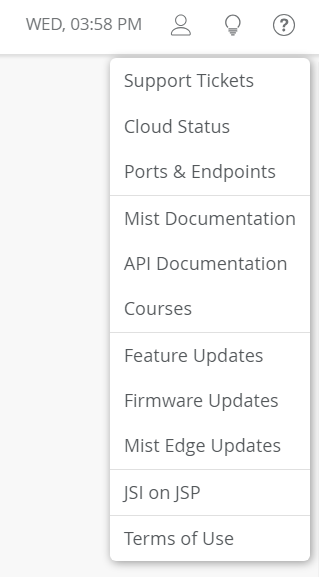
  1. 单击 Juniper Mist 门户右上角的 (问号)图标。
  2. 从下拉菜单中选择支持工单
    Dropdown menu with options for support tickets, cloud status, documentation, courses, updates, and terms of use.
  3. 单击“支持工单”页面右上角的“创建工单”。
    Support ticket interface with header Support Tickets and dropdown This Month. Prompt to check Mist documentation with link. Table headers include Ticket Number, Ticket Type, Ticket Summary, Created, Last Update, Requested By, Status. Create a Ticket button on the right.
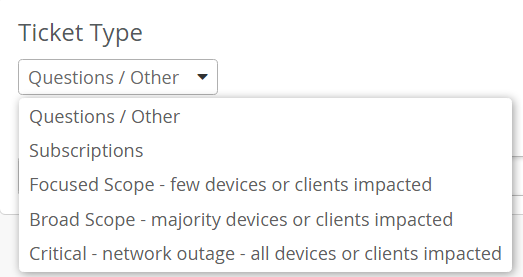
  4. 根据问题的严重程度选择适当的工单类型。
    Dropdown menu labeled Ticket Type with options for categorizing issues: Questions or Other, Subscriptions, Focused Scope, Broad Scope, Critical.
    注意:

    选择 “问题/其他” 将打开一个搜索框,并将您重定向到与您的问题相关的可用文档和资源。如果无法使用建议的资源解决问题,请单击 “我仍需要创建工单”。
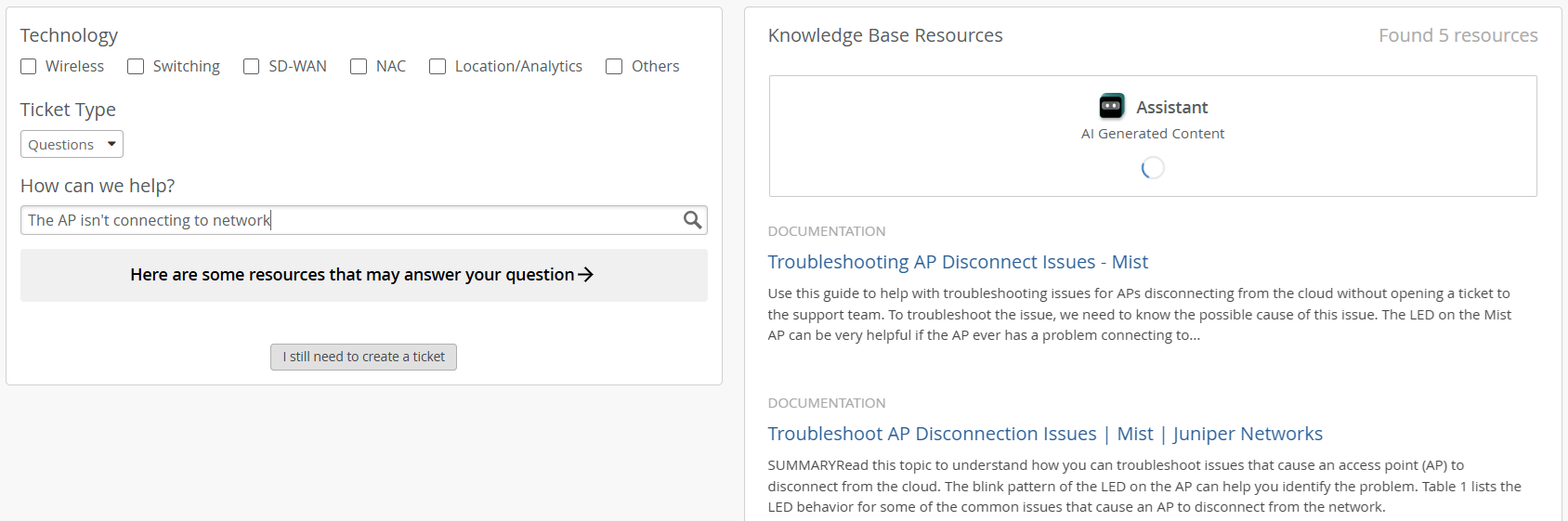
    Support ticket interface for network issues with technology checkboxes, a Ticket Type dropdown, Issue Description field, suggested resources, knowledge base links, AI assistant, and Create Ticket button.
  5. 输入工单摘要,然后选择受影响的站点、设备或客户端。

    如果您要请求 RMA,请选择受影响的设备。
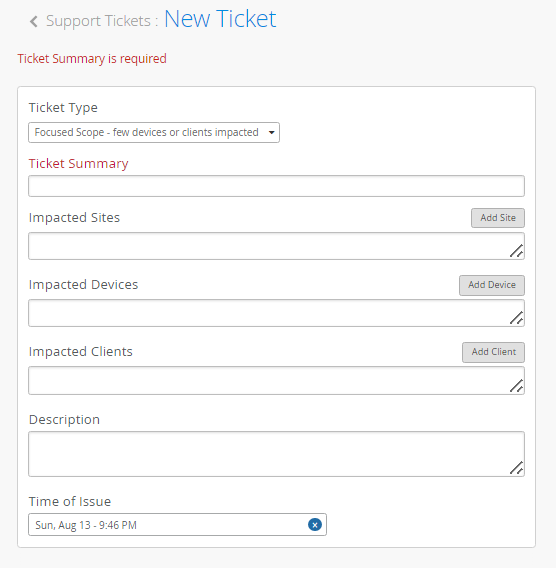
    New Ticket form with fields for Ticket Type Focused Scope selected, required Ticket Summary, Impacted Sites, Devices, Clients, Issue Description, and Time of Issue set to Sun, Aug 13 - 9:46 PM. Red warning: Ticket Summary is required.
  6. 输入说明以详细说明问题。

    提供以下信息:

    • 设备的 MAC 地址

    • 设备上看到的确切 LED 闪烁模式

    • 系统从设备记录

    注意:

    要共享设备日志:

    1. 导航到 Juniper Mist 门户中的 接入点 页面。单击受影响的设备。

    2. 在设备页面右上角选择 “公用事业>“将接入点日志发送给Mist ”。

    发送日志至少需要 30 秒到 1 分钟。请勿在该时间间隔内重新启动设备。

  7. (可选)您可以提供可能有助于解决问题的任何其他信息,例如:
    • 设备在连接的交换机上是否可见?

    • 设备是否从交换机获得电源?

    • 设备是否接收 IP 地址?

    • 设备是否在网络的第 3 层 (L3) 网关上执行 ping 命令?

    • 您是否已按照任何故障排除步骤作?

  8. 点击提交