
Configurar notificações por push para o Engajamento do usuário
Depois de habilitar os beacons virtuais, adicione as mensagens para suas notificações push e ajuste as configurações de energia para obter o impacto ideal.
Ao desenvolver aplicativos com o Juniper Mist SDK (Software Development Kit), você pode incluir notificações. Por exemplo, você pode exibir uma saudação quando um usuário entra em seu prédio. É possível exibir uma oferta especial quando um cliente se aproxima de uma exibição de vendas.
Para configurar essas notificações, adicione beacons virtuais à sua planta baixa. Como os beacons são virtuais, você pode adicionar quantos deles precisar. Para cada um, especifique a mensagem ou página da Web a ser exibida e defina a área de cobertura. Quando o usuário do aplicativo móvel entra na área de cobertura do beacon virtual, conforme mostrado em rosa abaixo, a mensagem ou página da web especificada aparece no aplicativo.
Visão geral do vídeo
Now what are these virtual beacons? These virtual beacons what you see here, essentially, is a point on the floor plan that enables you to configure interactive experiences. This could be augmented reality, where you could look around different locations and see different things pop up, or it will literally be an indoor push notification as you walk in that area first for you, again, based on whether or not you identify it in the system.
So and this is again that process pattern we got that I talked about earlier thanks to Bob. When instead of having to deploy hundreds of battery beacons to trigger push notifications or to enable wayfinding, all you're doing here is you're deploying your Wi-Fi access point deployed with the Mist virtual beacon directional antenna array. And just for that, you visualize your entire floorplan. Now you can create these points of interest, these points of experience. All you do is go into the Mist portal add a virtual beacon, drag and drop this virtual beacon anywhere on the floor plan where you have the coverage and trigger a push notification.
We have a built in very basic CRM to show the are the possible? But for example, imagine an an all hands event or a speaker sessi on in a public venue where you can now trigger a push notification indoors. We're all familiar with GPS based notifications when we are driving by a highway to get Ad for thing as we're passing by. Similar experiences can now be enabled indoors leveraging the Bluetooth network that is being transmitted by the Mist access point and the SDK interacting with that network leveraging machine learning in the cloud.
So just very quickly here, we put nothing physical out there on that floor plan. At that point of interest, all we did was create a virtual beacon, tie it to a particular campaign or particular message. As a mobile app user company of this area, they will automatically see that information that might show up on the lock screen, and that could be any contextual method you choose. So, again, from management perspective, from a different perspective, all those concerns go away. They get mitigated. Nothing's particular except for the network in the ceiling, create as many interactive experiences as you want, leveraging virtual beacons, no limit on the number of virtual beacons we can be can deploy. All you want to look at is what is the experience you want to enable.
Antes de começar
Adicione beacons virtuais à planta baixa. Consulte Adicionar beacons virtuais a uma planta baixa.
Para configurar notificações por push:
- Certifique-se de que a planta baixa esteja mostrando os beacons virtuais e suas áreas de cobertura:
- Clique no botão Configurações (próximo ao canto superior direito da página).

- Na janela pop-up, marque as caixas de seleção para Mostrar Beacons Virtuais e Mostrar Cobertura de Beacons Virtuais.
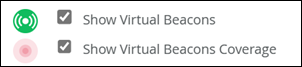
- Clique no botão Configurações (próximo ao canto superior direito da página).
- Configure as notificações para cada beacon virtual:
- Insira a mensagem ou URL que você deseja exibir em seu aplicativo quando os usuários entrarem na área de cobertura desse beacon virtual.
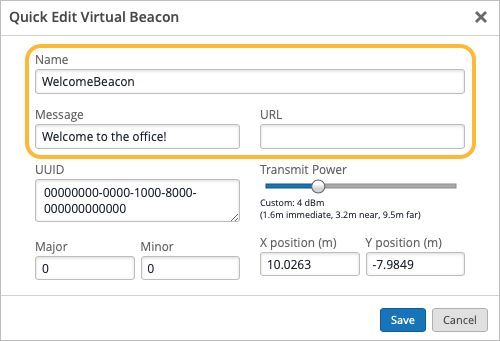
- Insira a mensagem ou URL que você deseja exibir em seu aplicativo quando os usuários entrarem na área de cobertura desse beacon virtual.
- Teste seu aplicativo para garantir que as notificações apareçam quando esperado. Se necessário, ajuste a área de cobertura do beacon virtual.
Um círculo rosa representa a área de cobertura de um beacon virtual.
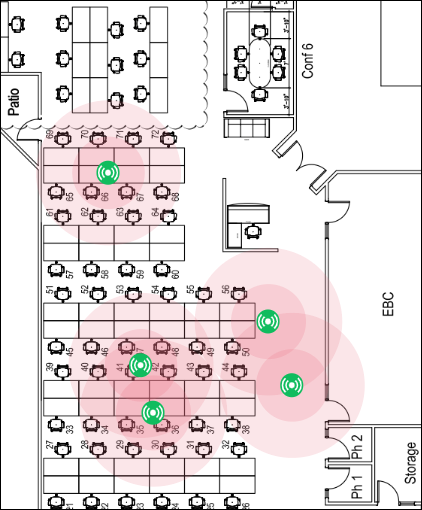
Para ajustar a área de cobertura:
- Ajuste a potência de transmissão para aumentar ou diminuir a área de cobertura.
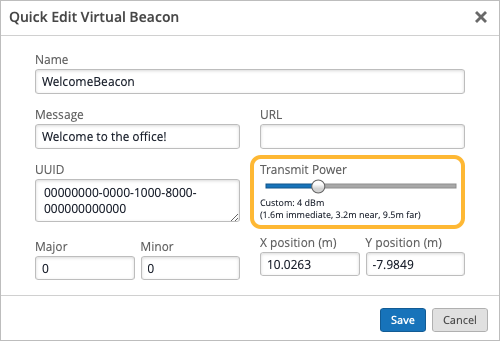
-
Se a área rosa no mapa for menor do que a área de cobertura desejada, arraste o controle Transmit Power para a direita. Depois de salvar as configurações, os círculos rosa se alargarão.
-
Se a área rosa for muito grande, arraste a potência de transmissão para a esquerda. Depois de salvar as configurações, os círculos rosa ficarão mais estreitos.
-
- Ajuste a potência de transmissão para aumentar ou diminuir a área de cobertura.